
If you are using Windows 11, you should have seen messages pop up saying “Windows protected your PC” or alerts when trying to open some applications or websites. This is once again Microsoft Defender SmartScreen in action. It is intended to protect your PC by blocking dangerous content.
It however can sometimes be just a little too protective. Or perhaps you just trust the app or website, or are working in a controlled environment without such warnings. If they are, you can enter SmartScreen settings and disable it (temporarily) before trying again. But if it is off and you really want more security, simply turning it back on is also easy.
What Is Microsoft Defender SmartScreen?
Microsoft Defender in Windows is a built-in security feature provided by Microsoft that helps protect your PC from viruses, malware, and also ransomware. It also includes Microsoft Defender SmartScreen which helps protect you from fraud or phishing with malicious sites and potentially dangerous file downloads. Obviously, it checks the site and download reputation and warns if anything going to be suspicious.
Benefits of keeping Microsoft Defender SmartScreen enabled
It gives phishing protection as well as download, and web page checks. It runs quietly in the background, only notifying you when it suspects an actual threat. It makes the user experience smoother, users can safely navigate without slowing down or receiving too many alerts.
When should you disable it?
- You are attempting to launch a safe application that is being blocked by Windows.
- When you test your own app or site.
- You need to have unnecessary control of the security measures using manual hands rather than automated.
Please note that turning off Microsoft DefenderSmartScreen weaken the security of your PC. Just remember to turn it on when your task is done.
Method 1: How to Enable Microsoft Defender SmartScreen
If you’ve turned MicrosoftDefenderSmartScreen off before and now want to switch it back on, here’s exactly what to do:
1. Open Windows Security
- Click the Start button or press the Windows key
- Type Windows Security, and open the app from the search results

2. Go to App & browser control
- Once the app opens, look at the left sidebar
- Click App & browser control

3. Click on Reputation-based protection settings
- Under “Reputation-based protection,” click the link that says
- Reputation-based protection settings

4. Turn SmartScreen ON
You’ll see three switches here:
- Check apps and files
- SmartScreen for Microsoft Edge
- SmartScreen for Microsoft Store apps
Turn all three switches to the on position.

That’s it! Make sure you have Microsoft Defender SmartScreen turned on which will protect your computer while browsing the web or installing new software.
Steps to Turn off Microsoft Defender SmartScreen
Well then, if you trust what you’re installing (or loading within your browser) and do not want Windows to block it. Here’s your guide to disabling MicrosoftDefenderSmartScreen, if it is hindering with your activities.
1. Go to Windows Security
- Go to Start Menu, type Windows Security and open it
2. Click on App & browser control
- From the menu on the left, choose App & browser control
3. Open Reputation-based protection settings
- Under the section that mentions Reputation-based protection, click the link that saysReputation-based protection settings
4. Turn SmartScreen OFF
Now toggle OFF the same three options:
- Check apps and files
- SmartScreen for Microsoft Edge
- SmartScreen for Microsoft Store apps
You will either be warned or asked to verify your behaviour. Just go ahead and accept it.
Reminder: Disabling SmartScreen reduces your PC’s protection. Only use apps or websites that you know are secure.
Method 2: Managing Microsoft Defender SmartScreen through Group Policy Editor (for Pro Users)
Windows 11 Pro and Enterprise users can control SmartScreen using the Group Policy Editor.
Steps:
Open run command using Windows + R, type gpedit. msc, and press Enter.

Navigate to Computer Configuration → Administrative Templates → Windows Components → File Explorer
Find Configure Windows Defender SmartScreen on the right.

Double-click it, and choose:
Enabled – to turn it ON
Disabled – to turn it OFF
Click Apply, then OK
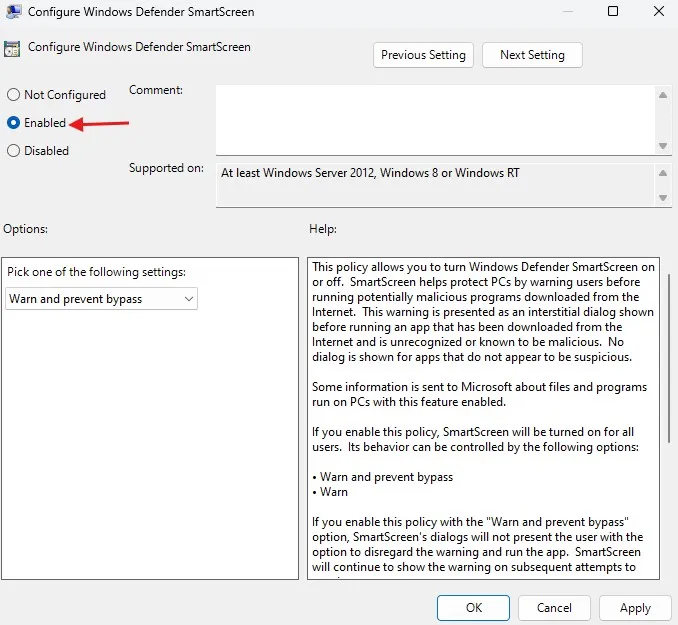
But if you’re on the Home Edition, you’ll need to enable gpedit.msc first. Follow this guide to enable Group Policy Editor in Windows 10/11 Home Edition.
Final Words
Microsoft Defender SmartScreen is an important security component in Windows 11 that helps protect users from malicious websites, downloads, and applications. From enabling this protect feature using Windows Settings, turn it off for a particular reason or use Group Policy to control the entire organization, they are available to customize SmartScreen protection on your preference in Windows 11.
This is worth mentioning, however, as although it will probably be seldom that you need to disable SmartScreen many times or even at all for that matter, keeping it enabled has become an important security measure. Remember to weigh the security implications whenever you do this; if you are part of an organization, check with your IT department before you make any changes.
Frequently Asked Question (FAQ)
What is Microsoft Defender SmartScreen in Windows 11?
Microsoft Defender SmartScreen in Windows 11 is a built-in security feature that helps protect your PC from unsafe apps, websites, and downloads by showing warnings before you open them.
How do I turn on Microsoft Defender SmartScreen in Windows 11?
To turn on Microsoft Defender SmartScreen in Windows 11, open Windows Security → go to App & browser control → click on Reputation-based protection settings, and turn on all the switches.
Can I safely disable Microsoft Defender SmartScreen in Windows 11?
Yes, you can disable Microsoft Defender SmartScreen in Windows 11, but only do it if you’re sure the apps or websites you’re using are safe.
Why is Microsoft Defender SmartScreen blocking my app in Windows 11?
SmartScreen in Windows 11 blocks apps that it doesn’t recognize or that haven’t been verified. Even if an app is safe, it might still get flagged if it’s new or uncommon.
Does Microsoft Defender SmartScreen slow down Windows 11?
Not really. Microsoft Defender SmartScreen in Windows 11 runs in the background and uses very few resources. It keeps you safe without affecting your PC’s speed much.