
A Windows update can sometimes do worse than good. Windows is unable to boot, it gets stuck on the Windows logo, keep restarting or will not start after an update? Then you can try uninstall windows update when windows won’t boot normally. The good news is that the Windows has its own inbuilt recovery feature for this.
In this guide, I’ll show you how to remove the recent update using Windows Recovery Environment, even when you can’t get to the Windows desktop.
Why Would You Need to Uninstall a Windows Update?
Most Windows updates happen without issues, but sometimes all goes wrong. An update, later on, might be conflicting with a driver or software or any other component of the system.
This could happen right after an update is installed. While there are many ways in which Windows could get hung up during a boot, it may hang on startup, go into a blue screen or crashloop or black screen.
If you can still get to the desktop, rolling back the update is relatively simple from windows Settings. However, if Windows is not starting at all then you’ll have to resort to the Windows Recovery Environment, or ‘WinRE’ for short.
The recovery environment includes various additional tools for troubleshooting startup issues, including the option to remove recently downloaded Windows updates.
How to Uninstall Windows Update When Windows Won’t Boot
Before starting, make sure your computer is connected to power, especially if you’re using a laptop. You don’t want the system to shut down halfway through the recovery process.
The first thing we need to do is get into Windows Recovery Environment.
Step 1: Enter Windows Recovery Environment
If Windows cannot start normally, turn on your PC and wait until you see the Windows logo or the spinning loading circle.
Now press and hold the power button until the computer turns off.
Turn the computer on again and repeat the same process if Windows starts trying to boot again.
After a few interrupted startup attempts, Windows should automatically enter the Automatic Repair screen.
You may see a message saying: Preparing Automatic Repair
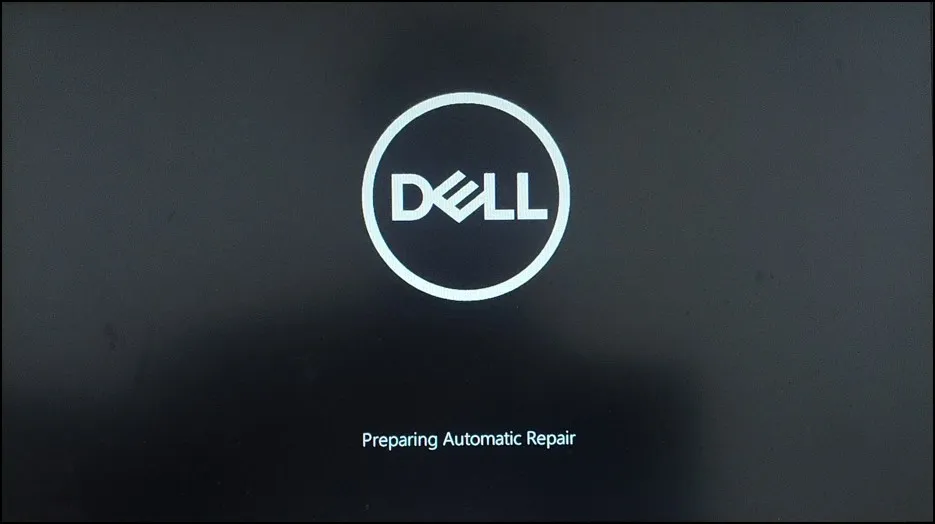
Give it a little time. Windows should eventually take you to the recovery screen.
Tip: Don’t keep forcing the PC to shut down repeatedly if Windows has already entered Automatic Repair. Let the recovery process finish first.
Step 2: Open Advanced Options
You should now see the Choose an option screen.
From here, select: Troubleshoot
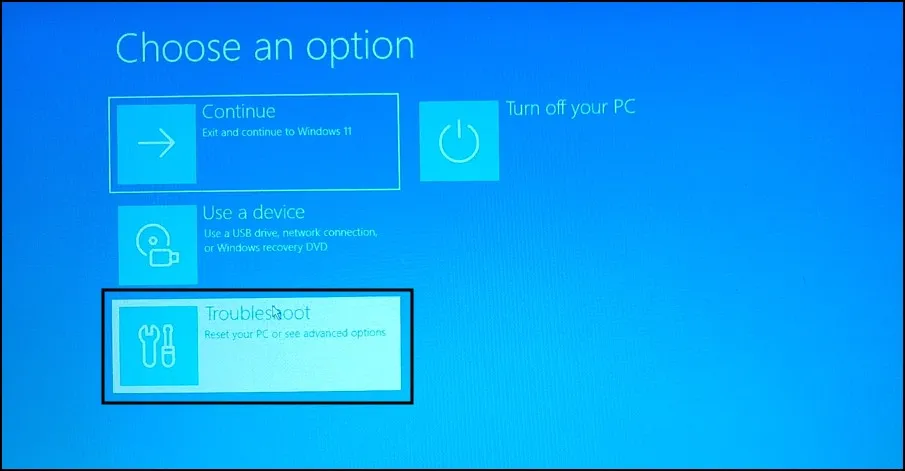
Then select: Advanced options

This is where Windows keeps its recovery tools.
Step 3: Select Uninstall Updates
In the Advanced options screen, look for Uninstall Updates and click it.
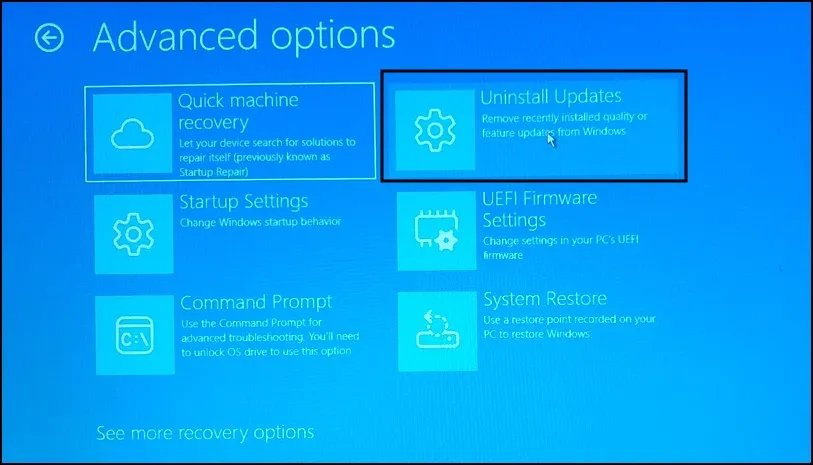
Windows will then give you options for removing recent updates. Depending on your Windows installation, you may see options such as:
- Uninstall latest quality update
- Uninstall latest feature update
If the problem started immediately after a normal monthly Windows update, the latest quality update is usually the first option to try.
Quality updates are the regular Windows updates that Microsoft releases to fix security problems, bugs, and other issues.
Select Uninstall latest quality update.

In the Uninstall latest quality update screen, select Uninstall quality update.
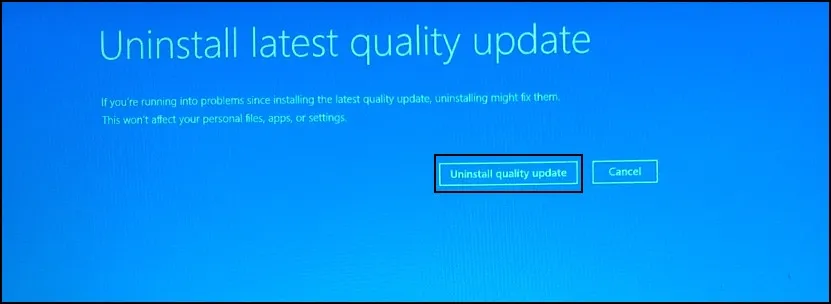
Windows will then try to remove the most recent quality update from your installation. The process may take a few minutes. Don’t turn off the computer while Windows is working.
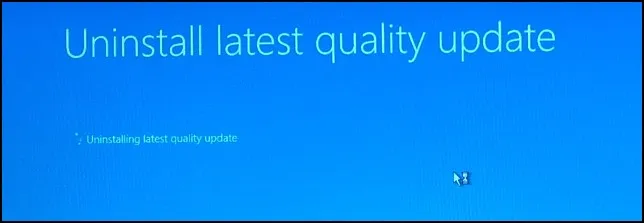
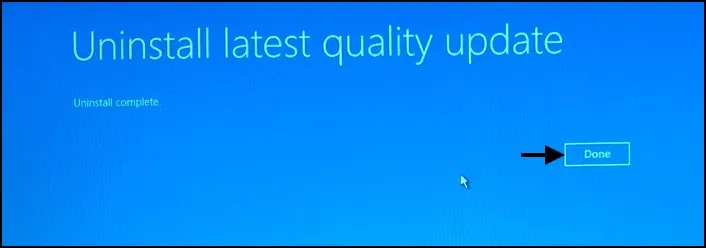
When it finishes, you’ll usually get a screen showing uninstall complete, just click on Done.
Then again, you should see the Choose an option screen, and from here choose Continue: Exit and continue to windows 11.
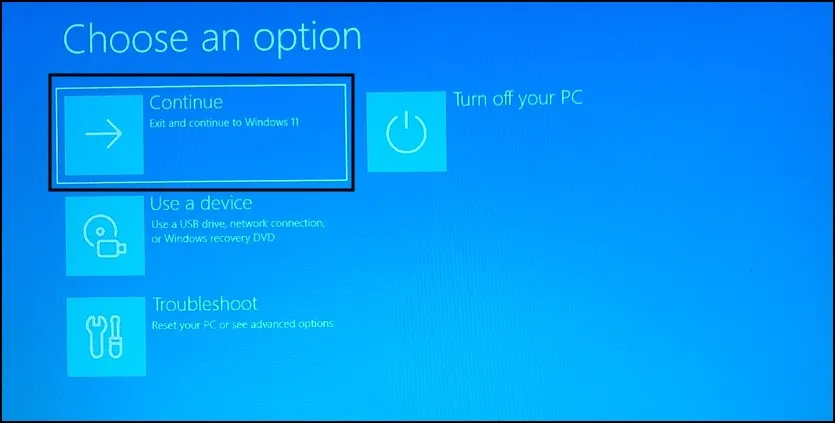
Windows should now attempt to start normally.
What If Windows Still Won’t Boot?
If removing the latest quality update doesn’t solve the problem, don’t panic.
You can return to Windows Recovery Environment and try the other available update option.
Go to:
Troubleshoot → Advanced options → Uninstall Updates
This time, if the option is available, select Uninstall latest feature update.
Feature updates are much larger Windows updates that introduce new features and changes to the operating system.
If the boot problem was caused by a recent feature update, removing it may allow Windows to start normally again.
Keep in mind that the available options can depend on your Windows installation and the updates that are currently installed.
What If the Uninstall Updates Option Doesn’t Fix the Problem?
Uninstalling the latest update will not resolve all startup issues. The update could be irrelevant, or Windows might have a different issue that prevents it from booting.
If the PC still fails to boot, return to Troubleshoot → Advanced options and explore some of the other recovery options.
You can try Startup Repair if Windows is struggling to start.
In case you have an appropriate restore point already, then System Restore can also be used. This lets you restore Windows to an earlier function state without re-installing the complete working system.
If you recently installed a driver or changed another system setting, those recovery options may be more useful than removing the update again.
Final Thoughts
If your PC suddenly stops booting after a Windows update, you don’t necessarily need to reinstall Windows. Many times, uninstall Windows update when Windows won’t boot is enough to make the system run again.
This is fairly simple to do with the built-in Windows Recovery Environment. The latest quality update is the date that you should begin with, restart and check whether Windows starts normally.
Also Read: How to Fix Windows 11 Restarting Instead of Shutting Down
Frequently Asked Questions
Can I uninstall a Windows update if Windows won’t start?
Yes. You can use Windows Recovery Environment to remove a recent quality or feature update without entering the Windows desktop.
How do I uninstall Windows update from recovery mode?
Go to Troubleshoot → Advanced options → Uninstall Updates, then choose the appropriate update removal option.
Which update should I uninstall first?
If the problem started after a recent regular Windows update, try Uninstall latest quality update first.
Will uninstalling a Windows update delete my personal files?
Normally, uninstalling a Windows update does not delete your personal files. However, keeping a backup of important files is always recommended.
What if Windows Recovery Environment doesn’t appear?
You can use Windows installation media to access recovery tools. Boot from the installation USB and choose Repair your computer instead of installing Windows.