
How many times have you ever wonder exactly when and how your computer was turn on, power off or log in out? Perhaps you suspect your PC is a bit sluggish, or it crashes too often, or maybe you just don’t have any idea how many times it starts and stops.
Whatever the case for you, Windows provides you with detailed logs showing the startup and shutdown time of your computer—you just need to know where to look.
In this guide, I’ll show you simple ways to check startup and shutdown history using built-in Windows tools.
Why to Check Startup and Shutdown History in Windows
Before we get to the how-to, it’s worth knowing why you may want to check this history.
- You can find out if your PC is shutting down suddenly.
- You can check if someone else used your computer.
- You can verify startup times and diagnose slow boot issues.
- You can identify unexpected restarts caused by Windows updates.
- You can track if your PC actually shut down or just went into sleep mode.
Just like a “diary” of your PC’s activity, Windows keeps a log of everything that happens behind the scenes.
Method 1 – Check Startup and Shutdown History in Windows Using Event Viewer
The Event Viewer, the main tool in Windows that records every little detail of your system.
Opening up Event Viewer is a great way to do this, and there’s more than one way to get there all of which work equally well: Hit the windows key on your keyboard then type event viewer, pressing enter to launch it. Another way to do is press the Windows Key + R to bring up the Run box, then type eventvwr.msc and click OK. The Event Viewer window should open, and you’ll see even more logs. These are created every time that something happens on your computer that is worthy of a notification or a warning message.
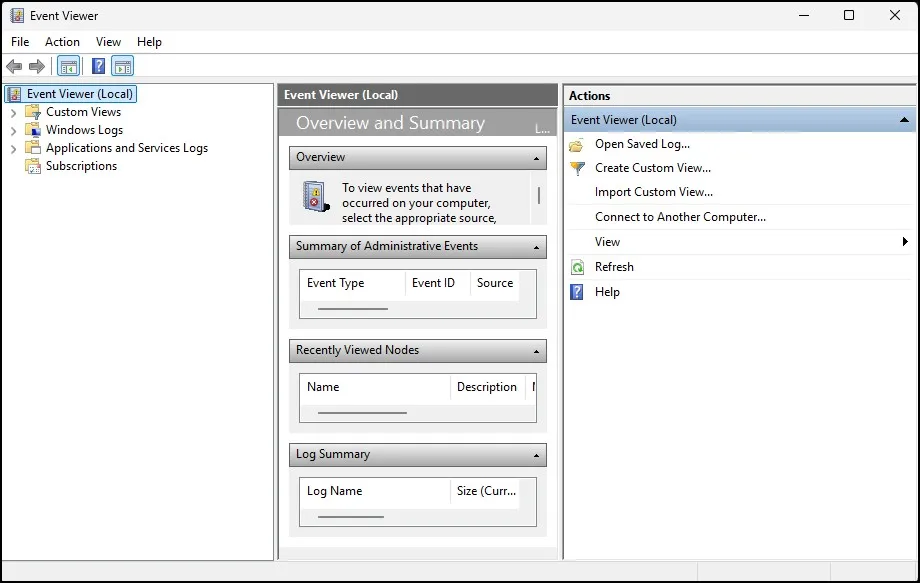
If you want to explore Event Viewer more deeply, feel free to check out my previous post: What is Windows Event Viewer and How to Use It? It covers the basics, different event categories, and how you can use it to monitor system health.
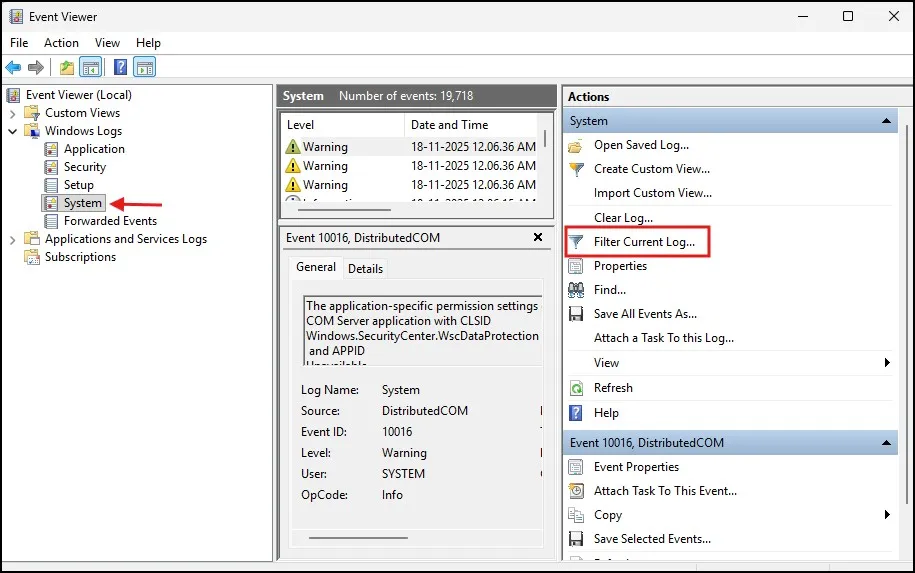
Once Event Viewer is open, on the left hand side navigate to Windows Logs and click on System. Now all the hundreds and hundreds of logs, but we don’t want all of these. To display only the Startup Events, click Filter Current Log in right hand pane.
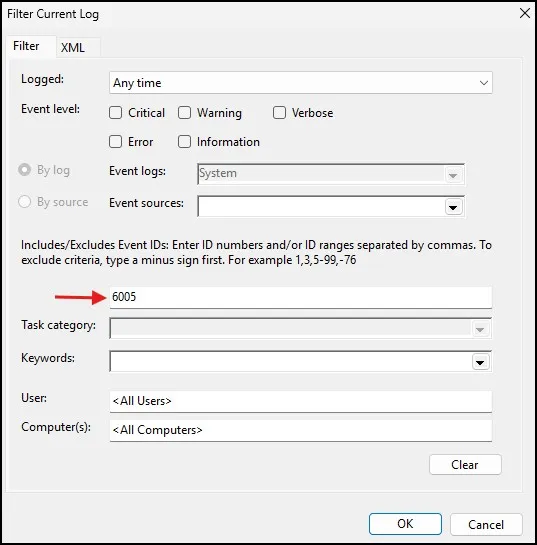
And in Event ID Box type 6005 and press OK.
Event ID 6005 – This event is triggered when the Event Log service is started (or during a system startup), which simply means your system had just been powered on. Now you can see a nice list of startup times.
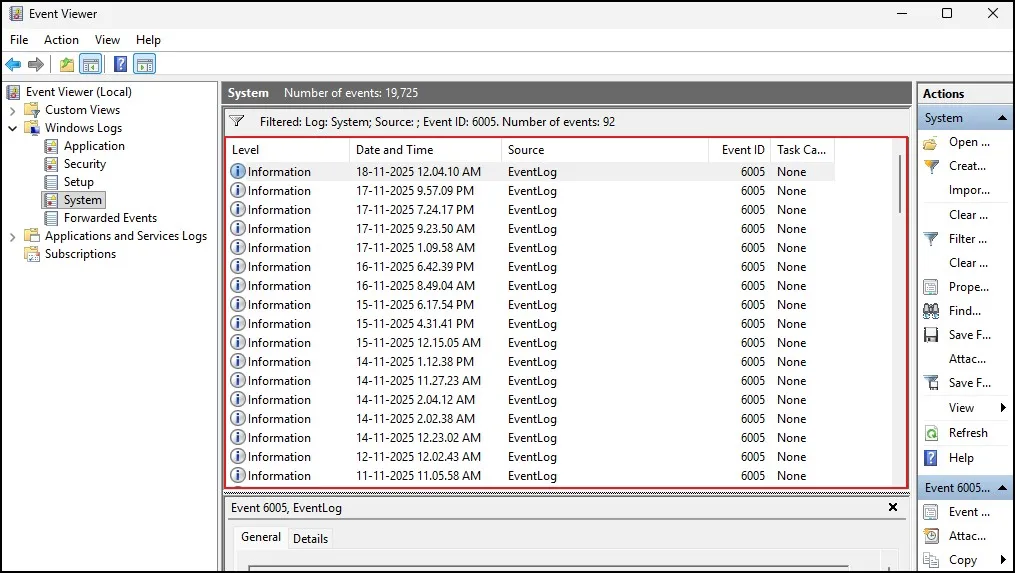
To look up shutdown history, click Filter Current Log again and type 6006 instead.
Event ID 6006: “The event log service was stopped”— This is synonymous to having the event log service stop; at this point your system is off.
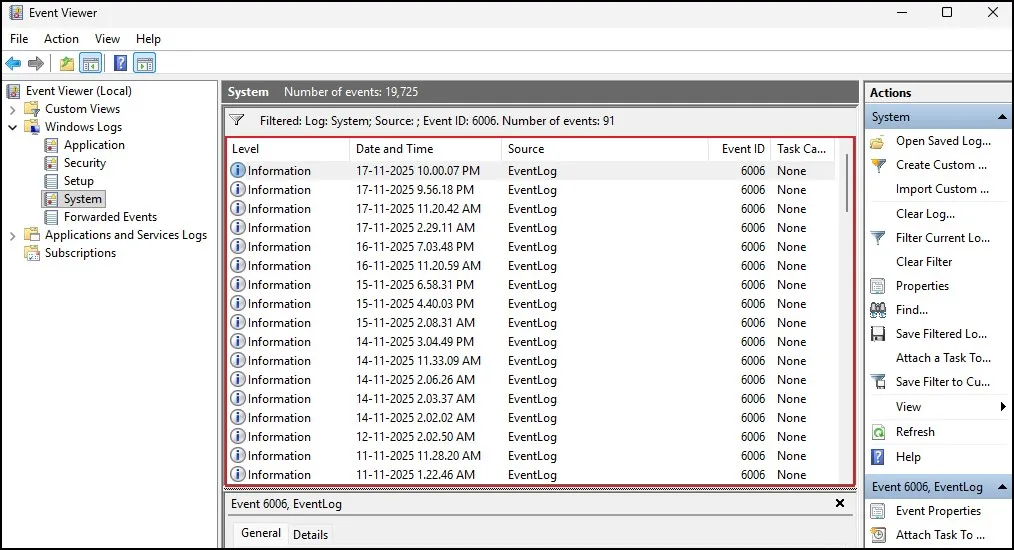
If you’re monitoring to see if your PC is shutting down unexpectedly, consider checking for Event ID 6008 (which shows unexpected shutdowns) or Event ID 41 (a Kernel Power error message that’s frequently associated with crashes or forced shutdowns).
This provides the most detailed information to find the source of a problem
Method 2 – Find Startup and Shutdown History Using Command Prompt
If you’d rather use the Command Prompt, there’s an easy way to see your recent shutdown history.
To use it, open the Start menu and search for CMD, then launch it as an administrator. And when that Command Prompt window pops up, all you do is paste a tiny command that lists out shutdown events. For example, typing:
wevtutilqe System /q:"*[System[(EventID=6006)]]" /f:text /c:5
will instantly show the last five shutdown events in plain text.
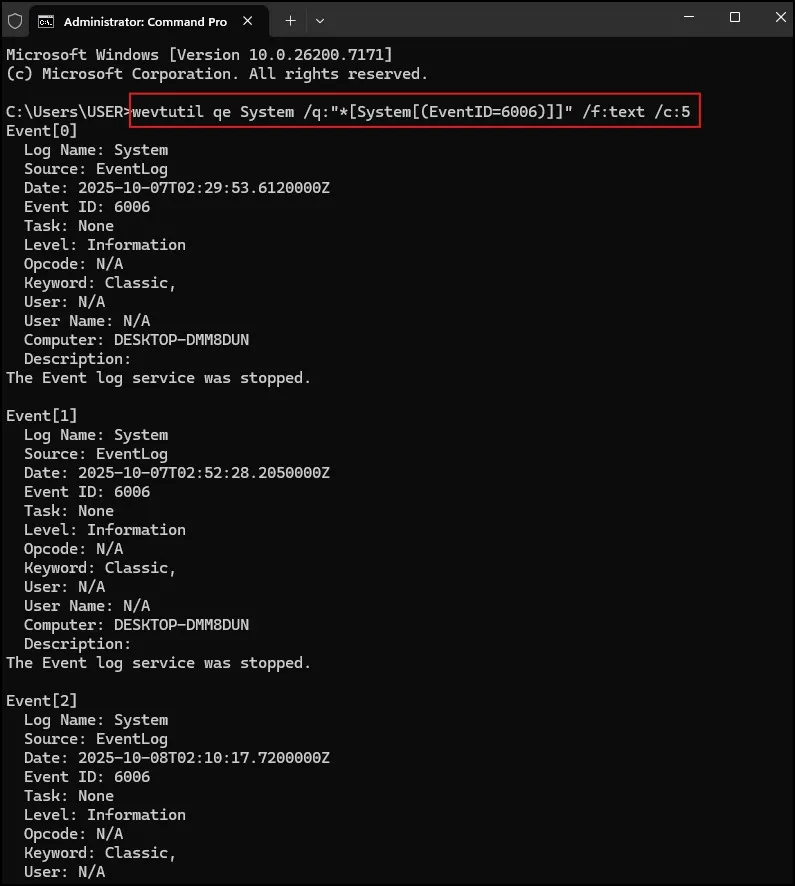
If you want to check startup times instead, run the similar command that replaces the event ID with 6005. This method is fast and neat and perfect for those who don’t want to scroll through Event Viewer.
Method 3 – Check Startup and Shutdown History in Windows Using PowerShell
PowerShell is more complex, however the process is simple. To start off, just look up PowerShell in your Start menu and run it as administrator. Once the PowerShell window comes up, type a harmless command like:Get-WinEvent -FilterHashtable@{LogName="System"; Id=12} | Select-Object -First 10 TimeCreated
It will view the last ten startup events. PowerShell will display the results in clean rows.
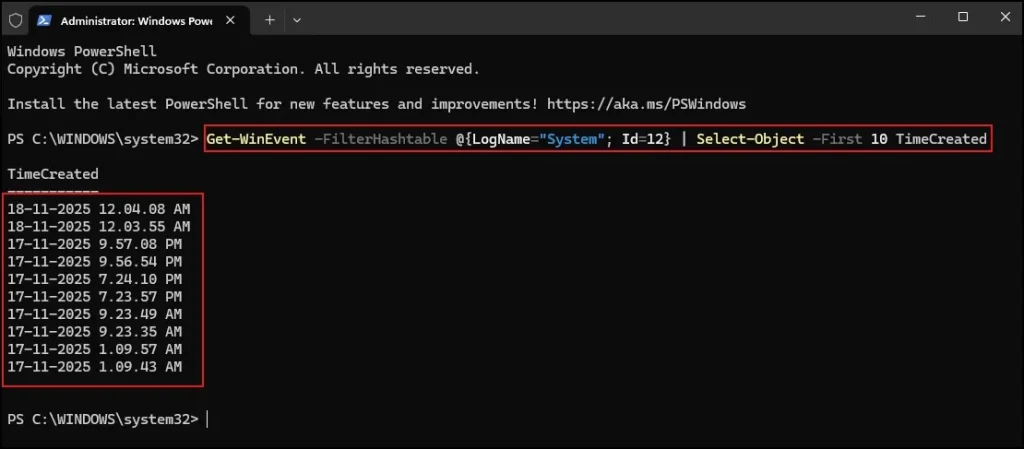
To check shutdown events, you can use the same command but with the event ID changed to 6006. PowerShell is incredibly fast at filtering system logs, so it’s a good option if you like efficiency.
Method 4 – Check Your Last Startup Time Using Task Manager
If you simply want to see how long your PC has been running without having to dig through detailed logs, Task Manager has you covered. To do this, open the Task Manager by pressing Ctrl + Shift + Esc and navigate to the Performance tab. On this screen, near the bottom, you’ll see something called Up Time. That tells you how long since you last rebooted.
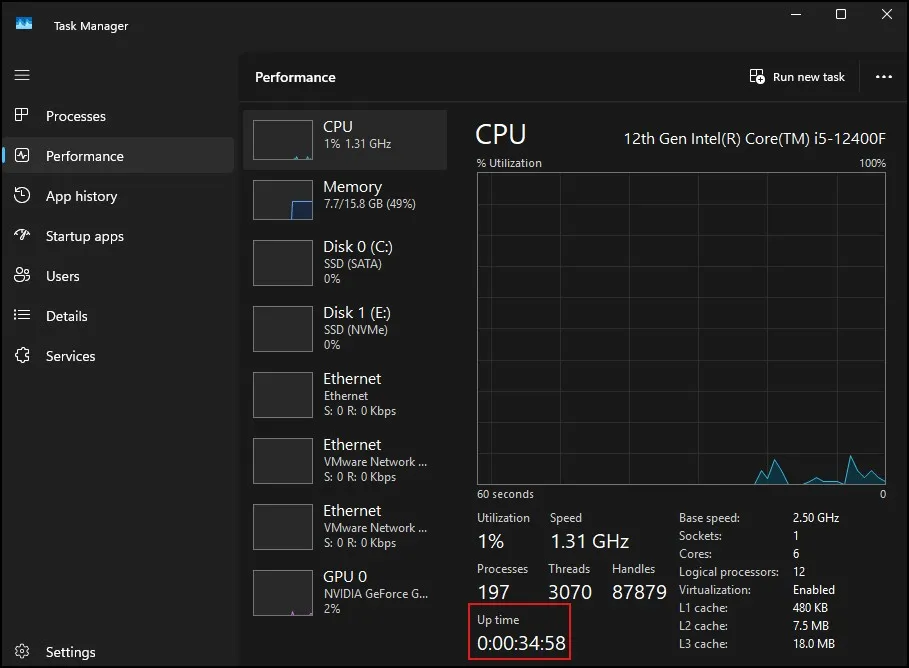
While it does not have precise startup or shut-down times, your last startup time can be inferred by subtracting its uptime from the current time. It’s a small hack, but it can add up if you’re in a rush.
Method 5 – View Shutdown and Crash History with Reliability Monitor
Another more obscure way to view still relatively recent shutdown activity is the Reliability monitor.
Reliability Monitor is an under-the-hood feature of Windows that packs a neat and visual way to check the system stability. To open it, simply type “Reliability Monitor” into your Start menu and click on “View reliability history.” When it loads in, you should see a chart that depicts all the errors, warnings, crashes and shutdowns on a day by day timeline.
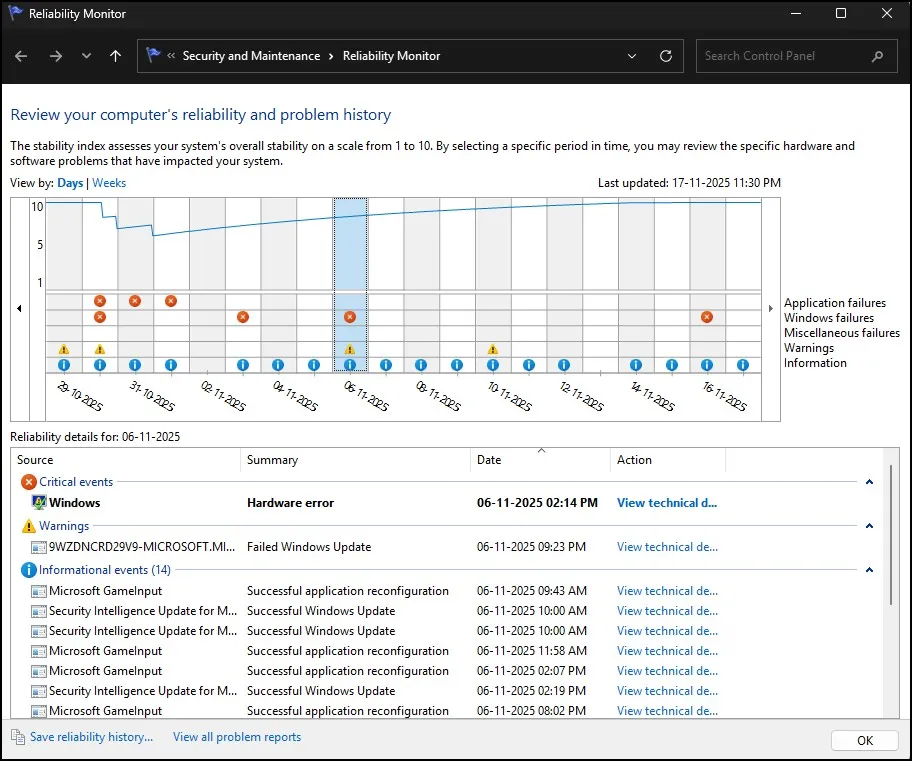
This tool is particularly useful for finding patterns. If you see a few red X symbols, it indicates your system experienced errors or unexpected power losses. You can click on any entry and receive more detailed explanations for what went wrong. This way you can get a perfect picture without having to read long event logs.
Conclusion
Checking startup and shutdown history in Windows is one way to take control of your PC. Whether you want to diagnose a problem early, keep tabs on how much of your computer’s resources your applications and services consume or troubleshoot slow-booting PCs, these nifty utilities make it easy to see what’s really going on under the hood.
Frequently Asked Questions (FAQ)
Can I really view every startup and shutdown event?
Yes, Windows records every startup, shutdown, restart, and unexpected shutdown.
What if no logs appear?
It usually means logs were cleared or the system was recently reset.
Can I check when my PC woke from sleep?
Yes, Event Viewer also records sleep and wake events.
Do these methods work in both Windows 10 and Windows 11?
Yes, all methods work on both versions.
How can I check unexpected shutdown errors?
Look for Event ID 6008 in Event Viewer.