
If you’re still using Windows 10 in 2025, you may find a notice that says:
“Windows 10 support ended on October 14, 2025.”
Even today, a huge number of people continue using Windows 10. Some simply feel comfortable with it and don’t want to switch to something new right away.
To help users who want more time, Microsoft introduced the Extended Security Updates (ESU) program. With ESU enabled, Windows 10 can continue receiving essential security patches for free until October 13, 2026.
In this post I will explain what ESU is and how to enroll, and if “Enroll Now” does not appear on your Windows 10 environment, I will explain a simple Registry Editor tried and true method to manually enable ESU for systems that do not have the option.
What Are Windows 10 Extended Security Updates (ESU)?
Even though Windows 10 has reached its official end of support, Microsoft understands that millions of users still rely on it.
So instead of forcing everyone to upgrade immediately, Microsoft has introduced Extended Security Updates, commonly known as ESU.
ESU gives you:
- Security patches
- Critical vulnerability fixes
- System protection updates
- Up to October 13, 2026
This means you can continue using Windows 10 safely without rushing to Windows 11.
Who Is ESU For?
- Users whose PCs cannot run Windows 11
- Users who prefer the Windows 10 interface
- Businesses that need more time to transition
- Home users who want to keep their systems secure
And the best part — Microsoft made the first year of ESU completely free.
How to Enroll in Windows 10 ESU (Official Method)
If your Windows 10 computer is fully updated, you should automatically see a message in Windows Update that says:
“Windows 10 support has ended. You can extend support for one more year.”
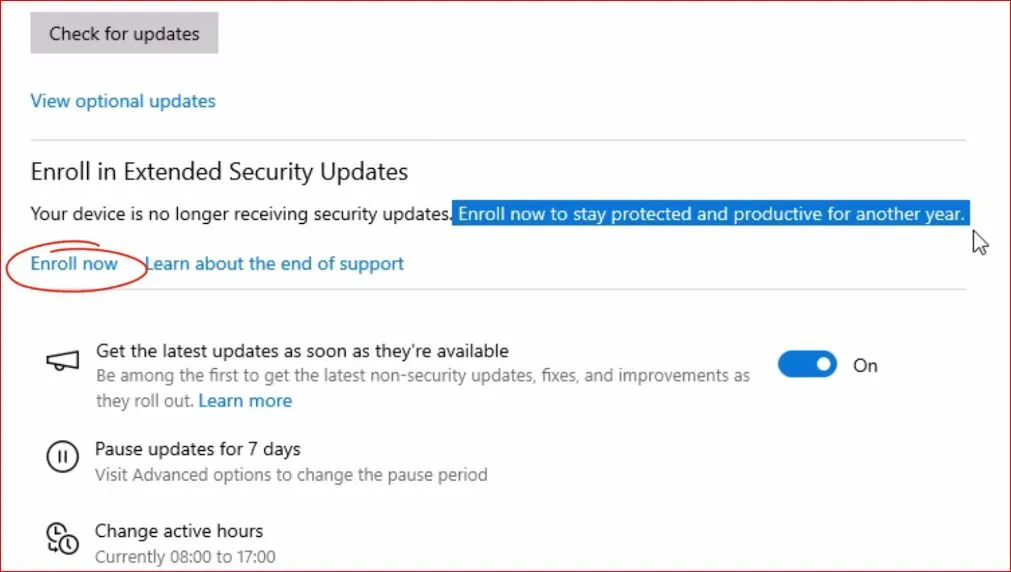
Along with this, you’ll see an “Enroll now” button.
Here’s how to enroll:
Step 1: Open Windows Update
Go to:
Settings → Update & Security → Windows Update
Step 2: Look for the ESU Offer
You should see: Extended Security Updates → Enroll now
Step 3: Sign in With Your Microsoft Account
Microsoft requires a sign-in for verification. If you don’t have an account, create one — it will be free and will take just a few minutes.
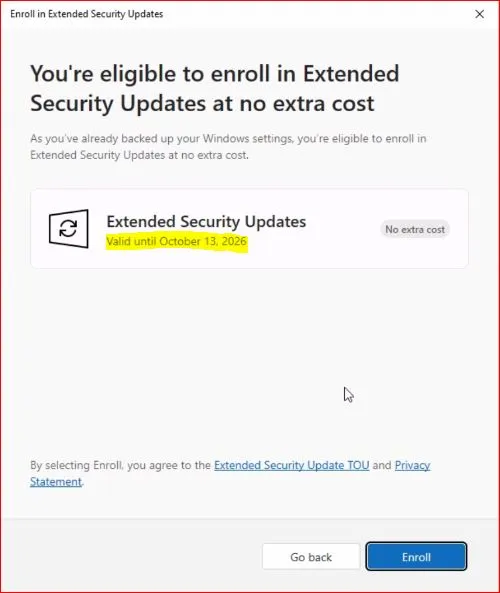
Step 4: Confirm Enrollment
You will see a message that will read:
“You’re eligible to receive Extended Security Updates at no extra cost.”
Click Enroll, and within seconds your PC will be added to the ESU program.
Onceyou are enrolled, you should see:
“This device will receive Extended Security Updates through October 13, 2026.”
That’s it — your Windows 10 is now officially protected.
But What If the “Enroll Now” Button Is Missing?
Even though your system is fully updated, a lot of users don’t have the ESU option.
This is a known issue, and in a lot of cases it’s due to a registry entry missing.Fortunately — you can resolve this easily.
If you prefer watching instead of reading, here’s my full step-by-step YouTube guide on How to Get FREE Windows 10 Extended Support (ESU 2025 Setup)
How to Enable ESU Manually Using Registry Editor (Fully Tested)
This method forces Windows 10 to recognize that your PC is eligible for ESU.
Note: Before you make any changes in the Registry Editor, it’s a good idea to create a backup of your system. This ensures that if something goes wrong, you can easily roll everything back to a safe state.
To do this, just search for “Create a restore point” in the Start menu, open it, and click Create. Give the restore point a name, save it, and you’re all set.
Step 1: Open Registry Editor
- Press Windows + R on keyboard, then type regedit and click on OK.
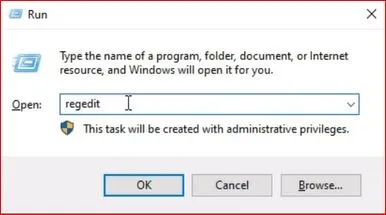
- Click Yes on UAC prompt
Step 2: Navigate to This Path
You can copy and paste this into the Registry Editor Address bar:
HKEY_CURRENT_USER\Software\Microsoft\Windows NT\CurrentVersion\Windows 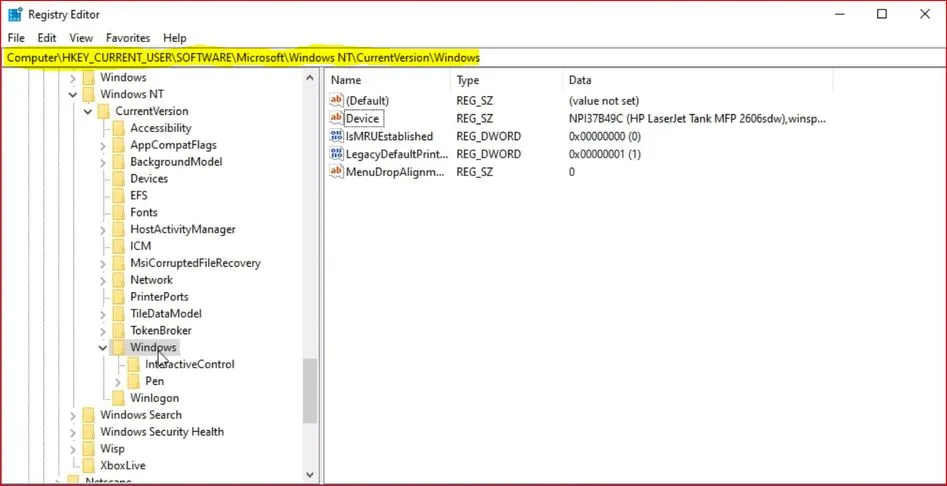
Step 3: Create the Missing Folder (If Needed)
Look for a folder called: ConsumerESU
If it doesn’t exist:
- Right-click the Windows folder
- Select New → Key
- Name it: ConsumerESU
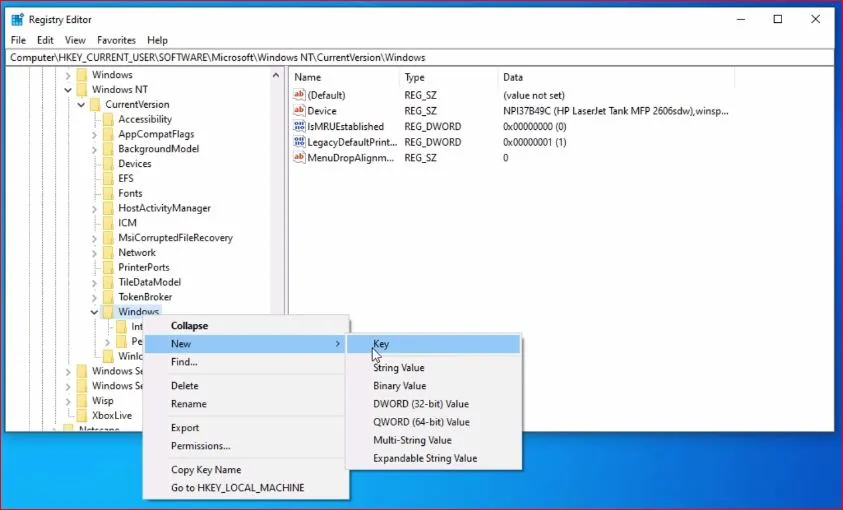
Step 4: Create the Two Required Registry Values
Inside the ConsumerESU folder, right-click on the right side and create two DWORD values inside it
Value 1:
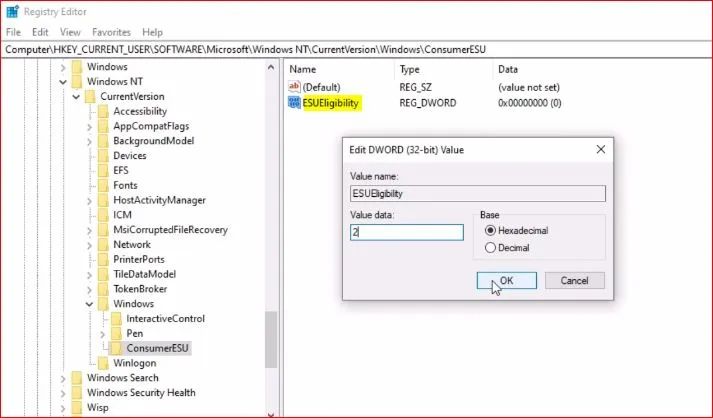
Right-click on the right-hand side → New → DWORD (32-bit) Value and name it ESUEligibility.
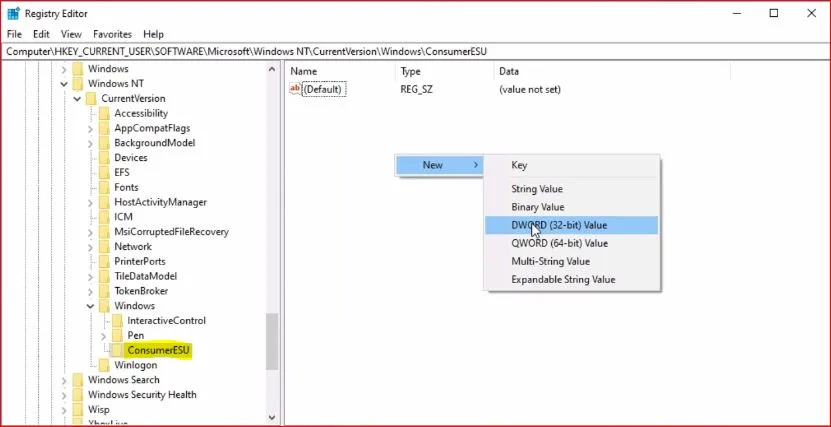
Double-click and set the Value data to 2, then click OK.
Value 2:
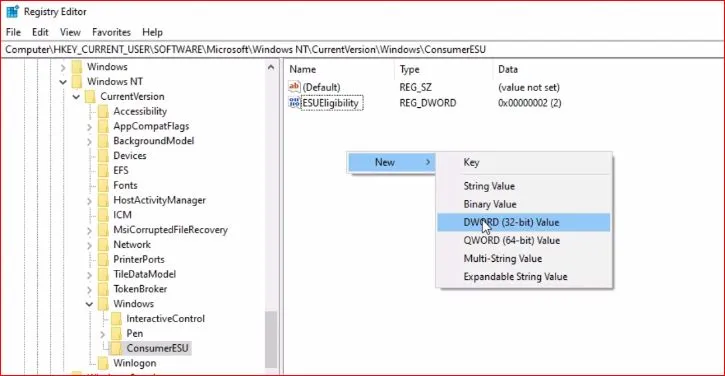
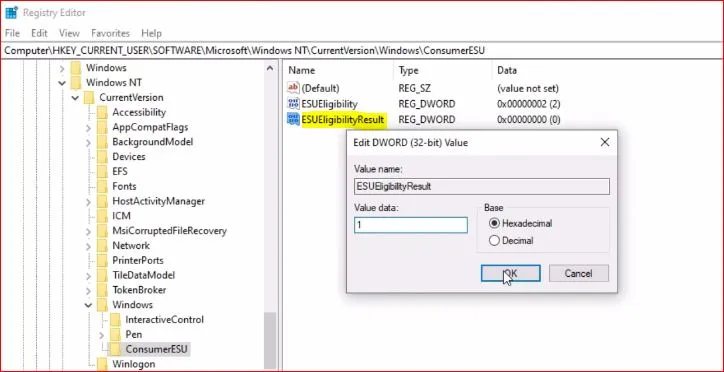
Again, right-click → New → DWORD (32-bit) Value and this time name it ESUEligibilityResult.
Double-click and set the Value data to 1, then click OK.
Step 5: Restart Your Computer
After restarting, go to:
Settings → Update & Security → Windows Update
You should now see the Enroll now option.
After Enrollment — Important Things to Know
- You must sign in to your Microsoft account every 60 days
- Microsoft checks your eligibility periodically. If you sign out permanently, enrollment may pause.
- Updates will appear normally in Windows Update
- Nothing extra needs to be installed.
- Your PC will remain secure through October 13, 2026
Conclusion
While support is no longer available for Windows 10, Microsoft’s Extended Security Updates (ESU) will still allow you a year full of stability and security at no costs to you. Whether you sign up for it through Windows Update or manually activate ESU through the Registry Editor, your computer will continue to receive necessary security updates until 2026.
If you found this article useful, feel free to pass it along to others still running Windows 10 — you will have helped them stay secure and informed.
Frequently Asked Questions (FAQ)
What are Extended Security Updates for Windows 10?
Extended Security Updates are additional security patches provided by Microsoft after Windows 10’s official end of support, helping users stay protected for an extra year.
Is Extended Security Updates (ESU) free for Windows 10 users?
Yes, Microsoft offers Extended Security Updates at no extra cost for eligible Windows 10 devices until 2026.
Do Extended Security Updates include feature upgrades?
No, Extended Security Updates only provide critical security fixes. They do not include new features or major version updates.
How long will Extended Security Updates be available for Windows 10?
Extended Security Updates for Windows 10 is available until October 13, 2026.
Do I need a Microsoft account to activate Extended Security Updates?
Yes, a Microsoft account is required to enroll in Extended Security Updates and keep receiving security patches.