
If you’re planning to install or upgrade to the latest Windows 11 version 25H2, you’ll need an official ISO file. Whether you want to create installation media for a clean install, use it in VirtualBox, or keep a backup for future use — this guide will walk you through two simple and safe methods to create Windows 11 25H2 ISO using the Media Creation Tool and the Direct ISO Download option from Microsoft.
Method 1: Create Windows 11 25H2 ISO Using Media Creation Tool
This is the good method if you want to make a bootable USB flash drive or create an ISO directly with Microsoft’s download tool.
Visit the official Windows 11 download page. Scroll down to “Create Windows 11 Installation Media” and click Download Now.
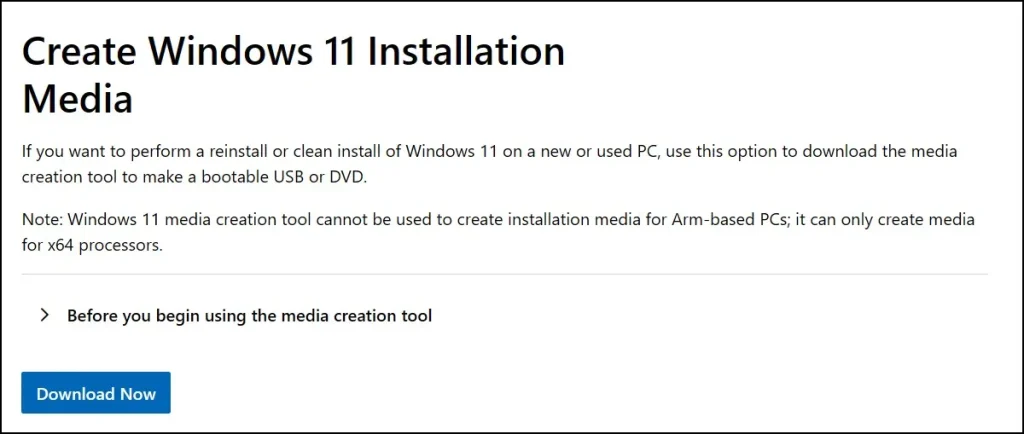
When you’ve downloaded it, you will receive a small file named MediaCreationTool_Win11. exe. Right click it and choose Run as administrator.
Click Accept after the tool opens.

By default, it automatically selects your current language and edition. If you do want to change it, uncheck “Use the recommended options for this PC” and select your preferences manually.
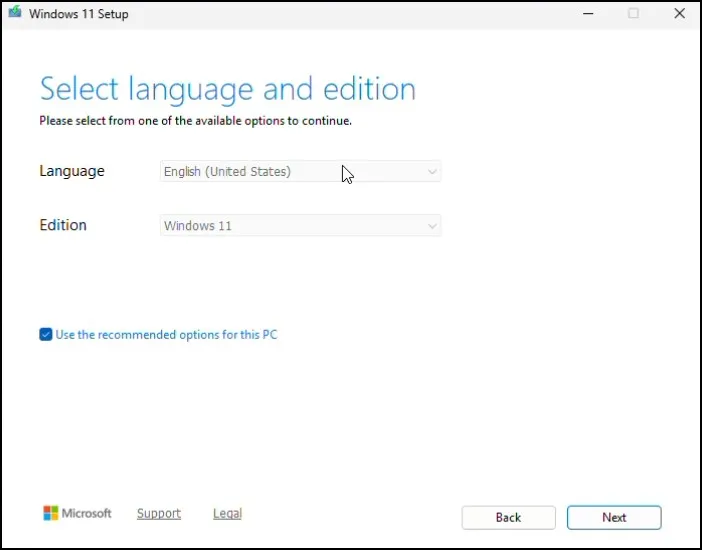
If you’re not sure what your current Windows language is, here’s how to verify it:
Hit Windows + I to go to Settings
- Go to Time & language → Language & region

- Under Windows display language, you’ll find your installed product language
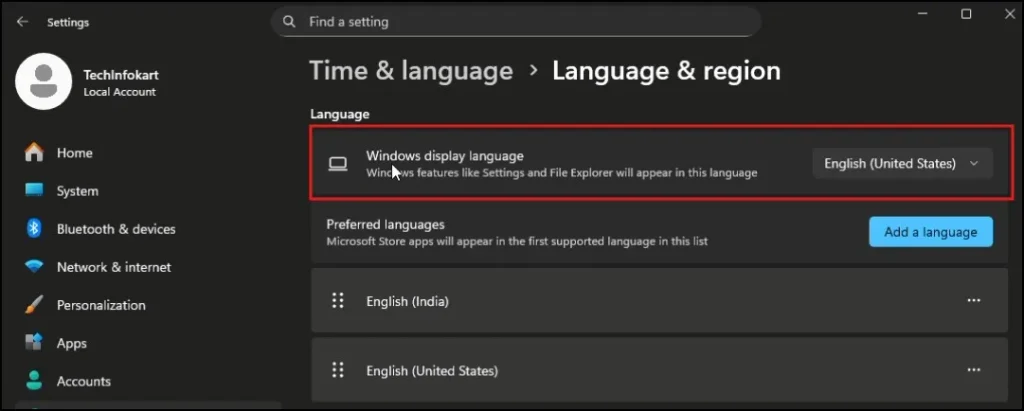
Once confirmed, return to the Media Creation Tool and select the same language and edition.
You’ll now get two options:
- USB Flash Drive – to create a bootable USB
- ISO File – to download and save the ISO directly
Select ISO File, then click Next.
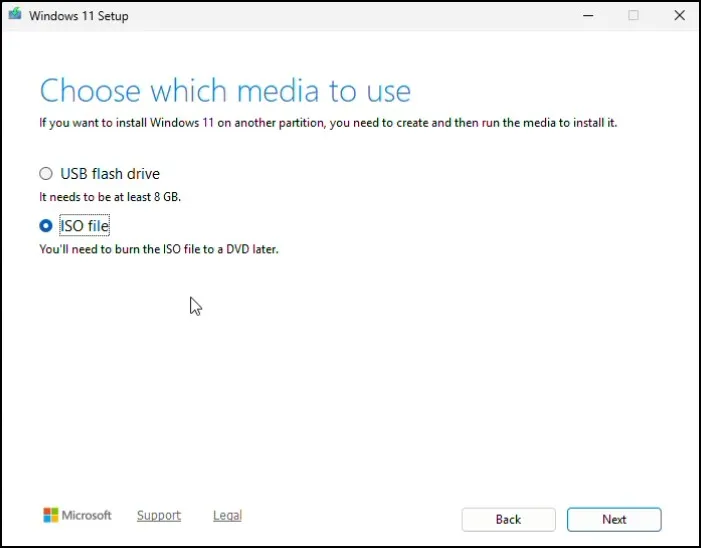
Select a location where you want to store the ISO file and the tool will begin downloading Windows 11 25H2 to your device from Microsoft servers.
When finished, you’ll end up with an official Windows 11 25H2 ISO file that you can use!
Method 2: Create Windows 11 25H2 ISO Direct ISO Download for x64 Devices
if you’d like an even faster method— without using the Media Creation Tool — you can directly download the ISO file from Microsoft.
Scroll down to “Download Windows 11 Disk Image (ISO)” In this section, drop the box and select these option, Windows 11 (multi-edition ISO). Then click Confirm.
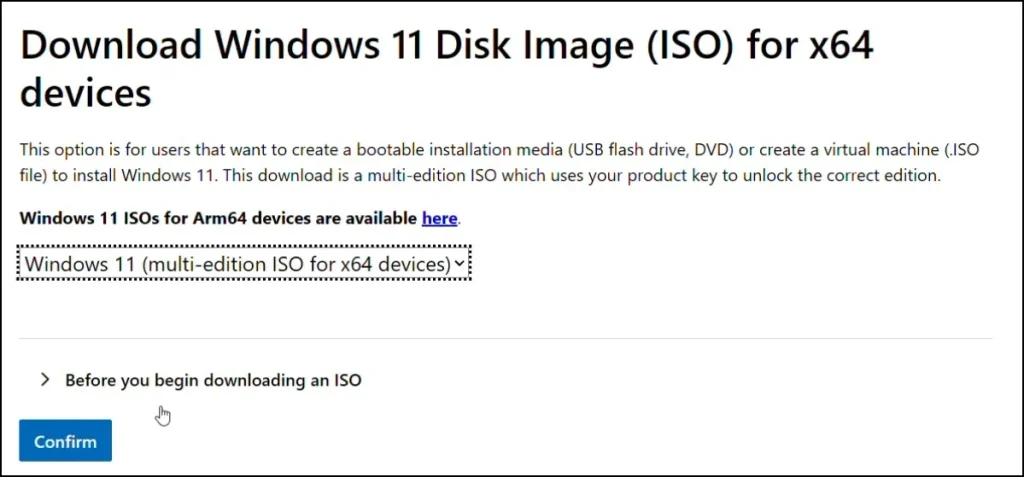
Now, choose your product language — just make sure it’s the one in your installed system language, then click Confirm.

Click 64-bit Download, and the ISO file will begin downloading directly from Microsoft’s server.
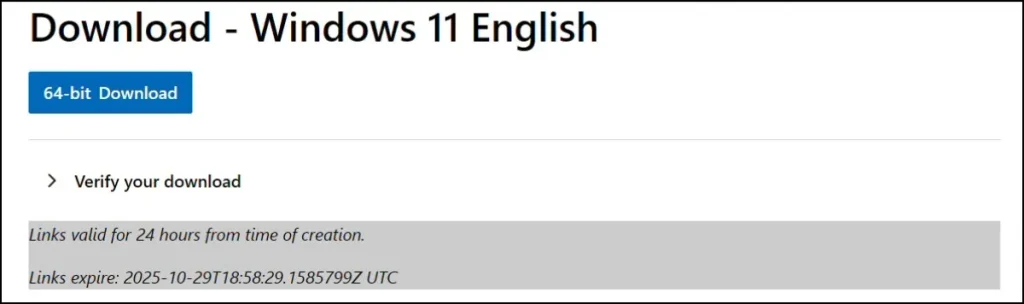
That’s it! You have the same official Windows 11 25H2 ISO file — without using a tool.
You can now use this ISO file to:
- Install Windows 11 on your PC
- Use it inside VirtualBox or VMware
- Use this to create a bootable USB drive using tools like Rufus
This is one of the easiest methods for most users because it requires no additional setup.
For Advanced Users – UUP Dump
If you want more control over what you download — for example, Insider builds or customized versions — you can use a trusted third-party site called UUP dump.
Here’s how it works:
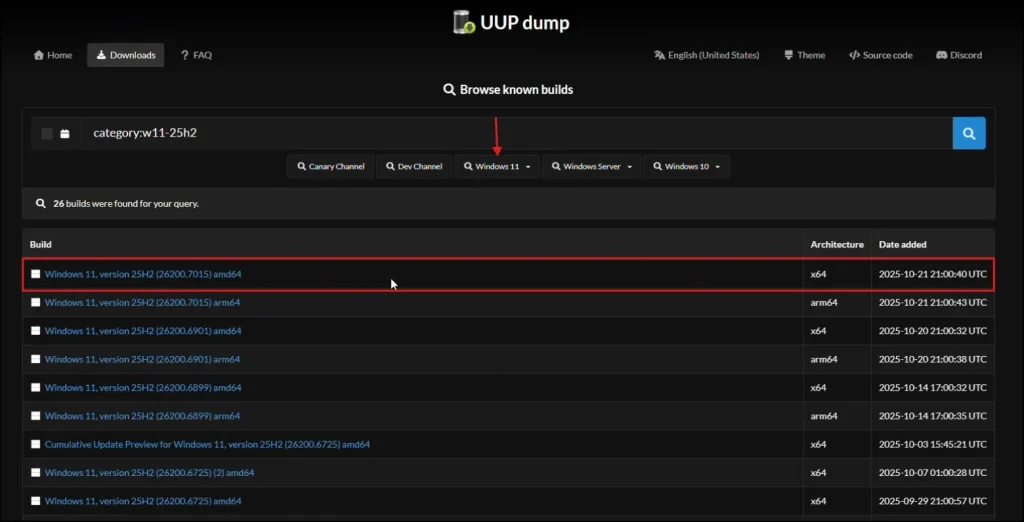
- Go to https://uupdump.net
- Select Windows 11, then choose version 25H2 or any other build you prefer from dropdown.
- choose your product language and click Next.
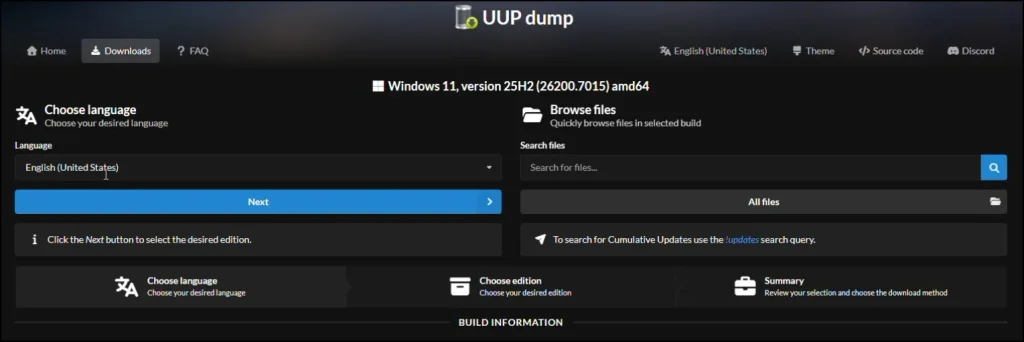
- Choose your edition (Home, Pro, or both).
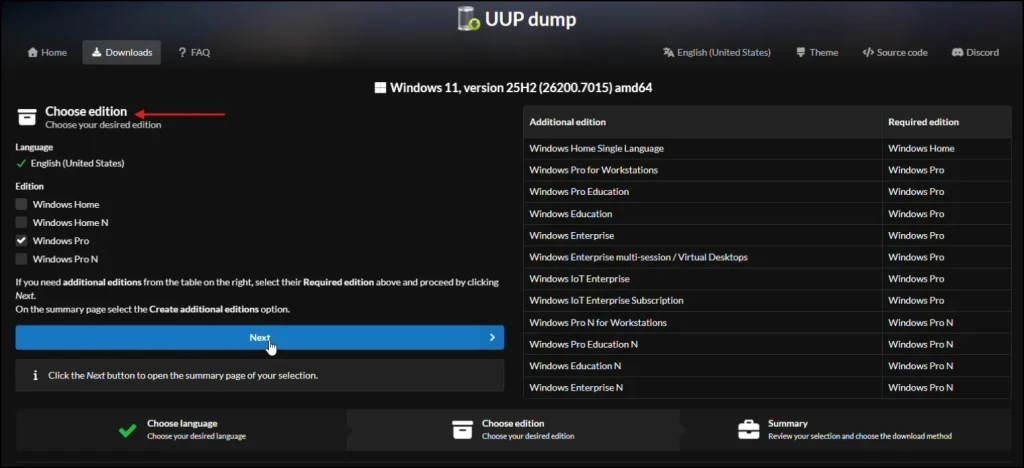
- Click Download and convert to ISO.

This will generate a small script that, when run, downloads all files directly from Microsoft servers and automatically creates your ISO file.
This method is recommended for advanced users who want full control or specific Insider versions. For general users, the two official Microsoft options are completely safe and reliable.
Summary: Which Method Should You Choose?
| Use Case | Recommended Method |
| Want to create bootable USB | Media Creation Tool |
| Need ISO for VirtualBox or manual setup | Direct Download |
| Want Insider or custom build | UUP Dump |
Final Thoughts
That is how you can download or create Windows 11 25H2 ISO with official methods from Microsoft. Both are safe and good options, you’ll want to pick Media Creation Tool if you need a bootable USB drive, and Direct Download if you just need an. ISO file. (Which of them is better?)
If you need added flexibility, perhaps consider using the UUP dump method to create your own custom ISO from Microsoft imaging files.
Now let’s install, test, or upgrade to the latest Windows 11 version 25H2!
Frequently Asked Questions (FAQ)
How can I create Windows 11 25H2 ISO using the Media Creation Tool?
Download the tool, run it, select ISO file, and it will create the Windows 11 25H2 ISO automatically.
Can I use the Windows 11 25H2 ISO in VirtualBox or VMware?
Yes, you can use it to install or test Windows 11 in VirtualBox or VMware.
What’s the difference between Media Creation Tool and Direct ISO Download?
The tool creates a bootable USB or ISO, while the direct option just downloads the ISO file manually.
How do I check my Windows display language?
Go to Settings → Time & Language → Language & Region to find your system language.
What is UUP Dump used for?
It’s for advanced users to build custom or Insider Windows 11 ISOs directly from Microsoft’s files.