
If you actually feel bored installing many apps one by one on your Windows PC, then this article is definitely for you. Winget, which stands for Windows Package Manager, surely addresses this need. Moreover, it provides a simple solution for managing software installations. As per the package manager system, you can install, update, or remove software automatically with one command only, regarding the same way Linux or macOS users do it.
This article surely covers all aspects of the Winget command from installation to professional usage. Moreover, it provides comprehensive guidance for complete understanding of this tool.
What is Winget?
Winget is short for Windows Package Manager, a Microsoft command-line application that the company developed to allow users to automate how software gets installed and updated. Instead of manually downloading. exe or. msi files from the web, you can use Winget commands through Command Prompt or PowerShell to fetch your favorite apps right now.
Winget does this by calling out to Microsoft’s trusted apps repository, where the downloads are safe and verified.
Key advantages over traditional software installation methods
The traditional software installation method involves manual downloads, executable files, and repetitive setup processes both time consuming and frustrating. Winget PowerShell commands cut the entire process short as you can use a one-liner to install from the Terminal itself. The Windows 11 software installation process becomes more secure, efficient, and automated, while Windows 11 app management gains consistency across all installed applications through standardized update and removal procedures.
How to Check if Winget is Installed
Winget comes by default on Windows 11 and Windows 10 version 2004 or higher. To see if it’s already installed:
- Open Command Prompt or PowerShell
- Type the following command and press Enter: winget –version

- If you see a version number, Winget is available.
If you get an error like “command not found” install it from the Microsoft Store by downloading the App Installer package.
Basic Winget Commands
Let’s look at some of the most common Winget commands you’ll use regularly.
Search for an App
Before installing anything, you can use Winget to search for an app by name. This helps you find the exact package ID you need — because sometimes, multiple results may have similar names. Also, it’s a good idea to check whether the app is available in the Winget repository. Once you find the correct one, you can use that ID to install the app quickly.
You can do that using the search command: winget search appname. For example, type the command: winget search chrome

This command will show all the results related to “chrome” along with their package IDs, publishers, and versions. Once you find the correct app ID — like Google.Chrome — you can use it in the install command to get the exact application you want.
List All Installed Apps
If you want to see which applications are currently installed on your computer, use the list command.
winget list
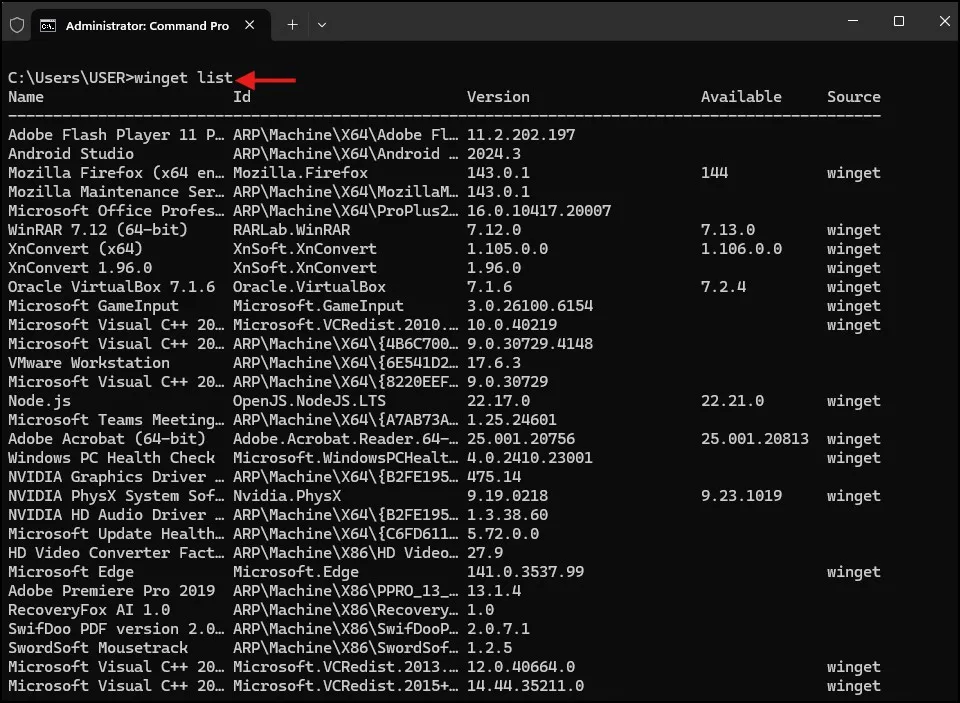
This shows all installed apps along with their version numbers. It’s especially useful for checking which apps have newer updates available.
Install an App
Once you’ve found the app you need, you can install it directly with the install command.
winget install google.chrome

Winget will automatically download and install Chrome without needing you to open any browser or installer.
You can also perform a silent installation (no pop-ups) by adding extra flags:
winget install google.chrome –silent –accept-source-agreements –accept-package-agreements
Upgrade All Installed Apps
Keeping your apps updated is simple with Winget. You can upgrade all apps in one go:
winget upgrade –all

Or, if you only want to update a specific app, use: winget upgrade appname
Uninstall an App
If you no longer need a program, you can remove it using the uninstall command.
winget uninstall appname. For example, type the command: winget uninstall vlc

Winget will uninstall VLC Media Player or whichever app you specify — cleanly and quickly.
Export and Import Apps List
Winget allows you to export your list of installed applications so you can reinstall them later — perfect when setting up a new PC.
winget export -o apps.json
This command creates a file named apps.json in your current folder, containing all recognized apps.
To import and reinstall apps later:
winget import -iapps.json
Winget will automatically reinstall all apps listed in the file.
Where to Keep the Export File
Winget creates a file called apps.json in your current working directory (usually the folder where you ran the command).If you ran it from your Downloads folder, it’ll appear there.
You can check the file easily by typing: dirapps.json. If you see it listed, that’s your exported list of all recognized apps.
You should back up the apps.json file to a safe location before re-installing or transferring to a new PC, such as: save it to your USB drive, or Cloud storage (OneDrive, Google Drive, Dropbox)Or copy it across to an external hard drive.
This means you can use the same file that backs up your apps when reinstalling Windows or setting up a new PC.
How to Use the Export File on a New PC
Once your new system is ready:
- Copy the saved
apps.jsonfile to your new PC (for example, into the Downloads folder). - Make sure Winget is already installed.
- You should open Command Prompt or PowerShell as Administrator.
- ThenGo to the folder where you kept the file like cd %USERPROFILE%\Downloads
- Run this command: winget import -iapps.json
Winget will automatically start installing all apps listed in your file. It’s a huge time saver compared to reinstalling everything manually!
When you run the export command, you may get messages like:
Installed package is not available from any source:
This means Winget found an app installed on your PC but couldn’t match it to its online repositories.In simple terms, the app exists on your PC but wasn’t installed via Winget.
How to fix it:
- Reset and update Winget sources
winget source reset –force
winget source update
- Update App Installer
Open Microsoft Store → Library → Get updates, and ensure App Installer is updated.
Tip: Use Winget.run to Find Commands Quickly
If you want a faster way to find Winget commands, you can use Winget.run. This website lists all apps available in Winget’s repository and provides the exact install command for each one.
I’ve also made a complete video tutorial on how to use Winget.run, which you can watch here.
Conclusion
Winget command is a useful built-in feature of Windows 11 that can save time. Instead of having to open the Microsoft Store, or access a website and download installers through your web browser, you can use this package manager to quickly install apps on your pc just from running one command. You can definitely handle all your application tasks using simple commands. Winget actually makes Windows work better for everyone. Both regular users and system admins definitely get smoother computer use when they learn it properly.
Try using Winget today — and once you get used to it, you’ll wonder how you ever managed without it!
Also Read: How to Install Windows 11 25H2 Update
Frequently Asked Questions (FAQ)
What is the Winget command used for?
Winget is used to install, update, uninstall, and manage applications on Windows 10 and 11 using the command line.
How do I install Winget on my PC?
Install or update the App Installer package from the Microsoft Store. It includes Winget automatically.
Can I install multiple apps at once using Winget command?
Yes. You can use a PowerShell script or export/import feature to install multiple apps in one go.
Is Winget safe to use?
Absolutely. Winget downloads packages only from trusted and verified sources curated by Microsoft.
What’s the difference between Winget and Chocolatey?
Both are Windows package managers, but Winget is officially developed by Microsoft, while Chocolatey is third-party. Winget integrates directly with Windows 11 and the Microsoft Store.