
I don’t know about you, but if there is one thing that really irritates me it’s when my computer feels sluggish despite not running anything too heavy. It’s a common issue on Windows 11, it is caused by RAM cache or standby memory. The machine hangs on to the memory in case it needs it again, but instead of helping, that often makes everything run snail-like.
The good news? You don’t need to keep restarting your PC to remove it. I’ll show you how to clear RAM cache in Windows 11 and run the memory cleaner automatically. That way, you don’t have to manually free up memory whenever your system slows down.
Why You Should Clear RAM Cache in Windows 11
Think of RAM cache like leftover plates on a dining table. Windows stacks them up thinking someone will reuse them, but when you actually want to eat, there’s no space left. That’s what happens when standby memory builds up—it hogs your usable RAM.
If you clear it, then Windows goes back to factory-fresh status. Apps open more quickly; the system is more responsive and that annoying lag almost disappears. Which is why you should know how to clear RAM cache in Windows 11—it can even save your life sometimes.
Step 1: Check RAM Cache in Windows 11
Before cleaning up, it’s good to check how much RAM cache your system is holding.
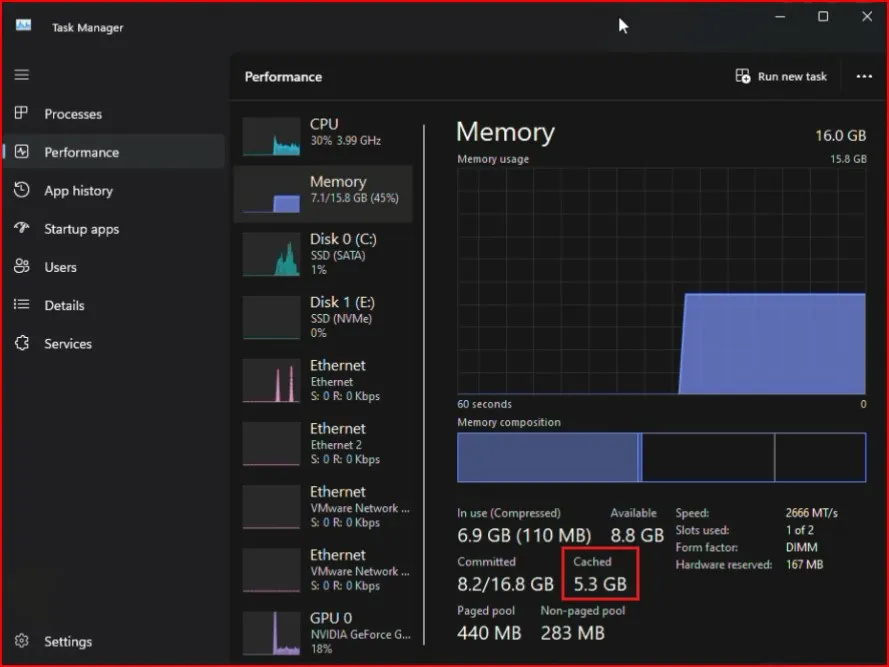
- Right-click the taskbar and open Task Manager.
- Go to the Performance tab and click on Memory.
- Look for the Cached section.
On my PC, it was showing over 5.3 GB of cached memory, which is a lot.
For a closer look:
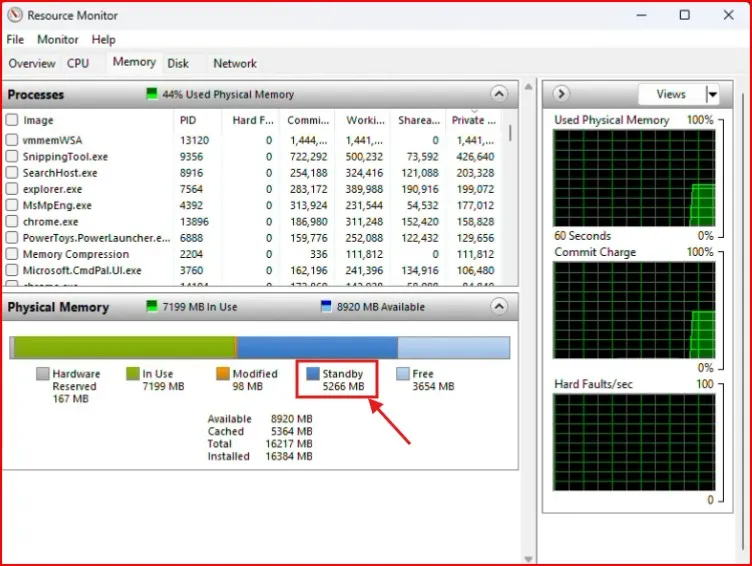
- Open the Start menu, type Resource Monitor, and press Enter.
- Go to the Memory tab.
- Check Standby memory—that’s the cache we want to clear.
Chances are, you’ll see a big chunk of your RAM just sitting there.
Step 2: Download the Empty Standby List Tool to Clear RAM Cache in Windows 11
Here’s a small, free tool that does the job instantly.
- Open your browser and search for Empty Standby List.
- Visit this www.downloadcrew.com page.
- On the right side, click onDownload.
- It’s tiny—just 136 KB—so the download will finish immediately.
Move the downloaded file (EmptyStandbyList.exe) to your desktop so it’s easy to find.

Step 3: Clear RAM Cache in Windows 11 Manually
Now let’s test it once.
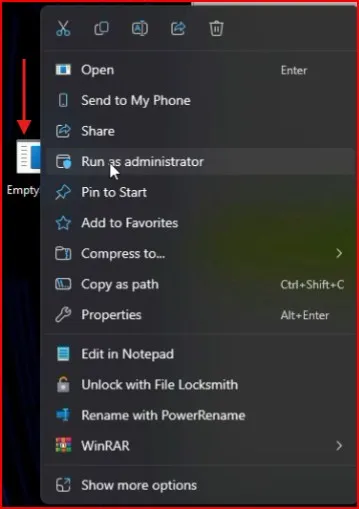
- Right-click on EmptyStandbyList.exe.
- Choose Run as Administrator.
Within seconds, if you check Task Manager again, you’ll see the cached memory drop. For me, it went from about 5 GB down to just a couple hundred MB. Resource Monitor showed the same thing—standby memory nearly gone.
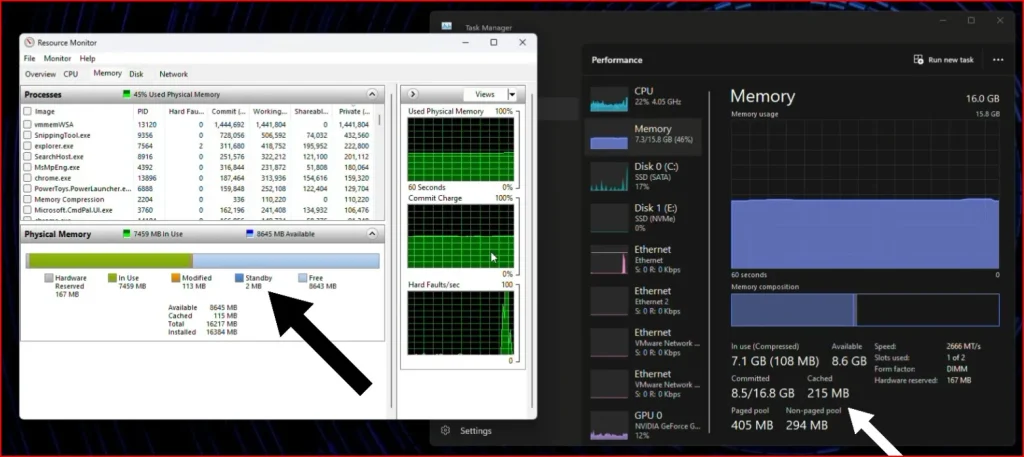
So yes, the tool works like magic. But running it manually every time isn’t practical. That’s where automation comes in.
Step 4: Automatically Clear RAM Cache in Windows 11 Using Task Scheduler
On Windows, there’s a built-in tool that you can use to run apps on a schedule named The Task Scheduler. We’re going to use that script to automatically clear RAM cache in Windows 11 every five, ten, or equivalent minutes.
Here’s what to do:
Open the Start menu, type Task Scheduler, and launch it.
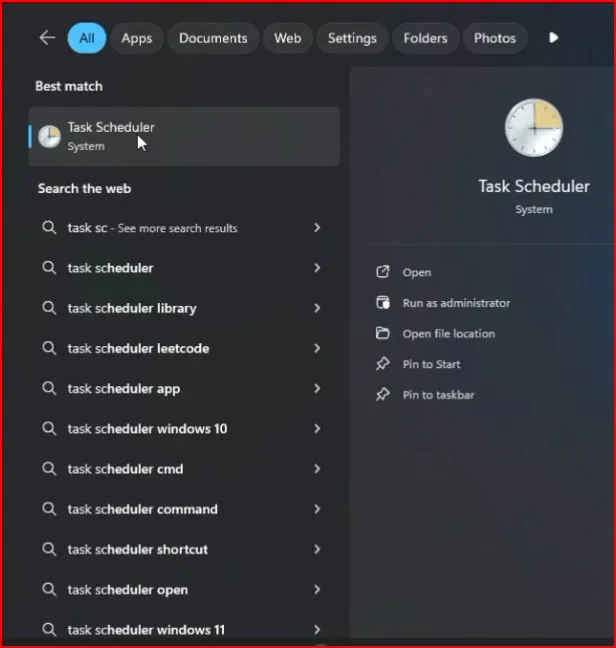
On the right, click Create Task.
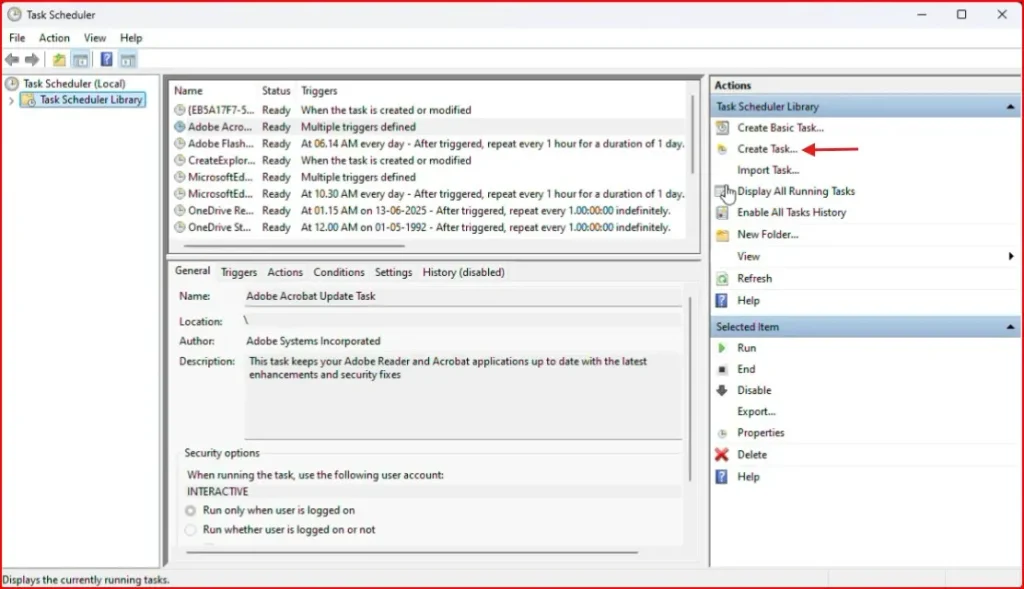
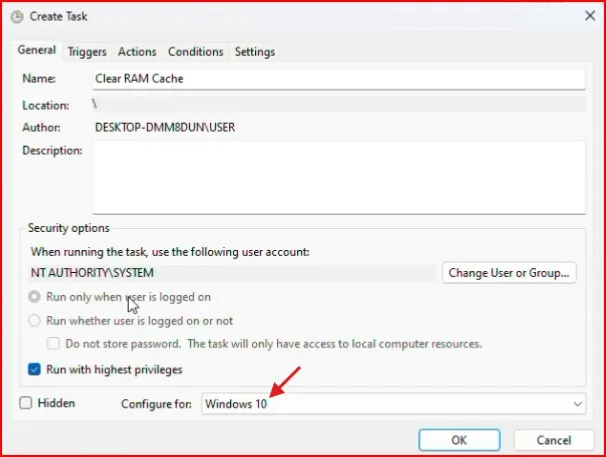
In the General tab:
Name it something like Clear RAM Cache.Click Change User or Group.
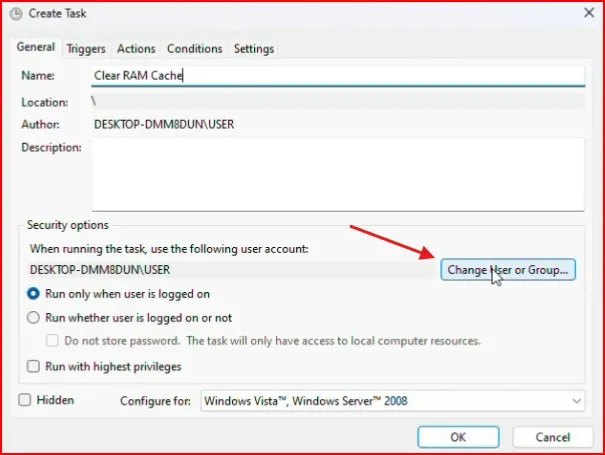
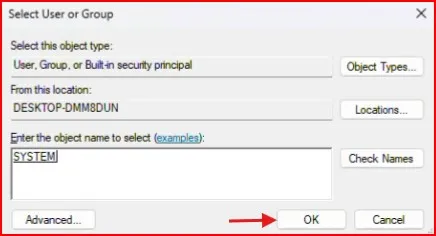
Then click on Advanced.
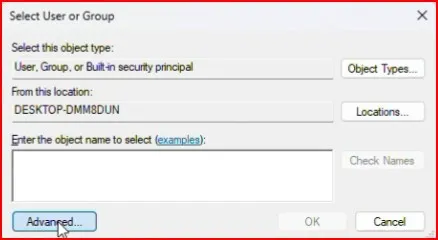
Then click on Find Now.
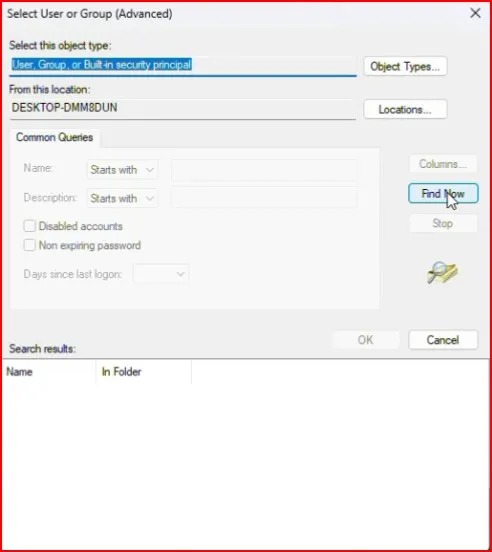
And from the list select SYSTEM, then click on Ok.
Tick Run with highest privileges.
At the bottom, select Windows 10 in the “Configure for” dropdown (works fine on Windows 11).
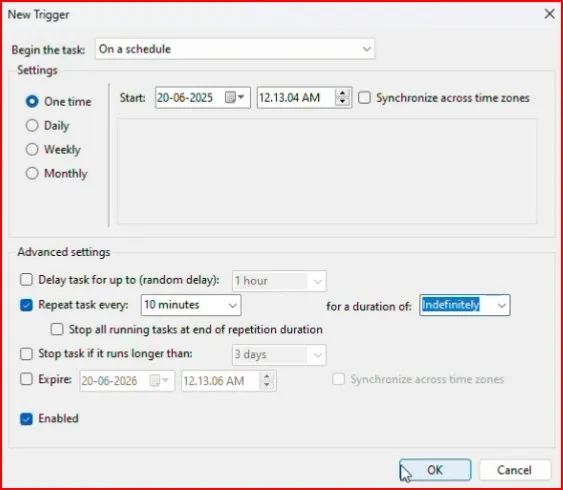
In the Triggers tab:
Click New.
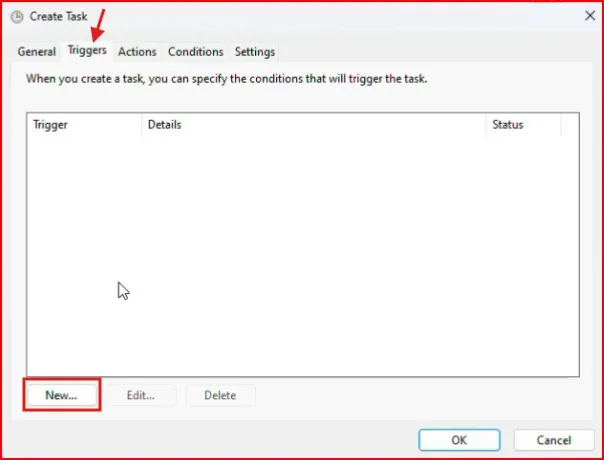
Set it to run Daily.Under advanced options, choose Repeat task every 10 minutes and set the duration to Indefinitely.
Make sure it’s enabled, then click OK.
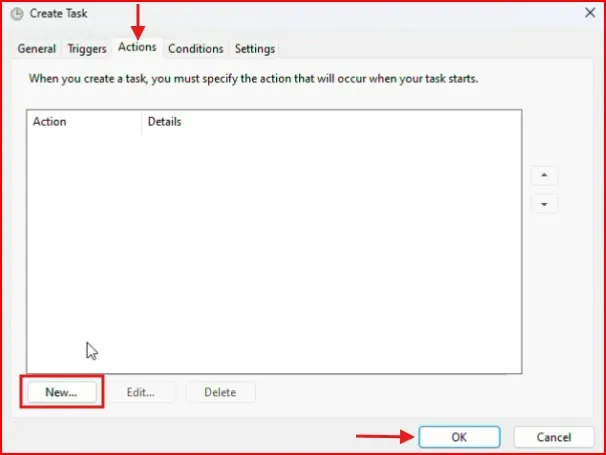
In the Actions tab:
Click New.
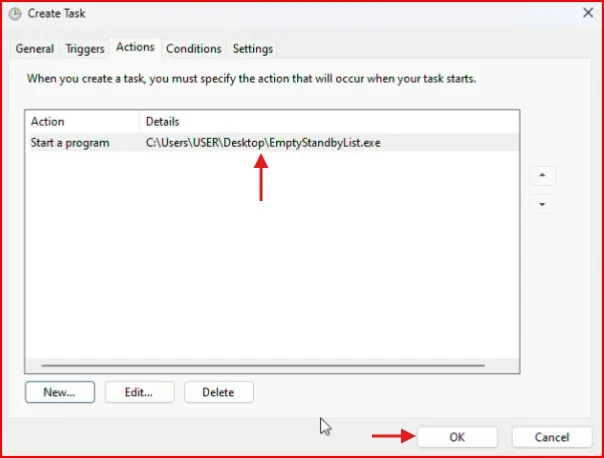
For action, select Start a program. Browse and select EmptyStandbyList.exe from your desktop. Click OK.
Save everything, and you’re done. From now on, Windows now will erase your RAM cache every 10 minutes automatically.
Step 5: Stopping the Task (If You Ever Need To)
Maybe one day you don’t want this to run anymore. Easy fix:
- Open Task Scheduler.
- Go to Task Scheduler Library.
- Find the task called Clear RAM Cache.
- Right-click and delete it.
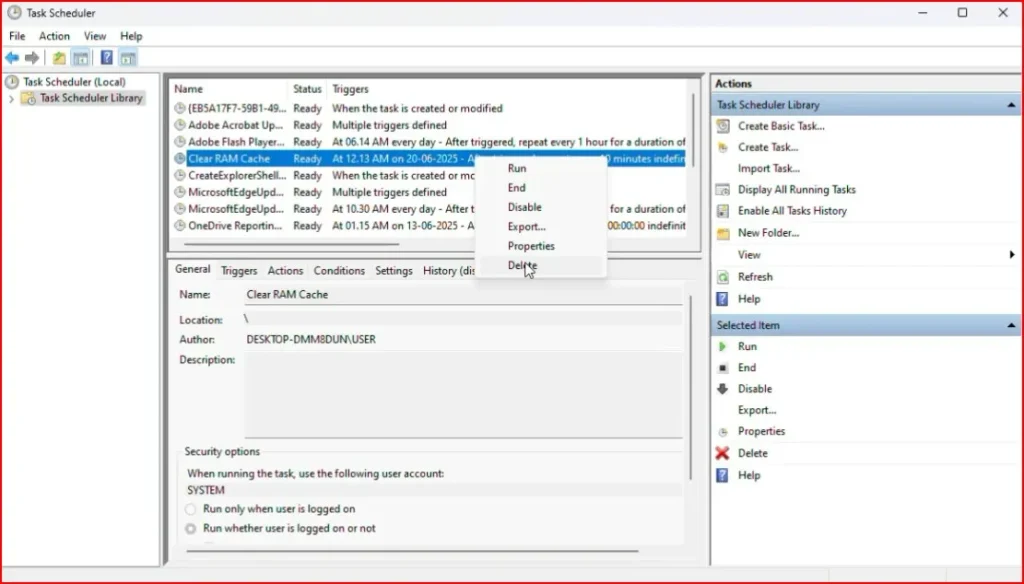
That’s it—the automatic clearing will stop.
If you want to see exactly how this works in real time, you can watch my step-by-step video here.
Final Thoughts
Initiative this also helped me quite a bit. My PC isn’t slowing down after a long day of working and I no longer have to restart just to get some memory freed up. This is a nice trick to know and can have large implications because learning how to clear RAM cache in Windows 11 can push up your PC’s performance.
If you’re suffering from a laggy system, I’d say give this a shot. It’s free, fast and once automated, you never have to think about it again.
If you’re interested in improving your PC’s performance, you might also want to check out my guide on how to generate a system performance report on Windows 11. It helps you see what’s slowing your computer down before you clear RAM cache.
Frequently Asked Question (FAQ)
How do I clear RAM cache in Windows 11 manually?
You can clear RAM cache in Windows 11 by using tools like Empty Standby List. Run it once and it will release the standby memory instantly.
Can I clear RAM cache in Windows 11 without software?
Yes, you can use Task Manager to monitor memory usage and run built-in commands, but third-party tools make it easier and faster.
Is it safe to clear RAM cache in Windows 11?
Yes, it’s completely safe. Clearing RAM cache in Windows 11 just removes temporary standby memory, not important system files.
How do I automatically clear RAM cache in Windows 11?
You can set up a scheduled task in Task Scheduler to run the Empty Standby List tool automatically, which clears RAM cache in Windows 11 at regular intervals.
Why should I clear RAM cache in Windows 11?
If your PC feels slow after running heavy programs or games, clearing RAM cache in Windows 11 frees up memory and makes your system run smoother.