
Is your PC frozen at the startup? Here’s a complete guide to fix Windows 11 not booting or stuck at the logo screen with easy-to-follow steps—even if you’re not tech-savvy!
Why Does Windows 11 not boot or Get Stuck at the Logo Screen?
Sometimes, your PC may freeze on the logo screen due to a bad update, corrupted system files, driver conflicts, or hardware problems. It can also be caused by Fast Startup, Secure Boot, or external devices interfering with the boot process. Let’s now go through each solution to get your PC working again.
Solution 1: Force Restart Your PC
When Windows 11 not booting or stuck at the logo screen, the first thing to try is a force restart.
Press and hold the Power button for about 10 seconds until your PC shuts down completely. Wait a few seconds, then turn it back on and check if it boots normally. This works in many cases where Windows is temporarily frozen.
If this doesn’t help, move to the next step.
Solution 2: Unplug All External Devices
External devices like USB drives, printers, and webcams can sometimes interfere with the Windows boot process.
Shut down your computer and unplug everything except your monitor, keyboard, and mouse. Now restart your PC and check if Windows boots properly.
If it does, plug in the devices one by one to find out which one was causing the issue.
This is a quick way to troubleshoot hardware-related boot problems and fix Windows 11 not booting issue.
Solution 3: Boot into Safe Mode
If Windows 11 is stuck at the logo screen, Safe Mode lets you enter a minimal version of Windows for troubleshooting.
Turn your PC off and on three times until you see the “Preparing Automatic Repair” screen. Click Advanced Options > Troubleshoot > Startup Settings > Restart and press F4 to enter Safe Mode. Once inside, uninstall any recent software or driver updates.
Safe Mode is a great way to isolate and fix startup issues.

Follow this step-by-step guide on How to Boot into Safe Mode in Windows 11 if you’re not sure how to do it.
Solution 4: Run Startup Repair
Windows 11 has a built-in Startup Repair tool to fix Windows 11 not booting issue or you can say common boot problems.
To launch it, force shutdown your PC three times until you reach the Recovery Environment. Go to Advanced Options > Troubleshoot > Startup Repair and follow the instructions.
Windows will scan your system for issues and try to fix them automatically.
This method works well when the exact cause is unknown.

Solution 5: Disable Fast Startup
Fast Startup helps your PC boot faster, but sometimes it causes problems like Windows 11 getting stuck at the logo screen.
To disable it, boot into Safe Mode, open Control Panel > Power Options, then click Choose what the power button does. Click Change settings that are currently unavailable and uncheck Turn on Fast Startup.
Save your changes and restart the PC.
Disabling this feature often resolves boot loop problems.

Solution 6: Run System File Checker (SFC)
Corrupted system files can prevent Windows 11 from booting correctly.
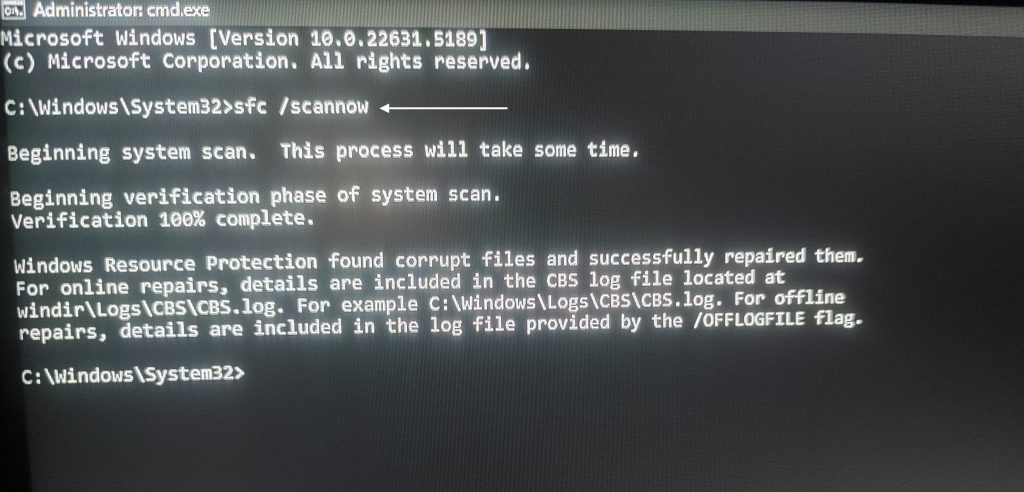
To fix them, boot into Safe Mode and open Command Prompt as Administrator. Type the command sfc /scannow and hit Enter.
Windows will scan and repair any corrupted or missing system files.
After it completes, restart your PC and see if it boots normally.
Solution 7: Perform System Restore
If the issue started recently, a System Restore can bring Windows back to a working state.
Boot into the Recovery screen and go to Advanced Options > System Restore. Choose a restore point from before the problem started and follow the prompts.
This will not delete your personal files, only system changes.
It’s one of the safest ways to roll back unwanted changes.

Tip: Before making major changes or troubleshooting deep system problems, it’s a good idea to create a system restore point. This lets you roll back your system if anything goes wrong.
Check out this step-by-step guide on how to create a system restore point in Windows 11.
Solution 8: Run CHKDSK to Fix Drive Errors
A failing hard drive or SSD can cause boot issues in Windows 11.
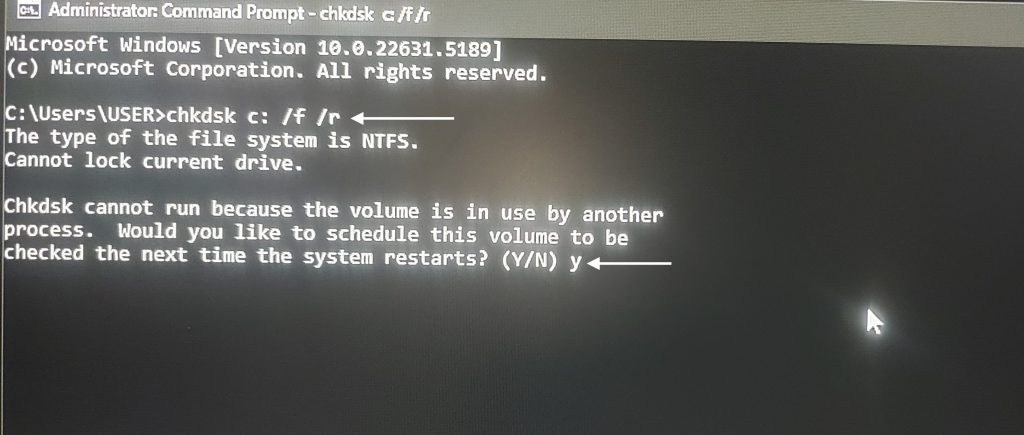
To check for errors, open Command Prompt in Safe Mode and type:
chkdsk C: /f /r
Type Y to schedule it, then restart your PC.
Windows will scan and repair drive errors before booting into the system.
Solution 9: Reset This PC
If nothing else works and you still see Windows 11 stuck at logo screen, it’s time to consider a reset.
Boot into the Recovery screen, go to Troubleshoot > Reset This PC. You can choose keep my files to preserve your data while reinstalling Windows.
This process takes time but gives you a clean start.
Use this as a last resort if all other fixes fail.

Solution 10: Check BIOS Settings
Sometimes wrong BIOS settings can cause Windows 11 not booting or freezing on the logo.
Restart your PC and press the BIOS key (usually F2, DEL, or ESC). Ensure that the correct drive is selected as the boot device and Secure Boot is temporarily disabled. Save changes and exit BIOS.
This step can be crucial if you’ve recently updated firmware or changed hardware.
When Windows 11 not booting or stuck at the logo screen, it can feel like a disaster. But don’t panic—there are many ways to fix it. From a simple restart to running built-in tools like Startup Repair, these steps are designed to help you get back in control. Start with the easy ones and move forward step-by-step.
And remember, always keep backups of your important files—it saves a lot of stress later.
Frequently Asked Question (FAQ)
Why is Windows 11 not booting or stuck at the logo screen?
This can happen due to a bad Windows update, corrupted system files, driver conflicts, or storage issues.
Is it safe to force shutdown the PC when it’s stuck?
Yes, a force shutdown is safe and often helps restart a frozen PC.
Will I lose my files if I reset the PC?
If you select ‘Keep my files’, your personal data stays safe. Only apps and settings are removed.
Can I use a bootable USB to fix Windows 11 not booting?
Absolutely! You can use it to access recovery tools or even reinstall Windows if needed.
What is Safe Mode and how does it help?
Safe Mode loads only essential files and drivers, helping you troubleshoot boot problems without interference.