
Have you ever entered a URL and pressed Enter… and nothing happened? Or the page never fully loaded. Or Chrome flashed that scary “This site can’t be reached” message. When this occurs, our first thought is: “Is my internet down or the website itself?”
Relax, it’s happened to us all. Websites go down for many reasons: server issues, maintenance, heavy traffic, DNS problems, or sometimes the problem is only on your side.In today’s guide, I’ll show you how to check if a website is down or if the issue is only at your end.
Why Websites Sometimes Go Down
Before you dive into internet fixes, make sure you understand why websites stop loading. There are various reasons as to why a website can go down:
- Server is overloaded due to high traffic
- Hosting provider is facing an outage
- Domain is expired
- DNS errors
- Maintenance mode enabled
- Firewall or security block
- Internet outage on your end
- Browser cache issues
Now that you have been briefed on the common causes, let’s dissect and determine is a site down or just me?
How to Check if a Website Is Down for Everyone
Sometimes the issue is completely on the website’s server. In that case, it won’t open for anyone in the world.
Here are the easiest ways to confirm that.
1. Use Online Tools to Check Website Status
There are many reliable website down checkers that let you know instantly whether a website is up or down.
Here are the most reliable ones:
a) Down for Everyone or Just Me
This is the simplest tool. Type the URL and it will tell you immediately if the website is down for everyone or just you.

b) DownDetector
Great for checking outages of popular services like Instagram, Netflix, banks, and telecom providers. It also shows a live outage map.

This tool checks the site’s uptime, response time, and outage history. Very helpful when you want detailed information.

If any of these tools say the website is down, then the issue is on the server side. All you can do is wait until it’s fixed.
How to Check if a Website Is Down Only for You
If the tools above say the site is working fine, then the problem is likely on your device, browser, or network. Let’s go through the fixes.
2. Try Opening the Website on Another Device
Use another phone, laptop, or tablet on the same Wi-Fi network.
- If the website opens on the other device → the problem is on your main device.
- If it doesn’t open on any device → your Wi-Fi or ISP may be blocking it.
3. Try Mobile Data Instead of Wi-Fi
Turn off Wi-Fi → Turn on Mobile Data → Try again.
If it opens on Mobile Data, then your Wi-Fi network is the issue.Sometimes ISPs block certain websites, especially if DNS issues occur.
4. Clear Browser Cache
Old cache files can stop websites from loading.
On Chrome:
- Click the 3 dots
- Settings
- Privacy and Security
- Clear Browsing Data
- Select Cached images and files
- Clear data
Now open the site again.

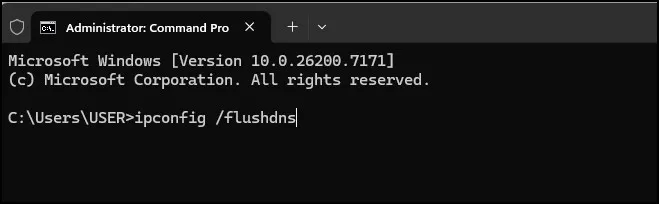
5. Flush DNS Cache (Windows)
Sometimes DNS gets corrupted.Open Command Prompt as an Administrator and type:
ipconfig /flushdnsPress Enter.
Try opening the website again.
6. Change DNS to Google Public DNS
This fixes many website loading issues.
You can use:
- 8.8.8.8
- 8.8.4.4
This step helps especially when your ISP is facing DNS outages.

7. Check if Your Firewall or Antivirus Is Blocking It
Sometimes antivirus tools misunderstand a website and block it completely.
Try temporarily disabling:
- Antivirus
- VPN
- Firewall rules
Then check again.
8. Restart Your Router
A simple restart solves 50% of loading issues.
Just turn it off → wait 10 seconds → turn it back on.
9. Check the Website on Another Browser
Try Firefox, Edge, or Brave.Sometimes Chrome alone may have issues loading a website.
Technical Ways to Check if a Website Is Down (Optional but Useful)
If you like trying slightly advanced methods, here are two quick checks.
10. Ping the Website
Open Command Prompt and type:
ping website.com
If you see:
Reply from… → the server is reachable.
If you see:
Request timed out → the site might be down or blocked.
Final Thoughts
There are few things more irritating than having a website be down when you’re trying to get information now! But now you know precisely how to check if a website is down, and what to do about it if your issue is only on your end.
Most of the time, it involves a temporary server problem or an easy fix you can make yourself in a matter of minutes. So, the next time your favourite website won’t load, you will know exactly what to do!
Also Read: Website Legit Check: How to Know If a Website Is Real or Fake
Frequently Asked Questions (FAQ)
How do I check if a website is down or not?
You can use online tools like DownDetector or “Down for Everyone or Just Me” to quickly confirm how to check if a website is down for everyone or just you.
How to check if a website is down only for me?
Try opening the site on another device, switching to mobile data, clearing your browser cache, or changing your DNS. These simple steps help you know how to check if a website is down only on your side.
What tool helps me check if a website is down globally?
Tools like DownDetector, IsItDownRightNow, and DownForMe are the easiest ways when learning how to check if a website is down globally.
Why is a website not opening even if it’s not down?
Local issues like DNS errors, cache problems, firewall blocks, or browser glitches can stop a site from opening. These are common things to check when figuring out how to check if a website is down or if the issue is on your device.
How can I fix a website that isn’t loading for me?
Clear your browser cache, flush DNS, restart your router, or try another network. These steps are part of how to check if a website is down or if the problem is with your connection.