
BitLocker is a powerful encryption tool that helps protect your data, but there may be times when you need to know how to disable BitLocker. Whether you’re looking to remove BitLocker encryption, turn it off temporarily, or simply unlock a BitLocker-protected drive, this comprehensive guide will walk you through the process step by step.
What is BitLocker?
Now, before discussing how you can disable BitLocker, let’s take a minute to understand what BitLocker is. BitLocker is a full-volume encryption feature that is included with the Pro and Enterprise editions of Windows. It is intended to protect your data from unauthorized access, particularly if your device gets lost or stolen.
Reasons to Disable BitLocker
There are several reasons why you might want to disable BitLocker:
- If your system is BitLocker enable, it can slightly impact your system performance.
- Some older software may not work well with BitLocker encrypted drives.
- In case of system failures, non-encrypted drives are easier to recover.
- Major hardware or software changes may require temporary BitLocker deactivation.
Process 1: Disable BitLocker via Control Panel
The easiest method for disabling BitLocker in Windows 11 lies in using the Control Panel. Here’s how:
Open the start menu and type Control Panel, and open it.
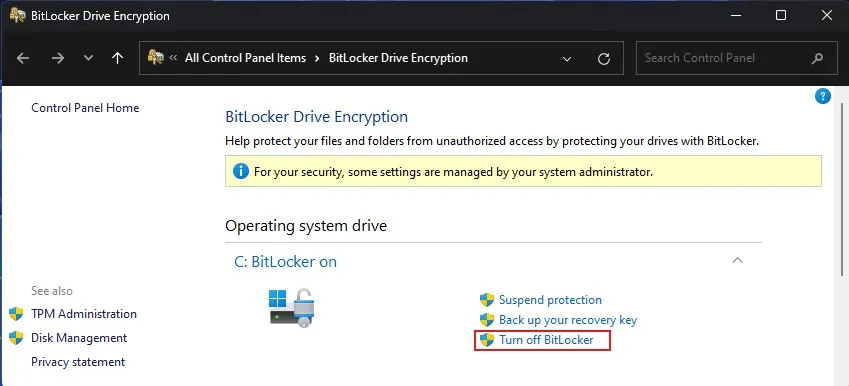
Click on BitLocker Drive Encryption
Locate the drive that where BitLocker is turned on.
Next to it, click Turn off BitLocker.
Just confirm your action and wait for the decrypting process to end.
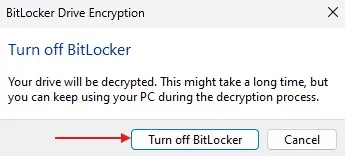
This is a straightforward method to use, providing you have full access to your system.
Process 2: Turn Off BitLocker via Command Prompt (CMD)
You can also use BitLocker off CMD if you need a faster way to disable BitLocker. Here’s how:
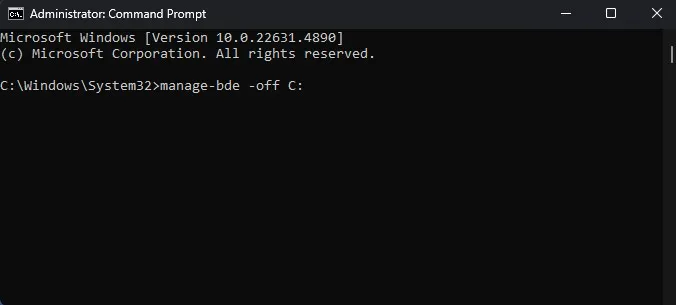
Press Win + X and choose Terminal (Admin) or Command Prompt (Admin).
Run this command and press Enter:
manage-bde -off C:
(If required, change the C: to the appropriate drive letter.)
The system would now proceed to decrypt your drive. Wait for it to finish.
NOTE: It’s best to wait until the decryption process is complete before shutting down your PC. If you shut it down while it’s still decrypting, there’s a risk of data corruption or the process getting stuck, making it harder to access your files.
You can check the progress in command prompt (Admin) by typing the following command:
manage-bde -status C:
If you’re comfortable with commands and need a quick solution, this is a useful method.
Process 3: Disabling BitLocker via Group Policy Editor
Here’s how to disable BitLocker encryption in your system that is forced by your organization if Group Policy allows it.
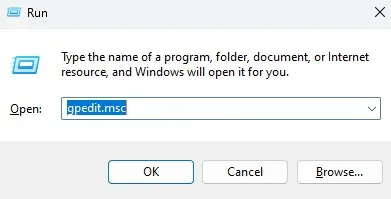
Press Win + R, type gpedit.msc, and hit Enter.
There, go to Computer Configuration > Administrative Templates > Windows Components > BitLocker Drive Encryption > Operating System drives

Double-click on Require additional authentication at startup.
Select Disabled, then click Apply and OK.
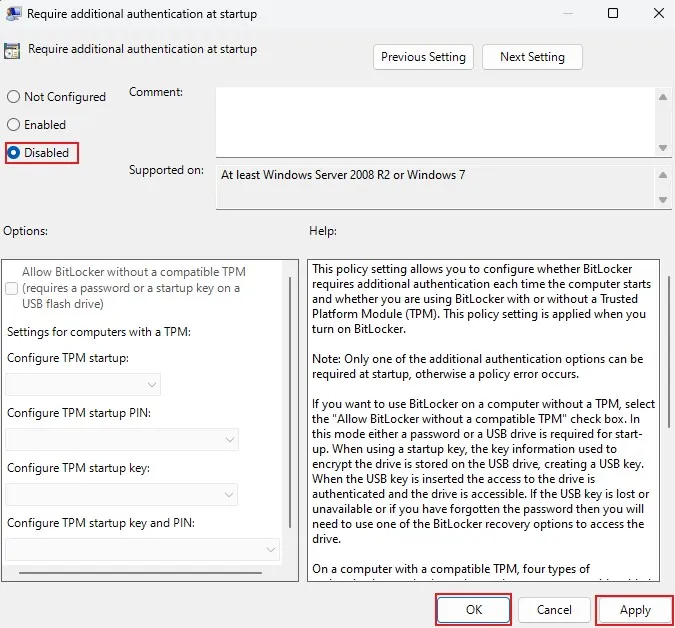
You will then need to restart your PC for the changes to take effect.
This is an advanced method, as it is suitable for those who want a permanent solution to their BitLocker disablement.
Process 4: Disable BitLocker Using Windows Services
The other way to uninstall Bitlocker is via Windows Local Services. Here’s how:
Press Win + R, type services.msc, and press Enter.
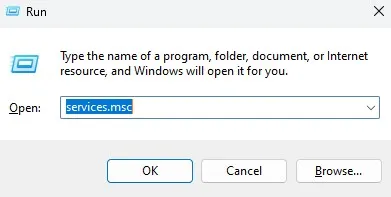
Locate BitLocker Drive Encryption Service in the list.
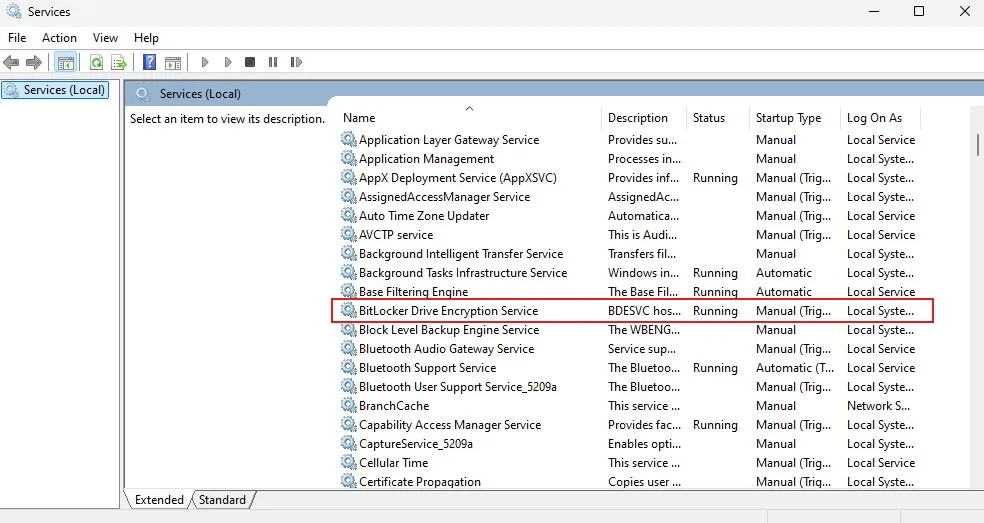
Right-click it and select Properties.
Set Startup type to Disabled.
Click Apply and then OK.
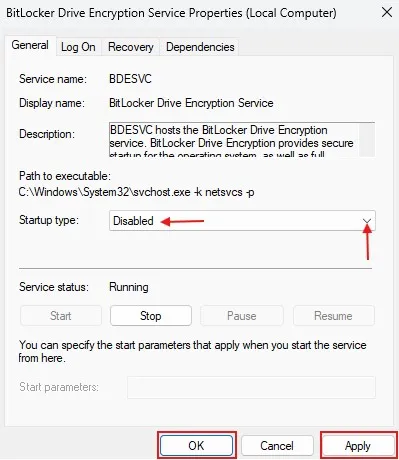
Restart your PC for the changes to take effect.
This prevents BitLocker from automatically being re-enabled in the future.
How to Unlock BitLocker with Recovery Key
If you don’t remember your password, you can still unlock BitLocker with the recovery key:
Boot your PC to the BitLocker prompt
Click Enter recovery key.
Type out your 48-digit recovery key (you can access it from your Microsoft account or a location where you saved)
When you’re in, access your drive and turn BitLocker off
How to Unlock BitLocker Without Recovery Key
However, unlocking BitLocker is next to impossible if you don’t have the recovery key. However, you can try:
Checking your Microsoft account: https://account.microsoft.com/devices/recoverykey.
Using BitLocker Data Recovery Software: You can also try a data recovery software that can work on recovering BitLocker keys. Some of these tools may work, but others may not.
So, contacting Microsoft Support: If the drive is important, professional assistance may be the best solution.
Third-Party Tools for BitLocker Data Recovery
Important files may not be lost for everyone who gets locked out of their BitLocker drive, and there is a selection of third-party tools available that can assist you. Here are some trusted options:
M3 BitLocker Recovery: is a recovery software specifically designed to recover lost data from BitLocker drives and is capable of doing so even if the recovery key is lost.
Hasleo BitLocker Data Recovery: A highly rated program for data recovery from encrypted drives, offers an intuitive interface that is easy to navigate through.
iBoysoft BitLocker Recovery: It supports deep scans and helps you recover files from damaged or inaccessible BitLocker drives.
These tools will not always provide a complete recovery, but if you need to recover important data, they are worth a try.
Here are some common BitLocker-related problems and their solutions:
- BitLocker won’t turn off: Try using the command prompt method or check for any running processes that might be interfering.
- Slow decryption process: Be patient, as decryption can take several hours for large drives. Ensure your device is plugged in and doesn’t go to sleep during the process.
- Recovery key not working: Double-check that you’re entering the correct key. If issues persist, you may need to use a BitLocker recovery tool or seek professional help.
- BitLocker activated unexpectedly: This can happen due to Windows updates or hardware changes. Use your recovery key to unlock the drive and then disable BitLocker if desired.
Conclusion
So, that was all about disable BitLocker in Windows 11! So, whether you use Control Panel, CMD, Group Policy Editor or Windows Services, there’s always a way to disable BitLocker. If you’ve lost your recovery key, don’t lose hope, although you should always have a backup — no data is worth losing.
I hope this guide helped! If this was helpful, please feel free to share it with others. If you have any questions leave me a comment and let me know!
Now that you’ve successfully disabled BitLocker, you might want to optimize your Windows 11 performance further. Check out our guide on 10 Best Windows 11 Settings for Maximum Performance to make your system run faster and smoother!
Frequently asked Question (FAQ)
Can BitLocker be disabled without recovery key?
Yes, you can disable BitLocker from Control Panel if you have admin Windows, CMD, Group Policies, etc.
What happens when I turn off BitLocker?
Your drive will then get decrypted, and data protection will be disabled. Do note this may take a while.
Will I lose my files if I disable BitLocker?
No disabling BitLocker does not remove data. It only decrypts the drive.
Is it possible to re-enable BitLocker after disabling it?
You can reactivate BitLocker anytime via Control Panel > BitLocker Drive Encryption.
How long does it take to decrypt a BitLocker drive?
It depends on the drive size. A large drive may take several hours.
Is there any way to recover BitLocker if I lose the recovery key?
If you don’t have the recovery key, your only option is to check your Microsoft account or use third-party recovery tools like M3 BitLocker Recovery.