
Did you also notice that the uptime in Task Manager continues to increase even after shutting down your Windows 11 PC? You may be asking yourself, “Did I even turn off my computer? Well, don’t worry — you’re not the only one!
That’s because Windows 11 uptime not resetting, windows doesn’t always do a complete shutdown by default. Instead, it uses a feature called Fast Startup, which leaves parts of your system in a low-power state to improve boot times. The downside? Your uptime never resets, not even when you shut down.
In this guide, I’ll explain why this happens, and how to fix it: so that your PC properly shuts down completely and reset uptime correctly.
Why Does Windows 11 Uptime Keep Running Even After Shutdown?
Fast Startup, however, is the villain behind the scene. This feature was introduced to make Windows boot up faster by saving some system information in a special hibernation state instead of fully shutting down. Although that sounds handy, it comes at a cost: Your computer is not fully shutting down, and that’s why your uptime doesn’t get reset.
How to Check Your System Uptime
To check if your Windows 11 uptime is not resetting, follow these steps:
- Open Task Manager by pressing Ctrl + Shift + Esc on your keyboard.
- Click on the Performance tab.
- Select CPU from the left panel.
- Look at the Uptime section at the bottom
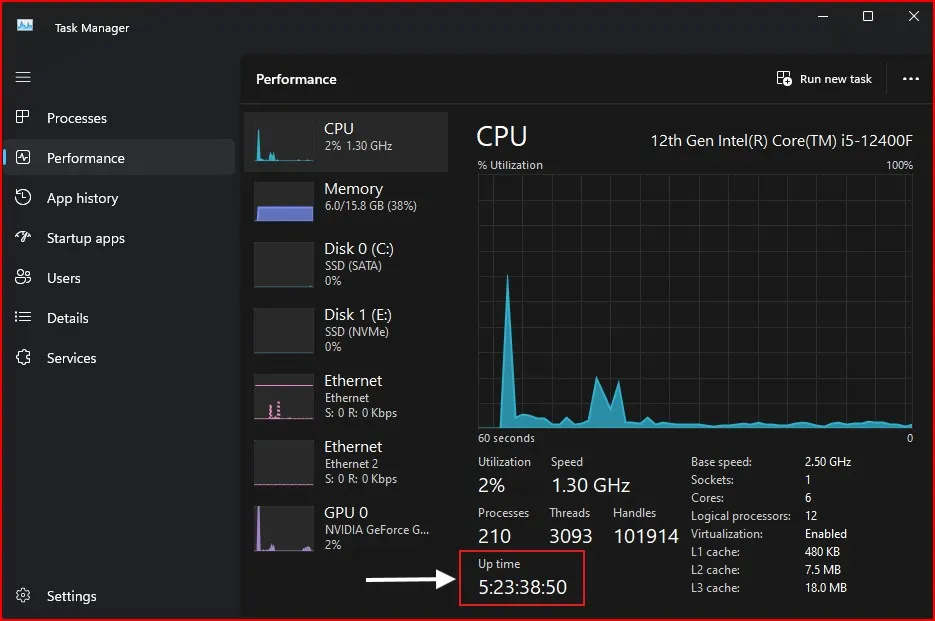
If it’s been running for days, even after shutting down, then your PC isn’t fully turning off, meaning that you haven’t shut down your PC at all as you think!
Now, let’s get to the fix!
How to Fix Windows 11 Uptime Not Resetting Issue
Method 1: Disable Fast Startup (Recommended)
The main reason Windows 11 uptime not resetting is because of Fast Startup. Here’s how to reset CPU uptime Windows 11 to ensure a proper shutdown:
Open Control Panel by pressing Win + R, then type control, and hit Enter.

Go to Power Options
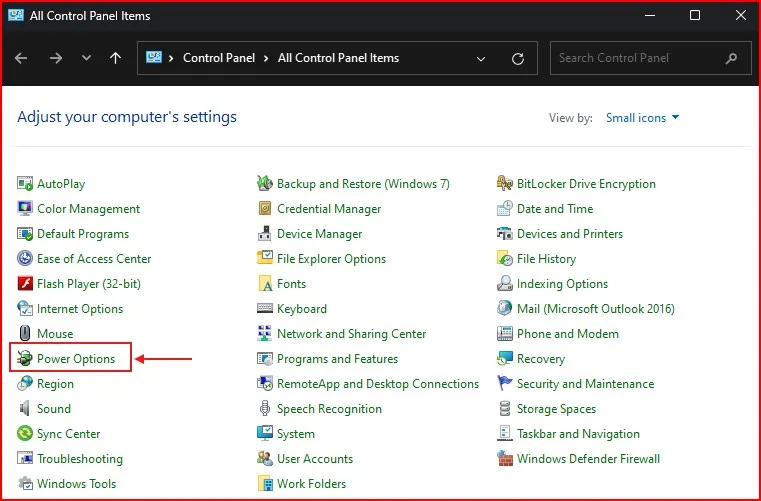
In the left panel, click Choose what the power buttons do.

Click on Change settings that are currently unavailable.

Scroll down to Shutdown settings and uncheck Turn on fast startup (recommended).
Click Save changes.

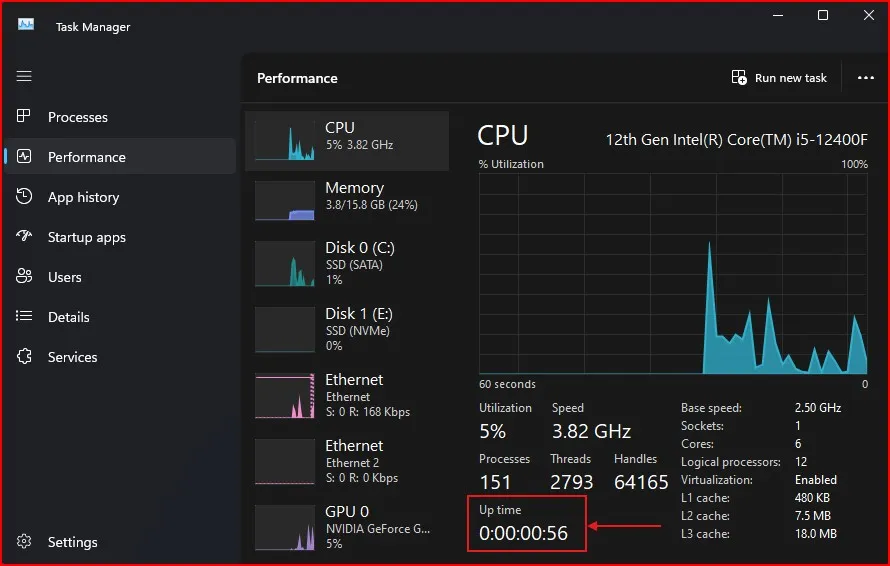
Now you disable fast startup, So the next time you shut down, your PC will turn off completely, and the uptime counter will reset accordingly. You can check the uptime in Task Manager > Performance > CPU.
Method 2: Use Restart Instead of Shutdown
If you prefer not to disable Fast Startup, then another quick solution is to restart your PC instead of shutting it down. Uptime is reset on a restart (because Windows doesn’t use Fast Startup on a restart).
- Click the Start button.
- Select the Power icon.
- Instead of Shutdown, click Restart.
This will cause Windows to make a full restart and reset the uptime counter.
Method 3: Use Command Prompt to Shut Down Fully
If you want to keep Fast Startup enabled but occasionally perform a full shutdown, use this command:
Run Command Prompt as Admin: Open the Start menu and type cmd in the search bar. When Command Prompt appears in the results, right-click on it and select Run as administrator from the list.
Type this command and hit Enter:
shutdown /s /f /t 0
This triggers a complete shutdown, skipping Fast Startup.
Still confused? Watch my YouTube Shorts on Windows 10 Shutdown Secrets to see why your PC isn’t fully shutting down!
Final Thoughts
The Fast Startup feature of Windows 11 is excellent for boot times, but it can be confusing when your system uptime doesn’t reset after shutting down. For a true shutdown, disabling Fast Startup gives you the best of both worlds. Otherwise both restart or shutdown command will also work.
Now that you know what are the reasons why Windows 11 uptime is running after shutdown and how to fix that, try the available methods and see which one works for you! Share it with them if you know someone who is facing the same problem if this guide helped you.
Now that you’ve fixed the Windows 11 uptime not resetting issue, why not speed up your workflow with some useful Windows Run Commands? Check out my guide on 20 Windows Run Commands You NEED to Know for Faster Navigation
Frequently Asked Questions (FAQ)
Why is my Windows 11 uptime not resetting after shutdown?
This is due to the fact that Fast Startup is active. Rather than completely shutting down, Windows 11 saves system data which helps with boot times, allowing the uptime to continue.
How do I fix Windows 11 uptime not resetting issue?
You have to turn off Fast Startup. Go to Control Panel > Power Options > Choose what the power buttons do, uncheck Turn on Fast Startup and save.
Does restarting Windows 11 reset the uptime?
Yes, a restart fully reloads the system and resets uptime, unlike shutdown with Fast Startup enabled.
How to Check Windows 11 Uptime?
Open Task Manager (Ctrl + Shift + Esc), click on the Performance tab and check the Up time under CPU.
Does turning off Fast Startup slow down my PC?
Not much. Your PC will then take a few extra seconds when booting, but it will execute a complete shutdown and resolve Windows 11 uptime not resetting.