
If you cannot get VirtualBox, VMware, or some games to run on Windows 11, Hyper-V may be the culprit. While Hyper-V is a Microsoft-provided built-in virtualization component, it can conflict with other virtualization software and can even negatively affect system performance. The good news? You can disable it easily! In this guide, I will walk you through the steps to disable Hyper-V on Windows 11 using various methods.
Why Should You Disable Hyper-V?
Now, before jumping directly to the steps, let’s briefly see why would someone want to disable Hyper-V:
- Virtualization Conflicts: Hyper-V is not fully compatible with VirtualBox, VMware, and android emulators.
- Performance Improvement: Hyper-V enabled some users have a slow performance.
- Gaming Problems: Some games that use anti-cheat software may detect Hyper-V and will not run.
- Software Conflicts: Apps that directly access hardware may also experience compatibility issues.
If any of these problems apply to you, follow one of the methods below to disable Hyper-V on windows 11.
If you are planning to install VMware Workstation Player after disabling Hyper-V, make sure to check out my detailed guide on How to Install VMware Workstation Player on Windows 11.
Method 1: Disable Hyper-V via Windows Features
- Open Control Panel: Hit the ‘Windows key + S’, start typing ”Control Panel”, then hit it to open.
- Go To Programs & Features: Click on ”Programs” → Click on “Turn Windows features on or off”
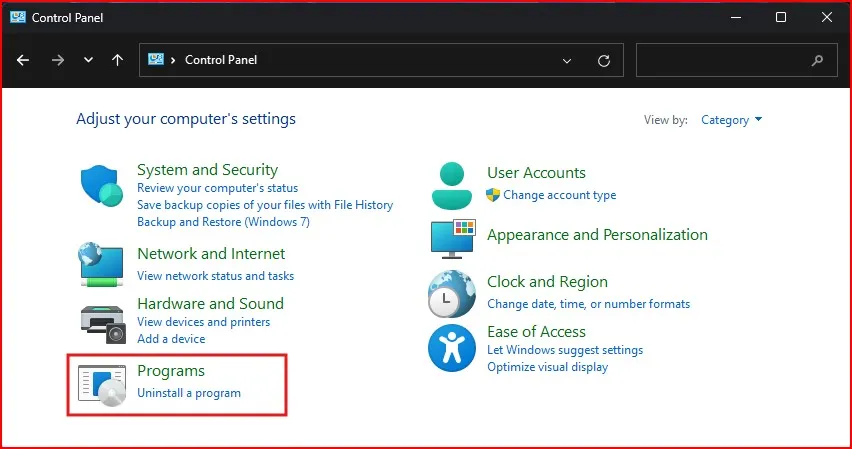
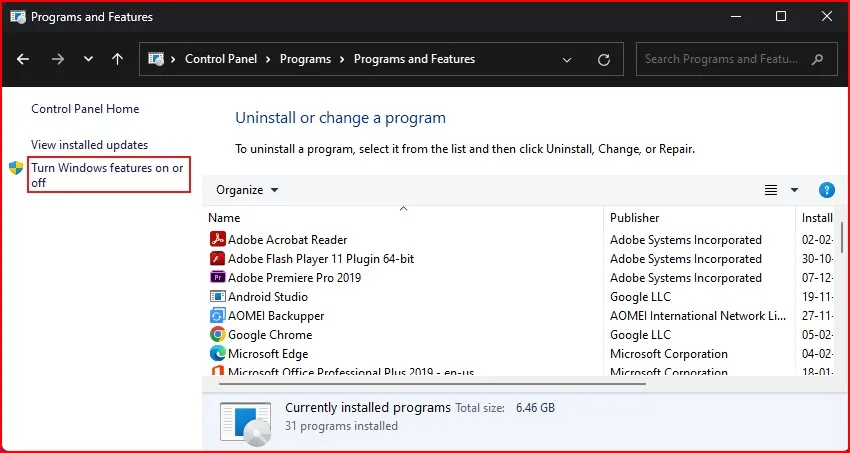
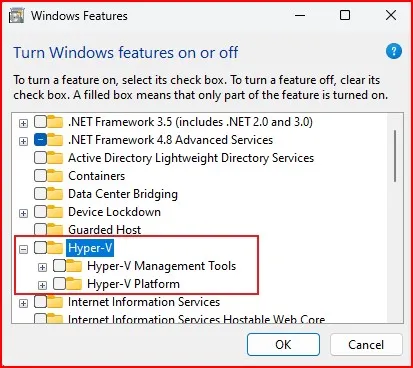
- Disable Hyper-V: Uncheck Hyper-V and its sub-options.
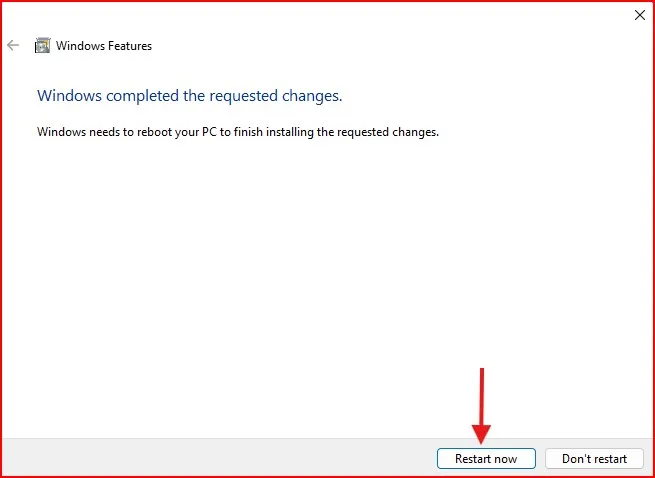
- Restart Your Computer: Windows will ask you to restart in order to apply the changes when you uncheck.
Method 2: Disable Hyper-V via Command Prompt
If you prefer using commands, follow these steps:
Run Command Prompt as Administrator: Press Win + S, type cmd, right-click on Command Prompt, and select Run as administrator.
Disable Hyper-V: Type the following command and press Enter:
bcdedit /set hypervisorlaunchtype off
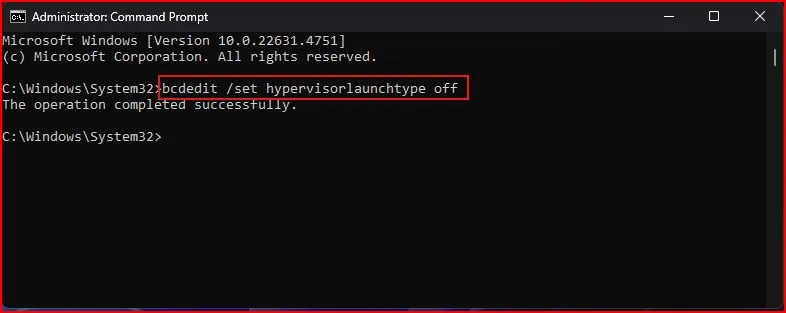
Restart Your PC: Reboot your computer for the changes to take effect.
If you want to re-enable Hyper-V later, use this command:
bcdedit /set hypervisorlaunchtype auto
Method 3: Turn off Hyper-V Using PowerShell
PowerShell provides another way to disable Hyper-V:
Open PowerShell as Administrator: Press Win + X and choose Windows Terminal (Admin).
Run the Command: Enter the following command and press Enter:
Disable-WindowsOptionalFeature -Online -FeatureName Microsoft-Hyper-V-All
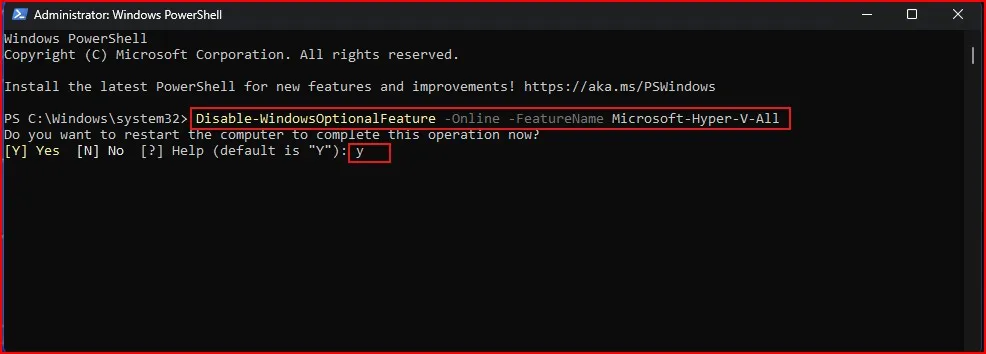
Confirm and Restart: If prompted, type Y and restart your PC.
After the reboot, Hyper-V will be disabled.
Disabling Hyper-V does not turn off hardware virtualization. If you want to enable or check virtualization settings in BIOS, follow my detailed guide on How to Enable Virtualization in Windows 11 PC: A Step-by-Step Guide 2024.
Conclusion
If you follow the proper steps, disable Hyper-V on Windows 11 is a pretty straightforward process. Whether you’re fine-tuning your system or troubleshooting compatibility problems, exerting control over this feature can customize your PC for your purposes. As always, the main point is to potentially gain better performance and a wider software compatibility.
If you want to know more adjustments and optimizations for your Windows 11 system then keep watching because we are going to explore more Tweaks to make your computer work for you.
You can also browse through the Microsoft Community for more tips or solutions to any issues you may encounter. Learn more MS Community.
Are you running your computer with Hyper-V disabled? Will you be? Please let us know your experiences or any questions in the comments below!
Frequently Asked Questions (FAQ)
Can I re-enable Hyper-V after disabling it?
Yes, you can enable it anytime using Windows Features or the following command:bcdedit /set hypervisorlaunchtype auto
Does disabling Hyper-V on windows 11 harm my system?
No, disabling Hyper-V will not affect your system negatively, but Hyper-V-based virtual machines will not run until you enable it again.
Should I disable Hyper-V for VirtualBox or VMware?
Yes, turning off Hyper-V often improves the performance of third-party virtual machines.
Will disabling Hyper-V improve gaming performance?
Yes, some games with anti-cheat mechanisms run better with Hyper-V disabled.
What if I don’t see Hyper-V in Windows Features?
If Hyper-V is not listed under Windows Features, it may not be installed on your version of Windows. You can verify this by running systeminfo | find "Hyper-V" in Command Prompt.