
You have actually heard about Windows 11 26H1. This is definitely the new version that many people are discussing. Many Windows users actually want to try new features, but they definitely cannot find this particular update when they check Windows Update.
Moreover, the reason itself is simple. Windows 11 26H1 is not available to all users through regular Windows Update process itself. Microsoft will further release it to more users gradually. This feature coming first only through Insider and preview channels mainly. When users check for updates and do not find 26H1, they further assume that the release itself is not available.
There is only one way to get the new Windows 11 26H1 build and make an ISO file for testing or putting it on virtual machines. In this guide, I will actually walk you through the complete process.
Why Isn’t Windows 11 26H1 Showing Up in Windows Update?
Many users surely expect that a new Windows version will appear automatically in Windows Update. However, preview and development builds itself are not always distributed further in this manner.
Right now, Windows 11 26H1 is actually available mainly through windows Insider program. It is definitely not released for regular users yet. Moreover, if your PC is not enrolled in these channels, the update itself may not appear automatically, and you may need to check further for manual installation options.
That’s why we are seeing many users looking for ISO file only instead.
What You’ll Need Before Starting
Basically, the process is not difficult, but you should check a few things before starting – it’s the same for everyone.
You should actually check that you definitely have:
- A Windows PC
- A stable internet connection
- Around 20GB or more of free storage space
- Administrator access
- Enough time for the download and ISO creation process
Depending on your internet speed, the download can take a while because Windows installation files are quite large.
If you prefer watching the complete process instead of reading the step-by-step instructions, you can watch my detailed video tutorial below.
For those who prefer written instructions, let’s go through the entire process step by step.
Where Can You Get the Windows 11 26H1 ISO?
UUP Dump platform can create Windows ISO files by downloading files directly from Microsoft’s servers. It does not host Windows files itself, but creates a package that downloads required components and builds the ISO on your computer.
Basically, the same thing we’ll use in this tutorial.
Searching for the Latest 26H1 Build
After opening the UUP Dump website, you’ll notice a search box near the top of the page.
Type: 26H1
and press Enter.

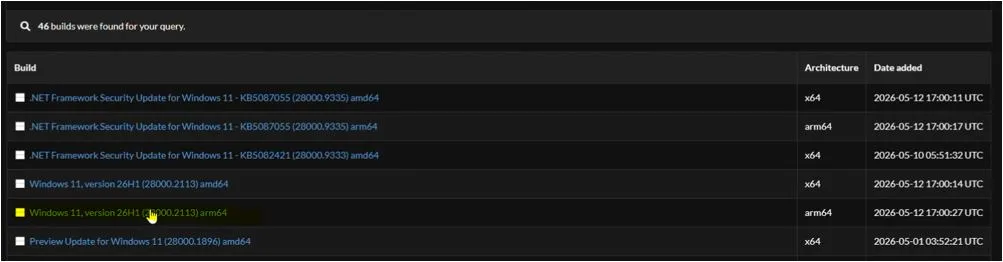
You should now see one or more available builds.
Desktop and laptop users should surely choose the x64 version in most cases. ARM64 builds are made for ARM-based devices itself.
You should definitely check that you are picking the newest build before you go ahead.
Selecting Your Language and Edition
Once you’ve chosen the build, the next screens are fairly straightforward.
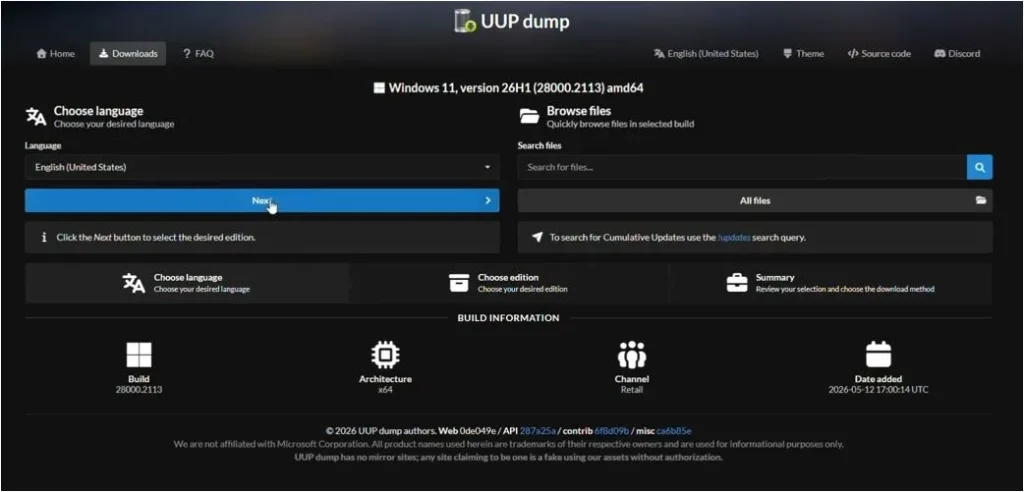
First, select your preferred language.
Most users will choose English (United States) or English International, but you can select whichever language you normally use.
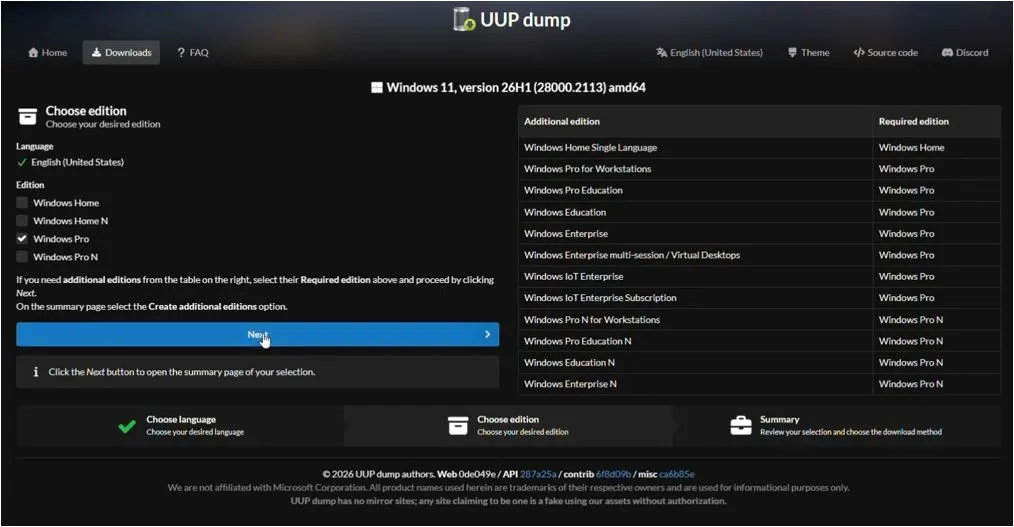
After that, you’ll be asked to choose the Windows edition.
For typical home users, Windows 11 Pro is usually the best choice. If you’re unsure, leaving the default selection is perfectly fine.
Creating the Download Package
This is the step where many first-time users become confused.
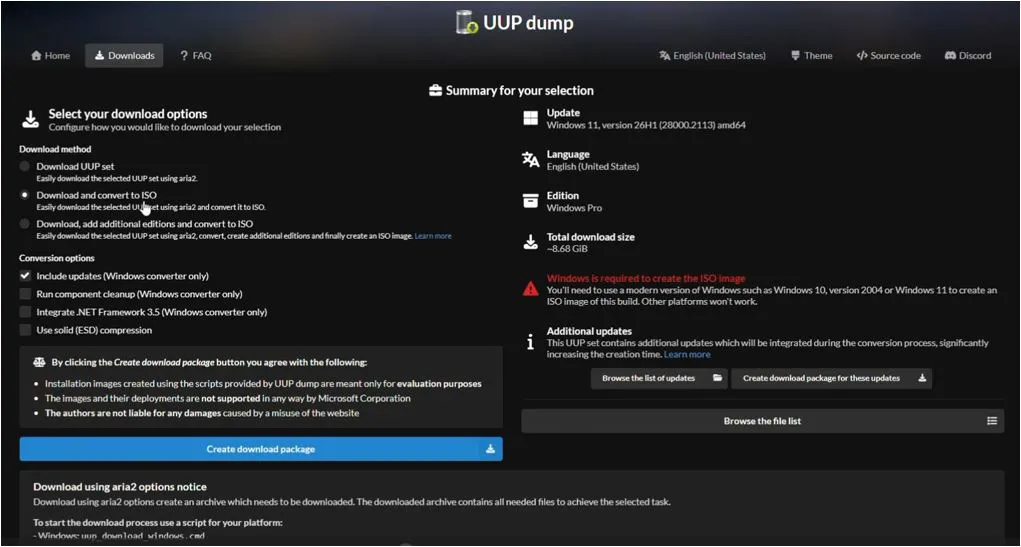
You’ll see several download options, but the easiest choice is:
Download and convert to ISO
Make sure the option to include updates remains enabled.
The default settings generally work well, so there is no need to change anything unless you know exactly what you’re doing.
Once everything looks good, click the button to create download package.
A ZIP file will then download to your computer.
Extracting and Running the Script
After the ZIP file finishes downloading, open your Downloads folder and extract the archive.
Inside the extracted folder, you’ll find several files.
Look for:
uup_download_windows.cmd
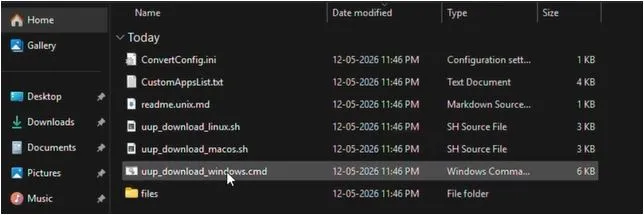
Right-click the file and choose:
Run as administrator
The Command Prompt window will open and start working by itself. This will further begin the automatic process. Many users think something went wrong because lots of text starts moving on the screen. That’s completely normal
The script is downloading Windows files and further preparing everything needed to build the ISO itself.
Waiting for the ISO Creation Process
This part needs some patience regarding the process.
We are seeing that download and conversion time depends only on your internet speed and computer performance, taking few minutes to much longer.
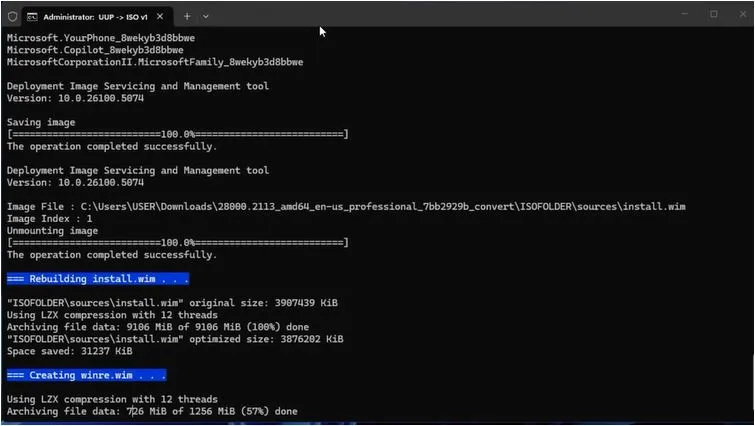
During this time:
- Don’t close the Command Prompt window
- Don’t restart your computer
- Let the process finish on its own
The download will definitely finish, and the script will actually start making the ISO file automatically.
When all work is actually done, you will definitely see a message that tells you it is finished.
Finding the Finished ISO File
After the script completes its work, return to the same folder where you extracted the download package.
You should now see a Windows 11 26H1 ISO file waiting for you.
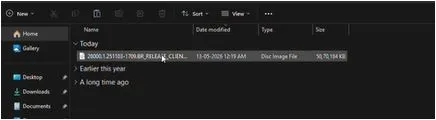
At this point, you have several options.
You can create a bootable USB drive, install the build inside VirtualBox, or perform an upgrade on your existing Windows installation.
Upgrading Without Formatting Your PC
If you want to try Windows 11 26H1 without removing your existing system, you can only do the same upgrade directly on your current setup.
You need to double-click the ISO file to mount it. This will definitely open the file contents for use.
Open the mounted drive and run the command further to proceed with the installation itself.
setup.exe
You should follow the setup steps and choose the option to keep only your personal files and apps.
This feature surely allows Windows to upgrade while keeping most of your current data safe. Moreover, it ensures that your important files remain protected during the system update process.
A Few Things to Keep in Mind
As per current status, Windows 11 26H1 is not available for all users and needs more testing before installing on your main computer. Regarding installation, avoid using this release on your primary system until proper testing is completed.
Most people actually install the same builds without any problems, but you can definitely still get bugs, incomplete features, or driver issues.
As per testing requirements, having an extra PC or virtual machine is the safest method for checking new builds.
Final Thoughts
By doing these steps, we are seeing that you can download the new build, make the ISO file, and decide if you want to test it in virtual machine only or do clean install or upgrade your Windows system.
If you actually want to test new Windows features, Windows 11 26H1 is definitely worth checking out.
Frequently Asked Questions (FAQs)
Is Windows 11 26H1 officially released?
Yes, Windows 11 26H1 builds are available through Insider and preview channels, but they are not yet available to all users through the standard Windows Update process.
Can I download Windows 11 26H1 ISO directly from Microsoft?
At the time of writing, Microsoft does not provide a public ISO download page for all Windows 11 26H1 builds. You may need to use alternative methods such as UUP Dump to generate the ISO.
Can I upgrade from Windows 11 25H2 to 26H1 without losing my files?
Yes. If you mount the ISO file and run Setup.exe, you can choose the option to keep your personal files and installed applications during the upgrade.
Is Windows 11 26H1 safe for daily use?
Since 26H1 is currently a preview build, it may contain bugs or unfinished features. It is recommended to test it on a secondary PC or virtual machine first.
Can I install Windows 11 26H1 on VirtualBox?
Yes. You can use the generated ISO file to create a virtual machine in VirtualBox and safely test Windows 11 26H1 without affecting your main system.