
Your Windows 11 computer actually has a MAC address that definitely works as a special code for fixing network problems and security settings. This address is actually used for different network settings, which is why many users definitely search for how to find MAC address in Windows 11 when they set up routers or connect to secure networks. Further, finding the MAC address in Windows 11 actually saves time when you set up parental controls at home or connect devices in office networks. Students definitely need this when joining campus networks too.
This guide shows you 7 simple methods to check MAC address information on your Windows 11 PC, you can use any method that feels easy for you.
Why you might need to find your MAC address
You will actually need your Windows 11 MAC address for different practical situations. This is definitely required for many network tasks. Network administrators surely need this feature to allow specific devices on company networks. Moreover, they use it to set up device filtering on routers for better security. As per network troubleshooting needs, providing your MAC address to tech support makes fixing connectivity problems much easier. Some software licenses actually connect to your computer’s MAC address for security reasons. This definitely helps protect the software from being copied. You actually need it when you set up parental controls, configure static IP addresses, or track network activity for security checks. It definitely helps with these basic network management tasks.
Now that you know your device’s MAC address, you may also want to change it for privacy or network-related purposes. Check out our guide on How to Change MAC Address in Windows 11 for the complete steps.
Method 1: Find MAC Address Using Windows Settings
First, press Windows + I on your keyboard to open the Settings app. You can also click the Start button and select Settings from the menu.
From the left sidebar, click Network & Internet.
Now choose the type of network connection you are currently using. If your computer is connected through Wi-Fi, click Wi-Fi. If you are using a network cable, click Ethernet.
On the next screen, click Hardware Properties.
Scroll down until you find the option labeled Physical Address (MAC). The value displayed next to it is your device’s MAC address.
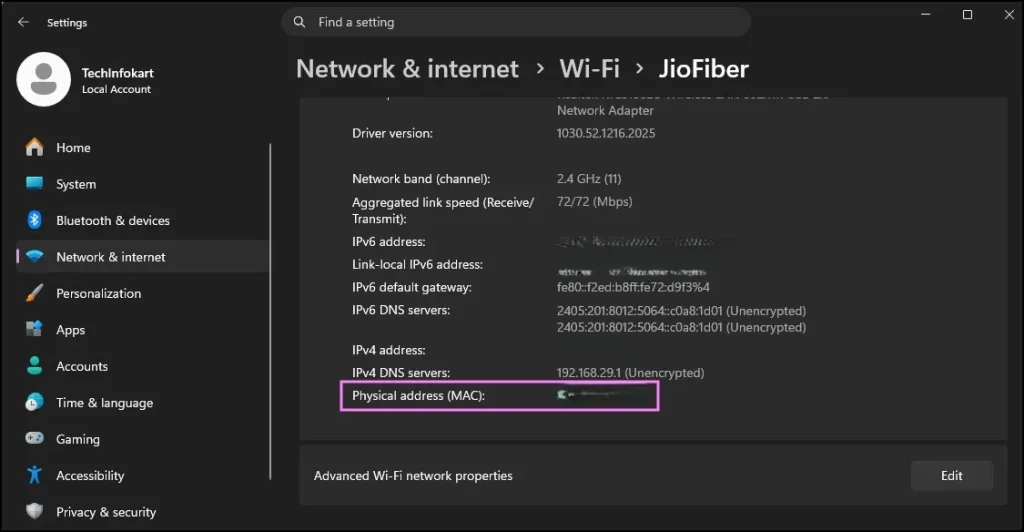
You can now note down or copy this address if needed.
Method 2: Find MAC Address in windows 11 Using Command Prompt
Press Windows + R to open the Run dialog box.
Type cmd and click OK.
When the Command Prompt window appears, type the following command and press Enter:
ipconfig /all
Windows will display information about all network adapters available on your system.
Look for the adapter you are currently using. Under that section, locate Physical Address.
The value shown next to Physical Address is the MAC address of that network adapter.
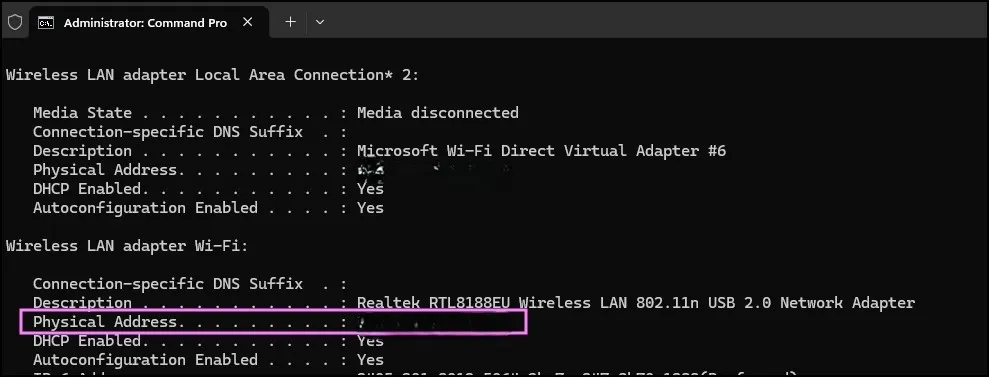
Method 3: Find MAC Address in windows 11 Using the getmac Command
If you only want to see MAC addresses without viewing lots of networking information, the getmac command is a quicker option.
Open Command Prompt by pressing Windows + R, typing cmd, and pressing Enter.
In the Command Prompt window, type:
getmac
Press Enter.
Within a few seconds, Windows will display a list of available network adapters and their corresponding MAC addresses.
Simply locate your active network adapter and note the MAC address shown beside it.
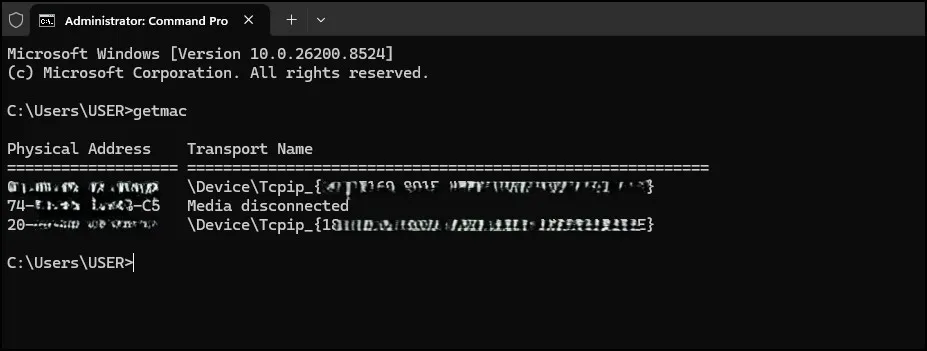
This method is one of the fastest ways to check MAC address information in Windows 11.
Method 4: Find MAC Address in windows 11 Using PowerShell
PowerShell is another built-in Windows tool that can quickly display MAC addresses.
Right-click the Start button and select Terminal or Windows PowerShell.
Once the PowerShell window opens, type the following command:
Get-NetAdapter
Press Enter.
A table containing information about your network adapters will appear on the screen.
Look for the column named MacAddress. The MAC address for each network adapter will be displayed there.
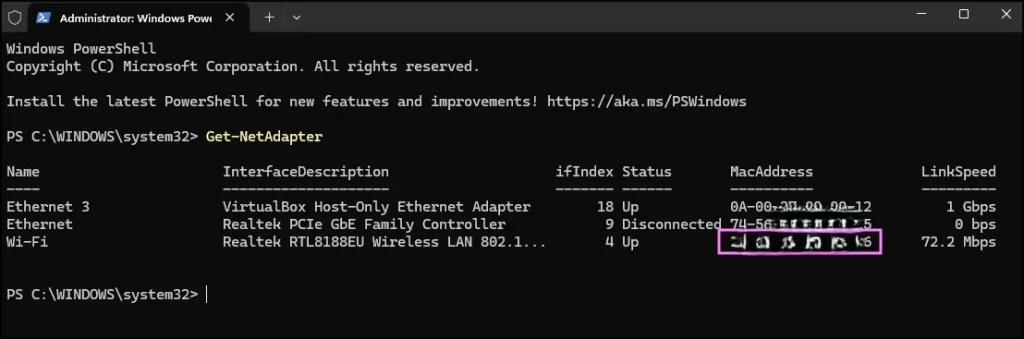
If you have multiple adapters, identify the one currently in use and note its MAC address.
Method 5: Find MAC Address in windows 11 Using Control Panel
Open the Start menu and search for Control Panel.
Click on the Control Panel app to open it.
Navigate to:
Network and Internet → Network and Sharing Center
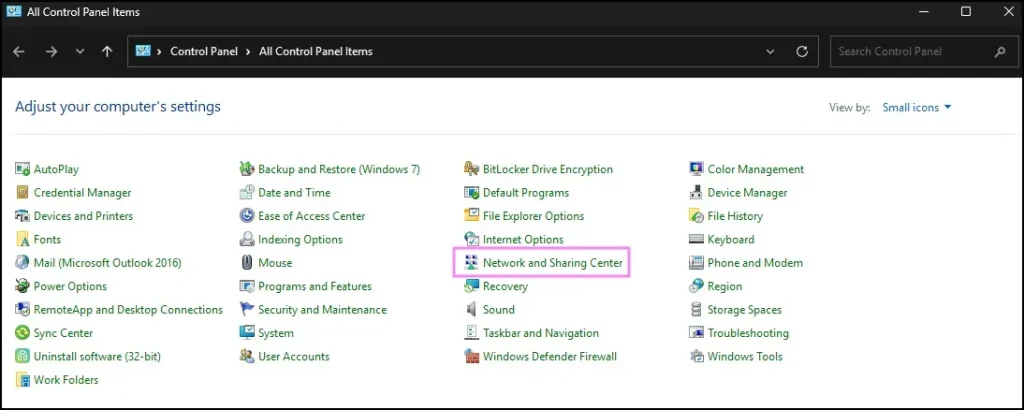
You will see your active network connection listed on the screen.
Click the network name next to Connections.
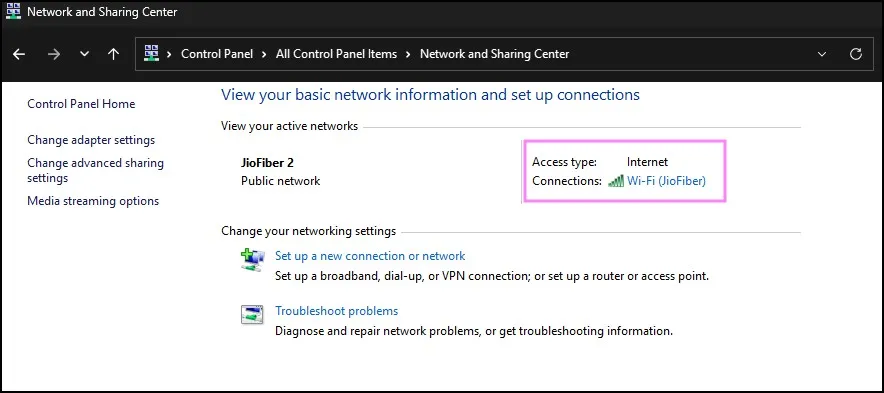
A Network Status window will open.
Click the Details button.
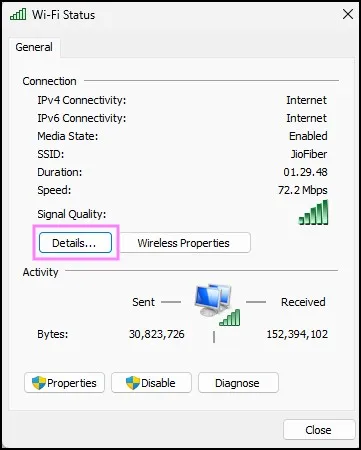
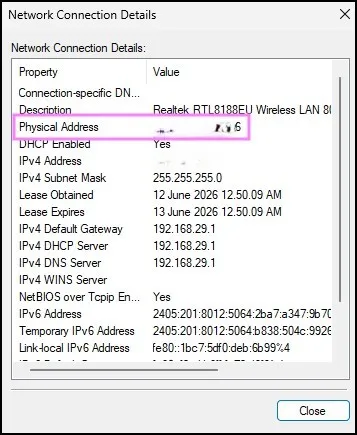
Another window containing network information will appear.
Look for Physical Address in the list. The value shown next to it is the MAC address of your network adapter.
Method 6: Find MAC Address in windows 11 Using System Information
Press Windows + R to open the Run dialog box.
Type:
msinfo32
and press Enter.
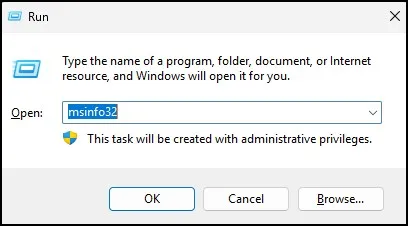
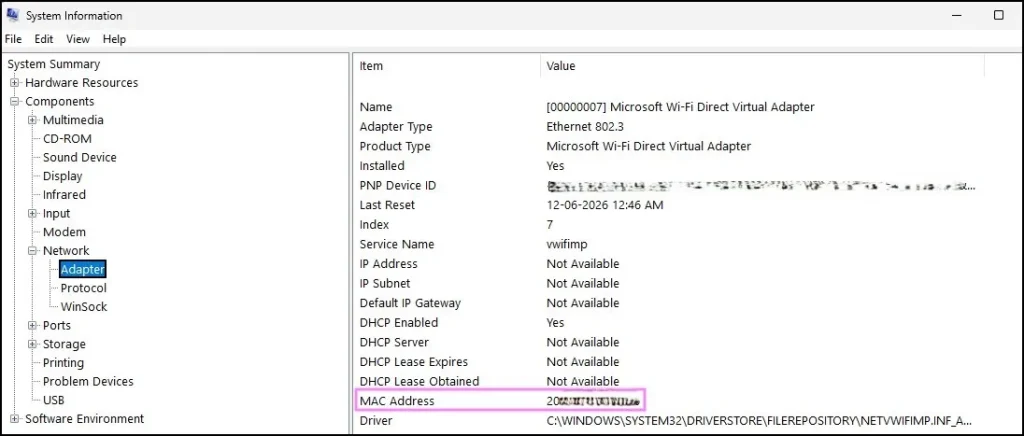
The System Information window will open.
In the left-hand pane, expand Components.
Next, expand Network and then click Adapter.
Windows may take a few moments to load all network-related information.
Once loaded, scroll through the details until you find your active network adapter.
You will see various information about the adapter, including its MAC address.
Method 7: Find MAC Address in windows 11 Using Network Connections
This method gives direct access to the network adapter currently being used by your computer.
Press Windows + R.
Type:
ncpa.cpl
and click OK.
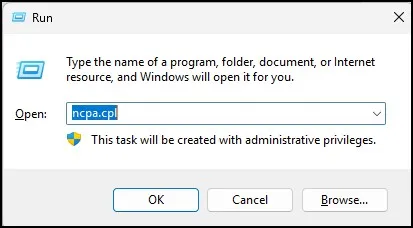
The Network Connections window will open.
Locate your active network connection. It may be labelled as Wi-Fi or Ethernet depending on how your PC is connected.
Double-click the active connection.
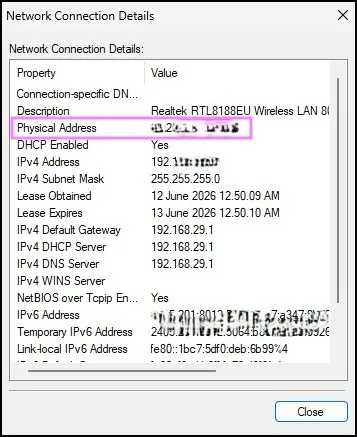
When the Status window appears, click Details.
A list of network properties will be displayed.
Find Physical Address in the list.
The value shown next to Physical Address is your MAC address.
That’s all you need to do.
Conclusion
As per the discussion, that is all regarding this matter. We are seeing that Windows 11 has many simple ways to find MAC address in windows11 using tools like Settings, Command Prompt, PowerShell or network tools. The Settings app is surely the most convenient option for majority of users. Moreover, it provides the simplest approach for basic configuration tasks. If you actually know commands, you can definitely do it much faster.
Frequently Asked Questions
What is a MAC address?
A MAC address is a unique hardware identifier assigned to a network adapter for communication on a network.
Is a MAC address the same as an IP address?
No. An IP address can change depending on the network, while a MAC address is assigned to the network hardware itself.
Can I find my MAC address without Command Prompt?
Yes. You can use Windows Settings, Control Panel, System Information, or Network Connections.
Does Wi-Fi and Ethernet have different MAC addresses?
Yes. Each network adapter usually has its own unique MAC address.
Is it safe to share my MAC address?
Generally, sharing your MAC address is less sensitive than sharing passwords, but it’s still best to share it only when necessary.