
Ever after you’ve downloaded a software file and then paused to think, “Is this actually safe to open?” This sort of thing can happen to a lot of Windows users, especially beginners. One wrong click could result in viruses, unwanted pop-ups or system issues
Fortunately Windows 11 comes equipped with a feature providing an easy solution— Windows Sandbox. In this post, we’ll cover what Windows Sandbox is in Windows 11 and how to enable Windows Sandbox.
What Is Windows Sandbox?
Windows Sandbox is like a mini Windows inside your main Windows. It creates a fresh temporary desktop where you can open files or apps safely. Anything you do inside the Sandbox stays inside. When you close it, everything gets erased — no changes are saved to your real system.
This makes Sandbox ideal for:
- Testing suspicious software
- Opening unknown files
- Trying apps you don’t trust yet
And the best part? You don’t need a separate program or virtual machine software to use it.
Basic Requirements to enable windows sandbox (Before You Start)
Before you attempt to enable Windows Sandbox on Windows 11, ensure:
- You are using Windows 11 Pro, Enterprise or Education (Sandbox is not available on Home edition).
- Your computer has Hardware virtualization enabled –Typically this is Intel VT or AMD-V.
- Your BIOS has virtualization enabled. (If it isn’t, you’ll need to activate this support in your BIOS/UEFI settings)
- You are logged in as an administrator on your computer.
If you don’t already have these configured, Windows Sandbox won’t appear as an option.
How to Enable Sandbox on Windows 11
Here’s the easiest way you can enable Windows Sandbox:
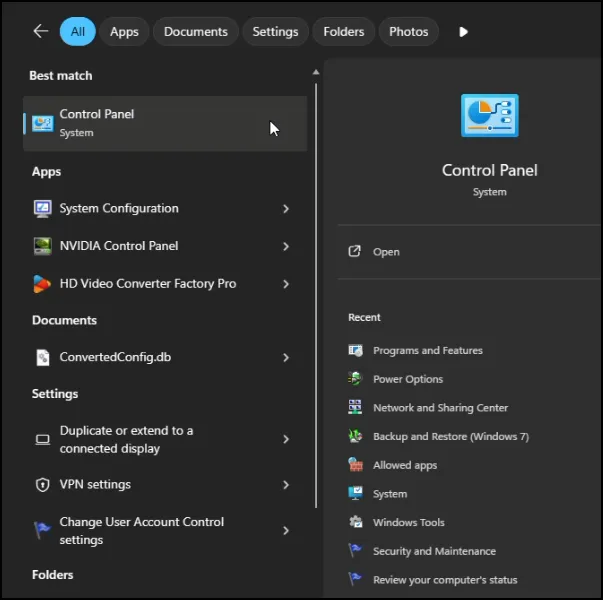
- First, click on the Windows 11 search icon and type Control Panel. Open the Control Panel app from the search results.
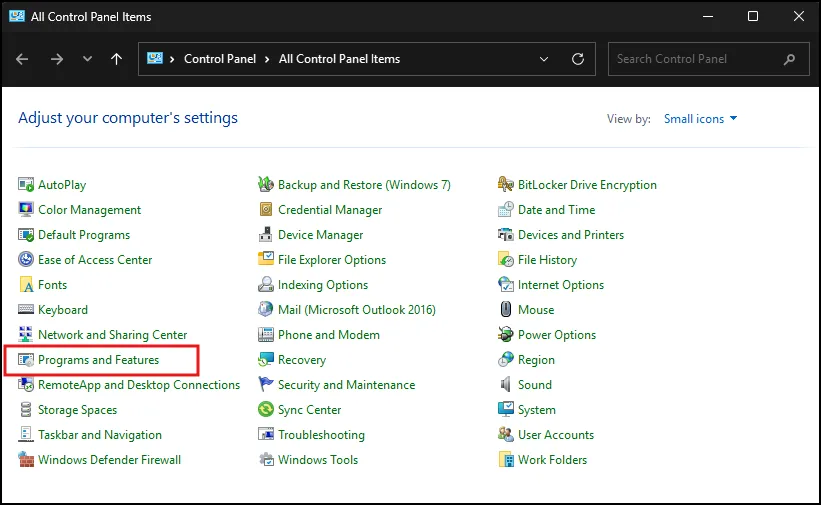
- In the Control Panel window, click on Programs and features.
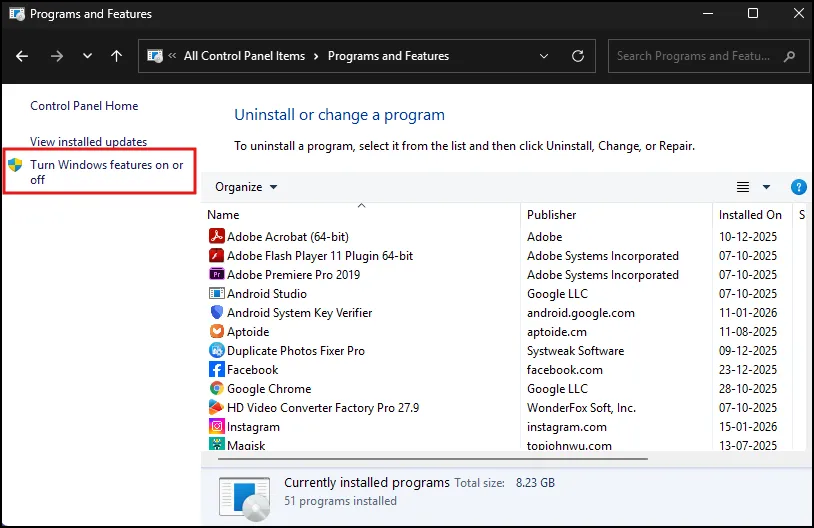
- In the left side of screen click on Turn Windows features on or off.
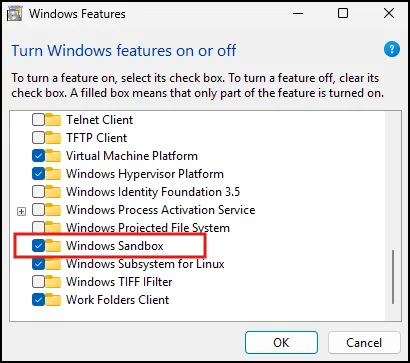
- A new pop up window opens. Scroll down to find Windows Sandbox and check the box next to it. When finished, press the OK button.
- Windows 11 will now begin the process of enabling this feature. Click on Restart now when prompted to finish the installation.
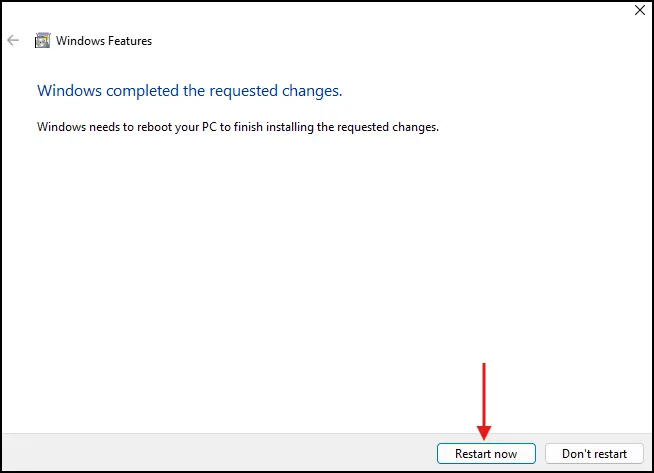
Once rebooted, Windows Sandbox is ready for use.
How to Open and Use Windows Sandbox
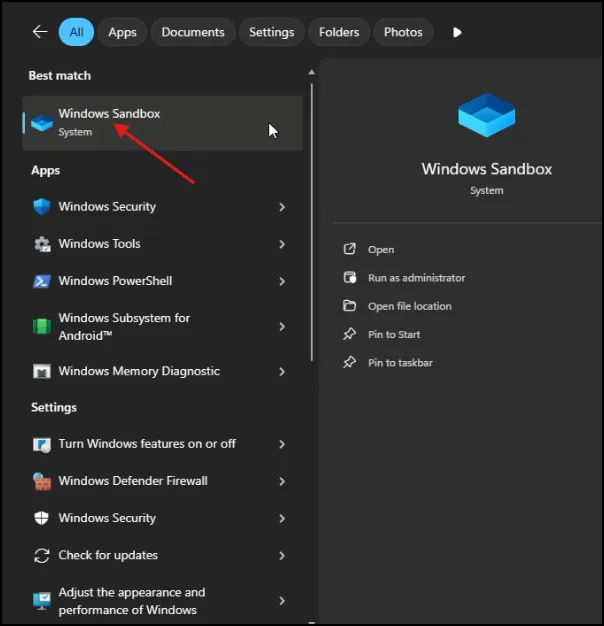
- Once your PC reboots, go back to Windows 11 search and type in Sandbox. Select the Windows Sandbox app from the results.
- You’ll see a light, clean version of Windows open in a window. This is your testing ground where it’s safe.
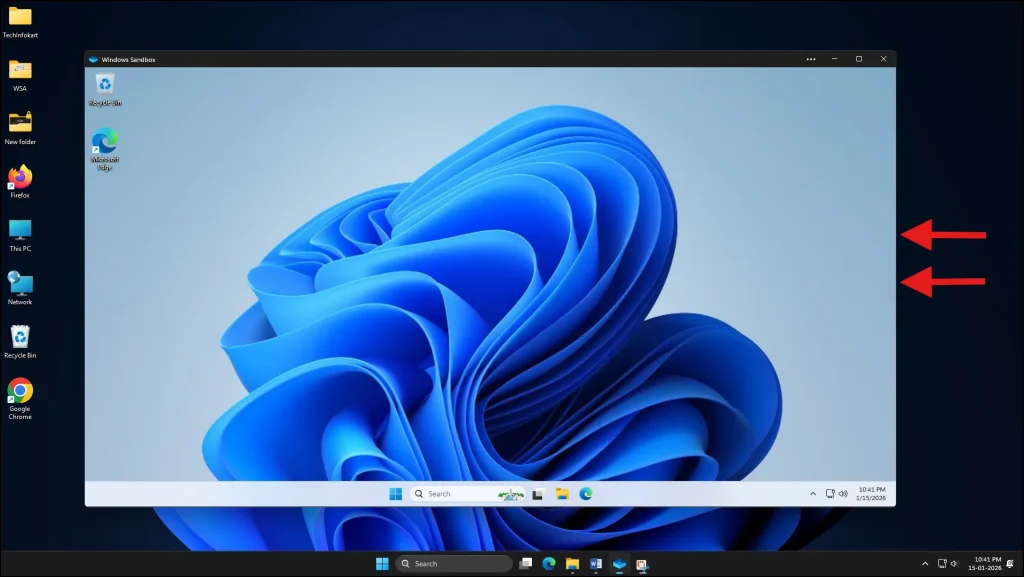
You can:
- Drag files into the Sandbox
- Install software inside Sandbox
- Try programs without affecting your real Windows
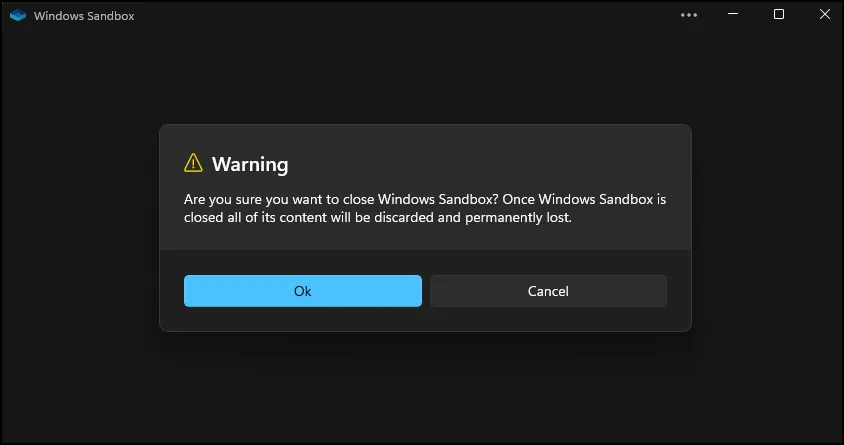
When you’re done, just close the Sandbox window. Everything you did inside will disappear — it’s intentionally temporary.
Quick Tip: What Happens When You Close Sandbox
Closing Sandbox deletes everything inside it. Files, apps, and settings are all wiped clean. So, don’t save anything important there!
How to Disable Sandbox (Optional)
If you ever want to turn off Windows Sandbox:
- Open Turn Windows features on or off again.
- Uncheck the Windows Sandbox box.
- Click OK and restart your PC.
That’s it — Sandbox will no longer be available until you enable it again.
Now you know how to enable Windows Sandbox on Windows 11 — a great way to test files and apps securely without risking your main system. It’s simple, safe, and built right into Windows.
Also Read: How to Enable Virtualization in Windows 11 PC
Frequently Asked Question (FAQ)
Is Sandbox free?
Yes — it’s included for free with Windows 11 Pro, Enterprise, and Education editions.
Can I use Sandbox on Windows 11 Home?
No — Sandbox is not supported on the Home edition.
Do I need virtualization enabled?
Yes. Without hardware virtualization, Sandbox won’t work.
Will Sandbox protect my main files?
Yes — nothing inside Sandbox affects your main system.
Can I save files from Sandbox?
Anything inside Sandbox is temporary. You can copy files out before closing, but once you close, all Sandbox data disappears.