
Nowadays, the old Internet Explorer app doesn’t exist anywhere on a Windows 11 PC. Rather than this, you come across Edge. But if you’re struggling to access an old work portal, or load some ancient government database that won’t display correctly, here’s how to open Internet Explorer mode in Edge. It’s annoying to feel like your brand-new computer isn’t able to run an “old” task for you, but the technology has not actually gone anywhere — it is simply stashed inside your modern browser as a compatibility feature.
In this guide, I’m going to walk you step by step on how to get the that “time machine” running so you can back to work without headache.
What is Internet Explorer Mode in Edge?
Internet Explorer Mode is a built-in feature in Microsoft Edge that helps users open old websites. Moreover, it uses Internet Explorer’s engine to load these legacy websites properly.
This is especially useful for:
- Old company portals
- Government websites
- Legacy web apps
- Sites that don’t work properly in modern browsers
So basically, you don’t need Internet Explorer anymore—Edge does the job for you.
How to Enable Internet Explorer Mode in Edge
Before using IE Mode, you need to turn it on in Edge settings.
Step-by-Step Guide
- Open Microsoft Edge on your Windows 11 PC
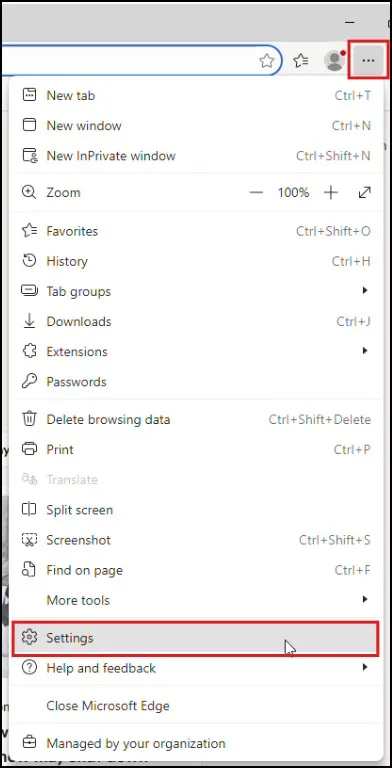
- Click on the three dots (⋯) in the top-right corner and click on Settings
- From the left menu, click Default Browser
- Look for “Allow sites to be reloaded in Internet Explorer mode”
- Select Allow from the dropdown
- Click Restart to apply changes
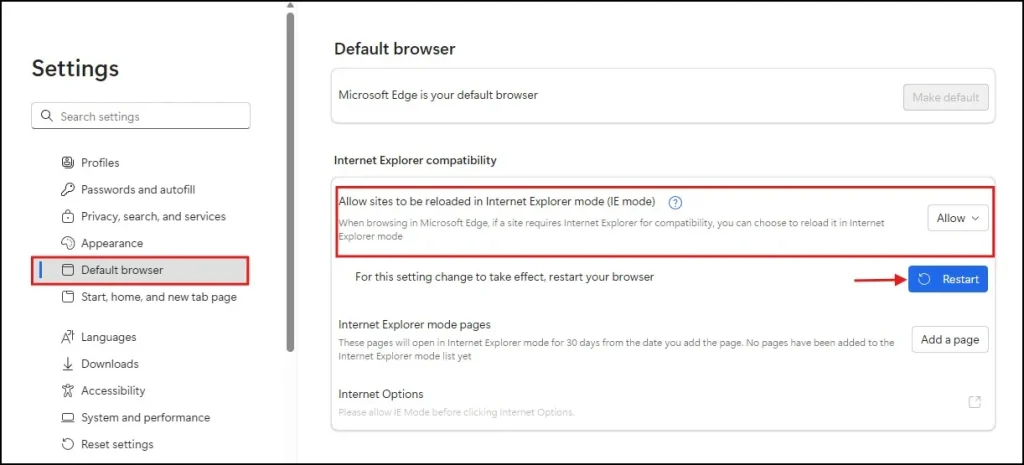
That’s it! IE Mode is now enabled.
How to Open a Website in Internet Explorer Mode
Once the feature is enabled, you can open any website in IE Mode.
Method 1: Reload in IE Mode
- Open the website you want in Edge
- Click the three dots (⋯) again
- Select Reload in Internet Explorer mode
The page will refresh and open in IE Mode.
Method 2: Always Open a Site in IE Mode
If you frequently use a particular website, you can set it to always open in IE Mode.
- Open the website in IE Mode (using Method 1)
- You’ll see a small message at the top
- Turn on “Open this page in Internet Explorer mode next time”
- Click Done
Now, every time you visit that site, it will automatically open in IE Mode.
How to Check If IE Mode is Working
After we reload the page, we are seeing only a small Internet Explorer icon in the address bar.
If we are seeing it, that means IE Mode is only working properly and is active.
How to Exit Internet Explorer Mode When Finished
After utilizing Internet Explorer Mode, one should surely return to regular browsing mode.
Follow these steps:
- Click on the Internet Explorer icon in the address bar
- Click on Exit or Leave Internet Explorer mode
- The page will reload in normal Microsoft Edge mode
That’s it! You are now back to regular browsing.
Practical Tips You Should Know
- IE Mode is only for compatibility, not for everyday browsing
- Avoid entering sensitive information on outdated websites
- Not all websites will work perfectly even in IE Mode
- Always keep Microsoft Edge updated for better performance
Final Thoughts
While Edge is inbuilt into Windows 11, running old websites without installing anything else with Internet Explorer Mode is yet a straightforward and effective method. Simply enable the feature, open Internet Explorer mode in Edge refreshes your page in IE Mode, and you’re all set.
If you often work with legacy websites, it can save you a ton of time and headache. Try it out—you’ll find that it’s surprisingly practical!
Also Read: How to Add Chrome Extensions to Edge
Frequently Asked Questions (FAQs)
Is Internet Explorer still available in Windows 11?
No, Internet Explorer has been officially removed. But you can use IE Mode in Edge as a replacement.
Why do some websites only work in IE Mode?
Some older websites were built using outdated technologies that modern browsers don’t support.
Can I make IE Mode default for all websites?
No, IE Mode is meant for specific sites only, not for full-time browsing.
Is Internet Explorer Mode safe?
Yes, but only if you use it carefully. Avoid using it for banking or sensitive logins.
Do I need to install anything to use IE Mode?
No, it is already built into Microsoft Edge. You just need to enable it in settings.