
You get so frustrated when “The Disk is Write-Protected” error occurs when you try to save a file because the drive cannot write, which has to be related to write protection. This frequent problem can lock you from changing, erasing or adding new files to this storage device. In this guide, we will look at different ways to remove this write protection and regain full access of your USB drive.
Common Causes of the Error
Before looking for solutions, it’s useful to know why this error occurs in the first instance. Some of the biggest culprits include:
- Physical Write-Protection Switch: Some USB drives feature a physical write-protection switch.
- Corrupted File System: If the file system is corrupt, the drive may automatically disable write operations.
- Virus or Malware: One kind of malicious software can change your USB settings.
- Registry or Permission Settings: Your operating system may prevent write operations if the registry settings are incorrect.
Sometimes, the ‘Disk is Write-Protected’ error can occur due to partitioning issues on your USB drive. For example, if your USB drive is showing up as two drives in Windows, this could be an indicator of a corrupted partition. If you’re facing this problem, I’ve written a detailed guide on why USB drives show up as two drives and how to fix it. You can check that out here. Once you resolve that, you can proceed with the steps in this guide to remove the write protection.
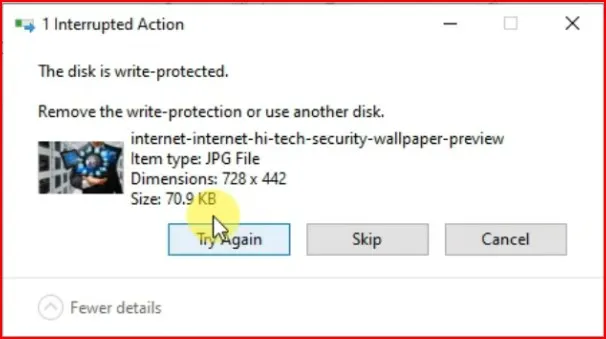
So, let us get into the various solutions to fix the issue and make your USB drive function properly once again.
Method 1: Using Windows Diskpart Utility
The Windows Diskpart utility is one of the most effective methods to remove USB write protection. It is a built-in tool to manage your disk partitions and remove write protection at the command line level.
Well, use Diskpart to do this in the following manner:
Insert the USB drive to your PC. Type cmd in the Windows search bar and press Enter. Ensure you run as Administrator (right click: Run as Administrator)
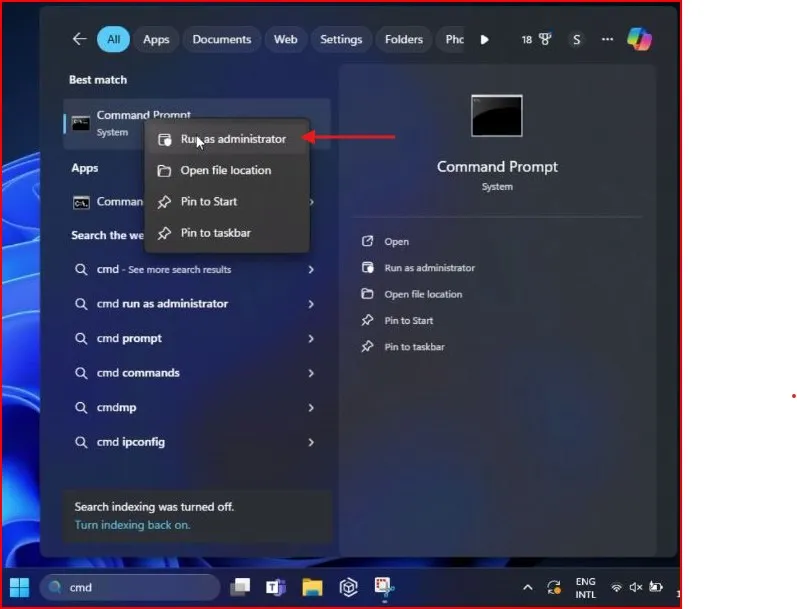
Once the Command prompt window open, enter “diskpart” and hit enter. This would open Diskpart utility.
Now type “list disk” and hit Enter. This will show you all storage devices currently connected to your PC.
Compare the size of the USB drive with the list, and then identify it. Enter “select disk 2” (change 2 to the number of your USB drive) and hit Enter.
Then type “attributes disk clear readonly” and hit Enter. This command is to clear/write-protect from the selected disk. Be careful with this tool (Diskpart), selecting the wrong disk can destroy data.
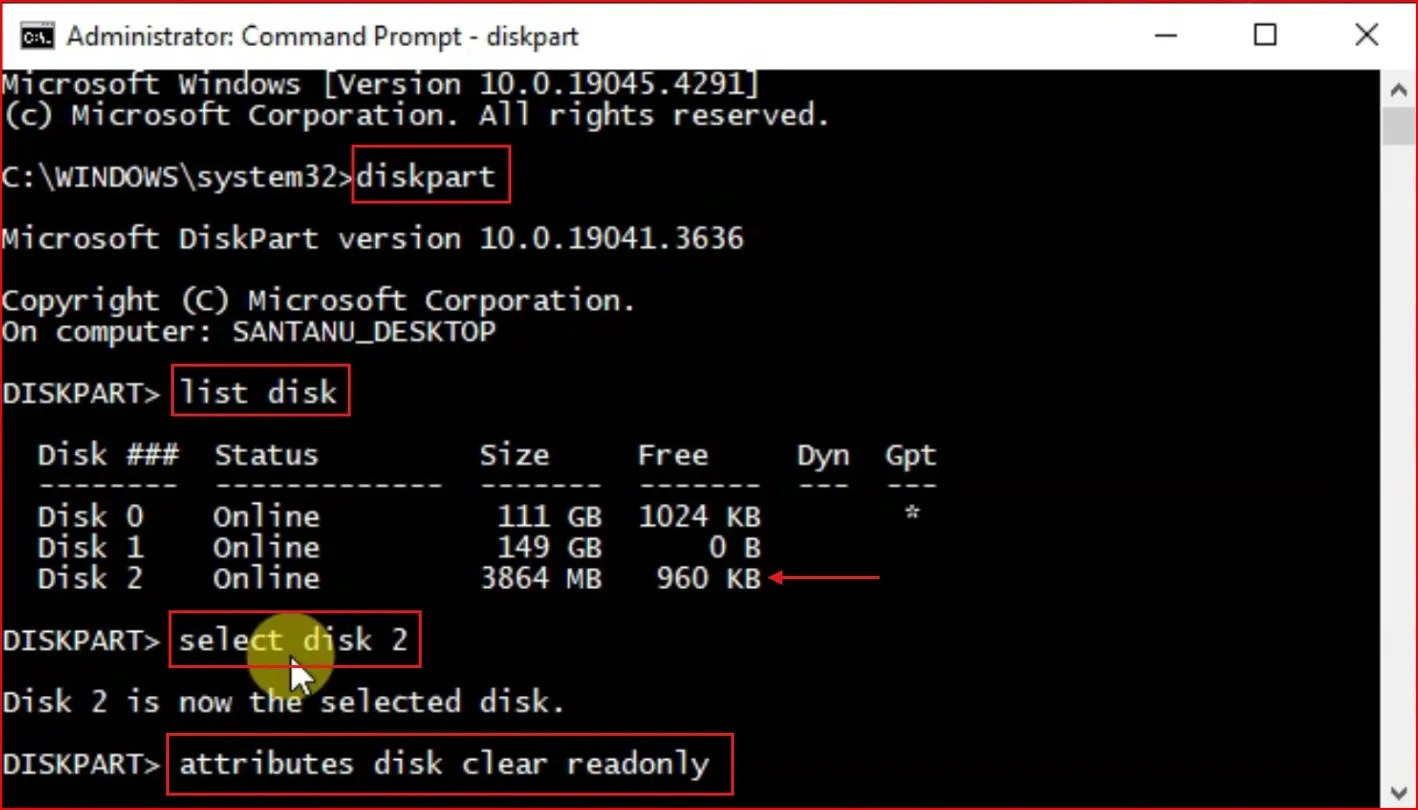
You can type exit then press Enter to leave the Diskpart utility.
Now this should remove the Disk is Write-Protected error from your USB drive, close CMD and verify.
Method 2: Modifying the Windows Registry
If the Diskpart method doesn’t work, you can remove write protection by further tweaking the Windows Registry. This process uses the Registry Editor (Regedit) to modify system settings.
Warning: However, be careful when you are editing the Registry as a mistake can get your system into trouble. You should always back-up the target before modifying anything. For more details on safely working with the Windows Registry, refer to Microsoft’s official guide on Registry Editor.
Here’s what to do to adjust the registry:
Press Windows + R on your keyboard to open the Run dialog box. Type “regedit” and press Enter to open the Registry Editor.
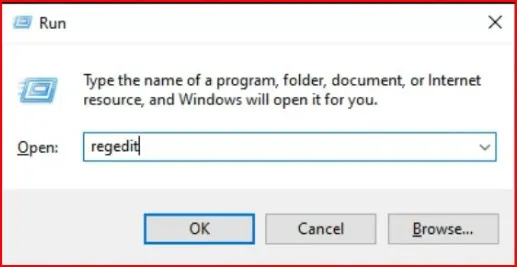
In the Registry Editor window, Navigate to –HKEY_LOCAL_MACHINE\SYSTEM\CurrentControlSet\Control\StorageDevicePolicies
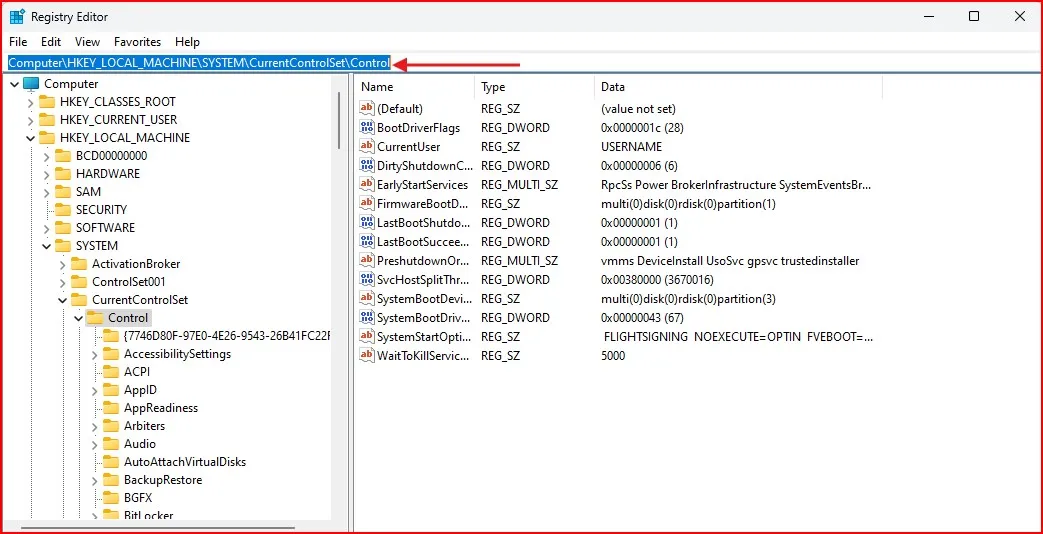
If you don’t find “StorageDevicePolicies“, you can right-click on “Control” > New > Key
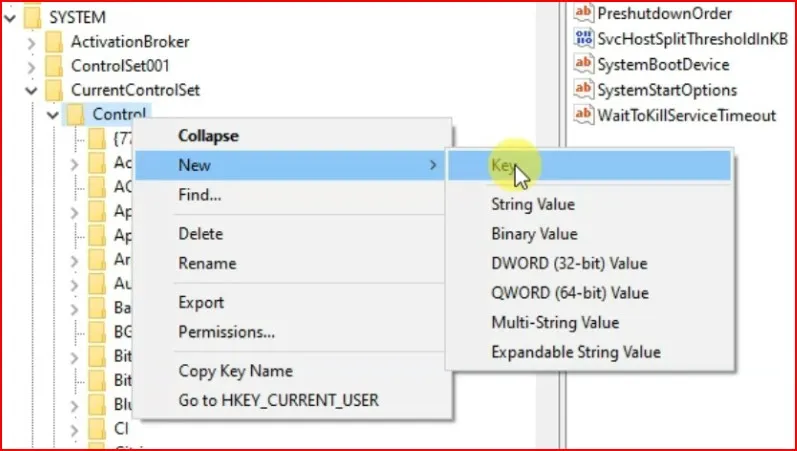
and call it “StorageDevicePolicies“.

Like this: In the right pane, right-click and choose New > DWORD (32-bit) Value
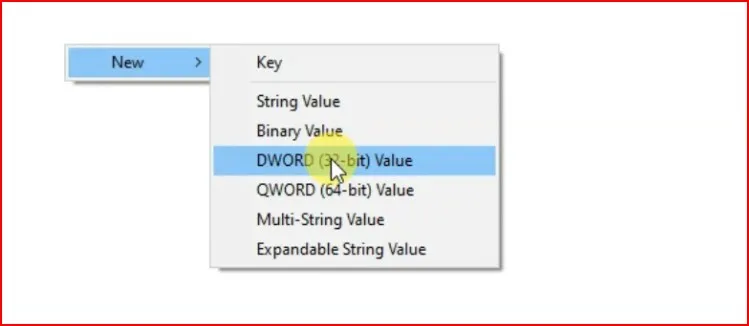
and name it “WriteProtect“.

Double click “WriteProtect” which will bring this up and set to 0
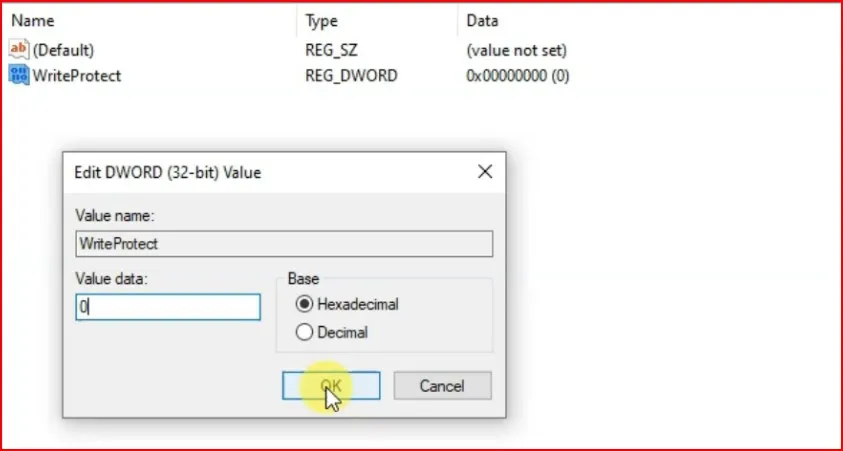
Close Registry Editor and restart your PC. Try accessing the USB drive after restarting to check if the Disk is Write-Protected error is removed.
For a visual walkthrough of these methods, check out my YouTube video:
Method 3: Look for Physical Write Protection
The problem may even be as simple as a physical write-protect switch on your USB drive. Most USB flash drives, particularly older ones or USBs meant for data secure storage, have a small switch that can be flipped to turn write protection on or off.
The following process includes checking for physical write protection:
- Look for a tiny switch or slider on your USB drive.
- If you do, ensure that it’s in the “unlocked” position.
- If the problem vanishes when you move the switch, you’re in business!
If your USB drive lacks a physical switch or moving it doesn’t help, then refer to the next method.
Method 4: Formatting the USB Drive
Formatting your USB drive can sometimes fix the Disk is Write-Protected error, especially if they’re due to file system corruption. This process will, however, wipe everything from the drive, so ensure you have backed up any files you want to keep.
To format your USB drive:
- Go to File Explorer and right-click on your USB.
- Choose “Format” from the context menu.
- File system: you can select the one you prefer (NTFS is recommended for larger drives).
- Press the “Start” button to open the formatting tool.
To format the drive via Disk Management:
- Go to Start, right-click on it, select Disk Management.
- Find your USB drive in the list of drives.
- To do this, right-click on the USB drive partition and select “Format”.
- Follow the instructions to finish Date Format.
Method 5: Using Third-Party Software
If all these methods fail, you may try a third-partysoftware solution that is actively pointed to removing the Disk is Write-Protected error from USB flash drives. Such tools typically come with a user-friendly interface and are capable of addressing most write protection causes.
Some popular options include:
If you download third-party software, ensure you download only from credible sources and scan the files for viruses before installation.
Avoiding Future Write Protection Problems
Preventive Measures to Avoid “Disk is Write-Protected Error” in Future:
- Always click the “Safely Remove Hardware” button before unplugging your USB drive.
- Scan your computer and USB drives regularly for viruses and malware.
- Regularly update your operating system and drivers.
- Do not simply pull out the USB drive while transferring data.
- Do use high-quality USB drives from reputable manufacturers.
Conclusion
There are several ways to fix The Disk is Write-Protected error from USB drives, from simple physical checks to more complex software solutions. Hopefully, this guide helps you to regain full access to your USB drive and resolve any write protection issues.
As always, back up your important data before trying any of these methods, particularly those that involve formatting or are command-line based. If you do not know how to follow any step or you still face issues, you can contact a professional IT support service.
Did you manage to remove write protection on USB drive using one of these methods? Or do you have a workaround that worked for you? Do you have experience overcoming these challenges? Share in the comments below to help others who may be struggling with the same issues!
Frequently Asked question (FAQ)
What does The Disk is Write-Protected error mean?
It indicates that your USB drive has been locked, which does not let you copy, delete or change the files. These may be physical switches, corrupt file systems, or simply incorrect system settings.
How do I remove write-protection from my USB drive without formatting it?
Yes, you can. The Diskpart and Regedit methods discussed above can not only remove the write-protection without formatting. But if the USB drive is corrupted, then formatting is the other way.
Are viruses behind the Disk is Write-Protected error?
Yes, a virus or malware should change USB drive settings and write protection. Before trying any fixes, it’s advisable to perform a full virus scan on your drive.
Error persists even though my USB drive has a physical switch. What should I do?
If the error still appears while the physical switch is in the “Unlock” position, the problem may be software-related. Use the Diskpart or Regedit method to resolve the error.
How can I tell if my USB stick is physically damaged?
If physical damage may be the problem, it might be the case that:
• The drive is not showing up on other computers.
• The error of write-protection still exists after using Diskpart and Regedit.
Sadly, physical damage to drives can be more common than you think, and most are simply unrecoverable.
Can I fix this error with third party tools?
Sometimes, rescaling tools such as EaseUS Partition Master or HP USB Disk Storage The drive format tool defeats the Disk is Write-Protected error. But you should always download them from official or safe web pages.
Will these methods work for Windows 10 and older versions?
Both Diskpart and Regedit methods will work on Windows 10, 8, and Windows 7. The process is nearly the same in all of these versions.