
What is an ISO Mounter?
But before we kick off our list, a refresher on what an ISO mounter is and why you need one. An ISO mounter is a tool which helps you to accessing ISO files as if they are physical disc inside your Driver. This saves time, money and resources as there is no need to burn ISO files to physical media.
With the continuous development of the technology world, ISO files have become a necessity in our lives. Whether it is new software installations, backups, or accessing data from virtual discs, having a reliable tool to mount ISO files is a must. Now that we’ve entered 2024, Windows 11 users need help with the best ISO mounter tools that can make their computing experience even better. In this blog, let us take a look at the 10 best ISO mounter tools on Windows 11 for 2024 to help you decide which one works best for you.
Top 10 ISO Mounter Tools for Windows 11
1. Windows 11 Built-in ISO Mounter
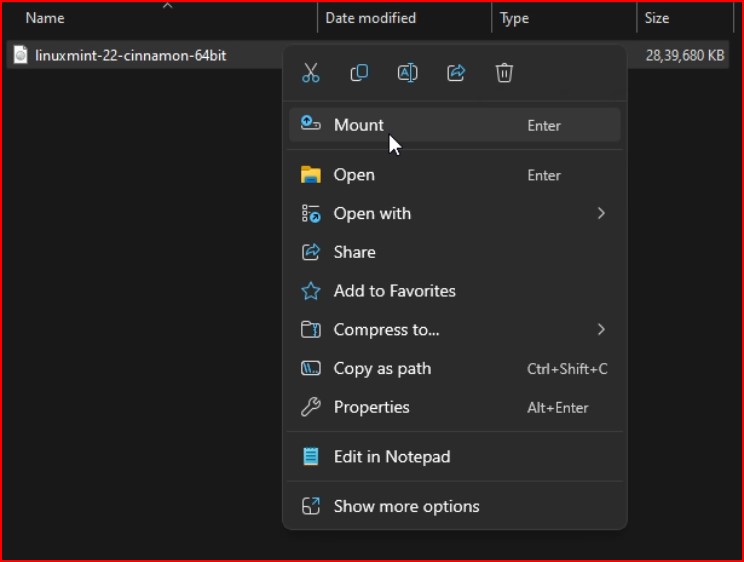
For users who don’t need any advanced features, Windows 11 comes with an ISO mounter built into the OS.
+ Pros:
- – Pre-installed and ready to use
- – Simple and straightforward
- – No additional software required
+ Cons:
- – Limited features compared to third-party tools
- – May not support all ISO formats
2. PowerISO
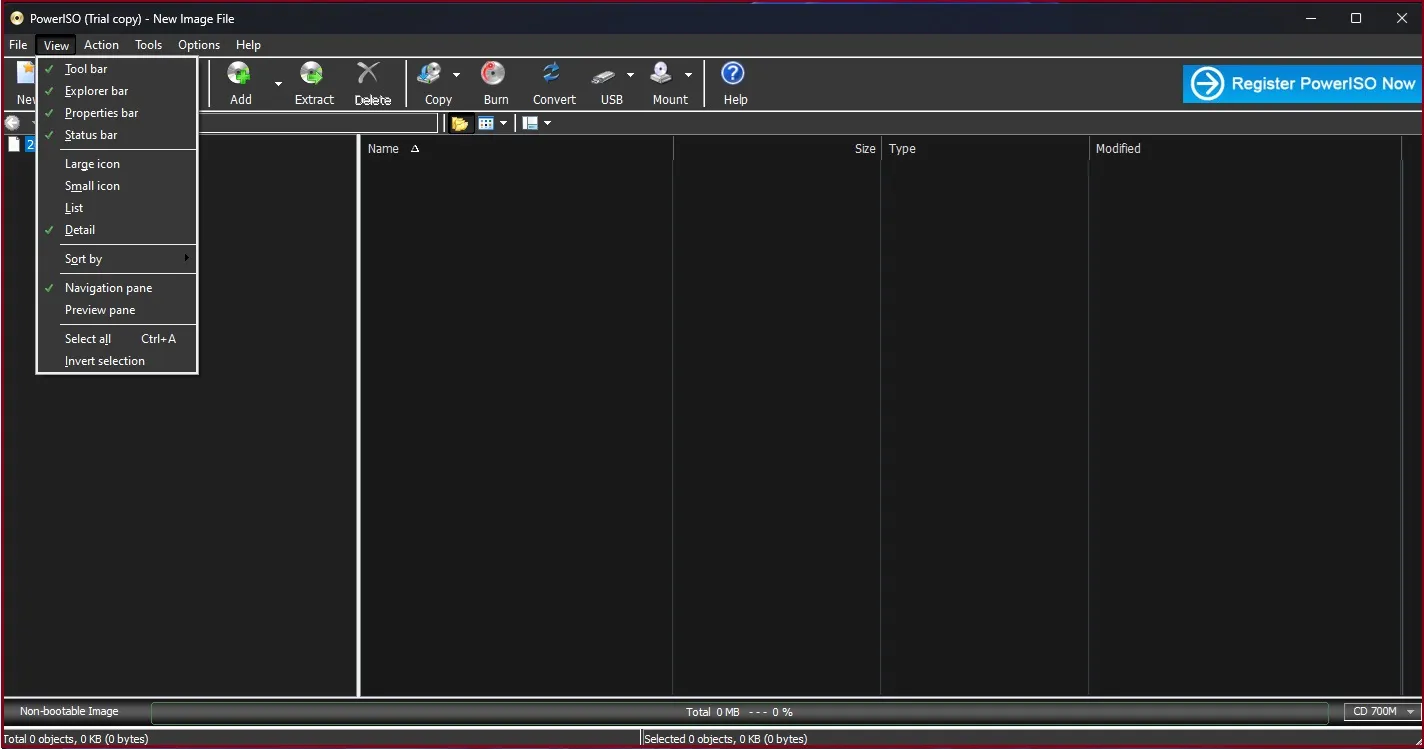
PowerISO is a powerful and versatile ISO mounter tool with many features for managing disc image files.
+ Pros:
- – User-friendly interface
- – Supports multiple image file formats
- – Includes disc burning capabilities
+ Cons:
- – Some features require a paid license
- – May be overwhelming for casual users
3. Daemon Tools Lite
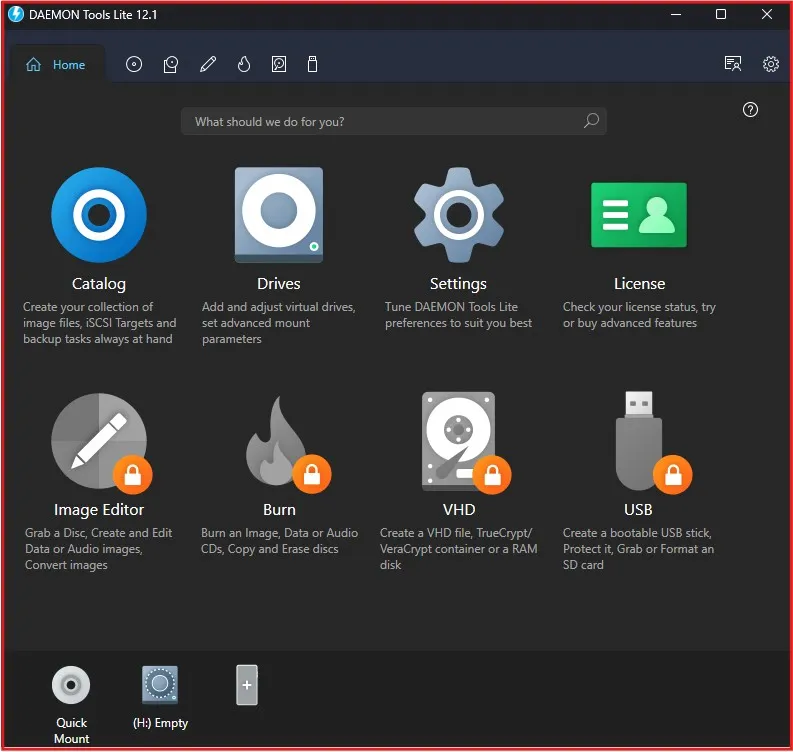
Daemon Tools Lite is a popular choice among users looking for a reliable mounter with additional features.
+ Pros:
- – Supports various image file formats
- – Virtual drive emulation
- – Free version available
+ Cons:
- – Ad-supported free version
- – Some advanced features require a paid upgrade
4. WinCDEmu
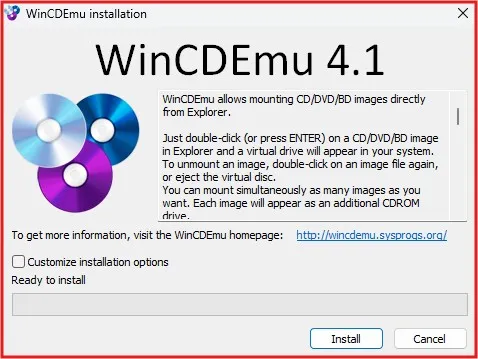
WinCDEmu is a simple, lightweight ISO mounter focusing on ease of use and low system resources usage.
+ Pros:
- – Open-source and free
- – Supports multiple image file formats
- – Easy to install and use
+ Cons:
- – Limited advanced features
- – May lack some functionality of more robust tools
5. Virtual Clone Drive
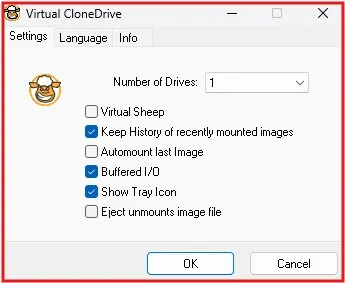
Virtual Clone Drive is another popular ISO mounter tool known for its simplicity and effectiveness.
+ Pros:
- – Free for personal use
- – Supports up to 15 virtual drives
- – Easy to use interface
+ Cons:
- – Lacks advanced features
- – May not support all image file formats
6. Gizmo Drive
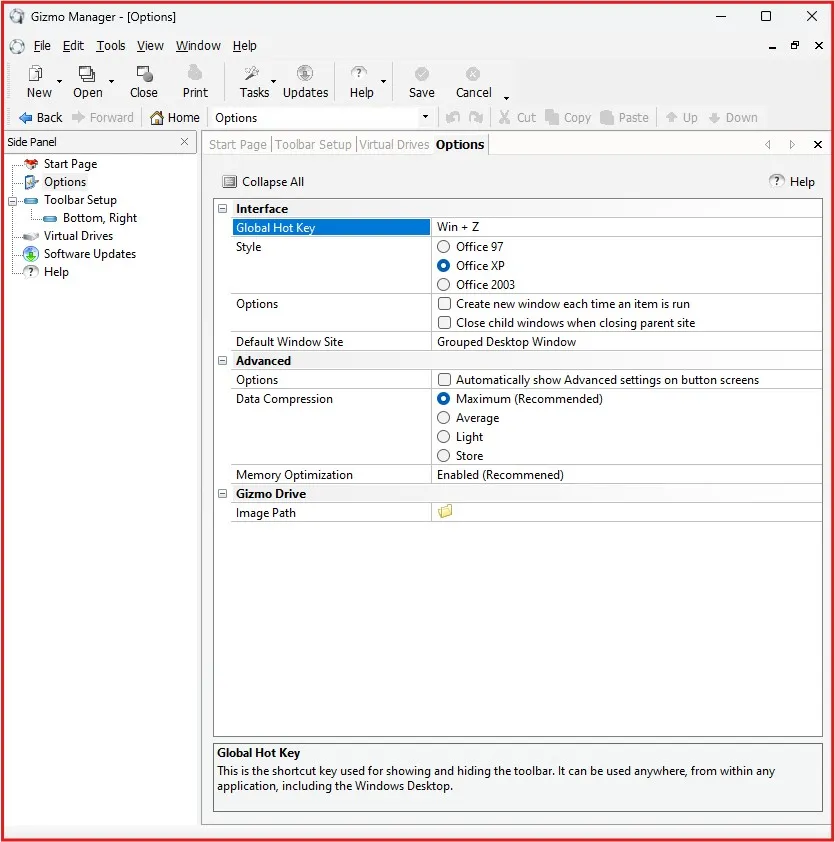
Gizmo Drive is a versatile ISO mounter tool that offers both basic and advanced features for managing disc images.
+ Pros:
- – Supports various image file formats
- – Includes encryption features
- – Free version available
+ Cons:
- – Some features require a paid license
- – Interface may be less intuitive for beginners
7. MagicISO
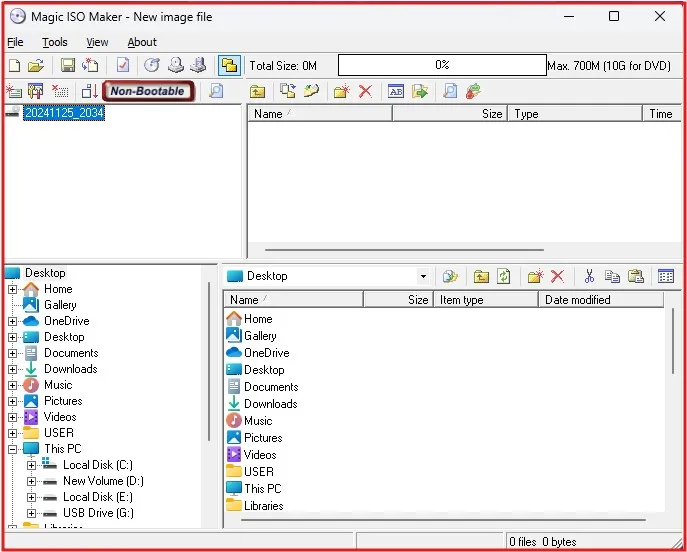
MagicISO is a comprehensive ISO mounter and disc image management tool with a range of features for power users.
+ Pros:
- – Supports multiple image file formats
- – Includes disc burning capabilities
- – Advanced editing features
+ Cons:
- – Paid software with no free version
- – Interface may be overwhelming for casual users
8. UltraISO
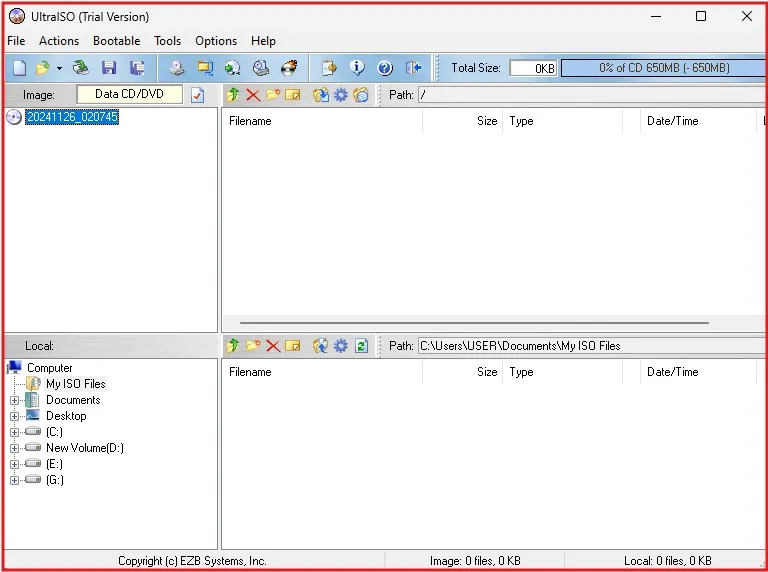
UltraISO is a feature-rich ISO mounter tool that offers advanced functionality for managing and editing disc images.
+ Pros:
- – Supports a wide range of image file formats
- – Includes disc burning and editing capabilities
- – User-friendly interface
+ Cons:
- – Requires a paid license for full functionality
- – May be overkill for users who only need basic mounting features
9. ImgDrive
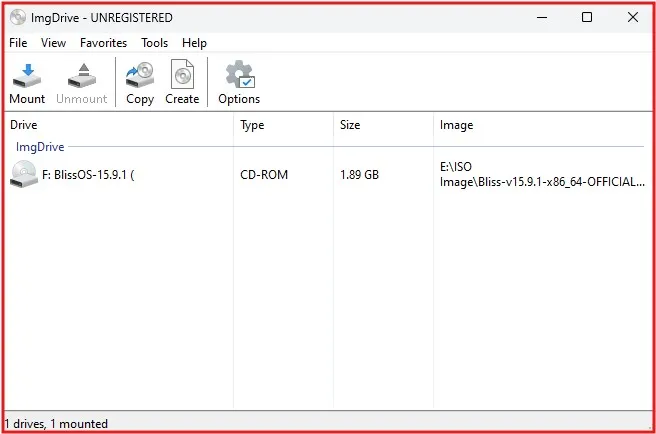
ImgDrive is a lightweight and efficient ISO mounter tool that focuses on simplicity and performance.
+ Pros:
- – Free for personal use
- – Supports multiple image file formats
- – Low system resource usage
+ Cons:
- – Limited advanced features
- – May lack some functionality of more comprehensive tools
10. WinArchiver Virtual Drive
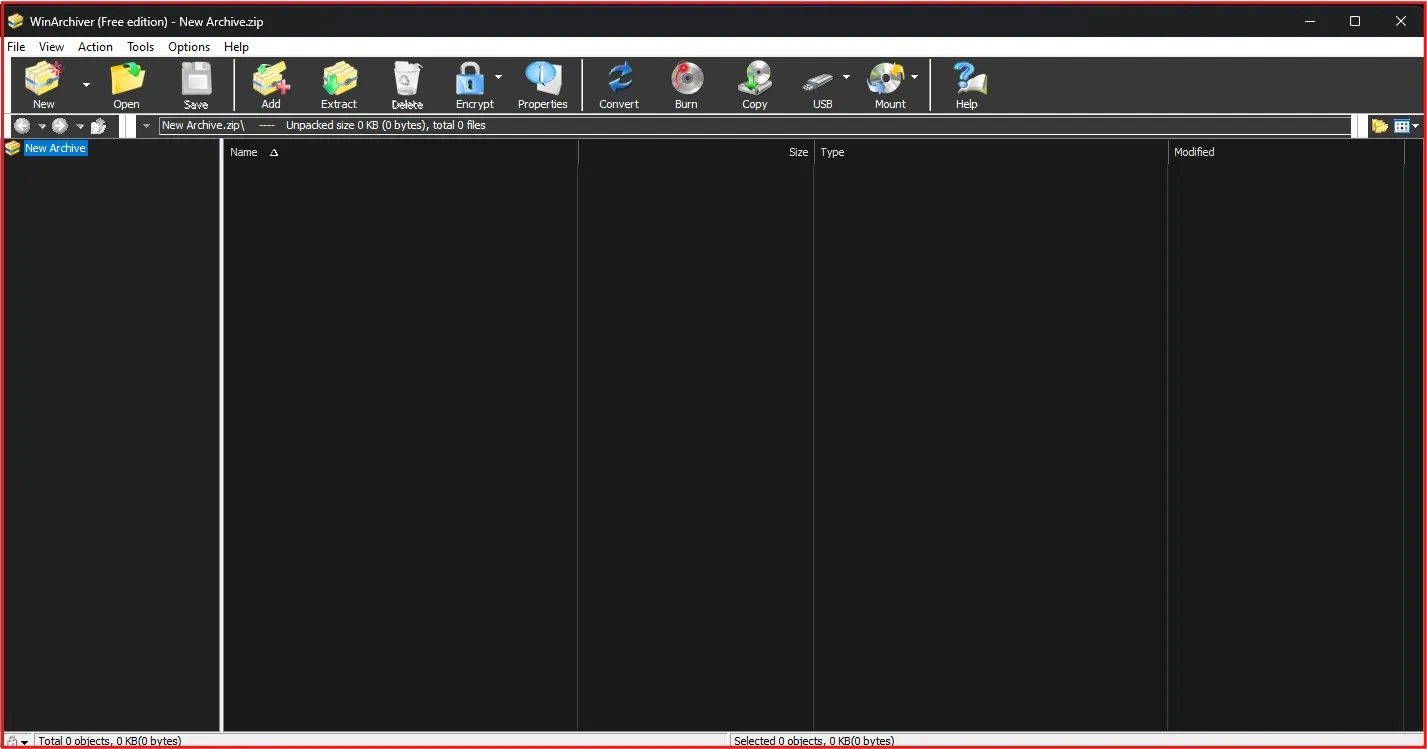
WinArchiver Virtual Drive is a versatile ISO mounter tool that integrates well with Windows Explorer and offers additional archive management features.
+ Pros:
- – Seamless integration with Windows Explorer
- – Supports various image file formats
- – Includes archive extraction capabilities
+ Cons:
- – Paid software with no free version
- – May have a learning curve for new users
Things to Keep in Mind When Selecting an ISO Mounter
Here are some factors to consider when choosing an ISO mounter tool for your Windows 11 system:
- Win11 Compatibility: Ensure the tool fully supports Windows 11, as well as the image file formats you frequently use.
- Easy to use: Find a tool with a simple interface that aligns with your skill set.
- Features: Identify the features which are useful for you, such as disc burning, editing or encryption capabilities.
- Performance: The performance of the tool regarding the system resources.
- Cost: Determine whether the features provided are worth the cost (particularly for paid tools).
- Updates and support: Make sure they have regular updates and what customer support options are available.
To optimise the experience of your selected ISO mounter tool, remember these tips
- Keep Processed ISO Mounter Tool Regularly Updated: If you are using free or paid version of Processed ISO Mounter, make sure to keep the tool regularly updated to match with latest windows 11/10 updates and security patches.
- Be careful RAM_MOUNTER – mount ISO files from untrusted sources (In that case, it can be a bit risky).
- Learn common keyboard shortcuts or explore the right-click context menu for access to mounts.
- It also helps to have a dedicated folder for your ISO files so you can select them in the setup window.
- If you work with ISO files frequently, consider pinning whichever ISO mounter tool to the taskbar you prefer using.
After mounting or creating an ISO file, you may want to use it for installation purposes. Learn how to create a bootable USB for Windows 11 in just three simple steps with our guide: Bootable USB: 3 Easy Steps to Create a Windows 11 Bootable Drive Using the Media Creation Tool. This guide ensures you’re ready to install Windows 11 hassle-free.
Conclusion
When choosing an ISO mounter tool for your Windows 11 system, you can effectively maximize your productivity and get an edge in processing disc image files. Whether you want the built-in Windows 11 ISO mounter or (–as we include in this list) a more feature-rich third-party tool, we cover a little bit of everything in terms of the variety of ways people use such software (or their particular preferences).
When making a decision also remember to think about compatibility, usability, functionality, performance and cost. Choosing the right ISO mounter tool for your needs means you are ready to mount all your disc images throughout 2024 and beyond.
Choosing the right tool can make all the difference in your digital workflow. Use an ISO mounter that lets you perform operations efficiently and effectively with disc image files.
Frequently Asked Questions (FAQs)
What is an ISO mounter tool?
It is a tool which helps you to accessing ISO files as if they are physical disc inside your Driver. This saves time, money and resources as there is no need to burn ISO files to physical media.
Can Windows 11 mount ISO files without third-party tools?
Yes, Windows 11 has a built-in feature for mounting ISO files. You can right-click on an ISO file and select “Mount” to create a virtual drive. However, this feature is basic and may not support all formats or provide advanced options like editing or creating ISO files.
Are all ISO mounter tools free to use?
No, while many mounter tools like Virtual CloneDrive and WinCDEmu are free, some advanced tools like PowerISO and UltraISO require a purchase for full functionality. Many paid tools, however, offer free versions with limited features.
What are the most important features to look for in an ISO mounter?
The key features to look for include Compatibility with multiple file formats (ISO, IMG, BIN, etc.), Support for multiple virtual drives and Additional features like ISO file creation, editing, or conversion.
Which ISO mounter tool is best for beginners?
WinCDEmu is a great choice for beginners due to its simplicity and lightweight design. It’s free, easy to install, and supports right-click mounting for ISO files.
Do ISO mounter tools work with other image file formats?
Many ISO mounter tools support additional formats like BIN, NRG, CUE, and IMG.
Can I use ISO mounter tools for creating bootable USB drives?
Some mounter tools like PowerISO and UltraISO include features for creating bootable USB drives. However, dedicated tools like Rufus may be more efficient for this purpose.