Have you ever sat there waiting and waiting… only to realize your Windows 11 update is stuck? Don’t worry, you’re not alone. Many users face this problem where the update gets frozen at a certain percentage or on a blue screen. In this post, we’ll walk through easy, practical solutions to fix this issue and get your computer back on track. Let’s jump right in!
Solutions to Fix Windows 11 Update Stuck
1. Restart Your Computer to Fix Windows 11 Update Stuck
Let’s start with the easiest fix — a restart.
Sometimes the update will be stuck just temporarily, and a simple reboot can get back on track.Press and hold the power button for about 10 seconds, or until your PC shuts down completely, if it has been stuck on the same screen for a long time. Wait a moment and then press the power button again to switch it on. When Windows boots, it either tries to continue the update or undo the changes, and boot like nothing happened.
Tip: Don’t panic if it shows a message like ‘Undoing changes’ — that’s normal!
2. Use Windows Update Troubleshooter for Windows 11 Update Stuck
Windows comes with a built-in troubleshooter that’s designed to fix common update problems automatically.
Here’s how you can run it:
Press Windows Key + I to open Settings.
Go to System → Troubleshoot → Other Troubleshooters.
Look for Windows Update, and click the Run button next to it.

The utility will identify issues such as stuck files, broken services or missing components, and make recommendations for fixes.
When it finds an issue, just click through the on- screen prompts to resolve it.
3. Free Up Disk Space to Solve Windows 11 Update Stuck Problem
If your system drive (usually C:) doesn’t have enough free space, Windows can’t complete the update process.
You’ll need at least 20 GB free space for big feature updates.
Here’s what you can do:
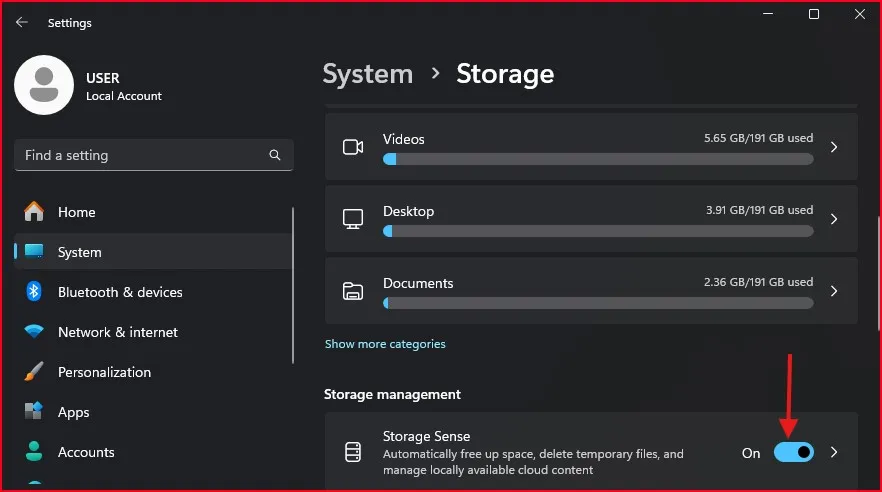
Open Settings → System → Storage.
Turn on Storage Sense to automatically clean temporary files.
Manually delete files you don’t need like old downloads, recycle bin contents, or unused programs.
Move large videos, photos, or games to an external hard drive.
After clearing some space, restart your PC and try checking for updates again.
Tip: If you want to go one step further and make your PC even faster, check out my guide on How to Disable Unnecessary Services in Windows 11 to free up more system resources and improve performance.
4. Clear Windows Update Cache to Fix Windows 11 Update Stuck
Sometimes, Windows downloads update files that get corrupted or incomplete.
When that happens, clearing the Windows Update cache can fix the problem.
Here’s what you can do:
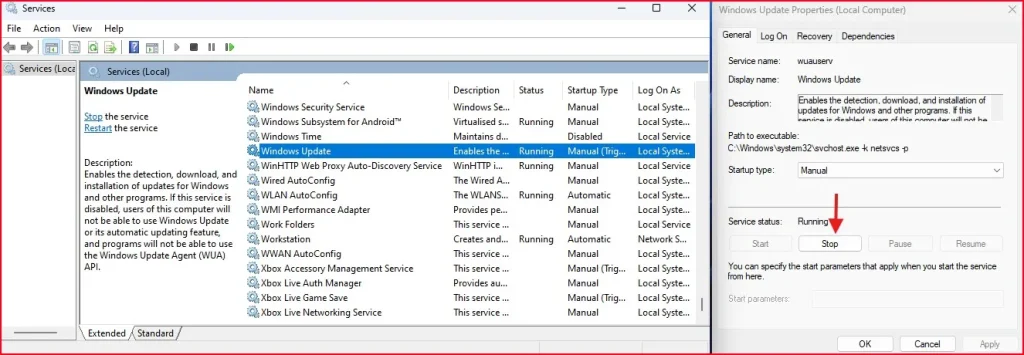
1. Press Windows Key + R, type services.msc, and hit Enter.
2. In the Services window, scroll down and find Windows Update.
3. Right-click on it and select Stop.
4. Open File Explorer and go to: C:\Windows\SoftwareDistribution\Download
5. Delete everything inside the Download folder.
6. Go back to the Services window, right-click on Windows Update, and choose Start.
This clears out the broken files and forces Windows to download fresh update files next time.
Sometimes cleaning up is not enough. If your PC still feels slow, don’t miss my detailed tutorial on How to Speed Up Windows 11 PC for Better Performance — it’s packed with easy tips!
5. Update Windows Using Installation Assistant if Windows 11 Update Stuck
If none of the above tricks worked, you can manually update your PC with the Windows 11 Installation Assistant. This is a Microsoft-sponsored tool and safe to use.
Here is the step-by-step procedure:
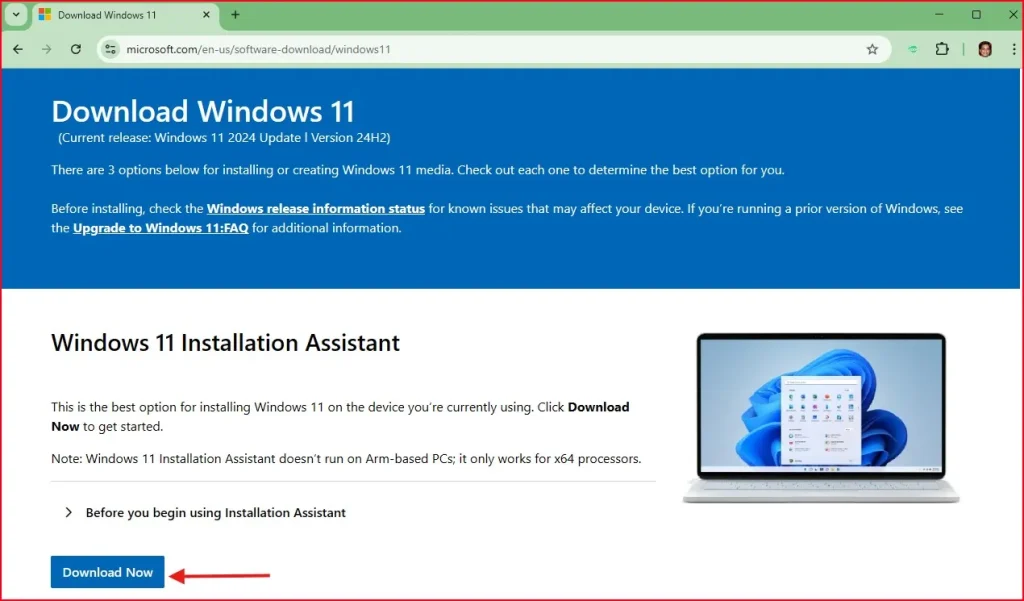
1. Head over to official Microsoft Windows 11 Download Page.
2. On the ‘Windows 11 Installation Assistant‘ section, select the Download Now button.
3. After downloading, open the file (Windows11InstallationAssistant.exe).
4. A small window will pop up — click Accept and Install.
5. The tool will start checking your system.If your PC meets the system requirements, it will proceed.If not, it will show you what needs to be fixed (like enabling TPM or Secure Boot).
6. After the check, the Installation Assistant will download the latest version of Windows 11 directly from Microsoft’s servers.
7. Once the download is complete, it will automatically start installing the update.
8. This will cause your PC to restart several times.Make sure your laptop is plugged in or your desktop stays powered.
9. After installation, you’ll have the latest Windows 11 version without losing your files or apps.
Conclusion
It’s frustrating to get stuck during a Windows 11 update, but it’s not the end of the world. Ordinarily, and with some room to spare and some easy solutions in terms of restarting, troubleshooting, clearing cache, or manually updating by way of the Installation Assistant, you’ll be able to bypass the hiccup.
Hopefully one of these fixes worked for you to get your stuck update back on track. If you have any question or need help,leave a comment down below.
Frequently Asked Question (FAQ)
How long should I wait if Windows 11 update is stuck?
If it’s stuck for more than 2 hours without any progress, it’s time to troubleshoot.
Will I lose my data if I force shut down during an update?
Usually no, but there’s always a slight risk. It’s better to back up your data regularly.
Can I skip a Windows 11 update if it’s stuck?
Yes, you can pause updates from Settings → Windows Update → Pause Updates.
Why does my Windows 11 keep failing to update?
It could be due to corrupt files, low space, bad drivers, or network problems.
Is it safe to delete Software Distribution folder?
Yes, deleting its contents is safe and often fixes stuck updates.