
Here is The 5 Best Virtual Machine (VM) Software for 2025. Think of a virtual machine as a computer inside of your computer. It is a software based system which is used to emulate hardware of a physical computer and it enables you to run varied operating serves and applications inside your primary computer. Consider it your own little digital sandbox, where you can try things without mucking up your primary environment.
Advantages of using virtual machines
There are many reasons why virtual machines are so useful.
- They allow you to dip your toes in new operating systems without risking your main computer.
- It lets you run legacy software that doesn’t run on more modern systems.
- They’re ideal for testing potentially dangerous software in a sheltered interface.’
- IT professionals use them to spin up test environments to simulate real-world conditions.
I remember when I first used a virtual machine to try out Linux. It was so cool to switch between Windows and Linux with just a click!
Important aspects to take into account when choosing VM software
What to look for when choosing VM software:
- Performance: How good is it at running your systems virtually?
- Usability: Is it user-friendly or do you need a Ph.D. to figure it out?
- Compatibility: Does it get along with your hardware and the operating systems you wish to use?
- Resource management: How efficiently does it use your computer’s memory and processing power?
- Snapshot and backup features: Do you have easy options to save and restore your virtual machine state?
Top 5 Best Virtual Machine (VM) Software Solutions
1. VMware Workstation Pro
Overview
VMware Workstation Pro is a popular choice among professionals. It’s a best for its wide compatibility, making it perfect for developers, IT admins, and tech enthusiasts.
Performance and compatibility
This software plays very well with most modern hardware. It can run a large number of guest operating systems, whether they are the latest versions of Windows or Linux, to more obscure.
Key Features
- Snapshot functionality for saving system states.
- Support DirectX 11 and OpenGL for demanding graphics applications.
- run multiple VMs at one time.
- Smoothly integrates with VMware vSphere.
Pricing and support options
VMware offers a perpetual license for approximately $250, with discounts for upgrading from earlier versions. They also offer comprehensive documentation and community support forums.
Pros
- Outstanding performance.
- Wide OS compatibility.
- advanced features for Professionals.
Cons
- Somewhat expensive for casual users
- May be overkill for basic virtualization requirements
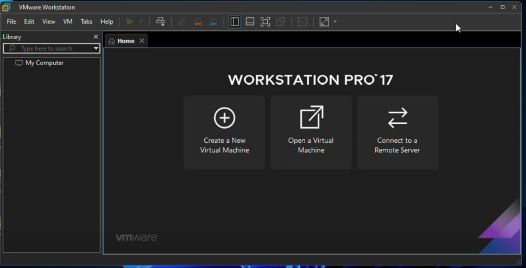
NOTE: If you’re interested in installing VMware Workstation Pro, I have a detailed guide on my YouTube channel to help you through the process. Nowadays, it’s a bit more challenging as you need to register on the Broadcom website before downloading the software. Don’t worry, I’ve covered all the steps in the video—check the detailed YouTube guide.
2. Oracle VirtualBox
Overview
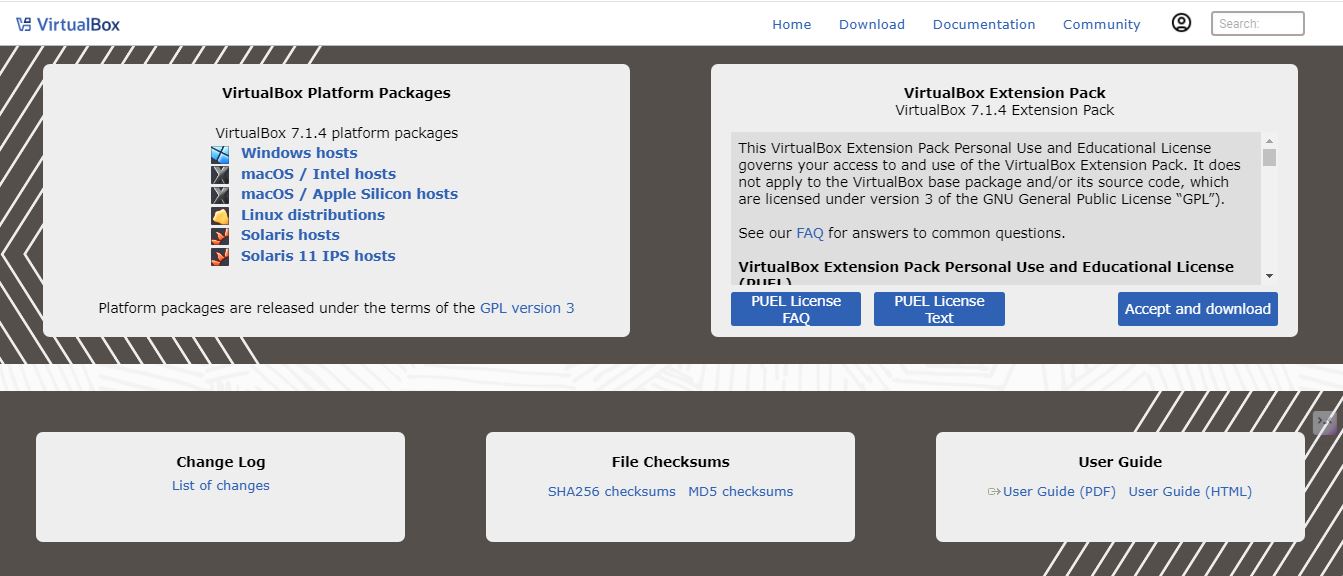
Oracle VirtualBox is a free and open-source VM software solution. Despite being free, it offers features comparable to premium options.
Performance and compatibility
VirtualBox performs pretty well for the majority of your everyday virtualization needs. It supports a large number of guest systems and runs on Windows, macOS, and Linux.
Key Features
- Cross-platform support for Windows, macOS, Linux, and Solaris.
- guest and host OS windows Seamless mode for integrating
- Shared folders to transfer files between host and guest
Pricing and support options
There is absolutely no cost for using VirtualBox! This includes community forums, a user manual, and an online knowledge
Pros
- Free and open-source
- Easy to use for beginners
- Works on almost any system
Cons
- Performance can be slower than commercial options
- Some compatibility issues with modern hardware
3. Microsoft Hyper-V
Overview
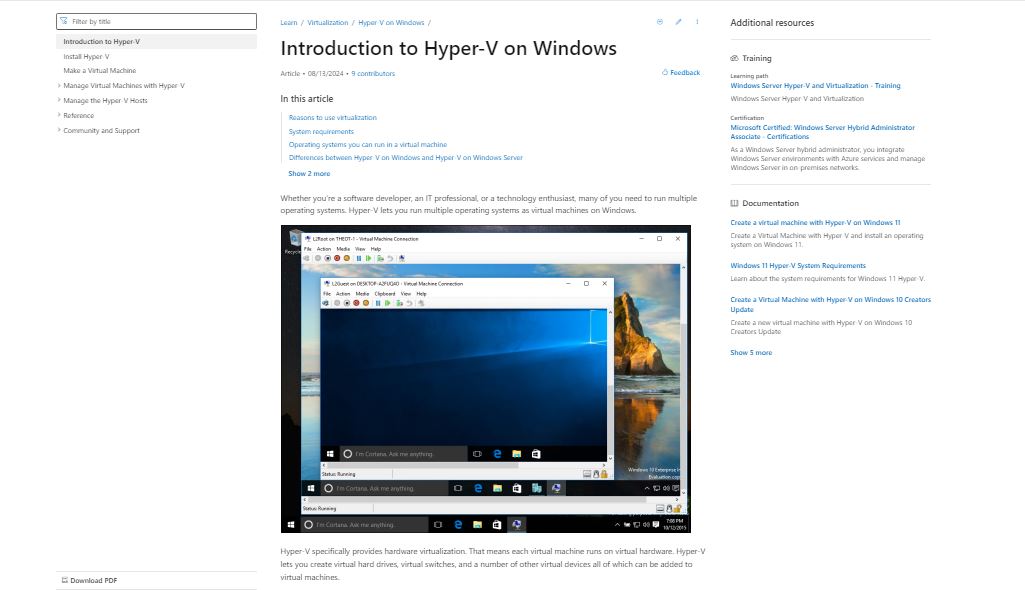
Microsoft Hyper-V is a built-in VM software solution for Windows users. It’s ideal for those running Windows 10 Pro, Enterprise, or Windows Server.
Performance and compatibility
Hyper-V excels at running Windows virtual machines on Windows hosts. It’s designed for Microsoft’s ecosystem but can install other operating systems as well.
Key Features
- Dynamic memory allocation
- Integrated with Windows Defender for better protection
- Seamless integration with other Microsoft tools and services
Pricing and support options
Hyper-V is free for Windows users, but there may be added charges for enterprise features
Pros
- Integrated into Windows
- Windows VMs perform very well
- Secure and reliable.
Cons
- Available only on Windows host operating systems
- More difficult to set up than some alternatives
4. Parallels Desktop
Overview
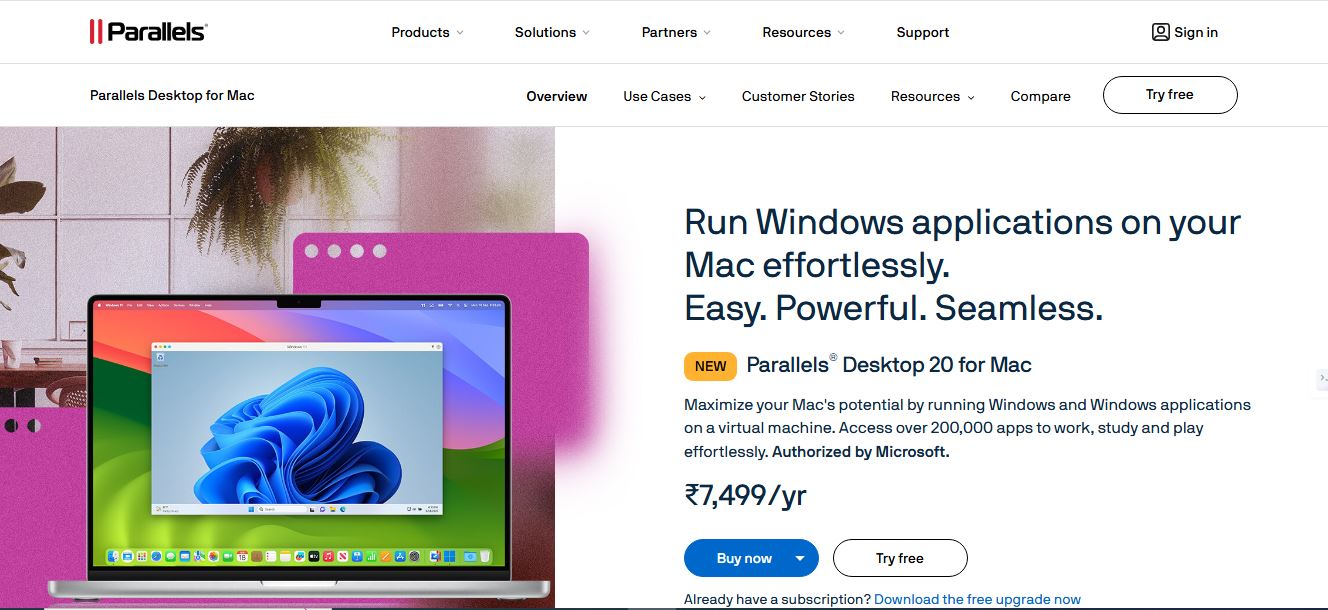
Parallels Desktop is the virtualization solution of choice for Mac users that need to run Windows applications. It is like getting the best of both worlds on an Apple device.
Performance and compatibility
Parallels is the most user-friendly virtualization software that gives you outstanding performance when it comes to running Windows on your Mac.
Key Features
- Coherence Mode for seamless integration of Windows apps on macOS.
- MacBooks support Touch Bar
- Support for DirectX and OpenGL for gaming and design apps.
Pricing and support options
Parallels Desktop subscriptions start at around $99 per year, although they also offer perpetual licenses for a higher one-time fee. They offer full support, and regular updates.
Pros
- Most seamless macOS and Windows interaction.
- Blazing fast on Mac hardware.
- User-friendly interface.
Cons
- Only available for Mac.
- Subscription-based pricing.
5. QEMU
Overview
QEMU is a free and open-source emulator and virtualizer, favoured by advanced users for its flexibility.
Performance and compatibility
QEMU can be incredibly quick, when paired with KVM on Linux operating systems. It supports a wide array of guest OS options.
Key Features
- KVM hardware assisted virtualization
- Support for different CPU architectures
- Snapshot and migration functionality
Pricing and support options
QEMU is free and open-source. The home page relies the most on the help regarding forums & the documentation.
Pros
- Free and highly flexible
- Highly flexible and customizable
- Supports many architectures
Cons
- Requires advanced configuration.
- Not very beginner friendly

Comparison of VM Software Options
- Performance benchmarks
VMware and Parallels shine in performance, particularly when running graphics-intensive workloads, and VirtualBox along with QEMU provide greater flexibility.
2. Usability and Learning Curve
Parallels and VirtualBox are easy to use for beginners, while VMware and Hyper-V are better for professionals but can take more time to learn.
3. Cost-effectiveness and value
VirtualBox and QEMU are your best bets, price-wise, given that they’re free. If you already have Windows Pro, Hyper-V is good value. VMware and Parallels power their premium nature with advanced features and polished user experiences.
Before starting any of the above VM software solutions, make sure virtualization is enabled on your Windows 11 PC. If you’re unsure how to do this, check out my earlier post: How to Enable Virtualization in Windows 11 PC: A Step-by-Step Guide 2024.
Key Things to Consider When Selecting Virtual Machine Software
1. Assessing your requirements
Consider what you plan to do with the virtual machine. Are you testing out a new operating system, or do you need to run complicated network simulations? Your use case will determine your selection.
2. Considering Hardware compatibility
Ensure that your computer is able to support virtualization. Most modern CPUs support it, but you should check your individual model. And think about how much RAM and storage space you can devote to virtual machines.
3. Assessing long-term support and updates
See if the software you’re considering has a history of updates. Frequent updates are a better indication that the software will be supported and improved in the future.
Summary
The best virtual machine software for you depends on your needs, your budget, and your technical skills. VMware Has pro features for professionals, VirtualBox for casual users, Hyper-V for Windows environments, Parallels for Macs, and QEMU for utmost flexibility for the developers.
Frequently Asked Questions (FAQ)
What is the difference between virtual machines and containers?
Virtual machines emulate a full operating system, while a container shares the host OS kernel, making it more lightweight.
Can I run multiple virtual machines at the same time?
Yes, You can run multiple virtual machines simultaneously, provided your computer has enough resources (CPU, RAM, and storage) to accommodate them. I myself have run three or four VMs at once on a decent desktop computer with no problem.
How much RAM and storage for running virtual machines
How much RAM and how much storage you need will depend on the operating systems you’re virtualizing and what you plan to use them for. In fact, I would say at least 8 GB of RAM is the minimum for satisfying virtualization, and 16GB or more is highly recommended. Storage: for at least 20GB per virtual machine and additional space for data-intensive applications.
Can I use virtual machines for gaming?
Yes, you can use virtual machines for gaming, but it depends on the VM software and your hardware. VMware and Parallels support gaming features like DirectX and OpenGL, but performance may not be as good as on a physical machine.
Are virtual machines safe from viruses?
Virtual machines provide an isolated environment, so viruses inside a VM typically don’t affect the host system. However, it’s still important to use antivirus software and practice safe browsing within the VM.