
Have you ever wondered if your disk partition style is GPT or MBR partitioning type? Knowing this can be crucial for doing things like installing a new OS, setting up dual booting, or troubleshooting storage problems. If you’re not familiar with these terms, don’t worry — I’m here to make it easy for you to understand and check. In this post, I’ll lead you step-by-step through a few very simple, very beginner methods for doing just that.
What Is the Difference Between GPT and MBR?
Before jumping directly to the methods, let’s understand a little about what GPT and MBR are and why this matters.
GPT: The new and improved partition style. It accommodates larger drives (greater than 2TB), rapid boot times (when used in conjunction with UEFI), and improved data integrity.
MBR (Master Boot Record): A powerfully antiquated modality which does operate with most legacy systems, but as they say, you can’t teach an old dog new tricks; for example, MBR can only manage drives up to 2TB and no more than four primary partitions.
Compatibility with certain features or systems may depend on whether your disk uses GPT versus MBR. So let’s see which one you’re dealing with.
Why You Need to Care About Disk Partition Style?
Picture this: You’re going to install Windows or configure a dual boot, but you receive a lot of errors. In most cases, these problems are related to your disk’s partition style. Similarly, if your system needs GPT but your disk is MBR, you need to convert it, and vice versa. Knowing this in advance can save you time and frustration.
Here’s How to Check If Your Disk Drive Is GPT or MBR in Windows
That is all well, but now comes the act— To check your disk partition style, there are three simple methods to Check If Your Disk Drive Is GPT or MBR: Disk Management, Command Prompt, and PowerShell. Pick the tool you’re most comfortable with.
Method 1: Via Disk Management (Graphical Method)
This is the easiest way for most users to Check If Your Disk Drive Is GPT or MBR.
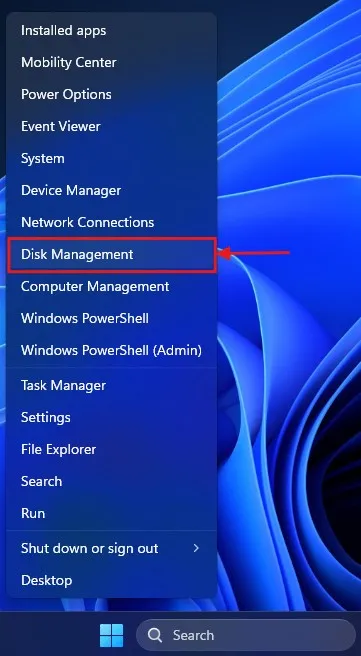
Open Disk Management: Press Win + X on the keyboard and choose Disk Management from the menu. Or press Win + R, type diskmgmt. msc, and hit Enter.
Locate Your Disk: The Disk Management window will show you a list of all the drives connected to the system.
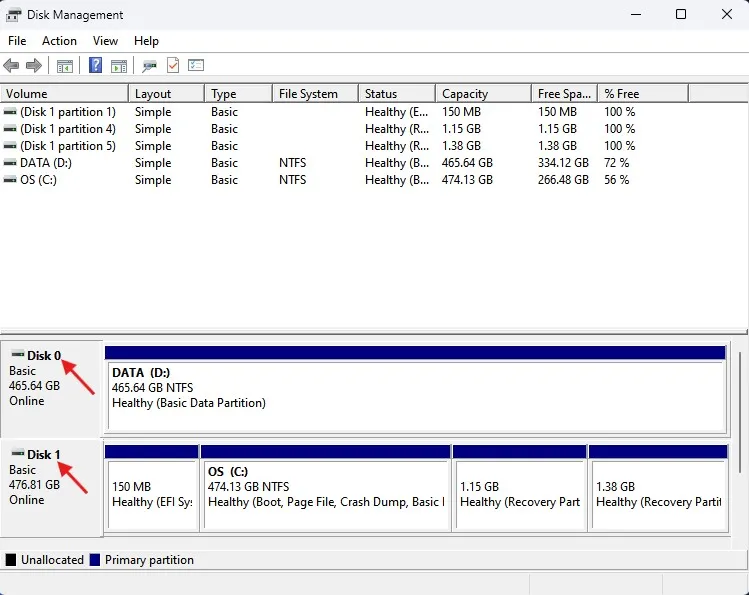
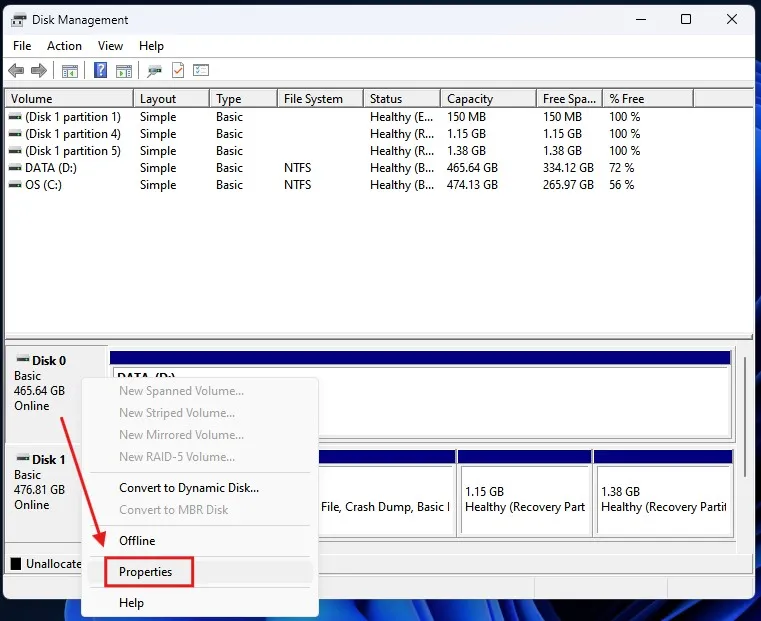
Check Partition Style: According to the size, the disk will be labelled as shown in the following screenshot (Disk 0, Disk 1, etc., right-click on there and then select Properties).
Go to the Volumes tab: Under “Partition scheme,” you’ll find either GUID Partition Table (GPT) or Master Boot Record (MBR).
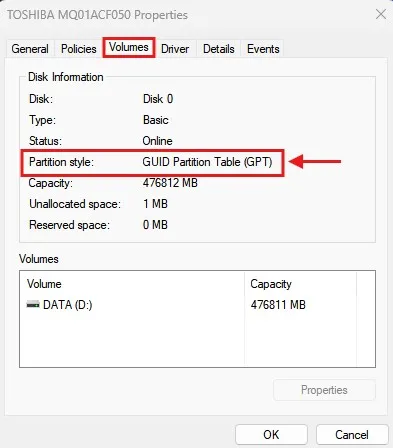
Why This Method Is Good: It’s visual and straightforward, particularly if you’re not familiar with commands.
Method 2: Using Command Prompt (Tech-Savvy Users)
Prefer a text-based method? Here’s how:
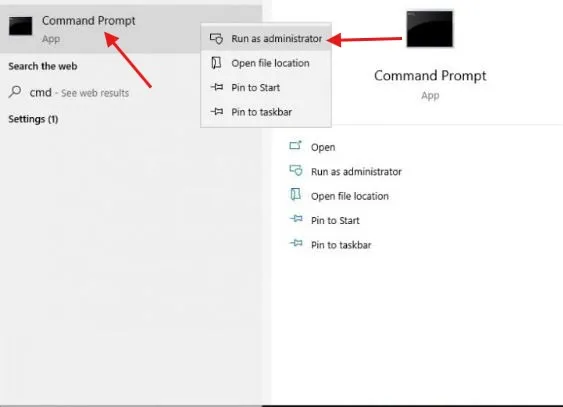
Open Command Prompt as Administrator: Type cmd in the Windows Search bar, right click on Command Prompt and select Run as administrator.
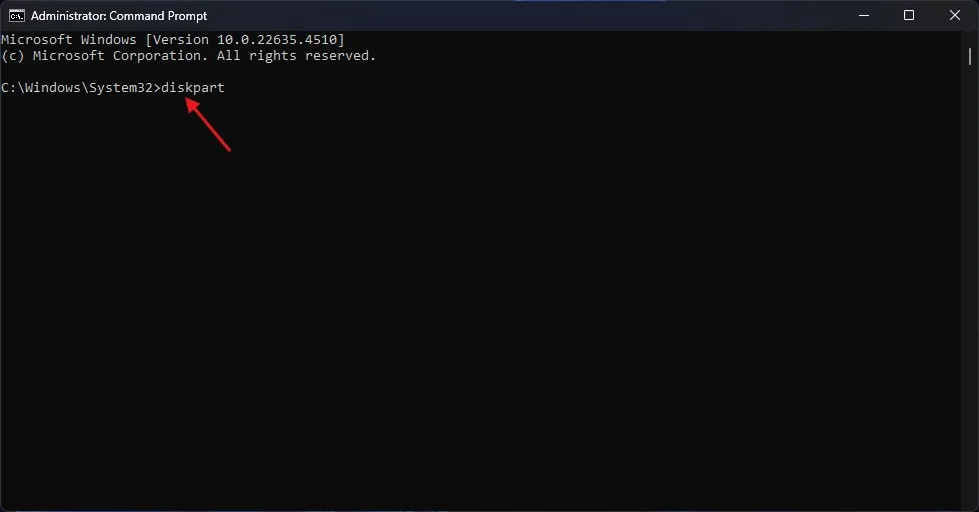
Access Disk Partition Info: Now type diskpart and hit Enter.
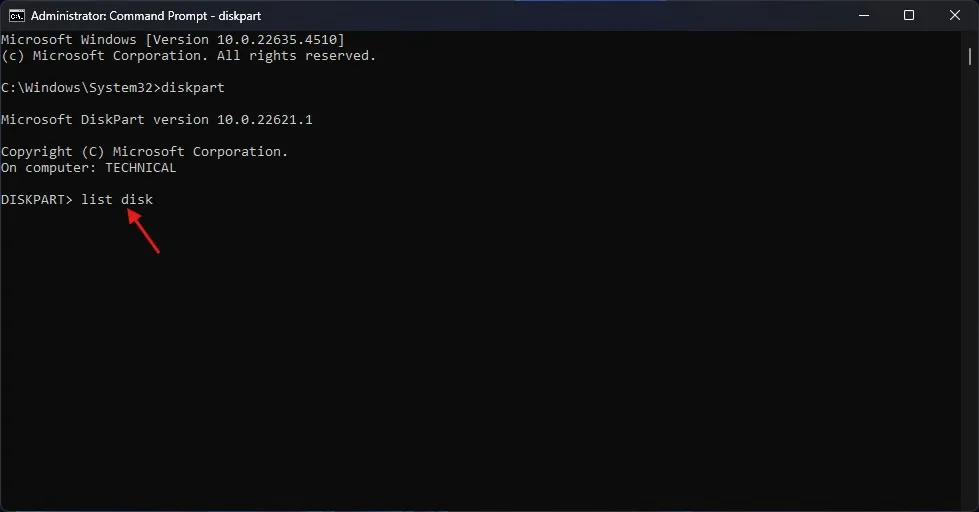
At the DiskPart prompt, type list disk, and hit Enter.
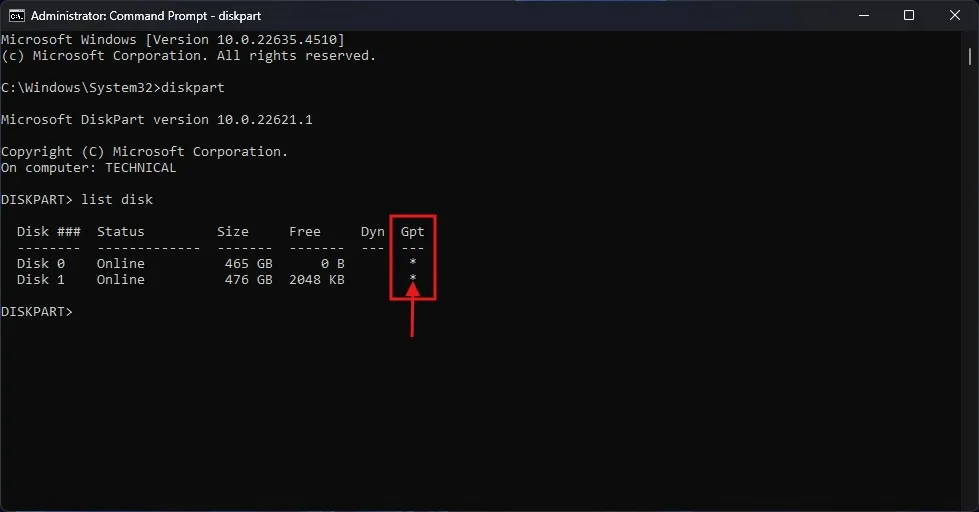
Check for GPT: You should see a list of your disks as the output. If there’s an asterisk (*) under the GPT column, that disk is a GPT disk. If not, it’s MBR.
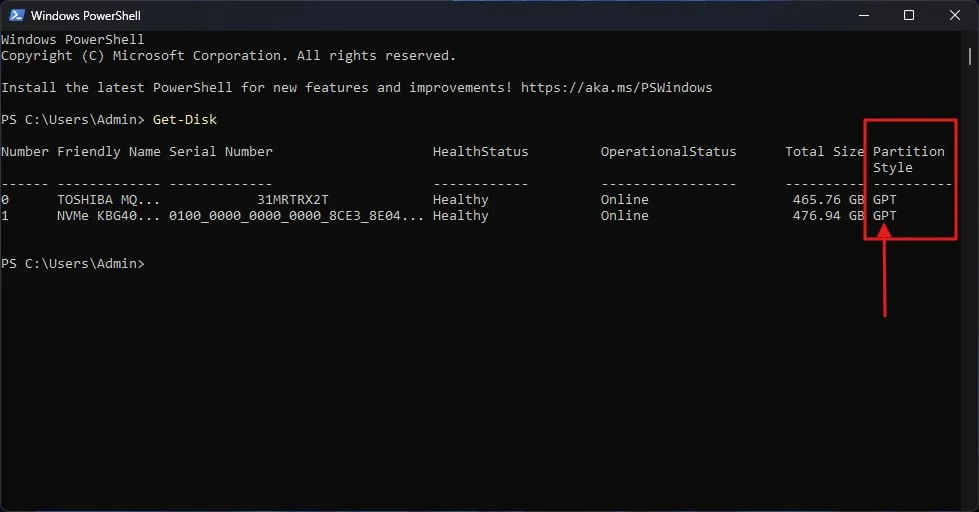
Below screenshot from Windows 11 PC GPT Style.
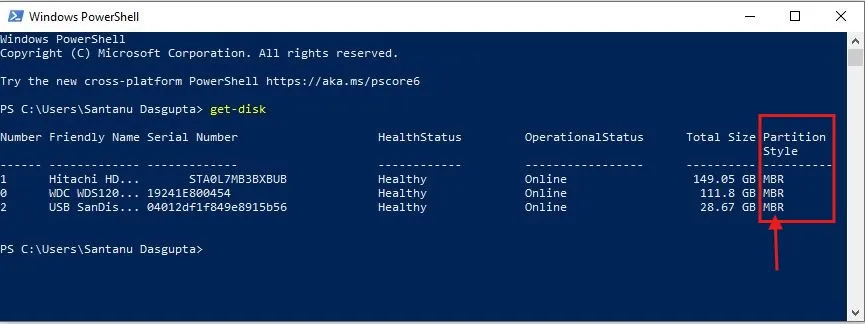
This screenshot from Windows 10 PC with MBR style.
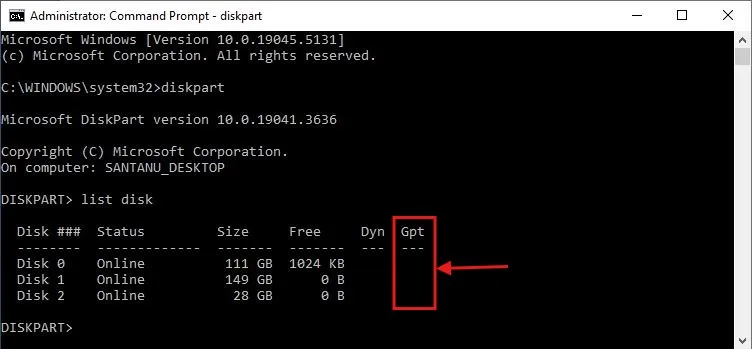
Why This Method is Useful: It’s fast and gives you a clear picture of all connected drives.
Method 3: Open PowerShell (new & general)
Another great method of checking disk partition style is PowerShell:
Open PowerShell as Administrator: Press Win + X and click on Windows PowerShell (Admin)
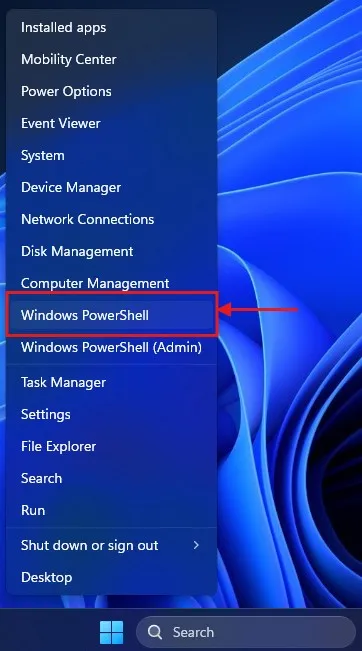
Run the Command: Type Get-Disk command, then press Enter.
Check Partition Style: Check the Partition Style column of the output For each disk it will show GPT or MBR.
Why This Method Is Great: It’s modern, efficient, and meshes nicely with scripting if you’re dealing with many different drives.
GPT vs. MBR: A Quick Comparison
Here’s a simple breakdown of the differences:
| Feature | MBR | GPT |
| Partition Limit | 4 primary partitions | Up to 128 partitions |
| Disk Size Support | Up to 2TB | Over 2TB |
| Boot Mode | Legacy BIOS | UEFI |
| Data Redundancy | None | Yes |
Understanding these differences can help you decide whether to convert your disk or stick with the current format.
How to Convert Between MBR and GPT
Sometimes, you may need to change the disk from MBR to GPT or vice versa. While this can be done, it must be understood that the process can be hazardous. If you do it wrong, you can totally lose your data. Here are some general steps:
Backup your data using a reliable cloud storage solution: Create a full backup of your data before trying to change partitions.
Tools: Windows has a built-in tool called MBR2GPT you can use to convert MBR to GPT. It does not have an option to convert GPT to MBR, and for that, you must download third-party tools or reformat the whole drive.
Think clean install: Often the safest and simplest approach is to carry out a clean install of your operating system on the partitioning scheme you want, rather than trying to convert an existing disk.
Note: if you’re not up for these processes, better get a professional help to lost no data or issues in your system.
Learn how to create a bootable USB for Windows 11 in just three simple steps with our guide: Bootable USB: 3 Easy Steps to Create a Windows 11 Bootable Drive Using the Media Creation Tool. This guide ensures you’re ready to install Windows 11 hassle-free.
Conclusion
Learning how to check if your disk partition style is MBR or GPT in Windows is a skill that everyone with an interest in their PC, should learn. We’ve covered a number of different approaches, and you can even do it with built-in Windows tools, utilizing options like Disk Management and Command Prompt, PowerShell and third-party software. Either option has their pros and cons, so you can choose the one that fits with your level of comfort and need.
Knowing what type of Microsoft Common Partition your disk is is more than just a technical curiosity. It may affect your system performance, compatibility and leveraging large storage devices. Whether you need a rainy day project to troubleshoot or are considering upgrades — or you’re just curious about the inner workings of your computer — knowing how to identify the type of disk partition in use is a worthwhile item in your tech toolbox.
Just remember, converting between MBR and GPT is not without its risks. Exercise caution, and ALWAYS back up your data before making any major modifications to your disk layout. If you’re in doubt about changing it, consult a professional or use the partition scheme that was shipped with your system.
To conclude, with these techniques for identifying your disk partition style in your back pocket, you are well on your way to becoming more knowledgeable about your machine’s storage architecture. Whether you are just curious to learn about your machine or you need to perform some advanced management tasks, this knowledge will come in handy.
Frequently Asked Questions (FAQs)
Can I switch from MBR to GPT without losing data?
Yes, you can convert from MBR to GPT without losing data by using tools like MBR2GPT (built into Windows) or third-party partition software. However, always back up your data first.
Is GPT better than MBR?
GPT is generally better for modern systems as it supports larger disks and more partitions. However, MBR might still be useful for legacy systems that don’t support UEFI.
How do I convert a GPT disk back to MBR?
To convert GPT to MBR, you can use Disk Management or command-line tools like Diskpart, but note that this process will erase all data on the disk.
How do I know if my system supports GPT?
Most modern systems with UEFI firmware support GPT. You can check this in your BIOS/UEFI settings.
Can I use MBR and GPT on the same system?
Yes, you can have a mix of MBR and GPT disks on the same system, but their usage depends on your system’s boot mode.