
Have you ever plug into your USB drive, just to find out that it appears as two drives in Windows? This can especially be confusing when you don’t know why this is happening or how to fix it. Don’t worry; you are in good company. Understand why this happens and learn a quick and easy way to get this fixed by following this guide.
Why Is Your USB Drive Showing Up as Two Drives?
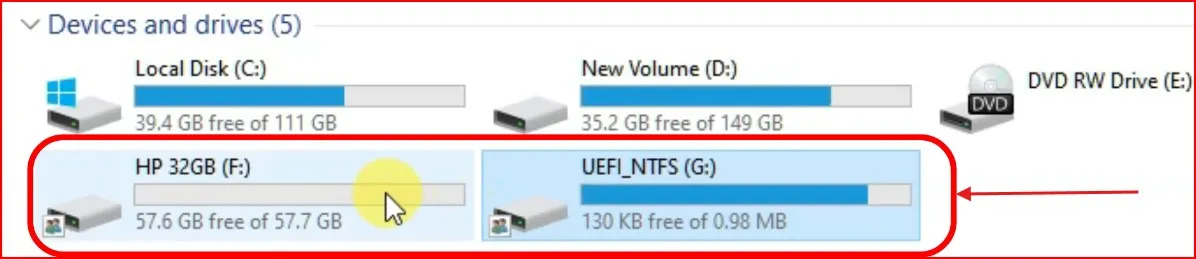
Let’s first explore why this is the case. If your USB Drive Showing Up as Two Drives in Windows, it usually falls into one of following reasons:
Partition Issue: Some USB drives are pre-partitioned (especially those used for recovery or installation). Sometimes manufacturers add a second partition for their tools or data.
Bootable Drives: If you created a bootable disk (e.g., for Windows installation or Linux) using your USB drive, the tool you used may have created multiple partitions.
Corrupted Partition Table: Windows might recognize the USB drive as two individual drives if it is corrupt or improperly formatted.
CD Partition: Some branded USB drives have a read-only CD partition created at the factory to provide software or drivers.
Now that you have a clue on the possible causes of USB Drive Showing Up as Two Drives, let’s get into the solutions.
How to Fix a USB Drive Showing Up as Two Drives
Here’s how to fix the problem, step by step. Follow instructions carefully as this may remove anything on a USB drive. Remember to backup important data on a USB drive before proceeding.
Step1: Check the Drive Using Disk Management
Disk Management is a system utility in Windows that allows you to manage disks and partitions. Here’s how to use it:
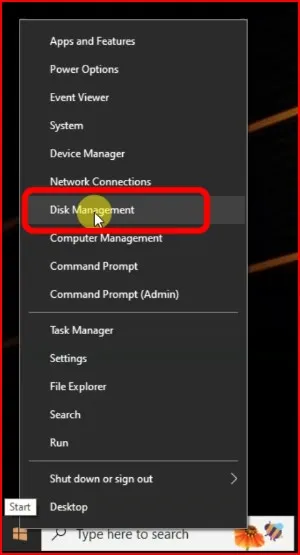
Hit Windows + X then select Disk Management from the menu.
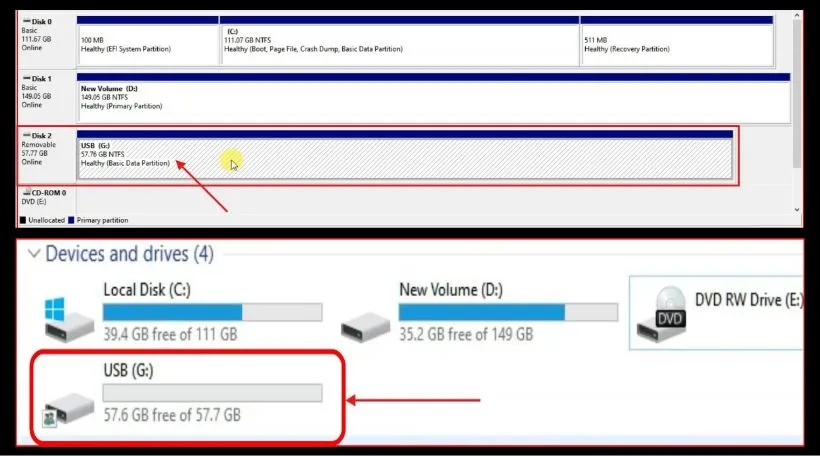
Scroll down through the list of Disks at the bottom of the window and locate your USB drive.
You may find several partitions listed for your USB drive. One of them will be labeled as “Primary Partition,” and the other might be “Unallocated,” or with some other label.
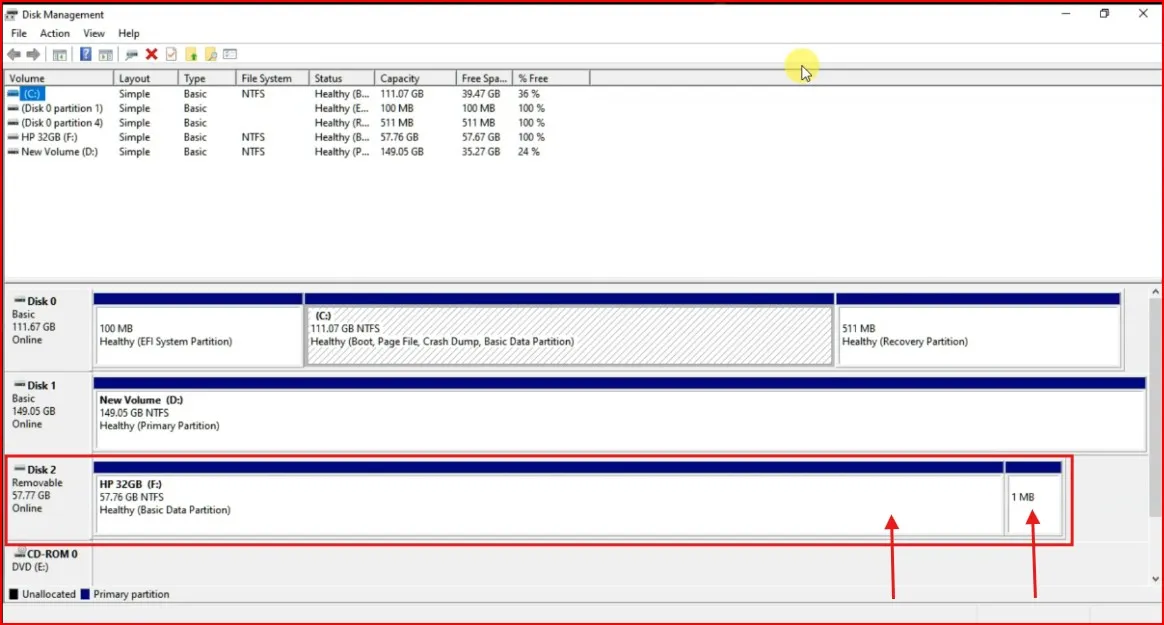
This is also why your USB drive may show up as two separate drives in Windows.
Step2: Delete Unnecessary Partitions
You can have your USB drive show as a single drive by deleting all the unnecessary partitions and creating one single primary partition.
In Disk Management, right-click on the unwanted partition of your USB drive.
Select Delete Volume.

Do this for all unneeded partitions on the drive.
You should now see the whole drive space as unallocated once all the partitions have been deleted.

Step3: Create a New Single Partition
But once the additional partitions are deleted, you can create a fresh, single partition for your USB drive.
Now, right click on the space ‘Unallocated’ of your pen drive.
Choose New Simple Volume and follow the on-screen instructions.

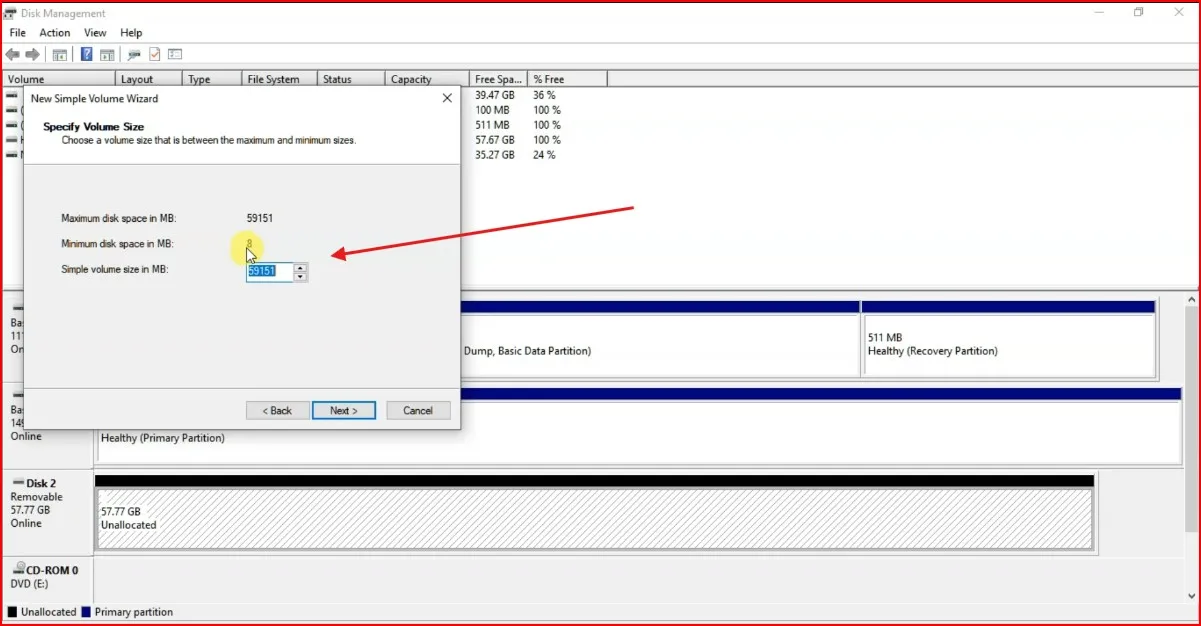
Once the New Simple Volume Wizard page opens, you’ll see an option to specify the volume size. Here, simply leave it as it is (default size) and click on Next to proceed.
On this page, you need to assign a drive letter or path for your USB drive. Simply choose any available drive letter from the drop-down list. Once you’ve selected a letter, click on Next to proceed.

To store data on this partition, you need to format it first. To do this, set the file system to your preference, such as NTFS or exFAT, depending on your needs. You can also assign a custom volume label to name the drive as you like. Once you’ve made these selections, click on Next to proceed.

Now click Finish, and your USB drive should appear in Windows as a single drive.
For a visual guide to these steps, make sure to check out my YouTube tutorial on this topic. It includes everything discussed here, plus extra tips!
Use Third-Party Partition Tools (Optional)
If Disk Management fails or the process is complicated, you can also resort to free third-party partition management tools such as MiniTool Partition Wizard or EaseUS Partition Master. However, these tools typically have a more intuitive interface and other features.
How to do it with MiniTool Partition Wizard:
- Download and install MiniTool Partition Wizard.
- aunch the program and find your USB drive in the list of drives.
- In the tool’s interface, delete all partitions and create a new partition, one single one.
- Once you readjust the changes, your USB drive will appear as a single drive.
Check for Hardware Issues
If none of the solutions above helped, then the USB drive may have a hardware-damage issue. In this case:
- Try the USB drive on another PC and check whether the issue persists.
- Try switching to a different USB port on the computer you’re using.
- In this case, try replacing the USB drive.
How to Avoid the Problem In Future
To prevent this issue in the future, here are some tips:
- Use reliable tools to create bootable drives.
- Do not disturb the formatting or partitioning process.
- Backup your data regularly and format the USB drive when required.
- Use branded USB drives from reputable manufacturers to reduce the chances of factory partitions.
Conclusion
By using tools like Disk Management to Fix USB Drive Showing up as two Drives in Windows. USB Drive Showing Up as Two Drives in Windows is annoying, but typical problem with cheap solutions. You can use Disk Management to merge the two partitions easily, which would make the USB usable again. If you think this guide may help someone else, feel free to share it! And as always, please leave us a comment down below if you have any questions or need further assistance!
Frequently Asked Questions (FAQs):
My USB Drive Showing Up as Two Drives, why?
This typically occurs if the USB drive consists of several partitions, which may be generated by bootable disk program (in case of partitioned USBs), or corrupted partition table pre-installed software.
How do I know my USB drive contain more than one partition?
You can press Windows + X, click on Disk Management and check the partitions under the USB drive.
How to Repair My USB Drive Showing Up as Two Drives?
Using the Disk Management tool delete the supplementary partitions, and create a single primary partition and format it.
Is there any way I can resolve this problem without deleting data?
Unfortunately, most other solutions such as merging or deleting partitions come with the catch of data being destroyed. Be sure to back up your data before continuing.
What type file system should I choose to format the USB drive?
Use NTFS for features, or exFAT for compatibility.
How to Fix This Error (USB Drive Showing Up as Two Drives) Other Than Using Disk Management?
There are user-friendly alternatives to those that do, like MiniTool Partition Wizard or EaseUS Partition Master.
When All Steps Have Been Tried and The Issue Is Still There?
Test the USB stick on another PC, try another port, or look for hardware failure. If it continues to remain a concern the drive may need to be replaced.
Can I make this not happen to me again?
Indeed, to make bootable drives use trustworthy tools, do not interrupt any formatting process, delete