
Do you feel like navigating Windows menus takes forever? This is where windows Run commands come in handy! They act like secret shortcuts to make your Windows journey quicker and smoother. In this post, we’ll take a closer look at 20 Windows Run Commands You NEED to Know—commands that can simplify tasks, troubleshoot issues, and help you to quickly access hidden features.
The world of Windows Run commands — simple but effective!
What are Windows Run Commands?
Run commands are simple text-based instructions you enter in the Run dialog box for a quick task. Instead of clicking through endless menus, you just open the Run box, type the command, hit Enter.
These windows run commands can make your life easier, whether you’re in the tech field or an occasional user.
How to Open the Run Dialog Box in Windows
Before we get started with the windows Run commands, let’s go over how you can access the Run box:
- Use keyboard shortcut Windows + R.
- Alternatively, right-click the Start button, select Run in the menu.
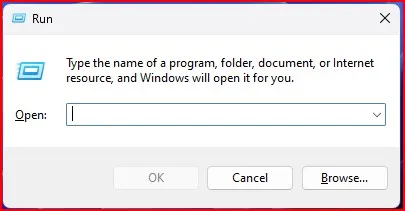
When the dialog box pops up, you’re set to type commands in.
The 20 Must-Know Windows Run Commands
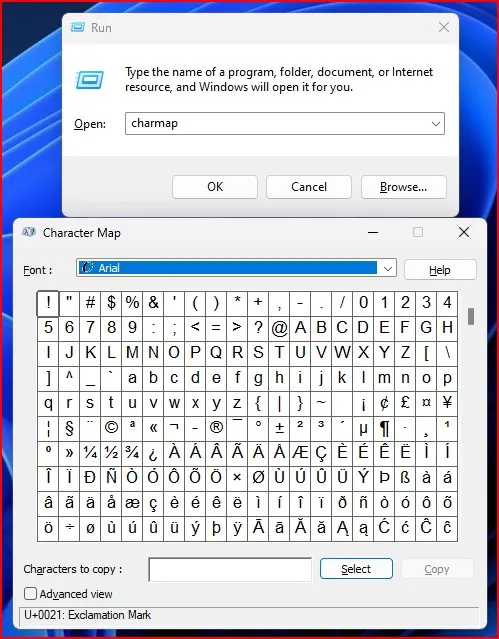
1. charmap – Character Map
All of this need a special symbol or character? Just type charmap and press Enter to open the Character Map to copy and paste symbols, ©, ™, or emojis, and whatever you want.
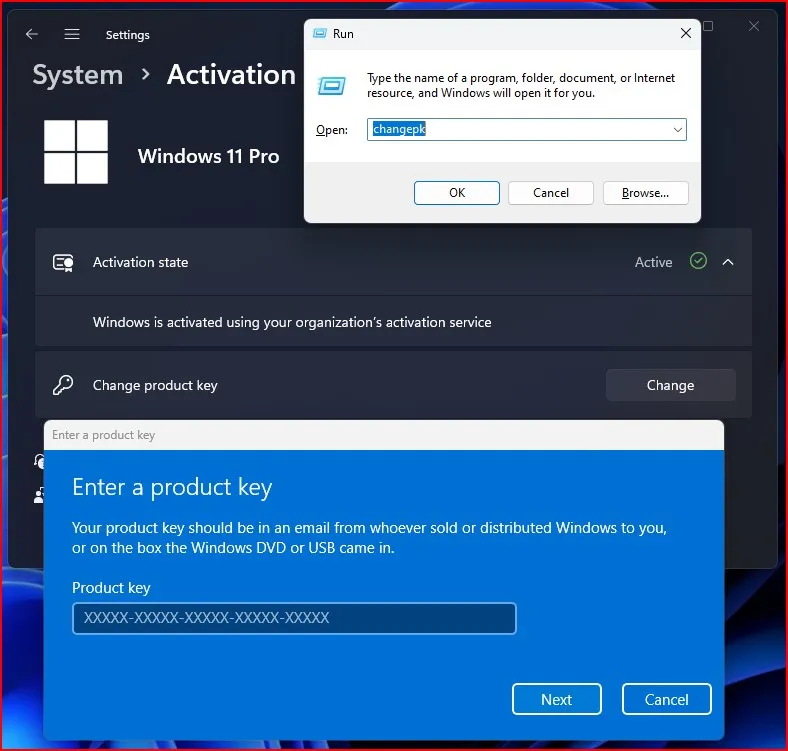
2. changepk – Change Product Key
If you wish to change your Windows activation key, write changepk. This is useful if you’re upgrading your license, or you are troubleshooting activation problems.
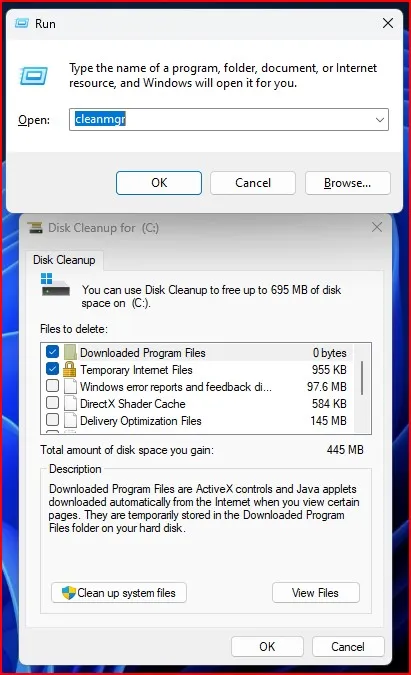
3. Cleanmgr – Disk Cleanup Utility
Type Cleanmgr to free up disk space. This opens the Disk Cleanup tool, which helps you get rid of unnecessary files.
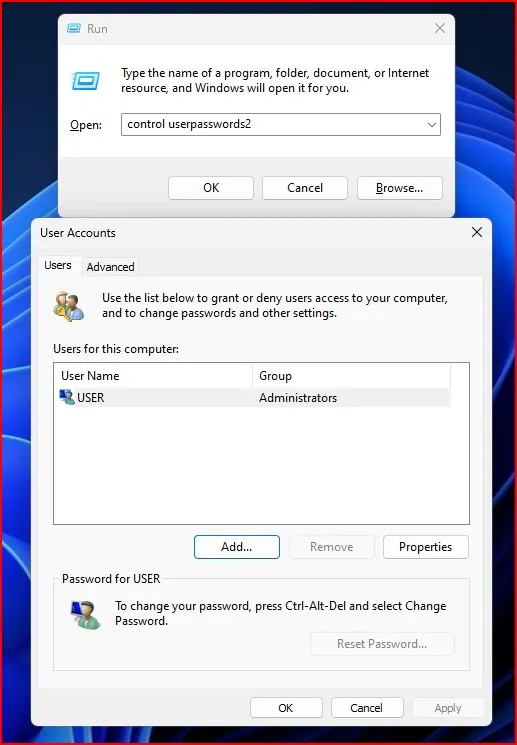
4. userpasswords2 – Advanced User Account Settings
To easily manage user accounts and passwords, you type control userpasswords2. This command opens the User Accounts panel, where you can manage user accounts and passwords. You can add, remove, and modify user accounts. You can also reset your Administrator password from here.
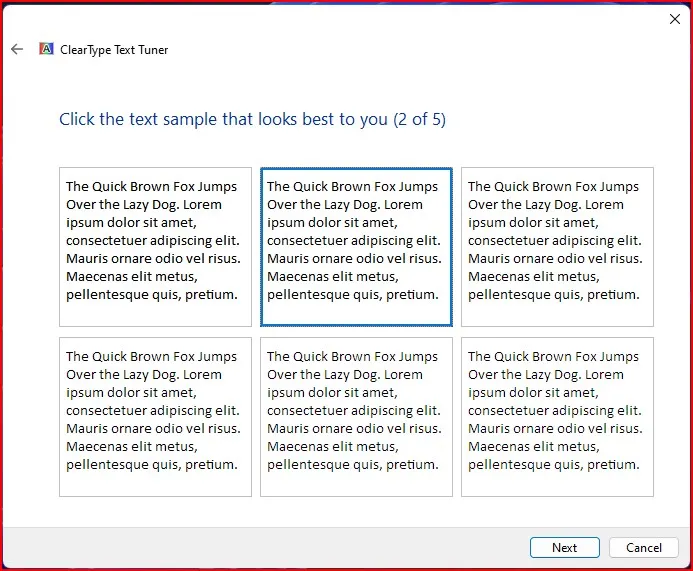
5. Cttune – ClearType Text Tuner
Type Cttune to change how the text appears on your screen. Follow the steps to make fonts sharper and easier on the eyes
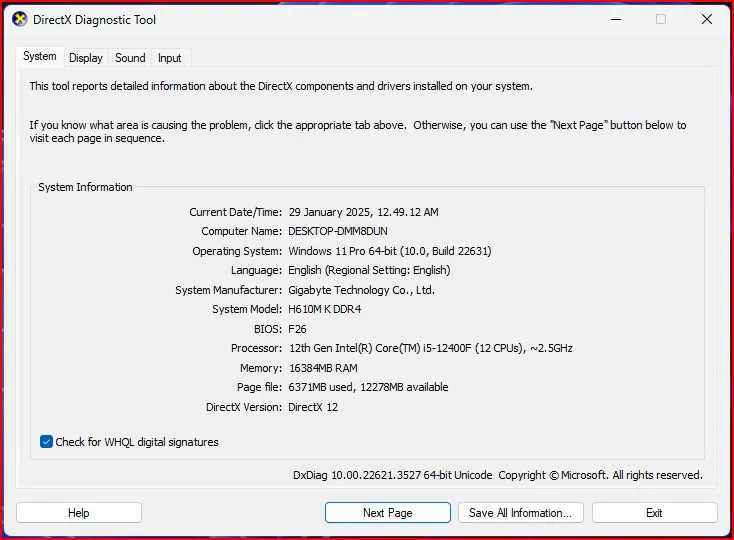
6. Dxdiag – DirectX Diagnostic tool
It helps in diagnosing DirectX problems, checking graphics hardware detail, and even troubleshoot hardware problems for gamers and graphic designers.
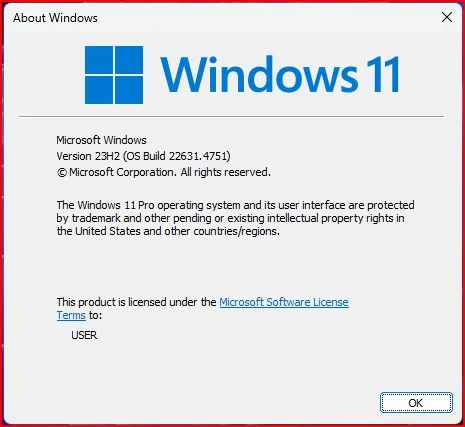
7. Winver – Windows Version
Not sure which version of Windows you’re running? Type Winver to check the version and build number you are currently using.
8. Osk – On-Screen Keyboard
If your physical keyboard isn’t working, type Osk to open the On-Screen Keyboard. It’s also good for accessibility.
9. hdwwiz.cpl – Add Hardware Wizard
Type hdwwiz.cpl and press Enter. The Device Manager window will open, showing a list of all the hardware on your computer, organized into categories like Display adapters, Network adapters, and Sound devices. You can also update your device drivers from here.
10. mrt – Microsoft Malicious Software Removal Tool
Run a quick scan for malware by typing mrt. This built-in tool is a lifesaver for basic malware removal.
11. perfmon.msc – Performance Monitor
Check your system performance typing perfmon.msc. It gives detailed information about the CPU, memory, and disk usage.
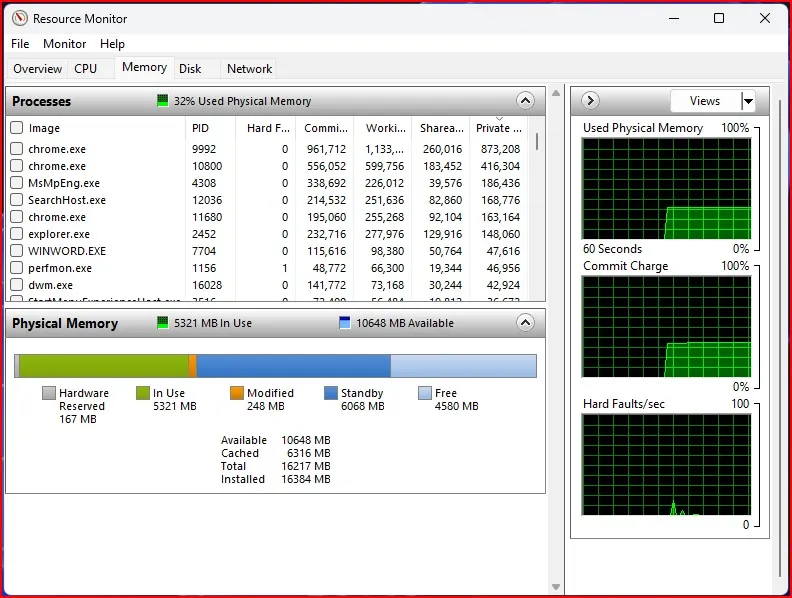
12. resmon – Resource Monitor
Curious what’s making your PC slow? To monitor the real-time status of your system resources, you can simply run resmon.
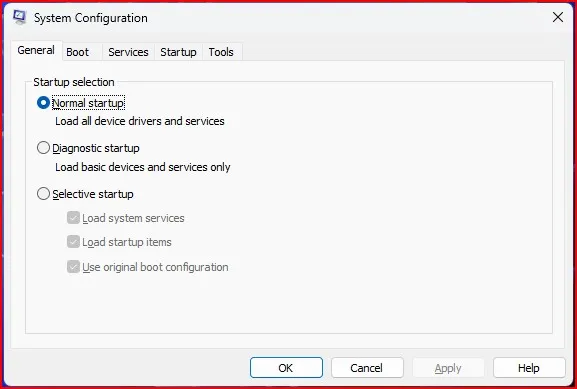
13. msconfig – System Configuration
Type msconfig to manage startup programs, troubleshoot boot issues, and optimize system settings.
14. regedit – Registry Editor
Advanced users can tweak Windows settings by typing regedit to access the Registry Editor.
15. services.msc – Services Manager
Control background services by typing services.msc. Use this to start, stop, or disable unnecessary services.
16. appwiz.cpl – Programs and Features
Type appwiz.cpl and enter to open the quickly uninstall programs menu. Ideal for getting rid of unwanted programs.
17. msinfo32 – System Information
Type msinfo32 to get detailed information about your system. Everything you need to know regarding hardware specs, drivers, etc.
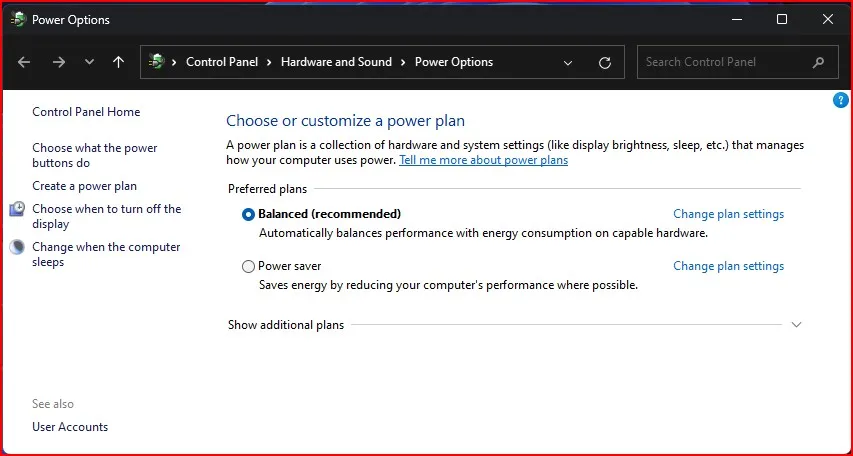
18. powercfg.cpl – Power Options
Type powercfg.cpl to manage power plans. Customise settings for a balance of performance and battery life.
19. ncpa.cpl – Network Connections
Type ncpa.cpl. This opens the Network Connections panel, where you can manage your network connections. Configure your network adapters, view network statuses, and troubleshoot connectivity issues.
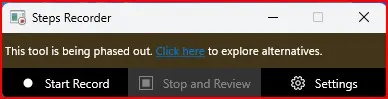
20. psr – Problem Steps Recorder
Record your screen actions to share with tech support by typing psr. It’s an excellent tool for documenting issues.
Ultimate Guide To Run Commands In Windows
- Bookmark or memorize frequently used commands.
- Combine them with keyboard shortcuts for even faster access.
- Experiment with commands to discover more features in Windows.
While Run commands are incredibly useful, sometimes you might want to disable the Run dialog for security reasons, especially on shared or public computers. If you need to turn off the Run command in Windows 11, check out this step-by-step guide: How to Disable RUN Command on Windows 11: Two Simple Methods Explained.
Conclusion
And there you have it — 20 Windows Run Commands You MUST Know! By using these shortcuts, you can get things done with ease, move quickly through Windows, and help you navigate Windows like a pro.
Try them all and tell me which one is your favourite? Share the post if you find this guide helpful and subscribe for more tech guides!
If you want to see these commands in action, watch my full video here: Windows RUN COMMANDS Every User Should Know
Frequently Asked Question (FAQ)
How to open Run in Windows?
Press Windows + R to open the Run dialog. Another way, you can right-click the Start menu and simply select Run.
Does it allow shortcuts for commonly used windows Run commands?
Yes, you can create desktop shortcuts to or pin often used commands to the Start menu or Taskbar for easy access.
The Registry Editor (regedit) is safe to use from the Run dialog box?
This is using the registry editor, a powerful tool and must be used only with care. Incorrect changes with the registry can affect the system stability. Note that restoring the registry can be a little complex, so always back up the registry before making changes.
Can Windows Run commands damage my computer?
No, Run commands are designed to access built-in tools and settings. However, advanced commands like regedit should be used carefully to avoid accidental changes.
What is the most useful Windows Run commands for troubleshooting?
Commands like msconfig, resmon, and perfmon.msc are highly useful for troubleshooting performance and system issues.
What happens if I type a wrong Run command
If the command is invalid or not recognized, Windows will simply display an error message and won’t perform any action.