
If you’ve been waiting for the Windows 11 25H2 Update, good news — it’s finally here. Microsoft began officially rolling it out on September 30, 2025, with new features and design changes that also brought better performance for home and business users.
But as always, the rollout is on a rolling basis. That means it is not going to show up immediately for everyone within Windows Update. But don’t fret — you don’t have to sit tight for it to populate on its own. You can now install Windows 11 25H2 update manually without any hassle and with safety.
What is the Windows 11 25H2 Update?
Windows 11’s 25H2 Update is Microsoft’s once-a-year feature update for 2025. This one (like its predecessors, 22H2, 23H2 and so on), is all about security, performance and deeper AI integration.
Here are some of the takeaways:
- Better Copilot AI integration within the desktop and Settings.
- Improved File Explorer performance and design.
- Faster boot times and system stability.
- Enhanced security patches and updated Windows Defender features.
- Small UI refinements that make everything feel smoother.
These changes help make Windows 11 25H2 perhaps the most polished iteration of Windows yet — and it’s meant to run even more efficiently on modern PCs.
Before You Install Windows 11 25H2 Update
First, a few quick checks before you start
- Free Space: Make sure that you have at least 20 GB available on your system drive (C:).
- Keep your laptop plugged in further as this update process itself may take considerable time.
- As per technical requirements, use wired connection or high-speed Wi-Fi regarding stable internet access.
- To further protect your data, backup essential files using an external drive or OneDrive itself.
- Check Windows Version:
- Press Windows + Ron keyboardand type
winver, and hit Enter.
- If you find Version 23H2, then this is your next big upgrade.
- Press Windows + Ron keyboardand type
Method 1: Install Windows 11 25H2 Update via Windows Update
This one is the simplest of all — particularly because downloading anything is a hassle.
- Right-click the Start menu, and then click Settings
- Click Windows Update in the left pane
- Slide on the option “Get the latest updates as soon as they’re available” (if it’s there).
- Click Check for updates.
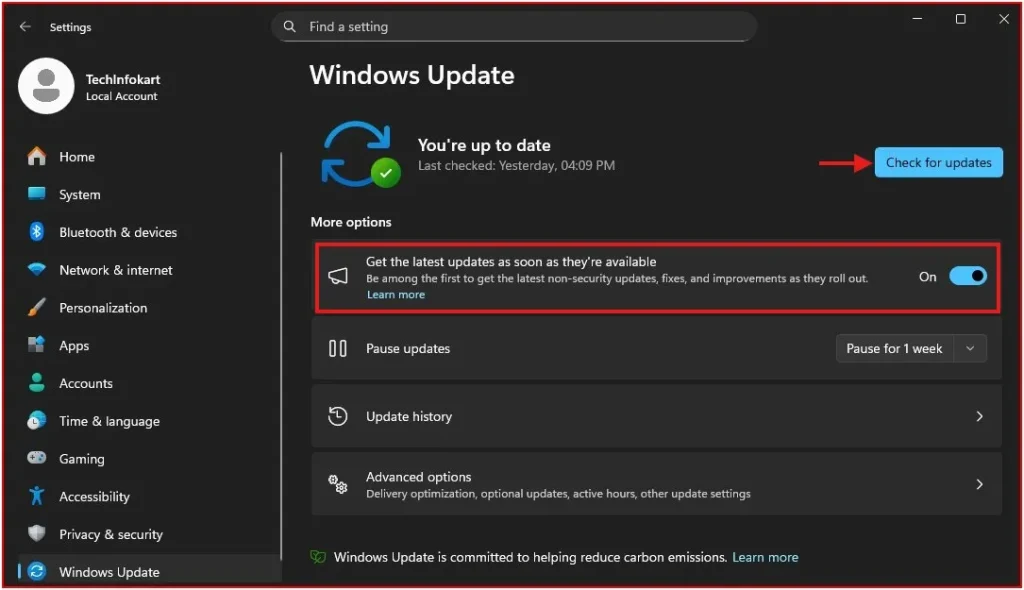
If you’re in luck and Microsoft has released the update to your particular PC, you’ll see a message like: “Windows 11, version 25H2 is available.”
But many users won’t see it right away, because Microsoft rolls out the upgrade gradually — so don’t panic if nothing appears yet.
If you don’t get it, that’s O.K. This brings us to the manual procedure.
Method 2: Install Windows 11 25H2 Update Using Installation Assistant
If you’re eager and don’t want to wait, this method works great.
- Open your web browser and go to the official Microsoft download page: Microsoft – Windows 11 Download
- On that page you’ll see “Current release: Windows 11 version 25H2” mentioned.
- In the section labeled “Windows 11 Installation Assistant”, click Download now.
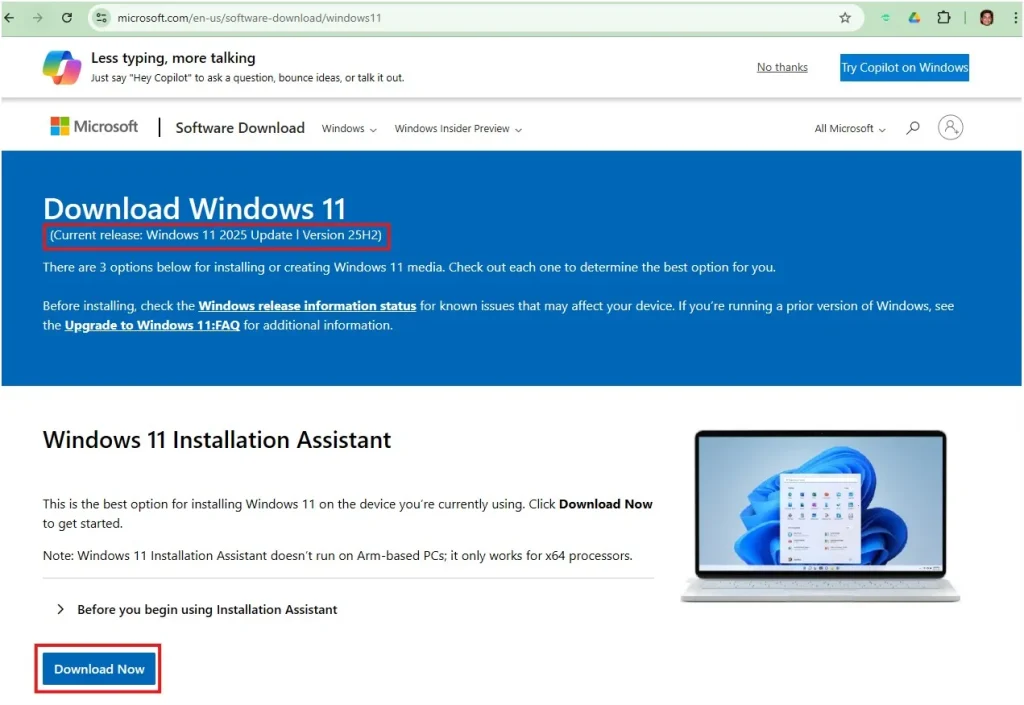
- After it’s downloaded, you’ll double-click the download file (InstallationAssistant. exe).
- If prompted, click Accept and Install.
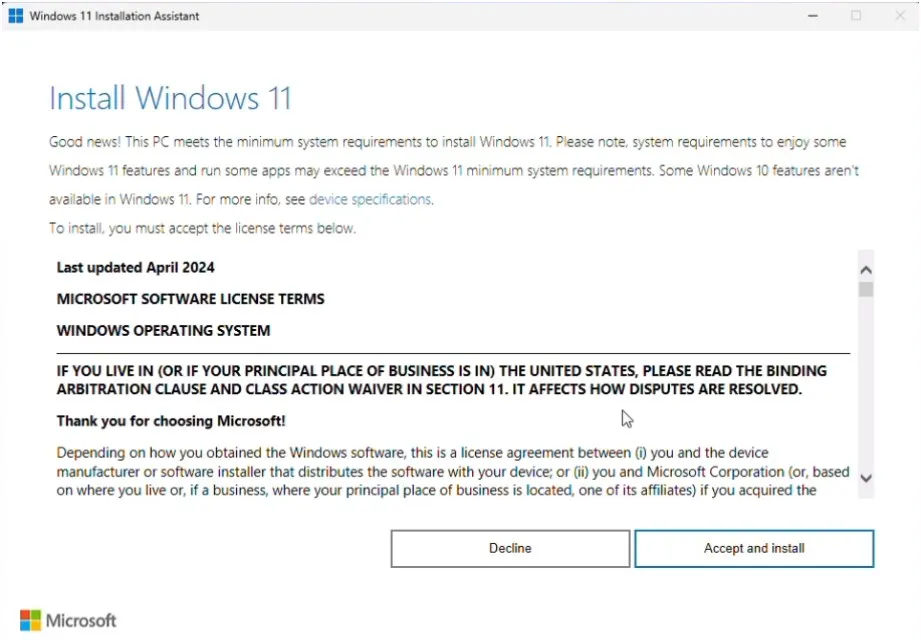
What happens next?
The tool will run through three phases:
- Download Windows 11 25H2 update: Files will be pulled from Microsoft’s servers.
- Verify the download: The install package is checked for integrity.
- Start installation process: The system prepares and then restarts your PC. You’ll notice a message like “Your PC needs to restart to install Windows 11.” Let it reboot a few times until the desktop returns.
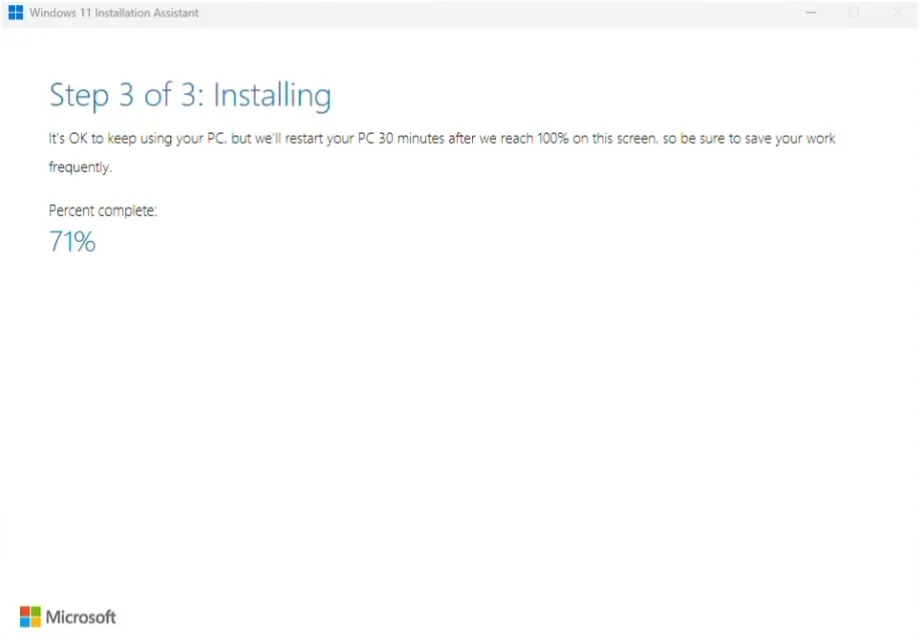
When it’s finished, you’re good to go and check that it worked.
Alternative Installation Methods
If you want to do a clean install or upgrade multiple PCs, you can use alternative methods.
1. Create a Bootable USB using the Media Creation Tool
- Visit the same Microsoft download page.
- Under Create Windows 11 Installation Media, click Download tool now.
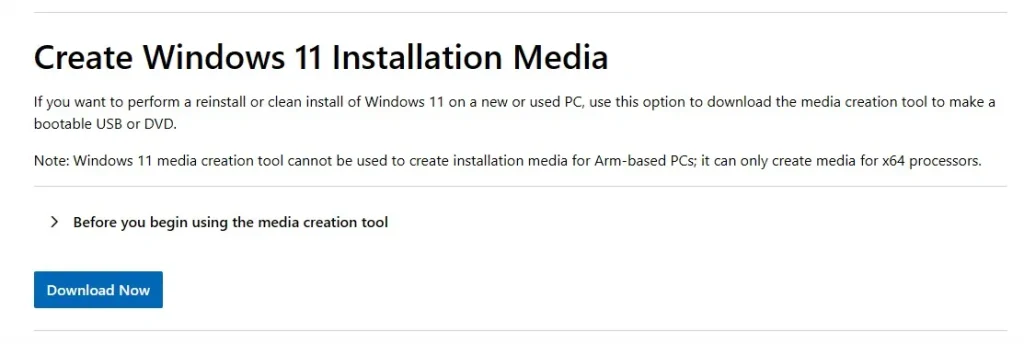
- Insert a USB device (8GB or larger) into the computer.
- Just follow the prompts to make a bootable Windows 11 25H2 installer.
- You can now boot from the USB drive and Install Windows, by selecting it.
This process gives you a clean slate — great if your computer is sluggish or filled with junk.
I’ve already covered the full process in detail here — How to Download Windows 11 25H2 ISO
2. Download the 25H2 ISO File
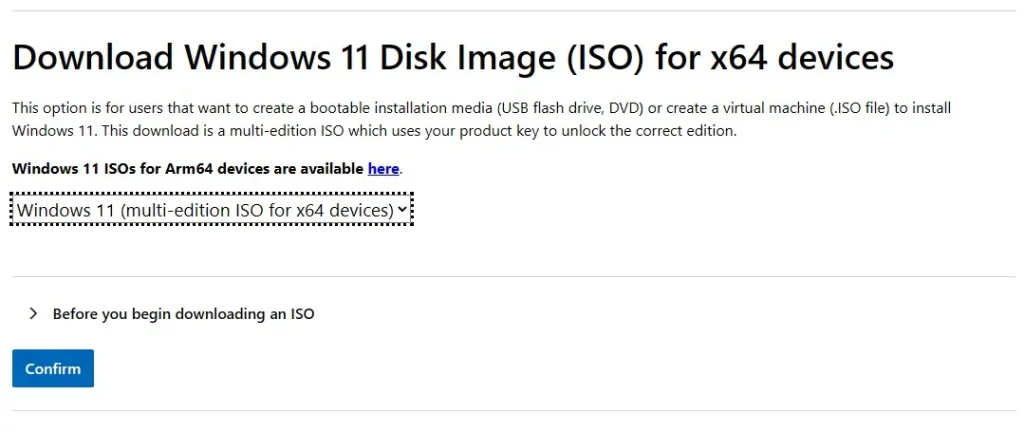
- Scroll down (still on the same Microsoft page) and find Download Windows 11 Disk Image (ISO)
- Choose Windows 11 (multi-edition ISO), then select Confirm.
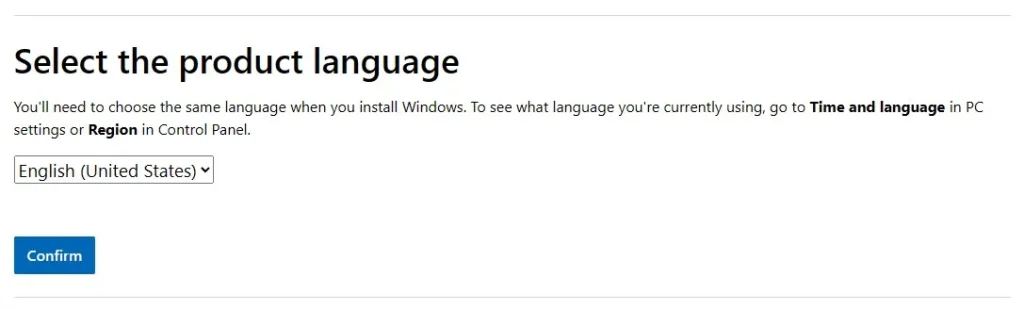
- Select your language and click 64-bit Download
- After you download the ISO file, you can mount the ISO and run setup.exe to begin the upgrade.
Confirm the update
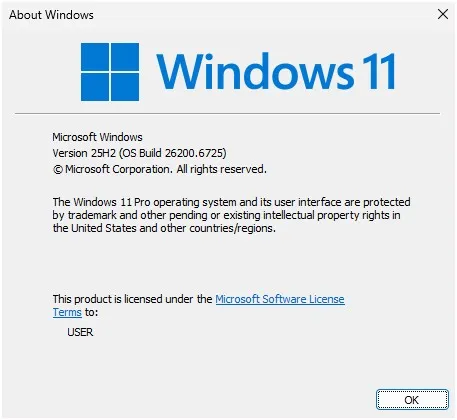
Go to Settings → System → About (or just Settings → Windows Update → Advanced Options → About).
Under Windows specifications, you should now see Version 25H2.
If so—congrats, you’ve successfully installed Windows 11 25H2 update!
By the way, if you prefer watching a visual guide instead of reading, you can check out my detailed YouTube tutorial on How to Download Windows 11 25H2 ISO.
Final Thoughts
Now, the Windows 11 25H2 Update is far from revolutionary but it does feel more finished — smoother, faster and smarter in its day-to-day usage. Microsoft started rolling it out in earnest on Sept 30, 2025 — but the good news is you don’t have to wait for your PC to receive it automatically.
If it doesn’t come up under Windows Update for you quite yet, you can manually install the full 25H2 Update with the Installation Assistant or Media Creation Tool. Both are official, safe, methods provided by Microsoft; the former requires a Product Key to work.
After you’ve installed the update, spend some time with the new design tweaks, quicker boot times and overall responsiveness — and chances are good that you’ll notice a difference right off the bat.
Frequently Asked Question (FAQ)
When did Microsoft release the Windows 11 25H2 Update?
Microsoft started officially rolling it out on September 30, 2025, in phases.
Can I install Windows 11 25H2 Update manually?
Yes! You can use the Installation Assistant, Media Creation Tool, or ISO file to install it immediately.
Is the 25H2 Update free?
Yes, it’s a free update for all existing Windows 11 users.
What’s the file size of the update?
Roughly 5–6 GB, depending on your device type and edition.
Will my files be deleted after updating?
No, your personal files and apps remain intact. Still, it’s wise to back up important data before updating.