
Planning to upgrade to Windows 11 or simply want to find out if your PC is healthy? Chances are, you’ve heard of the PC Health Check application. This is something for the average user, who does not like to get into technical details, but wants to know if all was working fine.
This PC Health Check app gives you an easy way to see if your system meets Windows 11 requirements, and to understand why the system can’t be upgraded. You don’t have to be a tech expert and technician to use it – Microsoft has designed this Windows 11 system assessment tool for regular users. In this PC Health Check application guide you’ll find out how to make the most of this useful diagnostics tool.
What Is the PC Health Check Application?
The PC Health Check application is a small official tool from Microsoft.
It helps you:
- Check if your PC is compatible with Windows 11
- See basic device health details
- Monitor storage capacity
- Check battery performance (for laptops)
- View startup time and tips
In simple words, it tells you whether your computer is ready for Windows 11 and shows basic health information about your system.
Why Should You Use PC Health Check?
Here are some common situations where this tool is helpful:
- You want to upgrade to Windows 11
- You’re not sure if your PC supports TPM 2.0
- Your system feels slow
- You want to check device specifications
Instead of guessing, this tool gives you a clear answer in seconds.
How to Use PC Health Check Application (Step-by-Step)
Now let’s see how to use PC Health Check application properly.
Step 1: Download the PC Health Check Tool
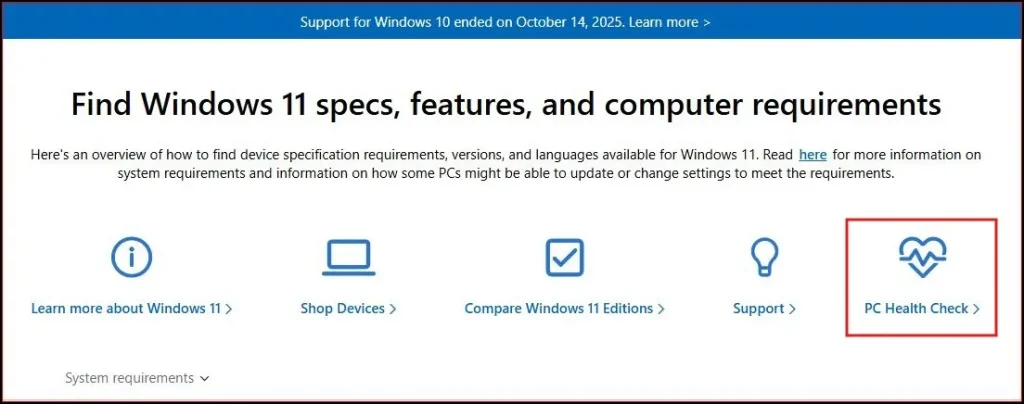
Downloading from Microsoft official website
You can download the PC Health Check Windows 11 tool from Microsoft’s website itself to make sure you get the real deal. The application is completely free and regularly updated by Microsoft to provide accurate system assessments.
Installing the application on your system
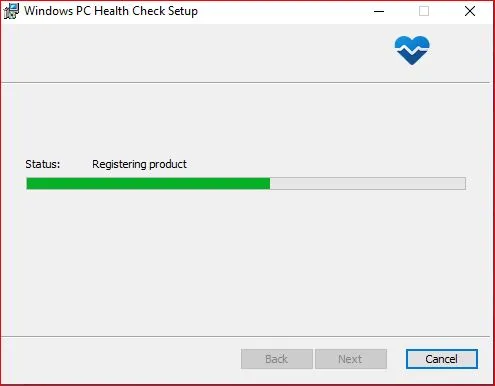
After you download the PC Health Check app installer, you should run the executable as an administrator to install it correctly. Installation is quick and easy and will only take you a few minutes with the help of the setup wizard. Agree to the license terms, authorise the installation location (or change it) and then finish setting up the Windows 11 for PC diagnostics tool.
Launching PC Health Check for first use
Once it’s installed, you can access the PC Health Check application in your Start menu or via a desktop shortcut. Open the application and get started with your first Windows 11 system scan, you can check out some details from the main interface though.
Step 2: Check Windows 11 Compatibility
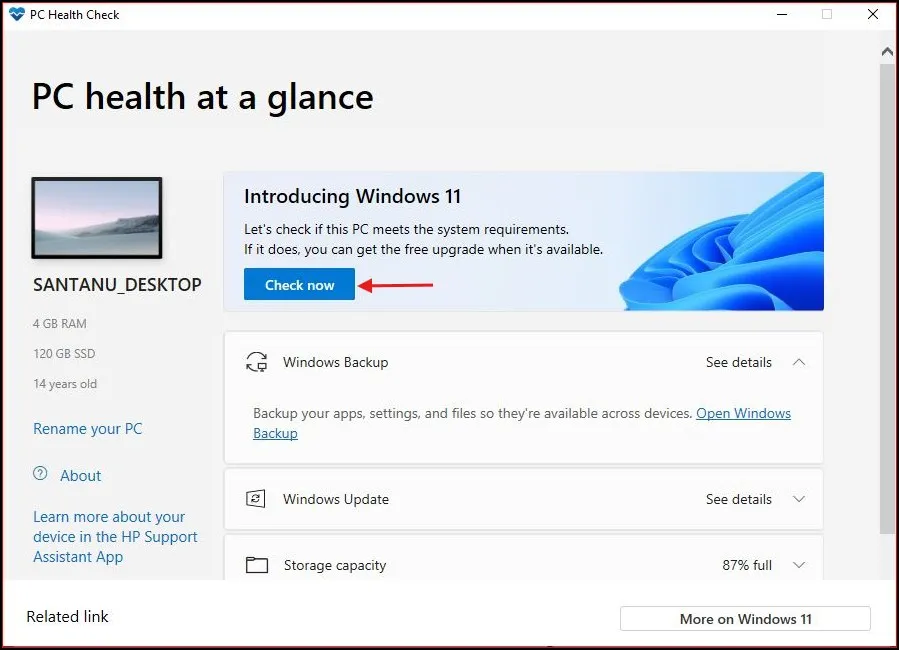
When you open the app, you’ll see a section at the top that says:
“Introducing Windows 11”
Click on “Check now.”
Within a few seconds, the tool will show one of these messages:
- This PC meets Windows 11 requirements
- This PC doesn’t currently meet Windows 11 system requirements
If your PC doesn’t meet the requirements, it may also show reasons like:
- TPM not enabled
- Secure Boot disabled
- Unsupported processor
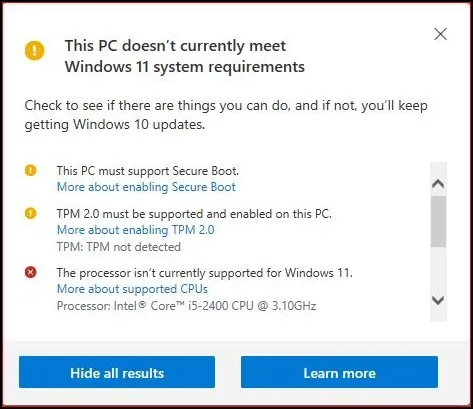
That makes it easier to see what’s left. Once the PC Health Check scan is finished, you’ll get a more detailed report of your system’s overall health with color-coded icons. If everything is good then green checkmarks are displayed, otherwise yellow or red warnings show that something need attention.
Step 3: Explore Other Sections in the PC Health Check App
With this app, you will also find other handy sections which provide an overview of your computer’s state at a glance.
Here’s what each section means:
- Windows Backup – Shows whether your files and settings are backed up properly.
- Windows Update – Indicates if your system is up to date or if updates are available.
- Storage Capacity – Displays how much space is used and how much free space is available.
- Startup Time – Indicates the time it takes for your PC to boot up.
Battery Health (Laptop Users)
If you’re on a laptop, you can look up battery capacity and health information. This way you can learn if your battery performance is normal or not.
On the left side of the app, you will see:
- Your PC name
- How much RAM is installed
- How much SSD or storage is being used
- And even how old your PC is
This gives you a quick summary of your system without opening multiple settings.
Conclusion
You don’t have to wonder about the health of your PC anymore. The PC Health Check app provides everything you need to know to keep your Windows 11 system running smoothly. It allows you to monitor the hardware performance, run full system testing and identify potential issues before they become major problems. The best part? You don’t need to be a tech expert to use it.
Also Read: How to Enable Windows Sandbox on Windows11
Frequently Asked Questions (FAQs)
Is PC Health Check application safe to use?
Yes. It is an official Microsoft tool and completely safe.
Is the PC Health Check app free?
Yes, it is 100% free to download and use.
Does it improve PC performance?
No. It only checks health and compatibility. It doesn’t fix issues automatically.
Can I uninstall it after checking?
Yes, you can uninstall it anytime from Control Panel.
Does it work on Windows 10?
Yes. It is mainly designed for Windows 10 users who want to upgrade to Windows 11.