
If your PC runs slow, Wi-Fi disconnects frequently, or sound stops working, outdated drivers are often the problem itself, which further affects system performance. For many users, drivers are something they rarely think about, until a problem suddenly appears. And honestly, downloading each driver one by one from different websites can be confusing and risky.
You can update all drivers in one click on your PC, without any technical knowledge. This guide explains the complete process step by step in simple terms, which further helps even non-technical users understand the procedure itself.
What Are Drivers and Why They Matter
Drivers are small software programs that help Windows communicate further with your hardware itself. Your graphics card, sound card, Wi-Fi adapter, printer – all of them need drivers to work properly.
If drivers are outdated or missing, you may face issues like:
- Slow PC performance
- No sound or microphone problems
- Wi-Fi or Bluetooth not working
- Games or apps crashing
- Hardware not detected
That’s why regular driver updates are important for Windows 10 and Windows 11 systems to function properly.
The Easy Way to Update All Drivers Automatically
Updating drivers manually actually means you visit different company websites and definitely need to pick the right models while avoiding wrong downloads. We are seeing that new people only get confused and stressed with this.
The simplest way is actually using a trusted driver updater tool that scans your computer and definitely updates all drivers automatically with one click.
I Moreover, in this guide, we are using Driver Booster Free only, which is easy and safe for new users.
Step-by-Step: How to Update All Drivers in One Click
Step 1: Download the Driver Updater
Open your browser. Search for Driver Booster Free and open the official website (https://www.iobit.com/en/driver-booster.php).

Always download software only from the official site to avoid fake or harmful files.
Step 2: Install the Software
Once the installer is downloaded Right-click on the file, Select Run as administrator. Click Install
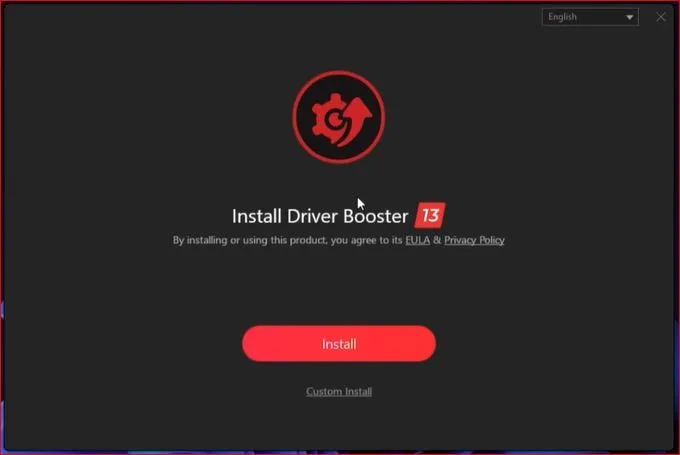
The installation takes only a few minutes. If it asks about newsletters, you can safely skip it.
Step 3: Scan Your PC for Outdated Drivers
After installation, open the program from your desktop. You’ll see a big Scan button.
Click it, and the tool will only start checking your system for old, missing, or broken drivers.
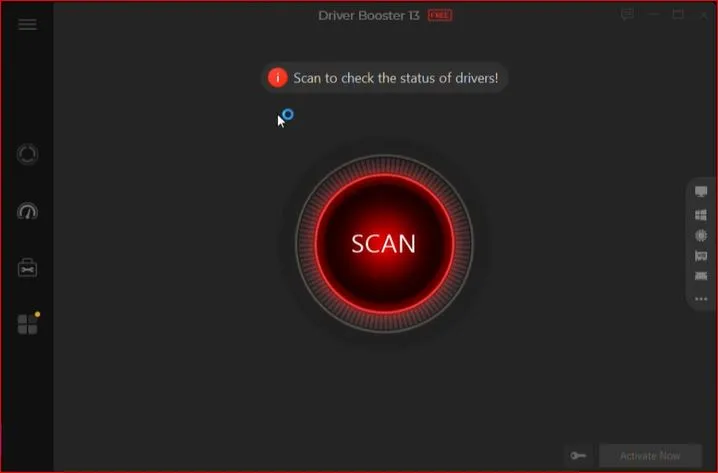
This scan process itself may require few minutes further depending on your computer system.
Step 4: Update All Drivers in One Click
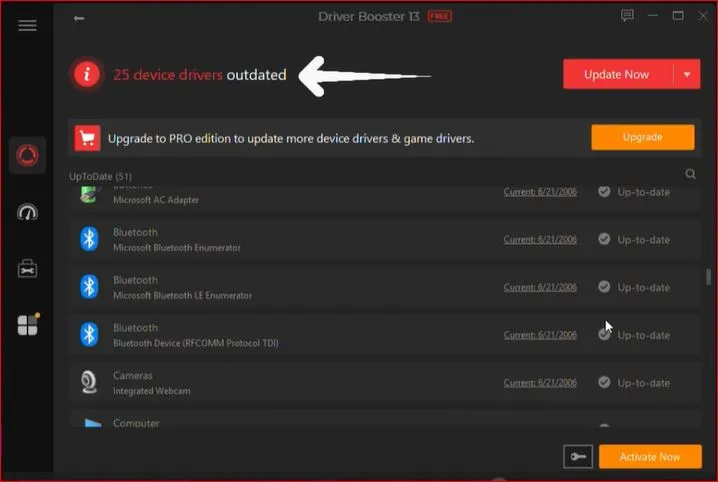
After the scan finishes, we are seeing a list showing only the old drivers that need updating.
Simply click Update Now.
You may see a warning about temporary black screens or system restarts. Don’t worry — this is completely normal during driver installation.
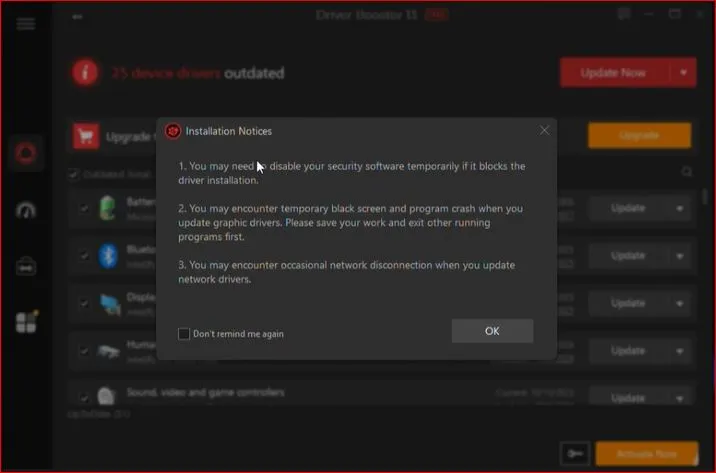
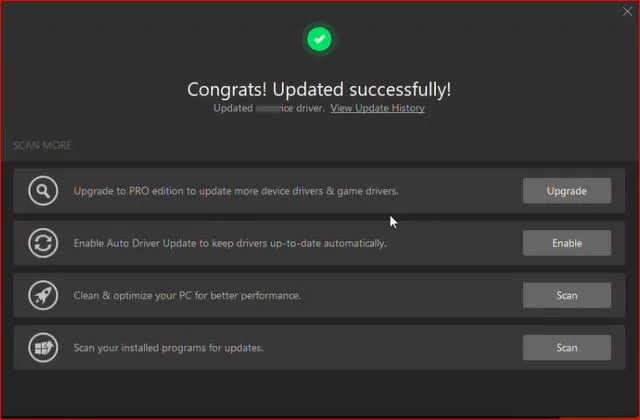
The tool will now download and install all drivers automatically.
Step 5: Restart Your PC
After the update actually finishes, you should definitely restart your computer. This step is important so all new drivers are properly applied. That’s it! Your PC drivers are now fully updated.
Helpful Tips before Updating Drivers
- Close all running programs before starting the update
- Make sure you have a stable internet connection
- Restart your PC after updating drivers
- Avoid downloading drivers from unknown websites
These small steps help prevent errors and ensure smooth updates.
Final Thoughts
As per system requirements, updating drivers is not complicated regarding maintenance procedures. You can actually update all drivers in one click using the right method. This approach definitely helps avoid common Windows issues without any stress. If you are new to computers or not technical, this method actually saves time and definitely helps avoid mistakes while keeping your PC running well. Actually, you should definitely spend some time today updating your drivers because your computer will work much better after that.
Frequently Asked Questions (FAQs)
Is it safe to update all drivers at once?
Yes, if you use a trusted driver updater from an official source.
Do I need technical knowledge to update drivers?
No. Automatic driver update tools are designed for beginners.
How often should I update my drivers?
Once every 1–2 months is usually enough for most users.
Will updating drivers make my PC faster?
In many cases, yes. Updated drivers improve stability and performance.
Do I need to pay to update drivers?
Free versions can update drivers, but paid versions may offer extra features.