
You may want to test Linux on your Windows PC, check new software safely, or run older Windows versions for compatibility. But you don’t want to create problems in your main system – it should remain the same and work properly.
Virtual machines provide the solution for this problem. Two options are surely very popular among users: Hyper-V and VirtualBox. Both tools allow you to run another operating system inside your current system itself, and this further enables multiple OS environments on one machine. But which one should you actually use?
In this detailed guide on Hyper-V vs VirtualBox, I’ll explain both options in simple terms for better understanding
What is Hyper-V?
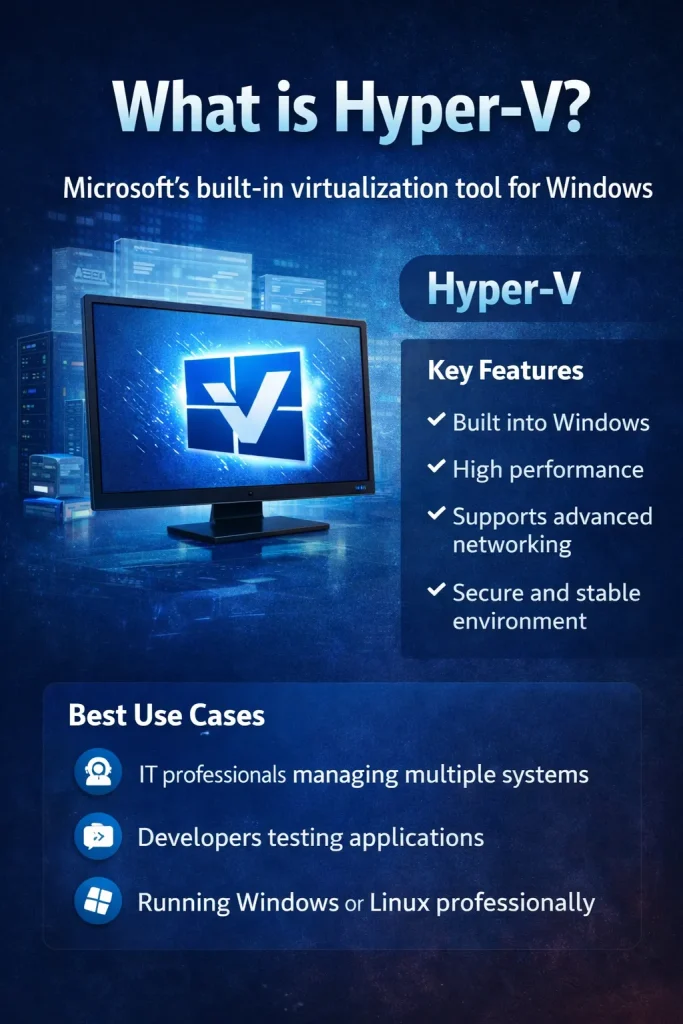
Hyper-V is a virtualization tool developed by Microsoft. It comes preinstalled in Windows (in Pro, Enterprise, and Education editions).
Think of Hyper-V as a built-in feature in Windows that lets you create and run virtual computers without installing extra software.
Key Features
- Built into Windows (no separate download needed)
- High performance and efficiency
- Supports advanced networking
- Secure and stable environment
- Works well with enterprise setups
Best Use Cases
- IT professionals managing multiple systems
- Developers testing applications
- Users who want fast and stable virtual machines
- Running Windows or Linux in a professional environment
What is VirtualBox?
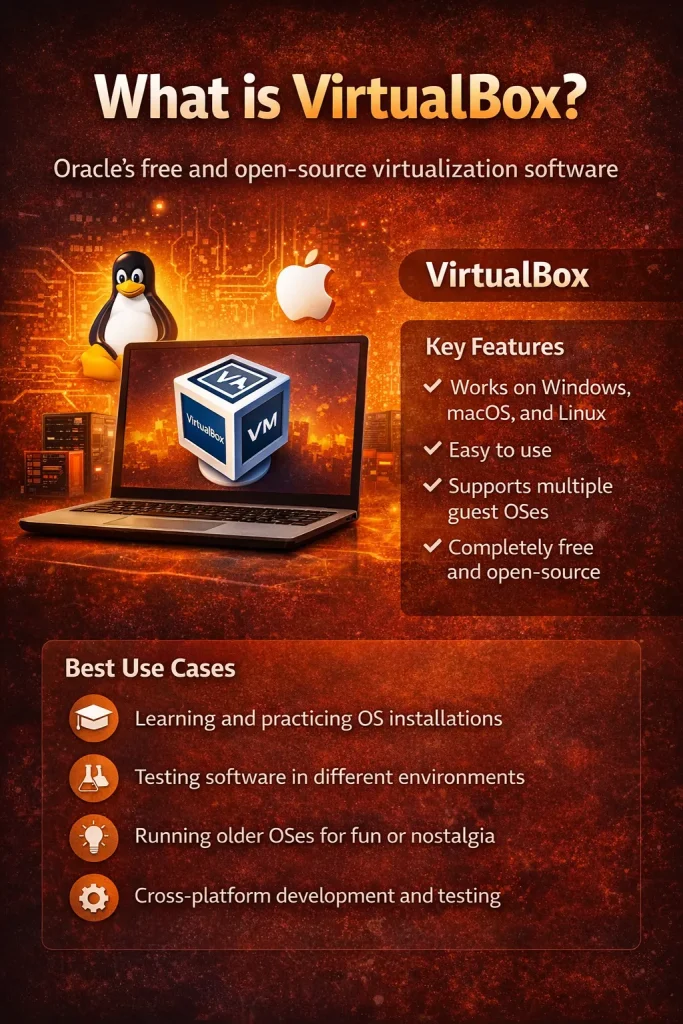
VirtualBox itself is free virtualization software that Oracle Corporation has developed further for users.
Simple Explanation
VirtualBox is like an app you install on your PC that lets you run another operating system inside a window — just like any other software.
Key Features
- Completely free and open-source
- Works on Windows, macOS, and Linux
- Easy to install and use
- Supports a wide range of operating systems
- Snapshot feature to save VM states
Best Use Cases
- Beginners learning virtualization
- Students experimenting with OS
- Running Linux on Windows or vice versa
- Casual users testing software
Key Differences: Hyper-V vs VirtualBox
Here’s a quick comparison to help you understand the differences:
| Feature | Hyper-V | VirtualBox |
| Performance | High (native integration) | Good (slightly lower) |
| Ease of Use | Moderate | Very beginner-friendly |
| Compatibility | Windows only | Windows, macOS, Linux |
| Features | Advanced | Basic to intermediate |
| OS Support | Limited compared to VirtualBox | Wide OS support |
| Cost | Free (with Windows Pro/Enterprise) | Completely free |
| Performance | High (native integration) | Good (slightly lower) |
Performance Comparison
When it comes to performance in Hyper-V vs VirtualBox, Hyper-V usually takes the lead.
Why Hyper-V is Faster
Hyper-V runs directly on your system hardware (called a “Type 1 hypervisor”), which makes it more efficient.
VirtualBox, on the other hand, runs on top of your operating system (Type 2 hypervisor), which adds a small overhead.
Real-Life Example
Let’s say:
- You install Ubuntu in a virtual machine
- You give both tools 4GB RAM and 2 CPU cores
With Hyper-V:
- Faster boot time
- Smoother performance
- Better resource handling
With VirtualBox:
- Slightly slower
- Still usable, especially for light tasks
Conclusion:
If performance is your top priority, Hyper-V is better.
Ease of Use
This is where VirtualBox really shines.
VirtualBox (Beginner-Friendly)
- Simple installation process
- Easy interface
- Step-by-step VM creation
- Great for first-time users
Hyper-V (Slightly Technical)
- Requires enabling from Windows Features
- Interface is not as intuitive
- Needs some understanding of networking
Example:
If you are creating your first virtual machine, VirtualBox feels like installing any normal app.
Hyper-V may feel a bit “technical” at first.
Conclusion:
For beginners → VirtualBox is easier.
Compatibility & OS Support
Another important factor in Hyper-V vs VirtualBox is compatibility.
Hyper-V
- Only available on Windows (Pro/Enterprise editions)
- Not available on Windows Home (without workarounds)
- Limited macOS support
VirtualBox
- Works on:
- Windows
- Linux
- macOS
- Supports a wide range of guest operating systems
Example:
If you’re using macOS or Linux → Hyper-V is not an option. But VirtualBox works everywhere.
Conclusion:
VirtualBox wins in compatibility.
Features Comparison
Let’s look at some important features.
Snapshots
- Hyper-V: Supported
- VirtualBox: Supported
Snapshots allow you to save your VM state and revert back anytime.
GPU Support
- Hyper-V: Better GPU integration (especially for Windows)
- VirtualBox: Limited GPU support
Integration Tools
- Hyper-V: Strong integration with Windows
- VirtualBox: Guest Additions for basic integration
Networking
- Hyper-V: Advanced networking options
- VirtualBox: Simple networking setup
Overall Feature Summary
- Hyper-V → More powerful and enterprise-level
- VirtualBox → Simple and practical
Pros and Cons
Hyper-V Pros
✔ High performance
✔ Built into Windows
✔ Secure and stable
✔ Advanced features
Hyper-V Cons
❌ Not beginner-friendly
❌ Only available on certain Windows versions
❌ Can conflict with other virtualization tools
VirtualBox Pros
✔ Very easy to use
✔ Works on multiple operating systems
✔ Completely free
✔ Great for beginners
VirtualBox Cons
❌ Slightly lower performance
❌ Limited advanced features
❌ Not ideal for heavy workloads
Which One Should You Choose?
Let’s make this simple.
For Beginners
Go with VirtualBox
Why?
- Easy setup
- No technical knowledge needed
- Works on almost any system
For Developers
Choose based on your needs:
- Need performance → Hyper-V
- Need flexibility → VirtualBox
For IT Professionals
Go with Hyper-V
Why?
- Better performance
- Advanced networking
- Enterprise-level features
Final Verdict
Ultimately, the decision in Hyper-V vs VirtualBox is determined by your needs and experience level — if you depend on superior performance, close integration with Windows, advanced functionalities for workplace use case scenarios, then Hyper-V is a better option; while those who prefer something straightforward and simple and flexible enough to run on varying operating systems might find in VirtualBox being the perfect choice when learning or testing day-to-day.
Also Read: VirtualBox vs VMware Workstation: Detailed Comparison for Beginners
Frequently Asked Questions (FAQs)
What is the main difference between Hyper-V and VirtualBox?
The main difference in Hyper-V vs VirtualBox is that Hyper-V is built into Windows and offers better performance, while VirtualBox is a separate, easy-to-use tool that works on multiple operating systems.
Is Hyper-V better than VirtualBox?
Hyper-V is better for performance and advanced use, but VirtualBox is better for beginners due to its simple setup and user-friendly interface.
Can I use Hyper-V on Windows Home edition?
No, Hyper-V is officially available only on Windows Pro, Enterprise, and Education editions (though there are unofficial workarounds).
Is VirtualBox completely free?
Yes, VirtualBox is completely free and open-source, making it a great choice for students and personal use.
Can I run both Hyper-V and VirtualBox on the same PC?
Running both together can cause conflicts because Hyper-V takes control of virtualization features, so it’s recommended to use only one at a time.