
I’ll be honest—I didn’t even know this feature existed for a long time.
A few days back, I was copying a few things while writing a post… email, links, some text… and I kept losing the previous copied item every time I copied something new. That’s when I finally tried Clipboard History Windows 11, and yeah—it made things a lot easier.
If you’ve never used it before, you’re likely doing extra work without knowing. So in this guide, I’ll show you how to enable Clipboard History Windows 11 and also what to do if it’s not working (because yes, that happens too).
Before You Start
Nothing complicated here. Just make sure you’re on Windows 11 and your keyboard is working fine. You don’t need any software or anything extra.
What is Clipboard History in Windows 11?
Normally, Windows only remembers the last thing you copied. So if you copy something else, the previous one is gone.
With Clipboard History Windows 11, it doesn’t work like that anymore. It keeps a list of the things you copied recently, so you can go back and pick anything you need.
I mostly use it when I’m writing blogs or uploading videos—copying titles, descriptions, links… it saves me from going back and copying everything again.
How to Enable Clipboard History Windows 11
Enable Clipboard History Windows 11 from Settings
This is the usual method.
Press Windows + I, go to System, then scroll a bit and click on Clipboard. You’ll see an option called Clipboard history. Just turn it on.
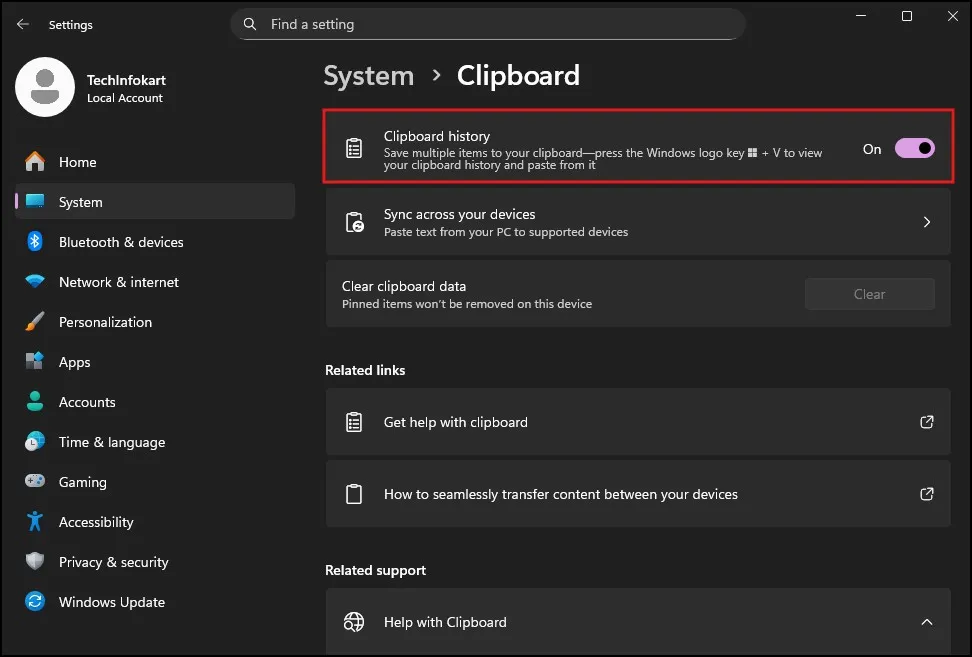
That’s it. Nothing else to do.
Enable Clipboard History Windows 11 Using Shortcut
If you don’t want to go through settings, there’s a quicker way.
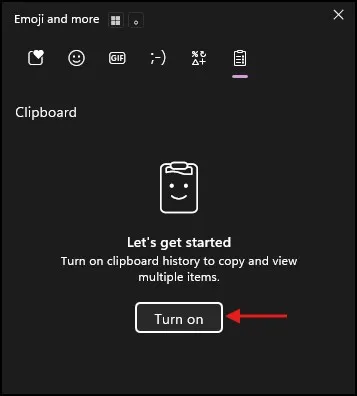
Just press Windows + V.
If it’s turned off, you’ll get a small popup with a “Turn On” button. Click it once, and Clipboard History Windows 11 will be enabled instantly.
This is actually the method I use most of the time.
How I Use Clipboard History (Real Use)
After you enable it, you don’t pay attention to it at all — it just becomes part of your workflow.
Now, every time I copy multiple things, I just hit Windows + V and select what I want. Do not have to go back and copy again.
My initial thought was that this is just a minor feature… but now regularly using it made me realize how time-saving it really is.
Clipboard History Windows 11 Not Working? Try This
Now coming to the annoying part—sometimes Clipboard History Windows 11 just stops working.
I’ve faced this once after a Windows update, so here are the things that actually helped.
First, check if it’s still turned on. Sounds obvious, but Windows sometimes turns off certain settings after updates.
If it’s already enabled, try restarting Windows Explorer from Task Manager. This fixes small glitches more often than you’d expect.
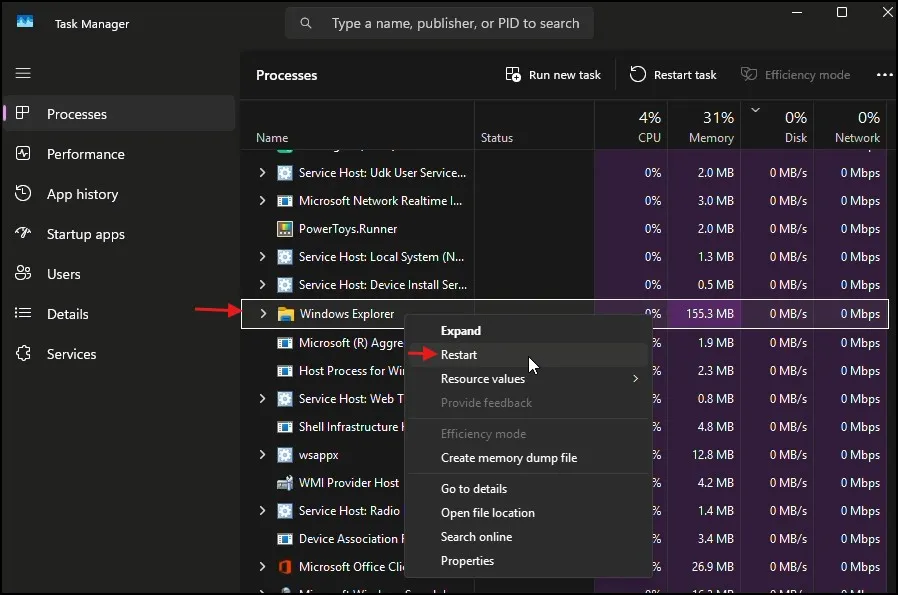
Another thing you can try is clearing the clipboard data. I did this once, and it fixed the issue instantly. It kind of resets everything.
If you’re using Windows 11 Pro, there’s also a Group Policy setting called “Allow Clipboard History.” Make sure it’s enabled, otherwise the feature won’t work at all.
Also, check for Windows updates. I’ve seen cases where features start working again after updating.
And yeah… if nothing works, just restart your PC. Still one of the most underrated fixes
My Personal Experience Using Clipboard History Windows 11
I’ll be honest and say that I didn’t care much about this feature when it debuted.
I used to blindly copy the same multiple times without thinking. One day, I was uploading a video and it required me to copy multiple links and text again… That’s when I truly started to use Clipboard History Windows 11.
I’ve been using it nearly every day since.
It’s nothing you think that much of at first, but once you start to get into the habit of pressing Windows + V, it quietly shaves off time. But if it ever stops working, I immediately notice… it kind of feels incomplete without it.
If you also work with saved network details, you might find this guide on how to show saved WiFi password in Windows 11 helpful too
Common Mistakes While Using Clipboard History Windows 11
One thing I’ve noticed is that many people enable this feature but don’t use it properly.
For example, some users forget to pin important items. So when they restart their PC, everything disappears. It’s a small thing, but it makes a big difference.
Another common mistake is expecting Clipboard History to store everything forever. It doesn’t. It only keeps recent items unless you pin them.
Also, a lot of people don’t realize that large files or complex content may not always appear properly in clipboard history. It works best with text and simple items.
And sometimes, users think it’s broken when it’s actually just turned off after an update.
Simple Example
Let’s say you’re filling out a form or writing a blog.
You copy your name, email, website link, maybe some text… instead of copying everything again, just press Windows + V and select what you want.You can get into the habit of using Windows + V instead of Ctrl + V when working with multiple copied items. It feels a bit different at first, but you get used to it quickly.
That’s where Clipboard History Windows 11 actually helps in real work—not just as a feature on paper.
Another thing—try not to store sensitive information like passwords. It’s fine for normal use, but not ideal for private data.
Using Clipboard History with Screenshots (Helpful Tip)
When you add screenshots to your blog or documents, Clipboard History Windows 11 can help there too.
For example, if you’re taking multiple screenshots, you can copy them one by one and then access them from the clipboard panel. It’s actually quite handy when working on tutorials.
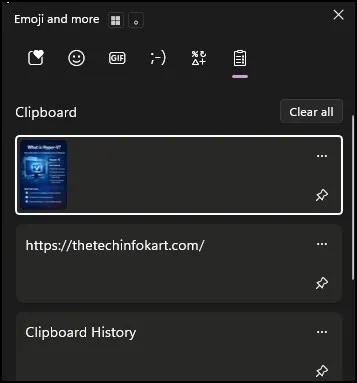
As you’ll show in your screenshots, once you press Windows + V, you’ll clearly see all copied items in one place. That visual makes it easier for beginners to understand.
You can also check the official Microsoft guide for more details on how Clipboard History works.
Final Thoughts
You must try Clipboard History Windows 11 once if haven’t enabled yet. It’s one of those little things that you don’t even notice until… once you get used to it, there is no going back. And if it is not working, don’t fret — the fixes are easy and usually just take a minute or two.
Frequently Asked Questions (FAQs)
What is the shortcut for Clipboard History Windows 11?
Press Windows + V.
Why is Clipboard History Windows 11 not working?
Most of the time it’s either turned off or affected by a small system glitch.
Can I save items permanently?
Yes, you can pin them.
Is it safe to use?
It’s fine for normal use, but I wouldn’t store passwords there.
Does it work after restart?
Only pinned items stay.