
I didn’t realize how important RAM details were until my PC started slowing down for no obvious reason. In that situation, a common question comes up—what RAM is actually installed? DDR3, DDR4 or DDR5, and what speed is it running at?
That’s where it helps to check RAM type and speed Windows 11 before making any decisions. Whether the system feels a bit slow or an upgrade is planned, knowing these details can save time and avoid mistakes.
The good part is, there’s no need to open the PC or use complicated tools. Windows already provides a few simple ways to find this information, and they work more or less the same on most systems.
Why You Should Check Your RAM Type and Speed
Before jumping into the steps, just a quick thought…
Your RAM type (like DDR3, DDR4 or DDR5) and its speed directly affect how fast your system runs. If you’re planning to upgrade, you must know this. Mixing RAM types won’t work, and even speed mismatches can cause issues.
Also, if your PC feels slow, checking RAM speed can give you clues—sometimes it’s not running at its full potential.
Method 1: Check RAM Speed Using Task Manager (Easiest Way)
This is usually the first method I try because it’s quick and doesn’t require any extra tools.
Just follow along:
- Right-click on the Taskbar
- Click on Task Manager
- If it opens in compact mode, click More details
- Go to the Performance tab
- Click on Memory
Now you’ll see details like:
- RAM speed (in MHz)
- Total RAM installed
- Slots used
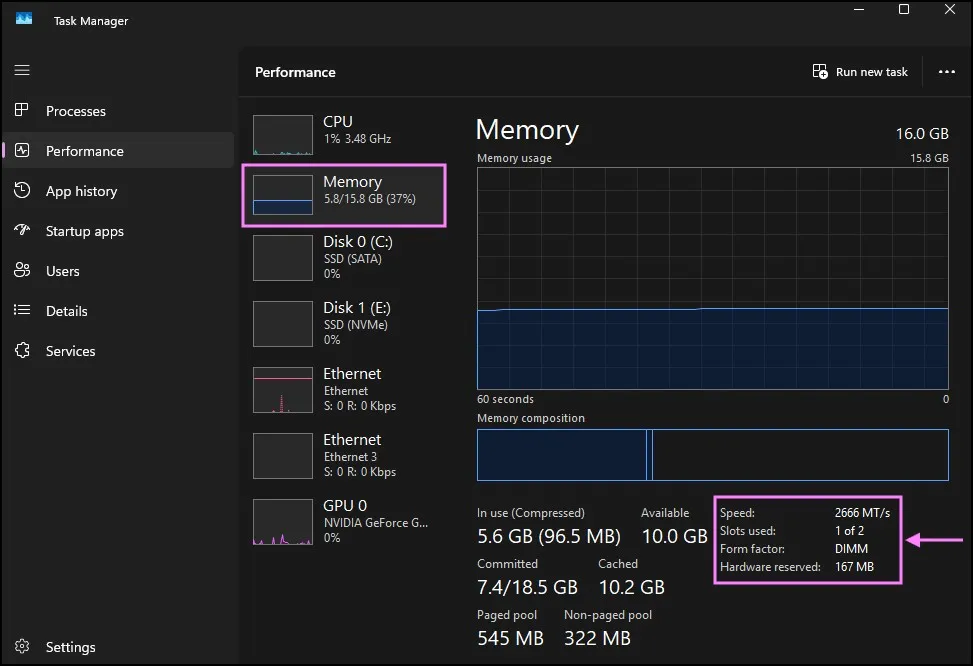
Honestly, this is the easiest way to check RAM speed in Windows 11. It shows you the speed clearly, like 2666 MHz or 3200 MHz.
But here’s the thing… it does NOT show whether your RAM is DDR3, DDR4 or DDR5. So, we need another method for that.
Method 2: Check RAM Type and Speed Using Command Prompt
If you prefer using Command Prompt, there’s a slightly better command that shows more details compared to the basic one.
Here’s what I usually do:
- Click on Start
- Type cmd
- Right-click and choose Run as administrator
Now type the following command:
wmic memorychip get devicelocator, speed, memorytype
Press Enter.
You’ll see output something like:
- DeviceLocator → shows the RAM slot (like A1, DIMM1, etc.)
- Speed → shows your RAM speed in MHz
- MemoryType → may show a value or sometimes even something like DDR4
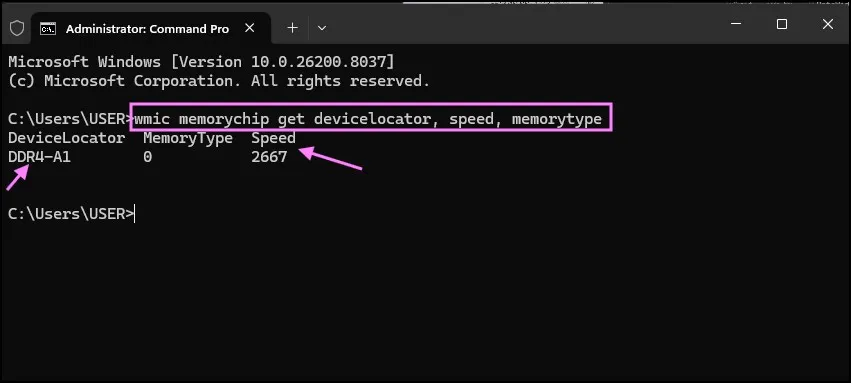
Honestly, this command is more helpful than the basic one because it gives multiple details in one go. You can easily check RAM speed from here, and also get an idea about the RAM slot being used.
But just a small heads-up…
Sometimes the MemoryType value may not be 100% accurate, especially on newer systems. In some cases, it might show 0, or a number instead of clearly saying DDR4 or DDR5.
So yeah, it’s useful—but not perfect.
Method 3: Use PowerShell (A Bit More Accurate)
If Command Prompt feels limited, PowerShell gives a bit more detail.
Steps:
- Right-click on Start
- Click Windows Terminal (Admin) or PowerShell
- Enter this command:
Get-CimInstance Win32_PhysicalMemory | Select-Object Manufacturer, Speed, SMBIOSMemoryType
Press Enter.
If you run the PowerShell command, you may see an actual number instead of something more easily recognizable like DDR4 or DDR5 in the SMBIOSMemoryType column.
For instance, in the image below it says 26.
Don’t worry—that’s completely normal.
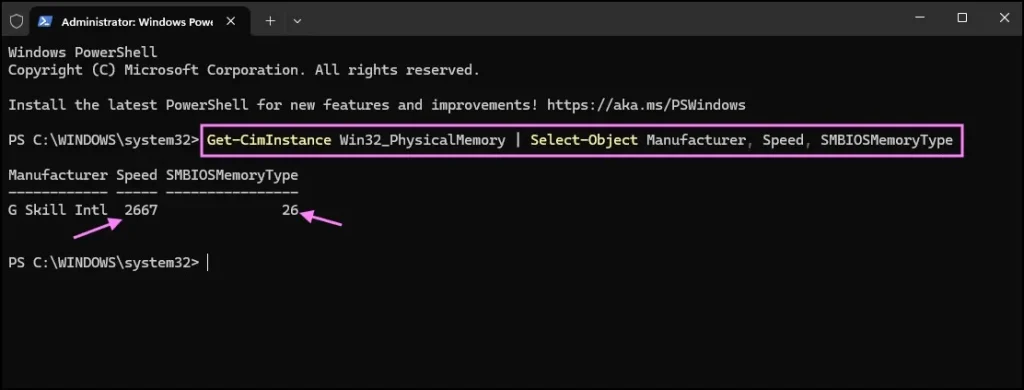
These are just internal codes the system uses. You can match them using the list below:
Common RAM Type Codes:
- 20 = DDR
- 21 = DDR2
- 24 = DDR3
- 26 = DDR4
- 34 = DDR5
So if your system shows:
- 26 → That means you’re using DDR4 RAM
- 34 → That means DDR5 RAM
Honestly, this part confused me the first time too, because Windows doesn’t explain it anywhere. It just throws the number and expects you to figure it out.
Also, just keep in mind—on some systems, it may still show 0 or an unexpected value. That usually means the system isn’t reporting it properly, not that your RAM is unknown.
Method 4: Use CPU-Z (Best Method for Beginners)
This is honestly my favourite way when I need information and do not want to guess.
You can download CPU-Z, which is a lightweight and free tool.
After installing:
- Open CPU-Z
- Go to the Memory tab
- Look for Type (it will show DDR4 or DDR5 directly)
- Check DRAM Frequency
One small thing—CPU-Z shows half the actual speed (because of double data rate). So:
- If it shows 1330 MHz → actual speed is 2660 MHz
- If it shows 2400 MHz → actual speed is 4800 MHz
Kind of confusing at first, but you get used to it.
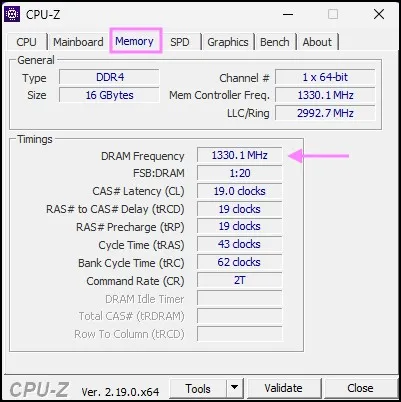
Honestly, if you want to properly check RAM type and speed Windows 11, this is the most accurate and beginner-friendly method.
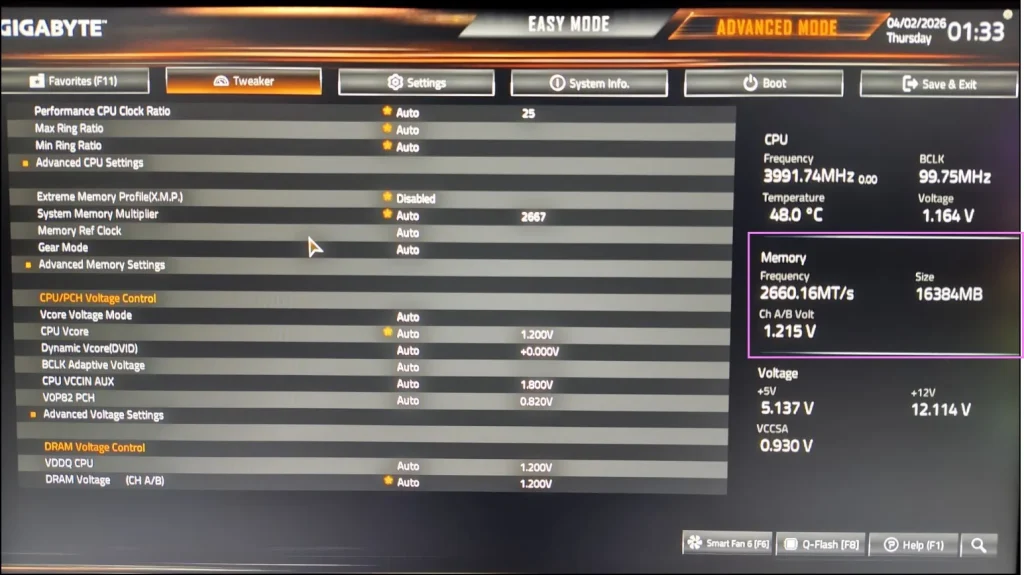
Method 5: Check RAM Details Using BIOS/UEFI
If you want the most accurate hardware-level information, BIOS is the way to go.
To access BIOS:
- Restart your PC
- Press F2, DEL, or ESC (depends on your system)
Inside BIOS, look for:
- Memory Information
- DRAM Status
You’ll see:
- RAM type (DDR4/DDR5)
- Speed
- Frequency settings
But yeah… this method is not for everyone. If you’re not comfortable going into BIOS, you can skip it.
Also, if your system feels slow, it’s not always about RAM type or speed. Sometimes, background processes and cached memory can slow things down. In that case, you can also check out my guide on clearing RAM cache automatically—it’s a quick fix that helps in many situations.
Final Thoughts
So that’s pretty much it. If you want a quick way, just use Task Manager to check RAM speed, and for full details, CPU-Z is honestly the best option.
Learning how to check RAM type and speed Windows 11 might seem like a small thing, but it can really help when you’re upgrading or troubleshooting. I didn’t think much of it at first either, but now I check it almost every time I work on a system.
Frequently Asked Questions (FAQs)
How do I check RAM type in Windows 11 without software?
You can use Command Prompt or PowerShell, but results may not always clearly show DDR4 or DDR5.
What is a good RAM speed for Windows 11?
3200 MHz is good for DDR4, while 4800 MHz or higher is common for DDR5.
Why is my RAM speed lower than advertised?
Most likely XMP is disabled in BIOS. You need to enable it manually.
Can I upgrade from DDR4 to DDR5?
No, your motherboard must support DDR5. You can’t mix them.
Is CPU-Z safe to use?
Yes, CPU-Z is a trusted and widely used tool for checking hardware information.