
Sometimes, when you copy text from Windows and try to paste it into Ubuntu, nothing happens,the paste option is greyed out. This is the common problem of copy paste not working in ubuntu virtualbox.
In this guide, I will explain everything in a simple way so you can fix this problem easily.
Why Copy Paste Not Working in Ubuntu VirtualBox
Before fixing this issue, let’s quickly understand why copy and paste does not work by default in VirtualBox. By default, VirtualBox does not enable clipboard sharing between:
- Your Windows system (Host Machine)
- Your Ubuntu virtual machine (Guest Machine)
Because of this:
- You cannot paste text from Windows to Ubuntu
- The paste option remains disabled
- Right-click paste may appear greyed out
To fix this problem, we need to check a few important settings and make sure Guest Additions are installed properly.
Step 1: Start Your Ubuntu Virtual Machine
First, let’s open Ubuntu. Open Oracle VM VirtualBox on your Windows computer. Select your Ubuntu virtual machine. Click on Start. Wait until Ubuntu loads completely.

Step 2: Open Terminal and Check the Problem
Now, let’s confirm the issue first. Inside Ubuntu, click on Show Applications (bottom-left corner). And from the list open the Terminal.
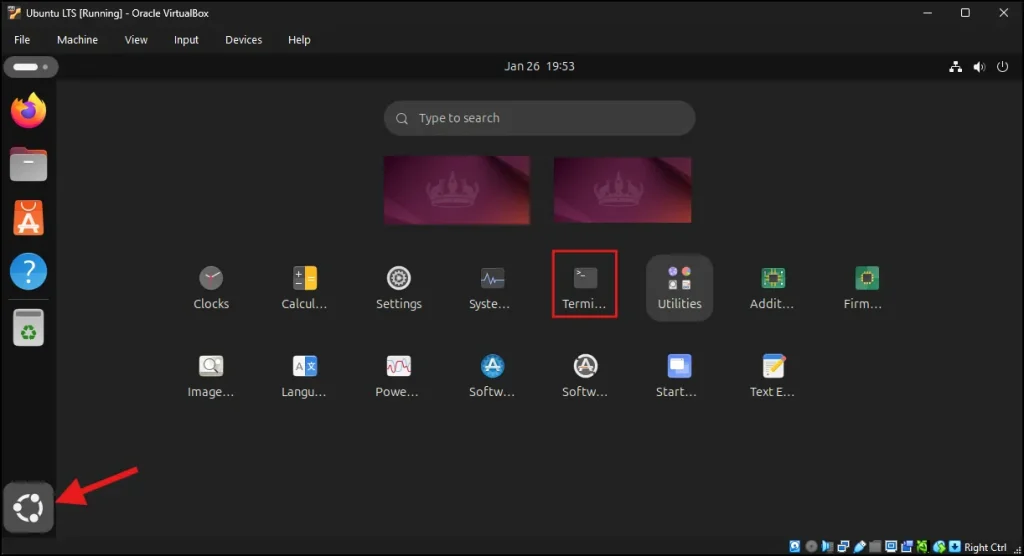
Now go to your Windows system. Open Notepad. Type any sample text. Copy it using Ctrl + C. Come back to Ubuntu Terminal and Right-click inside Terminal, you will notice: Paste option is greyed out. You cannot paste anything. This confirms the problem.

Step 3: Enable Shared Clipboard in VirtualBox
This is the most important step. Open VirtualBox Manager and click on Settings. Now Click on General and go to the Features tab.
Here you will see two options:
- Shared Clipboard
- Drag’n’Drop
Click on Shared Clipboard dropdown and select Bidirectional. In the same way click on Drag’n’Drop dropdown and select Bidirectional. Click OK.

This allows copy-paste both ways:
✔ Windows → Ubuntu
✔ Ubuntu → Windows
Step 4: Restart Ubuntu (Very Important)
Most of the people forget this step and then confused when copy-paste doesn’t work. After enabling Bidirectional mode, restart is required.
Start your Ubuntu VM again and wait for it to boot fully. Without restart, paste may still not work properly.
Step 5: Confirm Copy-Paste Is Working in Both Directions
After the restart is complete, open the Ubuntu Terminal again and also keep Notepad open on your Windows system. Now try copying text from Windows and paste it into the ubuntu Terminal. And you should see that the Paste option is active and the text is inserted without any problem.
After that, check the other side as well. Copy some text from the Ubuntu Terminal and paste it back into Notepad on Windows. If the same text appears properly, then your clipboard sharing is working correctly in both directions.
Step 6: Install or Reinstall Guest Additions (If Still Not Working)
If copy and paste is still not working after enabling the settings and restarting the virtual machine, then VirtualBox Guest Additions may not be installed properly.
What Is Guest Additions?
Guest Additions is a special software package that helps Ubuntu communicate better with VirtualBox. It improves things like:
- Screen resolution
- Clipboard sharing
- Mouse integration
- Overall performance
Because of this, Guest Additions plays an important role in making copy and paste work smoothly between Windows and Ubuntu.
How to Install Guest Additions
In order to get copy and paste working between Windows host and Ubuntu guest in a virtualbox, Guest Additions have to be installed properly. Without it, the clipboard share will not work even with all other settings turned on.
If you haven’t already installed Guest Additions, or feel that they are not working for some reason, I’ve left my detailed step-by-step instructions here: How to Install VirtualBox Guest Additions on Ubuntu
Once that guide is followed through, you should test to see if copy/paste is working correctly.
Final Words
When copy paste not working in ubuntu VirtualBox, it can be frustrating, especially for beginners. But by Enabling Bidirectional clipboard, Restarting the VM and Installing Guest Additions You can solve this issue in no time. Copy and paste text seamlessly between Windows and Ubuntu is now possible.
Frequently Asked Question (FAQ)
Why is paste still greyed out after enabling Bidirectional?
You probably didn’t restart Ubuntu. Restart and try again.
Do I always need Guest Additions?
Yes. For best performance and clipboard sharing, Guest Additions is recommended.
Can this work on Windows 11?
Yes. This method works on Windows 10 and Windows 11.
Does this work for Ubuntu 24.04?
Yes. It works on Ubuntu 20.04, 22.04, and 24.04.
Can I enable only one direction?
Yes. You can choose Host to Guest or Guest to Host, but Bidirectional is best.