
If you have Ubuntu 24.04 running under VirtualBox and if the resolution is too small, cannot get into full screen mode or have some strange mouse behaviour you are not alone. This is one of the most common problems after installing Ubuntu in a virtual machine.
This problem is easy to fix.In this guide, I’ll show you step by step how to install VirtualBox Guest Additions on Ubuntu 24.04 and fix issues like full screen not working, poor display resolution, copy‑paste not working, and mouse integration problems.
Why Full Screen and Display Issues Happen in VirtualBox
When you install Ubuntu in VirtualBox, it runs with basic display drivers by default. Because of this:
- Full screen mode does not work properly
- The screen does not resize automatically
- Display looks stretched or blurry
- Mouse cursor does not move smoothly
- Copy & paste between host and guest does not work
To fix all these issues, VirtualBox provides a special package called Guest Additions.
What Are VirtualBox Guest Additions?
The VirtualBox Guest Additions contain system tools and drivers, which are designed to improve usability of Ubuntu in a virtual environment.
Once you install Guest Additions, you have:
- Proper full screen support
- Automatic screen resizing
- Better graphics performance
- Smooth mouse movement
- Shared clipboard (copy & paste)
- Better overall experience
In short, Guest Additions make Ubuntu feel almost like a real system instead of a virtual one.
Step 1: Start Ubuntu and Open Terminal
First, open Oracle VirtualBox on your system.
Select your Ubuntu 24.04 virtual machine and click Start.
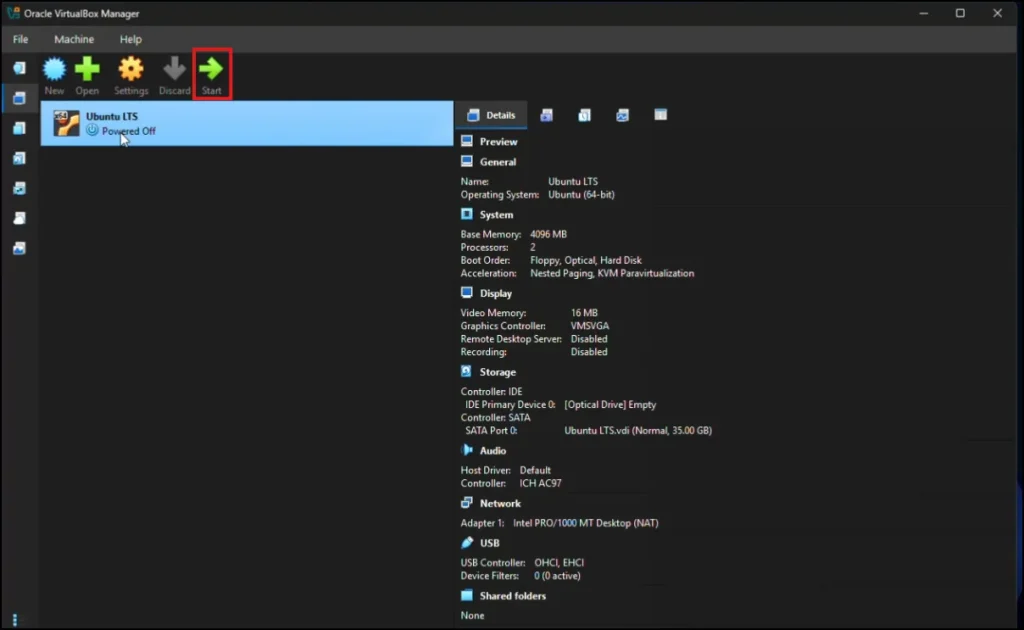
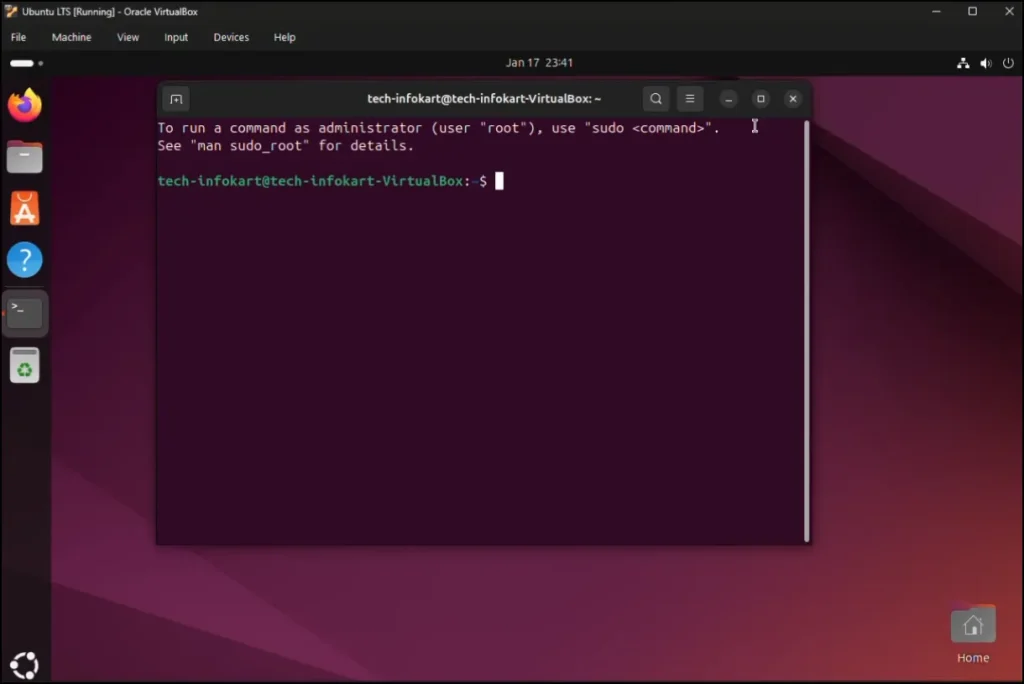
Once Ubuntu boots and you reach the desktop, we need to open the Terminal.
You can do this in two ways:
- Press Ctrl + Alt + T on your keyboard
- Or click Show Apps (bottom‑left corner) and open Terminal
Step 2: Update Ubuntu System
That means your system will always be updated with the latest software packages, security updates and kernel fixes. The VirtualBox Guest Additions are closely associated with the Ubuntu kernel. If you have an old version, the installation may not work or some features like fullscreen, screen resize or mouse pointer integration may be broken.
Type the following command in the Terminal:
sudo apt update
Press Enter.
Type your Ubuntu password when prompted. You won’t see any characters as you type — this is normal.
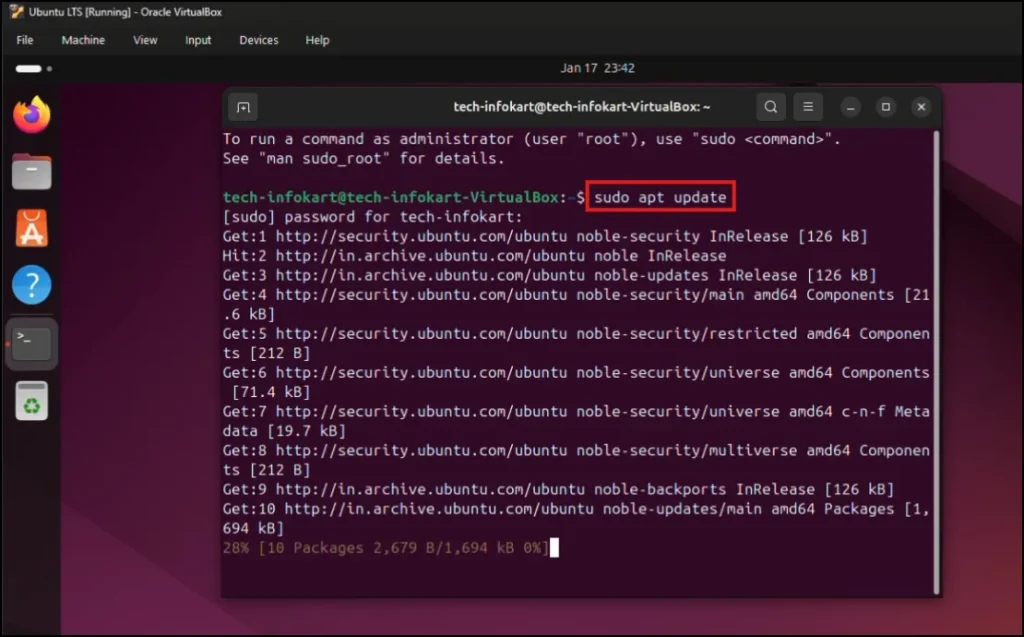
After the update is finished, you could notice that some packages are now upgradable. If so, you will have to update them with this command:
sudo apt upgrade
Press Enter.
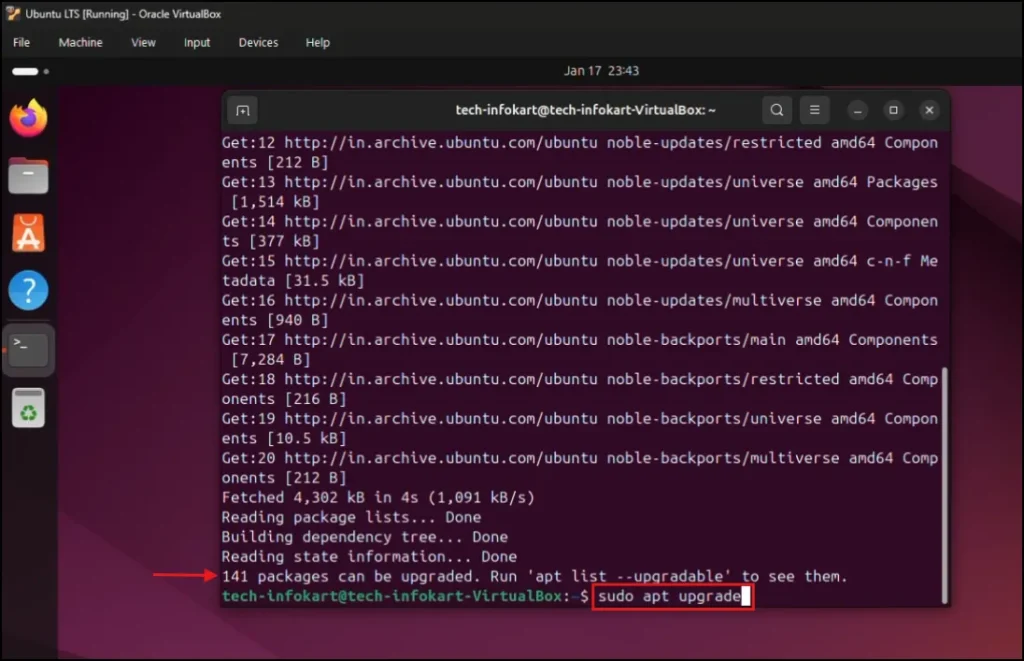
If you would like to continue: Type Y and press Enter.
Restart Ubuntu after the upgrade is finished.
Step 3: Install Required Packages for Guest Additions
After Ubuntu restarts, open the Terminal again.
Now we need to install some required packages that allow Guest Additions to work with the Ubuntu kernel.
Type this command carefully:
sudo apt install build-essential dkmslinux-headers-$(uname -r)
Press Enter.
Enter your password if prompted.
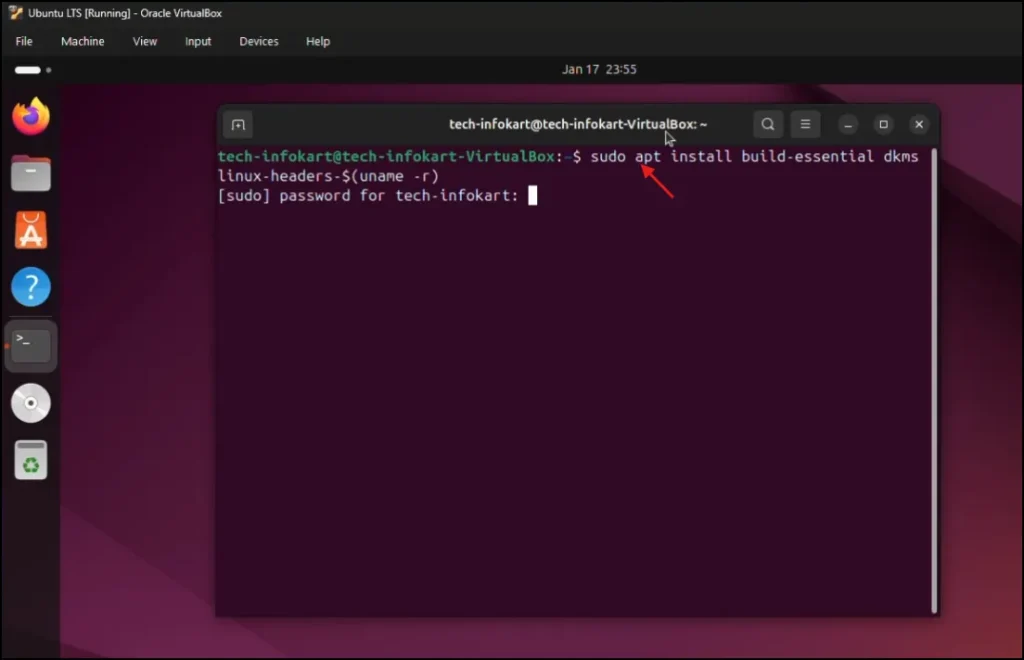
When asked to continue, press Y and hit Enter.
This step is very important. Without these packages, Guest Additions may fail to install properly.
Once completed, close the Terminal.
Step 4: Insert Guest Additions CD Image
Now look at the top menu bar of the VirtualBox window.
Click on Devices → Insert Guest Additions CD Image
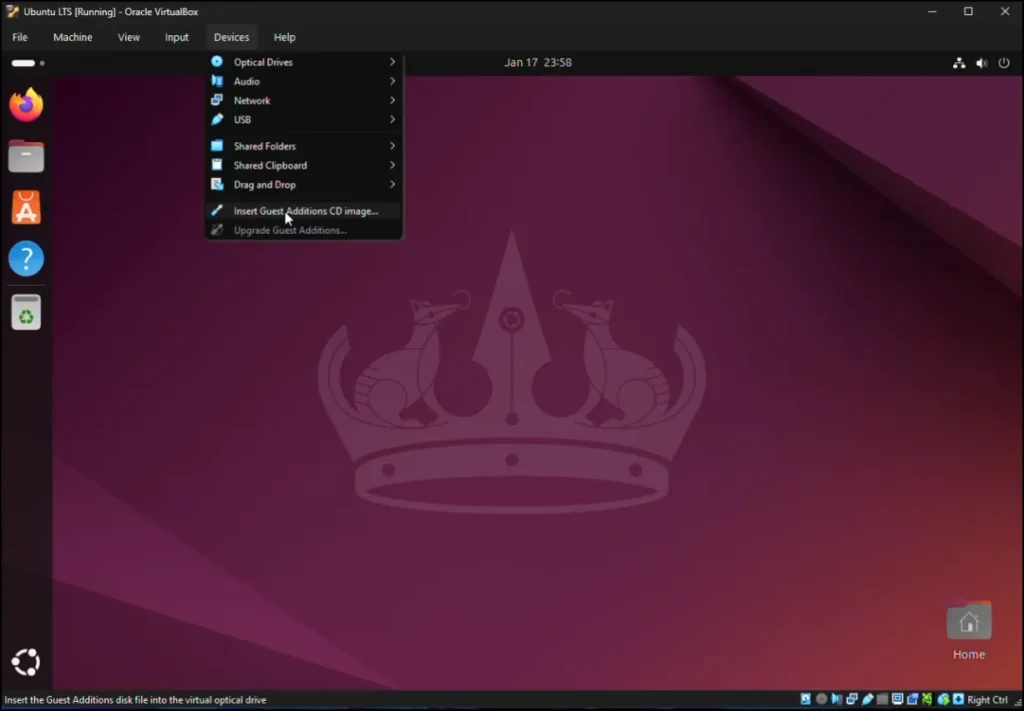
This mounts the Guest Additions installer inside Ubuntu. After a few seconds, a Guest Additions cd image will appear automatically.
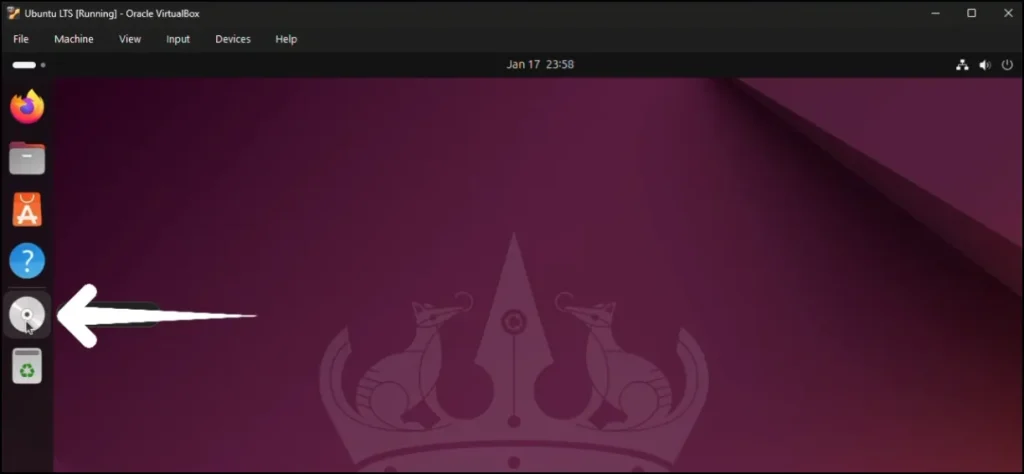
Step 5: Install VirtualBox Guest Additions
In the pop‑up window, double‑click Run Software.
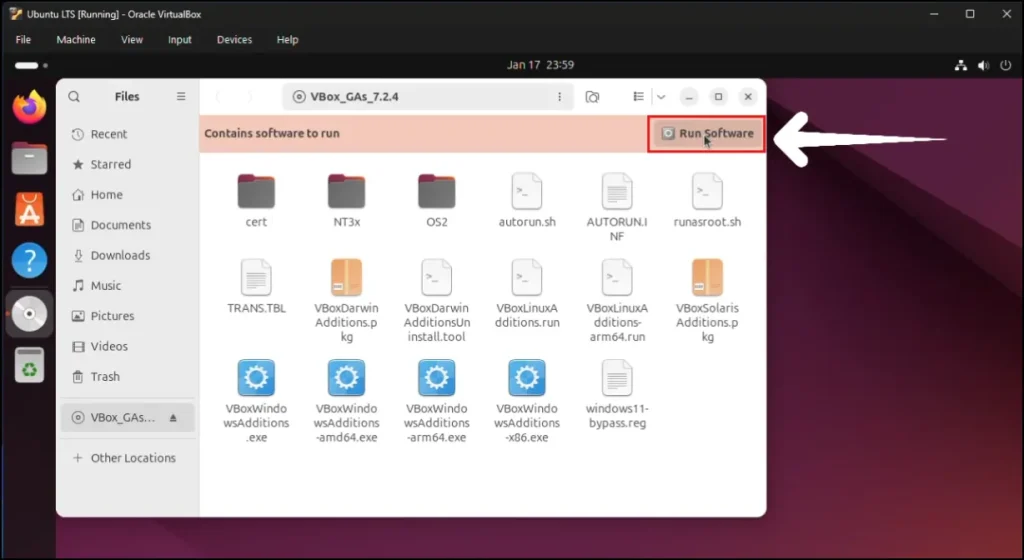
A confirmation message will appear. Click Run.
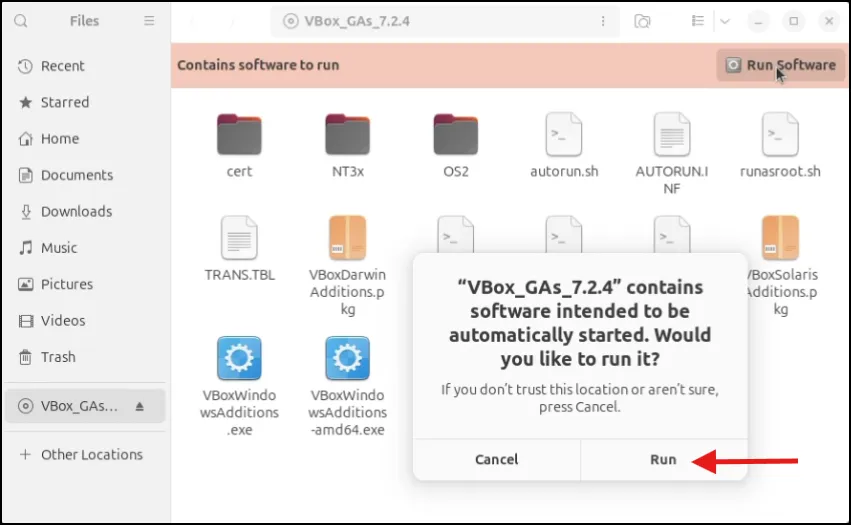
Enter your Ubuntu password when asked. Now the Guest Additions installation process will start. Wait patiently — this may take a minute or two. Once the installation finishes, you will see a message like:
Press Return to close this window
Press Enter on your keyboard.
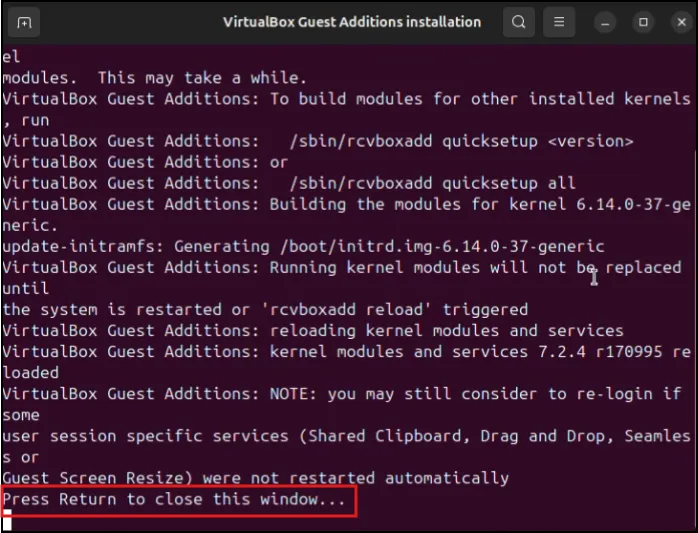
Close the installer window.
Step 6: Restart Ubuntu (Very Important)
To apply all changes, restart Ubuntu once again.
Click the Power icon at the top‑right corner and select Restart.
Step 7: Test Full Screen and Display Resolution
After Ubuntu boots up:
- Maximize the VirtualBox window
- Try switching to full screen mode
- Resize the window manually
You should now notice:
- Screen automatically adjusts
- Full screen works perfectly
- Display looks sharp and clear
- Mouse movement is smooth
This confirms that Guest Additions is working correctly.
Step 8: Enable Shared Clipboard (Optional but Recommended)
To enable copy & paste between your host system and Ubuntu:
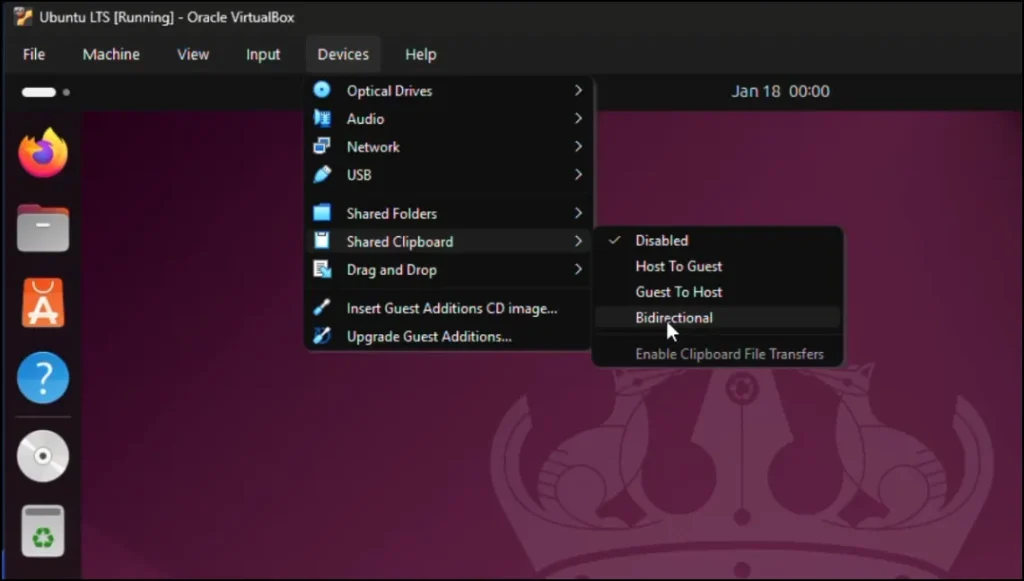
Go to the VirtualBox menu:
Devices → Shared Clipboard → Bidirectional
This allows you to copy text from your main system and paste it directly into Ubuntu, and vice versa.
Final Thoughts
Install VirtualBox Guest Additions on Ubuntu 24.04is essential for a better result. Without it you will probably get bad display and mouse behaviour. With it, Ubuntu works almost like a real system.
If you’re new to the scene, no problem — just pay attention at each step and you’ll be done in a couple of minutes. If you found this guide helpful, share with other using the same issue.
Related Guides You May Like
- How to Install Ubuntu 24.04 on VirtualBox
- How to Install VirtualBox on Windows 11
- Windows Sandbox vs Virtual Machine (Comparison)
Frequently Asked Question (FAQ)
Why is full screen not working in Ubuntu 24.04 on VirtualBox?
Full screen does not work because Ubuntu is using basic display drivers. When you install VirtualBox Guest Additions on Ubuntu 24.04, proper graphics drivers are installed, which fixes full screen and resolution issues.
Is it necessary to install VirtualBox Guest Additions on Ubuntu 24.04?
Yes, it is highly recommended. Without Guest Additions, you may face display, mouse, and copy-paste problems.
Can I install Guest Additions without updating Ubuntu?
It’s not recommended. Updating Ubuntu first helps avoid installation errors. For best results, always update the system before you install VirtualBox Guest Additions on Ubuntu 24.04.
What should I do if Guest Additions installation fails?
Make sure required packages like build-essential and linux-headers are installed. Restart Ubuntu and try again. Most issues are resolved once you correctly install VirtualBox Guest Additions on Ubuntu 24.04.
Does Guest Additions improve copy-paste and mouse movement?
Yes. After installation, you get smooth mouse integration and shared clipboard support. This is one of the biggest benefits when you install VirtualBox Guest Additions on Ubuntu 24.04.