
You might want to prevent users from altering settings on your Windows 11 PC. This will be especially useful for these shared computers which different family members, students or employees use. Disabling the accessibility to Control Panel or Settings app helps you secure critical system configurations that could be manipulated. In this article, I am going to tell you the simple approaches to disable control panel and settings Windows 11 users can reach.
Let’s Start with the Easiest Method to disable control panel and settings windows 11
For Windows 11 Pro, Enterprise, and Education versions, the fastest option is Local Group Policy Editor.
Hit Windows + R, and then type gpedit.msc, and press Enter.

When the Group Policy Editor pops up, refer to the left part and go to:
User Configurations → Administrative Templates → Control Panel
As you click on Control Panel folder, the right side will show a few policy settings.
Look for:
Prohibit access to Control Panel and PC settings, Double-click here.

You will find a small configuration window opening. Choose Enabled, followed by Apply and OK.
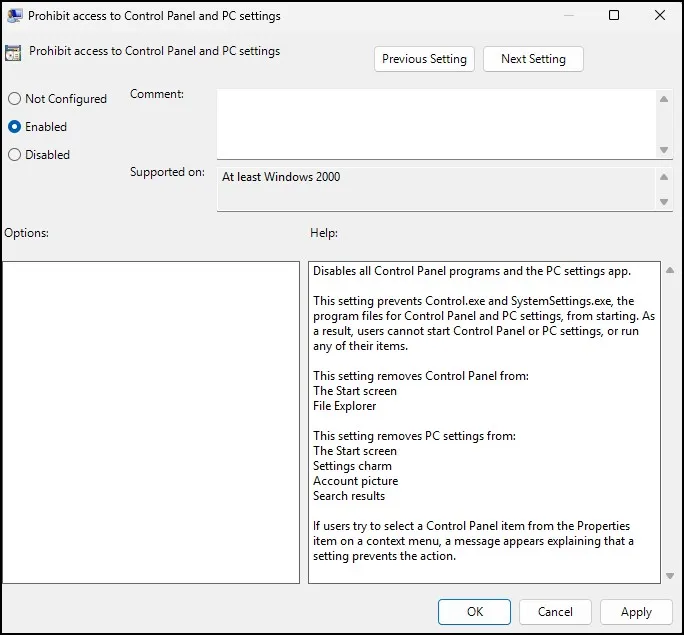
That’s all.
Now, close the Group Policy Editor.
To verify the change, open Settings or Control Panel. For most, the restriction takes effect also at once. If not, do a sign out and sign in again.
If you’d like to learn more about Windows security and managing user access on shared computers, Microsoft provides additional guidance in its Windows Security documentation.
What If You’re Using Windows 11 Home?
Since Windows 11 Home does not support Group Policy Editor, instead you can use Registry Editor.
Press Windows + R to access the Run window, and then type regedit in the search bar.
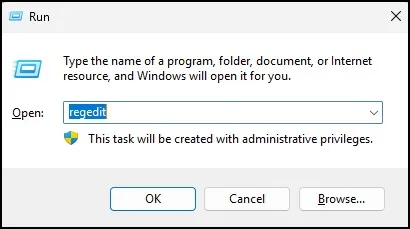
When Registry Editor opens, browse to:
HKEY_CURRENT_USER\Software\Microsoft\Windows\CurrentVersion\Policies
Under Policies, check whether an Explorer key already exists.
If you don’t see it, right-click Policies – New → Key → name Explorer.

Now click the Explorer key.
In the empty area on the right side, right-click and select New → DWORD (32-bit) Value
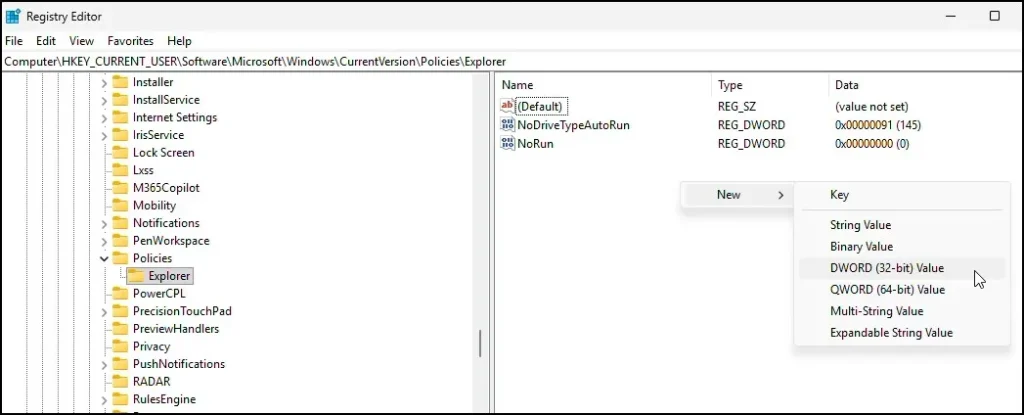
Name the new value: NoControlPanel
Once you create it, double click the value and change the data from 0 to 1.

Then click OK and close Registry Editor.
Restart the computer.
Once Windows starts again, both Control Panel and Settings should be blocked.
This is one of the simplest ways to disable settings Windows 11 Home users can access without installing additional software.
If you’re using Windows 11 Home and want to access Group Policy Editor, don’t worry. You can follow our guide on Enable Group Policy Editor (gpedit.msc) in Windows 10/11 Home Edition.
Checking Whether the Restriction Worked
After applying either method, try opening Settings from the Start menu.
You can also search for Control Panel and try launching it.
Instead of opening normally, Windows should display a message indicating that the operation has been restricted.
The first time I tested this on a shared office PC, I thought something had gone wrong because the Control Panel icon was still visible. Then I clicked it and got the restriction message. So don’t worry if the icons still appear—what matters is that users can’t actually open them.
Need to Restore Access Later?
Depending on the system you need to change it at your own. In short, if you enabled Group Policy then just head back to the same setting and change Enabled to Not Configured.
In case you really used the Registry method, then you will want to open NoControlPanel again and change it from 1 back to 0 or simply delete the entry altogether.
After restarting the computer, all functions will surely work normally. Moreover, this simple step resolves most technical issues effectively.
Final Thoughts
Basically, that’s the same thing – it’s really that simple. The process itself takes only few minutes, but it can further save much frustration later when multiple people use same computer.
You can actually use Group Policy or Registry Editor to disable control panel in Windows 11. Both methods definitely work well to stop users from making unwanted system changes.
Frequently Asked Questions (FAQs)
Can I disable only Control Panel but keep Settings enabled?
Windows generally treats both together in the built-in restriction policy, so disabling one usually disables both.
Does this work on Windows 11 Home?
Yes. Use the Registry Editor method since Group Policy Editor isn’t included in Windows 11 Home.
Can administrators still access Control Panel?
An administrator can remove the restriction and restore access whenever needed.
Is it safe to modify the Windows Registry?
Yes, if you carefully follow the steps. Creating a restore point beforehand is recommended.
How do I disable control panel Windows 11 restrictions later?
Simply reverse the Group Policy setting or change the NoControlPanel registry value back to 0.