
Have you noticed when you click a form on google chrome, old names, phone numbers, email ids or even wrong addresses automatically pop-up? That’s Chrome’s autofill in action.
Autofill is convenient, but it can get disorganized, obsolete or even risky over time — especially if you share your computer with others. In this guide, I’m going to show you step by step on how to clear autofill data in Chrome with simple methods.
What is Autofill Data in Google Chrome?
Autofill data in Google Chrome is the data that the browser stores to help you fill out forms more quickly on websites. This can include information such as your name, email address, phone number, home address and payment details. Chrome automatically offers to save the form data and this includes the credit card number, which may be required again next time you use that same payment page.
If you want to learn more from an official and trusted source, Google explains how Autofill works and how you can manage or delete it in Chrome. You can find the details here: Manage and delete Chrome Autofill data.
Method 1: Clear Autofill Data in Chrome Using Settings (Recommended)
This is the easiest and safest method for beginners.
Step 1: Open Google Chrome Settings
- Open Google Chrome
- Click the three dots (⋮) at the top-right corner
- Click Settings

Step 2: Go to Autofill and Passwords
In the left sidebar, click Autofill and passwords

Here you’ll see options like:
- Addresses and more
- Payment methods
- Password Manager
Step 3: Clear Saved Addresses
- Click Addresses and more
- You’ll see all saved names, phone numbers, and addresses
- Click the three dots next to any entry
- Select Remove

Repeat this for all entries you want to delete.
This method is best if you only want to remove specific autofill data.
Step 4: Clear Payment Autofill Data (Optional)
- Go back to Autofill and passwords
- Click Payment methods
- Remove saved cards or billing info if not needed

Method 2: Clear Autofill Data in Chrome at Once
If you want a complete cleanup, this method works well.
Step 1: Open Clear Browsing Data
- Open Chrome
- Press Ctrl + Shift + Delete (Windows)
- Or go to Settings → Privacy and security
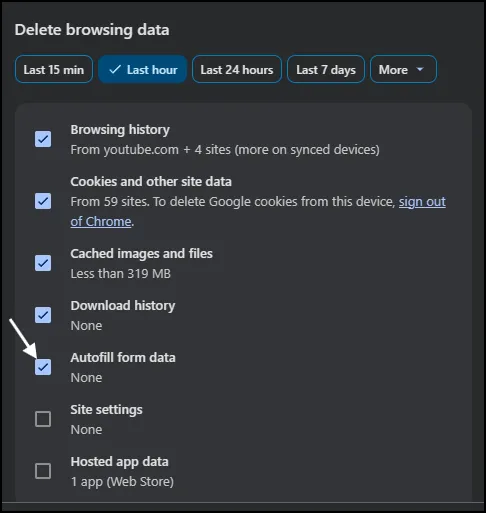
Step 2: Select Autofill Form Data
Check the box for:
- Autofill form data
Do not select other options unless you want to clear them too.
Step 3: Click Clear Data
- Click Clear data
- Restart Chrome
This will completely clear autofill data Chrome has saved.
Method 3: Remove a Single Autofill Suggestion Quickly
This is useful when one wrong entry keeps appearing.
Steps:
- Click on a form field
- Use arrow keys to highlight the unwanted autofill suggestion
- Press Shift + Delete
- The entry will be removed instantly
This trick works great for emails, usernames, or addresses.
How to Turn Off Autofill in Chrome (Optional)
If you don’t want Chrome to save autofill data again:
- Go to Settings → Autofill and passwords
- Open Addresses and more
- Turn off Save and fill addresses

You can still manually enter details whenever needed.
Final Thoughts:
Learning how to clear autofill data in Chrome is a small but effective habit. It keeps your browser clean, helps protect your privacy and prevents wrong things from showing up at the worst moments.
For those of you who spend all day in Chrome, now is the time to check your autofill settings. Clean up a bit and you can make sure your browsing is smooth and trouble free.
Also Read: How to Disable Google Password Manager on PC and Mobile
Frequently Asked Question (FAQ)
Will clearing autofill delete my passwords?
No. Autofill data and saved passwords are separate unless you select both.
Can I recover deleted autofill data?
No. Once deleted, autofill data cannot be restored.
Does clearing autofill data log me out of websites?
No. It does not affect login sessions.
Why does Chrome still show old autofill data?
If Chrome sync is on, data may come back from your Google account.
Is it safe to clear autofill data in Chrome?
Yes, it’s completely safe and recommended for privacy.