
You can actually set Command Prompt to always open as Administrator by changing its properties. This definitely saves time when you need admin access regularly.
As per my first experience with Command Prompt, I typed a command and pressed Enter, but Windows showed an error saying I didn’t have permission. At that time, I had no idea what “Run as administrator” actually meant. I thought something was only not working properly. If you’re facing the same situation, don’t worry. This happens to almost everyone who starts using Command Prompt in a serious manner.
In this guide, I’ll show how to open Command Prompt as administrator every time, so you only need to avoid permission errors again. The steps are surely simple, and moreover, you need to set this up only once.
Understanding Administrator Mode in Simple Words
As per technical standards, Command Prompt is not like other regular apps. Regarding its functionality, it works differently from normal software. Basically, it can directly work with the same important Windows parts.
Also, as per system requirements, some commands can change settings, fix files, or control background services. Regarding their power, these commands have enough strength to modify important system parts. We are seeing that Windows only allows some commands to run, not all commands freely.
If you want to learn more about the built-in Windows commands and how they work, you can also check the Microsoft official guide on Command Prompt for detailed explanations.
When you open Command Prompt as administrator, Windows surely gives it higher permission for that time. This means:
- Commands run without unnecessary permission errors
- System-level actions are allowed
- Advanced troubleshooting becomes possible
This is exactly why many commands fail when Command Prompt is opened normally. Once you set it to always run as administrator, these issues will mostly disappear.
Method 1: Always Open Command Prompt as Administrator Using a Desktop Shortcut
This is the most beginner-friendly and reliable method. It works on both Windows 10 and Windows 11.
Step 1: Create a Command Prompt Shortcut on Desktop
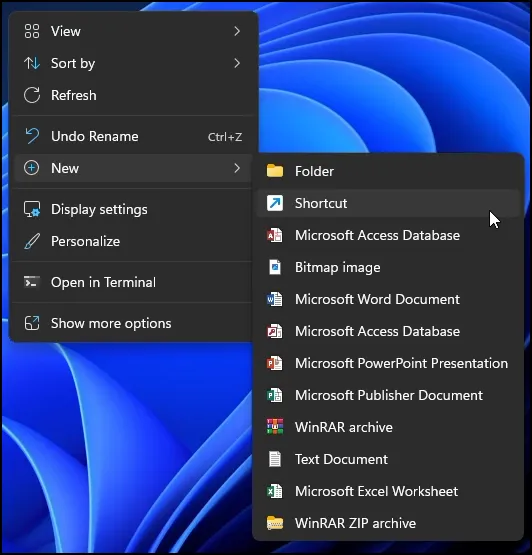
- Start by right-clicking on an empty area of your desktop. Move your cursor to New, then click Shortcut from the menu.
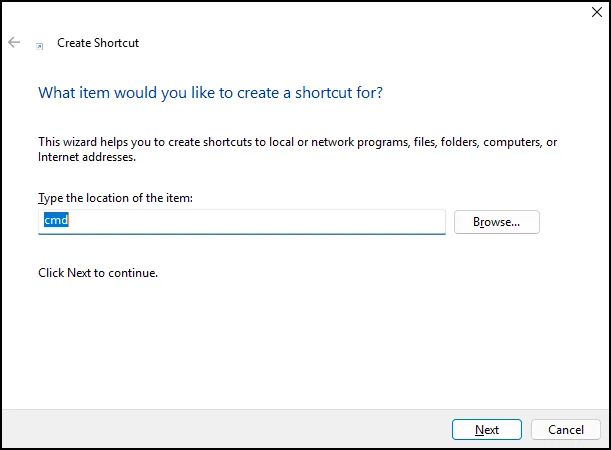
- In the location box, type cmd. This tells Windows that the shortcut should open Command Prompt. After typing it, click Next.
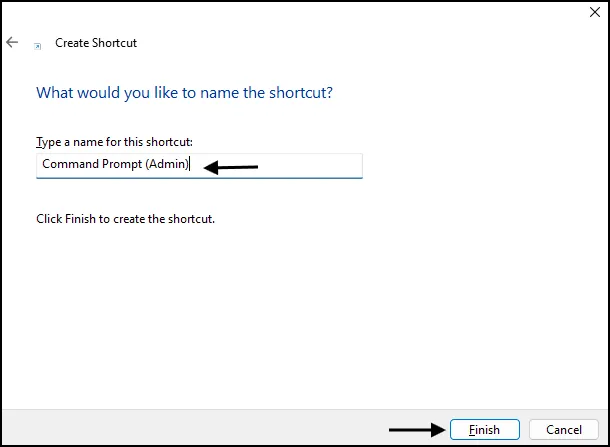
- Now give the shortcut a clear name such as Command Prompt (Admin). This makes it easy to identify later. Click Finish.
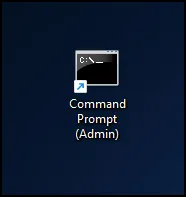
- And the shortcut will appear on your desktop.
Step 2: Set the Shortcut to Always Run as Administrator
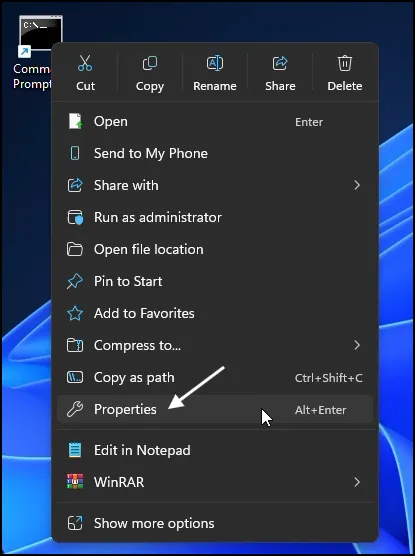
- Right-click on the newly created shortcut and click Properties from the menu that appears.
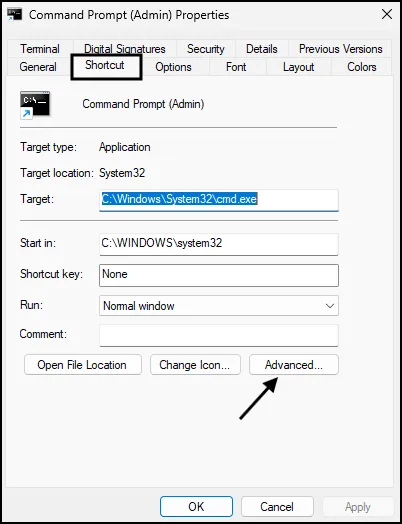
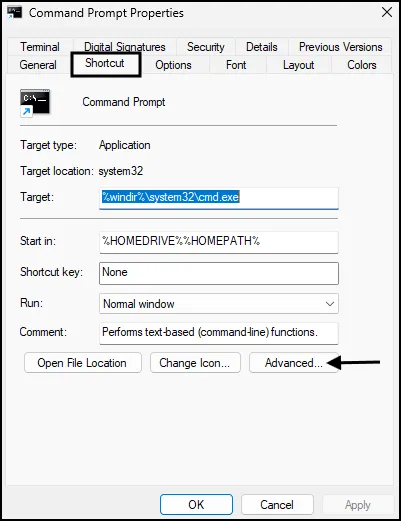
- In the Properties window, stay on the Shortcut tab and click the Advanced button near the bottom.
- In the Advanced Properties window, check the box that says Run as administrator. Click OK, then click Apply, and finally click OK again.
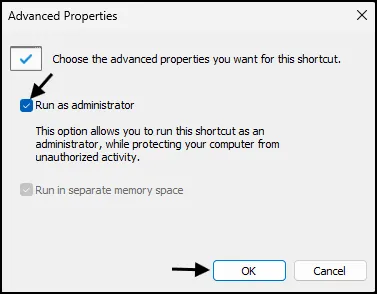
Now this shortcut will always open Command Prompt as administrator.
Method 2: Always Run Command Prompt as Administrator from Start Menu
If you usually open Command Prompt from the Start menu, this method will feel more natural.
Step 1: Search for Command Prompt
- Click the Start button and type Command Prompt in the search bar.
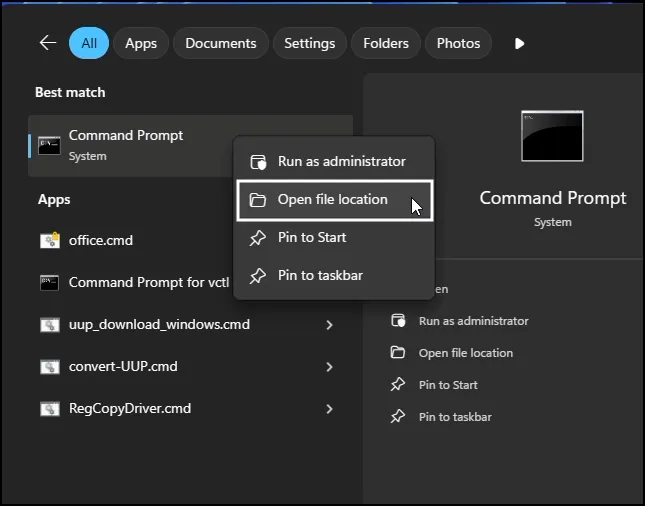
- Right-click on Command Prompt in the search results and click Open file location. This will open the folder where the shortcut is stored.
- Right-click on the Command Prompt shortcut and click Properties.
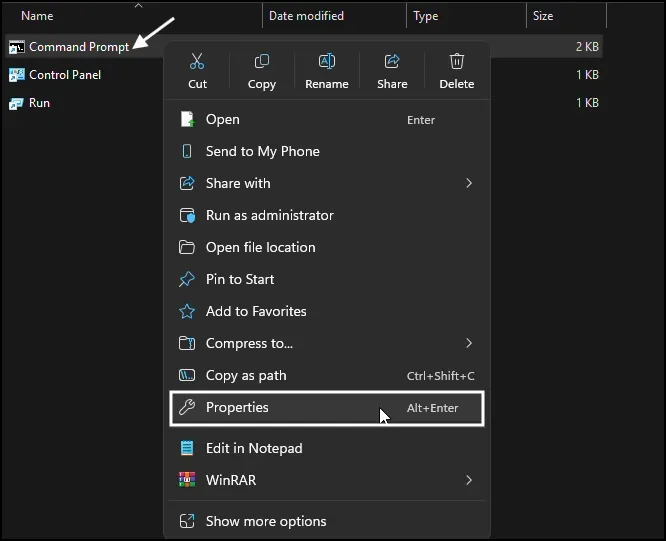
Step 2: Set Administrator Permission
- Go to the Shortcut tab and click Advanced.
- Check Run as administrator, then click OK and Apply.
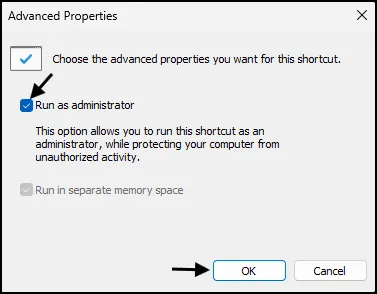
From now on, opening Command Prompt from the Start menu will always run it with admin rights.
Method 3: Pin Command Prompt to Taskbar with Administrator Access
This is useful if you open Command Prompt frequently during the day.
Steps:
- Right-click on the desktop shortcut that already runs Command Prompt as administrator.
- Click Pin to taskbar from the menu.
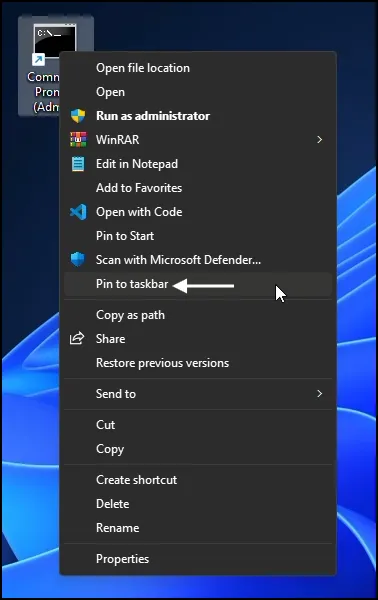
Now, even from the taskbar, Command Prompt will always open as administrator.
How to Confirm Command Prompt Is Running as Administrator
Once Command Prompt opens, look at the title bar at the top of the window.
If it says Administrator: Command Prompt, then it is running with full permissions.
If it only says Command Prompt, then it is not running as admin.
Final Thoughts
When we know how to open Command Prompt as administrator, we are seeing that many Windows tasks become much easier only. We are seeing that you will not need to open Command Prompt again and again only because one command did not work.
Also, setting this up once will further save your effort later, especially when you follow tech guides or fix Windows problems itself. As per the steps, go slowly and you will feel more confident regarding Command Prompt usage ahead.
Also Read: How to Disable Command Prompt on Windows 11
Frequently Asked Question (FAQ)
Why do I need to open Command Prompt as administrator?
Some Windows commands need full system permission to work properly. When you open Command Prompt as administrator, Windows allows those commands to run without permission errors.
Is it safe to always open Command Prompt as administrator?
Yes, as long as you run trusted commands from reliable sources.
Does this method work in Windows 11 and Windows 10?
Yes, all the steps to open Command Prompt as administrator work the same way in both Windows 10 and Windows 11.
Can I change it back to normal mode later?
Yes. You can open the shortcut properties anytime and uncheck the Run as administrator option if you no longer need it.
How can I tell if Command Prompt is running as administrator?
Look at the title bar of the Command Prompt window. If it says Administrator: Command Prompt, then it is running with administrator rights.