
If you’re the type who opens the same programs every time you sit down at your computer, like VLC, Microsoft Word or Google Chrome, plus maybe a couple more programs, it can be repetitious and a bit boring. Rather than open your apps one by one, you can launch multiple apps on Windows with one click (yes, one click) instead.
This simple trick saves you time, helps you concentrate and avoids the boring process every time you boot your PC. There’s no need to install anything new; no advanced skills are necessary. Just do these simple things, and you’re fine.
Here’s how you can do it with a little trick in Notepad.
Step 1: Open Notepad Using Run
Before we write anything, we need a simple place to create our script — and Notepad is perfect for that. It’s already built into Windows, so no extra installation is needed.
To open it quickly:
- On your keyboard, press Windows + R.
- In the Run box, type: notepad
- Hit Enter
- You will now see a blank Notepad window where you can start typing.
Step 2: Begin with a Basic Command
Now that Notepad is open, we’ll begin by adding a simple line. This line helps keep the window clean when the apps launch — it just stops unnecessary information from showing up.
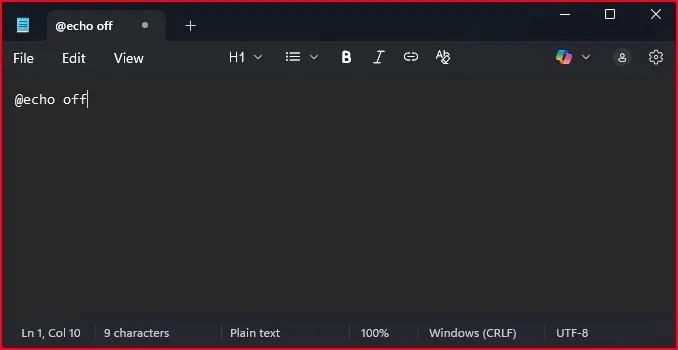
In Notepad, type this:
@echooff
That’s it for this step. You don’t need to know what it does — just know that it makes your script cleaner.
Step 3: Add the Apps You Want to Launch
Here comes the fun part! We’ll now tell Windows which apps to open — and in this example, we’re going to include:
- VLC Media Player
- Microsoft Word
- Google Chrome
Add VLC Media Player
Let’s start with VLC.
Before adding it to Notepad, we need its exact location:
- Locate the shortcut of VLC on your Desktop or in the Start Menu
- Right click it and click “Properties“
- Select the Shortcut tab Find the Target field
Copy the full path as it appears there — it should look something like:
“C:\Program Files\VideoLAN\VLC\vlc. exe”

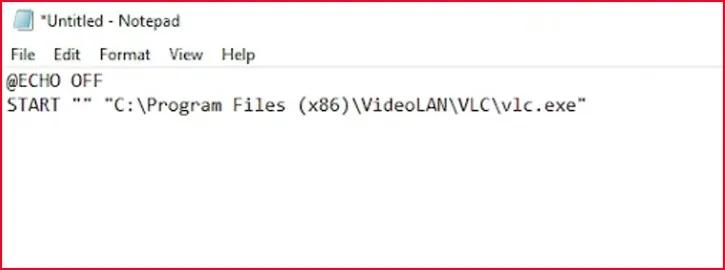
Now jump back to Notepad and type (or copy and paste):
start "" "C:\Program Files\VideoLAN\VLC\vlc.exe"
Add Microsoft Word
Next, let’s add Microsoft Word the same way.
- Right-click on your Word shortcut
- Click Properties
- Copy the Target path — it will usually look like:
"C:\Program Files\Microsoft Office\root\Office16\WINWORD.EXE"
Then add this line in Notepad below the previous one:
start "" "C:\Program Files\Microsoft Office\root\Office16\WINWORD.EXE"
Add Google Chrome
Now let’s include Google Chrome.
- Right-click the Chrome shortcut
- Open Properties
- Copy the Target field path — often it’s:
"C:\Program Files\Google\Chrome\Application\chrome.exe"
Add it to Notepad:
start "" "C:\Program Files\Google\Chrome\Application\chrome.exe"
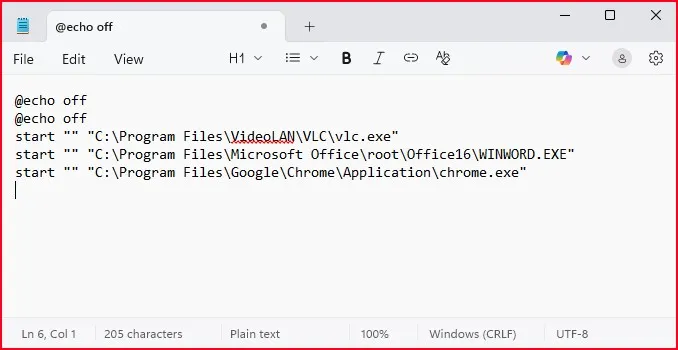
Now your full Notepad should look like this:
@echo off
start "" "C:\Program Files\VideoLAN\VLC\vlc.exe"
start "" "C:\Program Files\Microsoft Office\root\Office16\WINWORD.EXE"
start "" "C:\Program Files\Google\Chrome\Application\chrome.exe"
Step 4: Save the File as a Batch Script
This is where the magic happens! We’re not going to save it as a regular Notepad file though, instead we we’re going to save it as a Batch File – a special type of file that Windows can run like it’s a mini program.
To save it correctly:
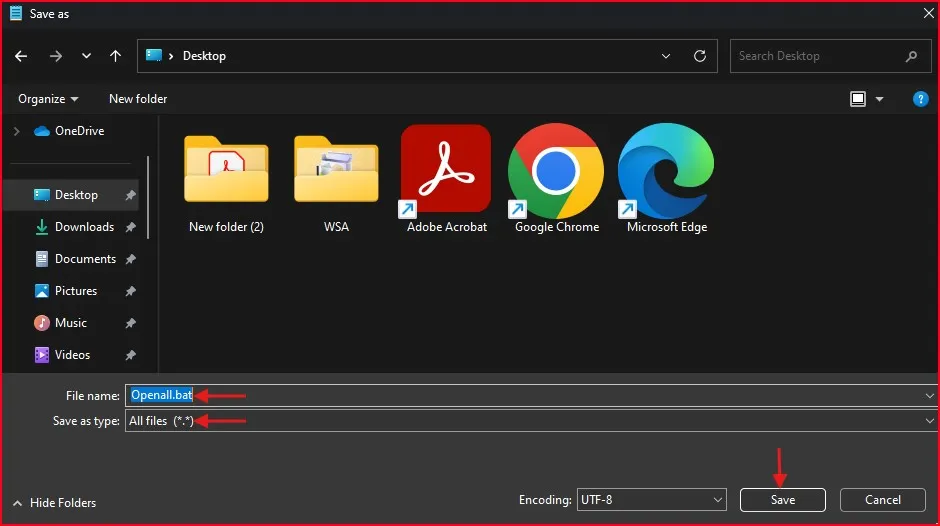
- Click on File > Save As
- Choose a location like your Desktop (makes it easy to find)
- In “Save as type”, select All Files
- Give your file a name with
.batat the end — like:openall.bat - Click Save
Your file is now created and ready to use!
Step 5: Double Click to launch multiple apps on Windows
We’ve done the setup — now it’s time to test it! Find the file you just saved (on the Desktop or wherever you chose). Just double-click it.
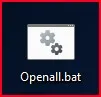
What happens next? All three apps — VLC, Word, and Chrome — will open automatically. One click, and your digital workspace is ready to go.
Optional: launch multiple apps on Windows Automatically at Startup
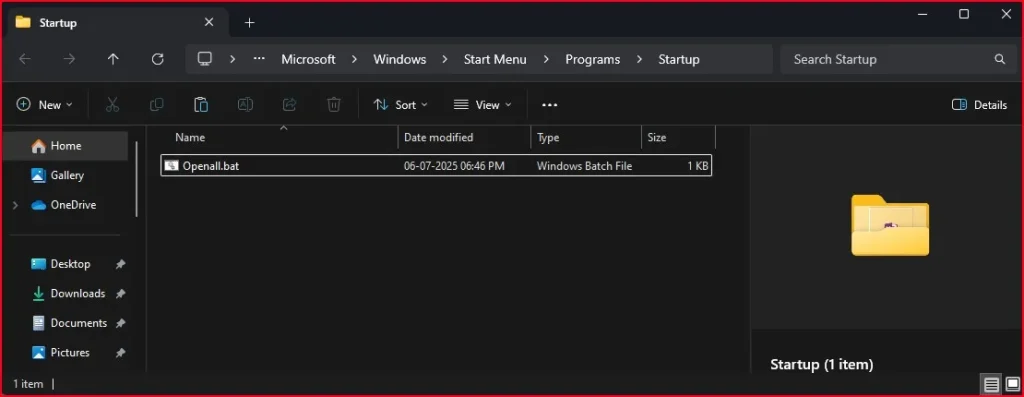
If you want these apps to open whenever you start your PC, we can save the file to your Startup folder. Here’s how:
- Press Windows + R again
- Type:
shell:startupand press Enter - Paste your
.batfile into this folder
Now, every time you log into Windows, your selected apps will open up right away — no extra steps needed.
Final Thought: A Simple Way to Launch Multiple Apps on Windows
Once you experience this hack, it will become a part of your daily. That’s how to launch multiple apps on Windows without having to open them by clicking, one by one. It’s a small thing — but it saves time, keeps you on point, and feels a bit like magic.
And that’s one of those things that you should really be able to get set up once and then be done with it forever.
Recommended Article:
1. How to Fix “There are Currently No Power Options Available” Error in Windows
FAQs – Launch Multiple Apps on Windows
Will this work in Windows 11?
Absolutely! This method works the same in both Windows 10 and 11.
What if I copied the wrong path?
No problem — right-click the .bat file, choose Edit, fix the path, and save it again.
Is this safe to use daily?
Yes, totally safe. You’re only launching apps already on your system.
Is there any other way to launch multiple apps on Windows without using Notepad?
Yes, you can also use tools like Task Scheduler or third-party automation apps like AutoHotKey, but using a batch file through Notepad is by far the easiest and most beginner-friendly way to launch multiple apps on Windows without installing anything new.
Can I update the list later if I want to launch more apps on Windows?
Definitely! Just right-click your .bat file, choose Edit, and add more start lines with the correct file paths. You can customize it anytime to include more programs — it’s the most flexible way to launch multiple apps on Windows as your daily needs grow.