
Prevent proxy settings in Windows 11 to prevent users from changing your internet connection. In many cases, if you share a common computer at home, work or school this is often encountered. A single incorrect change in proxy configurations can make internet break and even lead to security vulnerabilities. In this guide I will show how to easily lock these settings and ensure you r network is safe.
What Are Proxy Settings in Windows 11?
Proxy settings are used to tell your computer how to connect to the proxy server. Rather than connecting directly, your PC sends data to another server (the proxy) and then on to the internet. People use proxy servers for:
- Office networks
- School systems
- Parental control
- Privacy and security
- Website restrictions
But when users change these settings without permission, problems begin.Your internet can stop working, slow down or make your system vulnerable to dangers. That’s why it is essential to know how to block proxy settings in Windows 11.
Why You Should Prevent Proxy Settings
Preventing proxy changes is useful in many situations.For examples:
- You manage office computers
- Your kids use your laptop
- You run a training center
- You use shared PCs
- You want stable internet
When proxy settings are locked, users cannot disturb your network configuration.
Method 1: Prevent Proxy Settings Using Group Policy Editor (If Available)
This method works on Windows 11 Pro, Education, and Enterprise editions.
Important: Before making changes, it is recommended to create a system restore point. This helps you recover your PC if anything goes wrong.
Step 1: Open Group Policy Editor
Press Windows + R. Type gpedit.msc and click OK
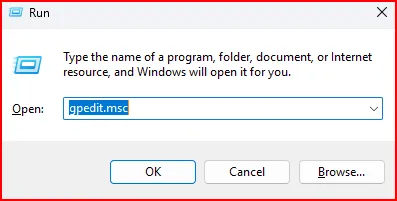
The Group Policy window will open.
Step 2: Navigate to Internet Settings
Go to this path:
User Configuration → Administrative Templates → Windows Components → Internet Explorer

Even though Internet Explorer is outdated, these settings still work in Windows 11.
Step 3: Enable “Prevent Changing Proxy Settings”
- Find Prevent Changing Proxy Settings in the right side

- Double-click on it and select Enabled, then Click Apply → OK

Restart your computer.
Now users cannot change proxy settings.
Note for Windows 11 Users
In many updated Windows 11 versions, this option may not appear. If you cannot find it, don’t worry. Microsoft has removed this setting on many systems. In that case, use Method 2 below.
Method 2: Prevent Proxy Settings Using Registry Editor (Recommended)
This method works on all editions of Windows 11, including Home. Be careful while editing the registry. Always follow the steps exactly.
Step 1: Open Registry Editor
Press Windows + R. Type regedit and Press Enter

Step 2: Go to This Location
Navigate to: HKEY_CURRENT_USER\Software\Policies\Microsoft

If folders are missing, you can create them.
Step 3: Create Internet Explorer Key
- Right-click on Microsoft
- Select New → Key

- Name it: Internet Explorer
Step 4: Create Control Panel Key
- Right-click on Internet Explorer
- Click New → Key
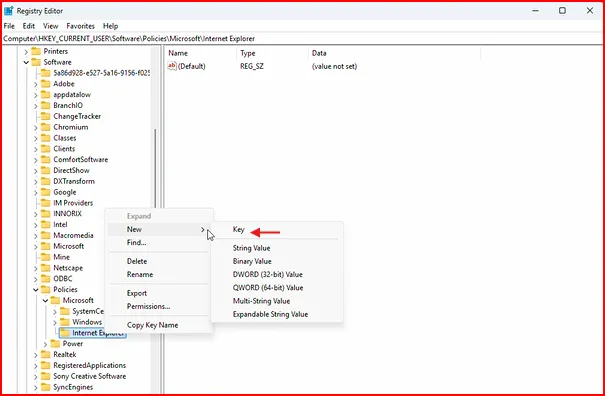
- Name it: Control Panel
Step 5: Create Proxy Value
- Select Control Panel
- Right-click on the right panel
- Click New → DWORD (32-bit) Value
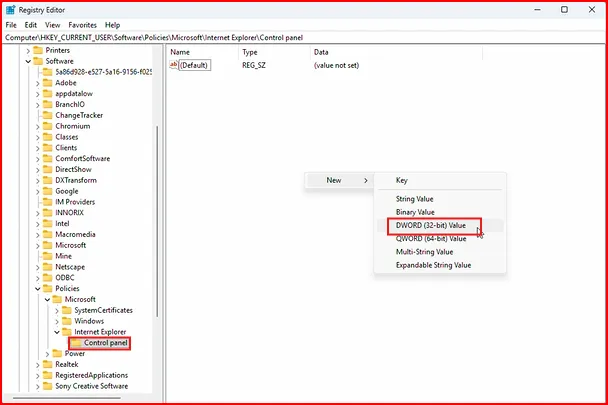
- Name it: Proxy
Step 6: Set Value Data
- Double-click on Proxy
- Set Value data to: 1
- Click OK

Restart your computer.
Now proxy settings are locked.
How to Enable Proxy Settings Again
If you want to allow changes later:
- Set Proxy value to 0, or
- Delete the Internet Explorer key
How to Check If Proxy Settings Are Locked
After applying the method:
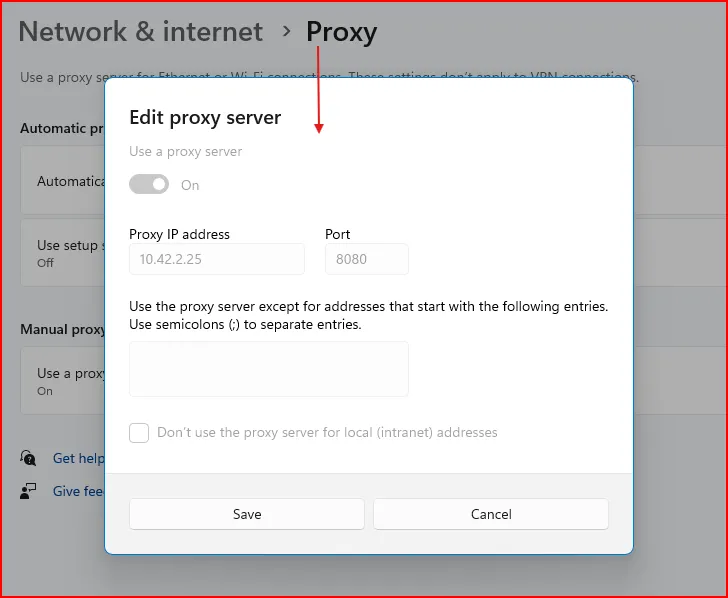
- Open Settings
- Go to Network & Internet → Proxy
- Try changing any option
If the settings are greyed out, your system is protected.
Conclusion: Keep Your Network Safe and Stable
Discover how to prevent proxy settings in Windows 11 and avoid various internet-related issues and security threats. With these straightforward techniques you can prevent unauthorised modifications and maintain a smoothly running system.
Whether at home or work, spending five minutes to tighten your settings could easily save you hours of headaches in the future. Configure it one time, and have a secure and consistent web experience each day.
Also Read: How to Reset Network Settings in Windows
Frequently Asked Questions (FAQs)
Can I block proxy settings for only normal users?
Yes. Admin users can still make changes, but standard users will be restricted.
Will this affect VPN software?
No. VPNs work separately and are not blocked by this setting.
Can malware still change proxy settings?
Blocking helps, but you should also use antivirus software for full safety.
Can I enable proxy settings again later?
Yes. You can disable the policy or delete the registry value anytime.
Is this useful for home users?
Yes. It is helpful for parents, families, and shared computers.