
If Windows keeps asking you to change your password after a certain period, you can stop it from expiring. In this guide, I’ll show you how to turn off password expiry Windows 11 using a few simple methods that also work on Windows 10. You don’t need any third-party software, and most of the steps take only a few minutes.
Why Does Windows Ask You to Change Your Password?
You can apply a password expiration policy on Windows. When that policy is enabled, your local account password has to be changed after a certain amount of days.
This is true mainly for work computers, a PC where the organization has management access or systems with manually configured password policies. But on a personal computer, you may want to never have your password expire and to not be reminded about expiry.
The positive side is that Windows has quite a few inbuilt methods to disable password expiry windows without adding any third-party software.
When changing this setting be aware that password expiry is a security feature. If this is a shared or work computer, check with your administrator before disabling.
Method 1: Turn Off Password Expiry Using Computer Management
This is the most simple method if you are using Windows 10 or Windows 11 Pro, and your PC has Local Users and Groups.
The first one is by right clicking Start button and choosing Computer Management.

In Computer Management window, expand Local Users and Groups, click Users
You should see the configured local user accounts on your machine now. Locate the account that you want to disable password expiration for.

To do this right-click on the account and select Properties.
A new window will appear. On the General tab, this is where you find Password never expires.
Tick this checkbox and hit Apply, then OK.

That’s it. As configured, the password of the chosen local account should no longer expire per standard local password-age policy.
This is one of the easiest options to turn off password expiry Windows 11, however it comes with a caveat: Local Users and Groups is unavailable in-Windows Home editions. If you’re on Windows 11 Home or Windows 10 Home, use the other methods below.
Method 2: Disable Password Expiration Using Command Prompt
At the same time, Command Prompt provides you another easy method to change password policy directly if your Windows does not come with Local Users and Groups.
You can use the net accounts command to make passwords for local accounts never expire.
Open Start, type Command Prompt, right-click it, and select Run as administrator.
In the administrator Command Prompt window, type:
net accounts /maxpwage:unlimitedPress Enter.
Assuming all goes to plan, you should get a prompt from Windows stating that the command has completed successfully.

This sets the maximum password age for local accounts to unlimited. Simply put, Windows will stop enforcing local account password changes after a period of days.
For better perspective, it is worthwhile to understand the difference here. The Computer Management method changes the setting for a particular user account, while net accounts /maxpwage:unlimited changes the password-age policy for local accounts on that Windows installation.
So, if you’re trying to disable password expiry Windows on a personal PC and don’t want to deal with graphical settings, this is a very useful option.
Want to check the current password policy?
You can also run:
net accountsLook for Maximum password age in the results.
If it shows Unlimited, Windows is not enforcing a maximum password age through this local policy.

Method 3: Use PowerShell to Make a Local Password Never Expire
Another option is PowerShell. This is particularly useful if you want to change the setting for one specific local account.
Right-click the Start button and open Terminal (Admin) or PowerShell (Admin), depending on your version of Windows.
First, you can list the local user accounts with:
Get-LocalUser 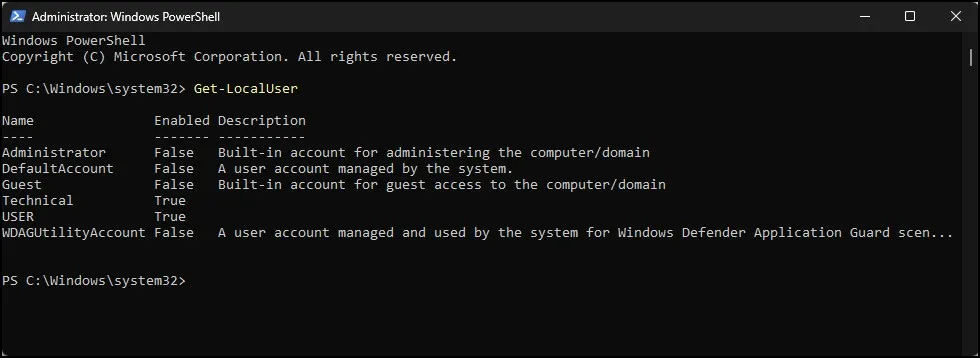
Find the username you want to modify.
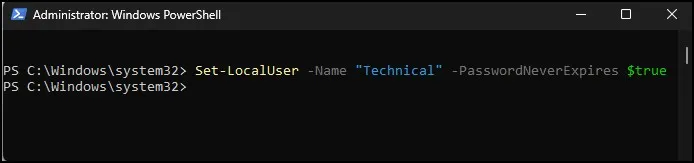
For example, if your account is called Technical, run:
Set-LocalUser -Name "Technical" -PasswordNeverExpires $trueReplace Technical with your actual Windows username.
After pressing Enter, the password for that local account will be configured not to expire.
Method 4: Turn Off Password Expiration Through Local Group Policy
The Local Group Policy Editor is included in Windows Pro, Enterprise and Education editions as well.
This approach modifies the actual password policy rather than simply modifying an individual user account.
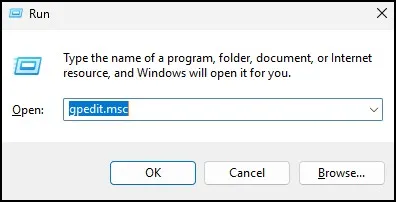
Open the run by pressing Windows + R
Type:
gpedit.mscand press Enter.
In Local Group Policy Editor, go to:
Computer Configuration → Windows Settings → Security Settings → Account Policies → Password Policy
On the right side, find Maximum password age.

Double-click it.
If you want passwords to never expire under this local policy, set the value to:
0Then click Apply and OK.

You may need to restart Windows, or you can run gpupdate /force from an administrator Command Prompt to refresh the policy.
This is another effective way to turn off password expiry Windows 11, especially if you’re using a Pro edition and want to manage the password policy from one place.
If you’re using Windows 10 or 11 Home and gpedit.msc isn’t available on your PC, check out our guide on how to enable Group Policy Editor (gpedit.msc) in Windows 10/11 Home Edition before continuing.
However, I wouldn’t recommend changing Group Policy unless you actually need to. For a normal personal PC, the Computer Management or Command Prompt method is usually easier.
What If “Password Never Expires” Is Missing?
If you do not have Local Users and Groups in Computer Management, relax. Most likely, you only have a Windows Home edition.
The Local Users and Groups management console found in Pro (and some other editions) is missing from Windows 10/11 Home.
In that case, refer to the Command Prompt or PowerShell method above.
Also keep in mind that Windows can have different flavours of accounts. There is technically a difference between how a local Windows account and Microsoft account behave. For example, if you log into Windows using a Microsoft account instead of a more-ordinary local account, the methods we discussed here for expiring passwords locally may not work in quite the same way.
What About Windows 10?
The same basic methods: work on Windows 10.
Computer Management, Command Prompt, PowerShell, or Local Group Policy depending on your Windows edition and other things you want to change.
That means those of you still on Windows 10 will find the following instructions useful, too, if you’re wondering how to turn off password expiry Windows 11.
Microsoft also provides detailed information about the Maximum password age policy and its available settings in its official documentation. Microsoft Learn – Maximum Password Age
Final Thoughts
In fact, if you no longer want Windows to keep asking you to change your password, it is very simple that can turn off password expiry Windows 11 by means of the methods described above. For a personal PC, the Command Prompt or Computer Management method is usually the quickest. Just make sure you continue using a strong password.
Frequently Asked Questions
How do I stop my Windows 11 password from expiring?
You can use Computer Management and enable Password never expires for your local account. Alternatively, you can use Command Prompt with net accounts /maxpwage:unlimited.
Can I disable password expiration in Windows 11 Home?
Yes. Windows 11 Home doesn’t include Local Users and Groups, but you can use Command Prompt or PowerShell to manage local password-expiration settings.
Does disabling password expiry remove my Windows password?
No. It only prevents the password from being forced to expire. Your existing password remains in place.
Does this work with a Microsoft account?
The methods in this guide are primarily for local Windows accounts. Microsoft account password management works differently and isn’t controlled by the same local password-expiration policy.
Can a company administrator override this setting?
Yes. On a work or domain-managed computer, administrator or domain policies can override local password settings.