
When we try to download Windows 10 ISO, you will find that the page has a section called Create Windows 10 installation media by default on Microsoft’s Windows 10 download page. Instead of a direct ISO download button it exposes the Media Creation Tool for you here. And if all you want is an ISO image to do a clean install, for a virtual machine or a bootable USB it can be quite frustrating.
However, using your web browser Developer Tools you can get an option to directly download the ISO. Follow this guide to see exactly, how to do just that and download the official Windows 10 ISO directly from Microsoft.
How to Download Windows 10 ISO Directly from Microsoft
1. Open Microsoft’s Windows 10 Download Page
First, open your browser and visit Microsoft’s official Windows 10 software download page.
Microsoft Windows 10 Download Page
When you visit the page normally from Windows, look for Create Windows 10 installation media. This is where Microsoft provides the Media Creation Tool.

We are going to change one browser setting so that the page displays the ISO download option instead.
2. Open Developer Tools
In Google Chrome, press F12 on your keyboard.
If you prefer using the menu, click the three dots in the upper-right corner and select:
More tools → Developer tools
Developer Tools will open on the side or bottom of the browser.
You don’t need to change anything in the main Developer Tools window. The setting we need is inside its menu.

3. Open Network Conditions
Click the three dots in the Developer Tools panel. Then select:
More tools → Network conditions
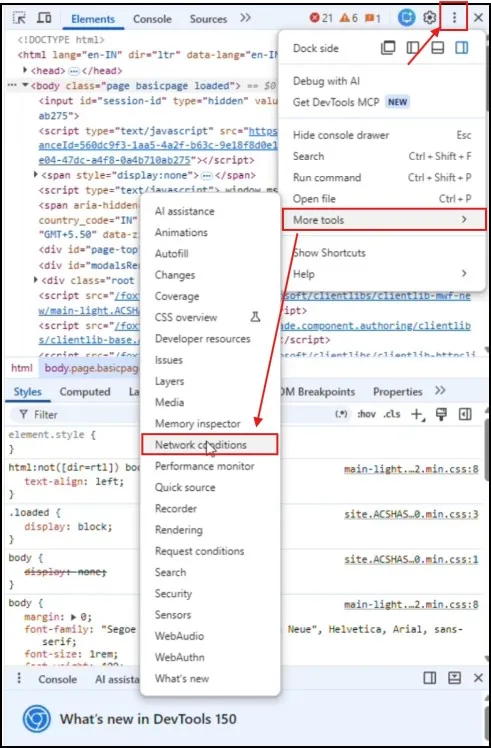
You should now see a section called Network conditions.
Look for User agent.
4. Disable “Use Browser Default”
Under User agent, you’ll find Use browser default. Remove the tick from this option.
A drop-down menu will now become available.
This is the key part of the process. Microsoft’s website can serve different download options depending on the type of device and browser it detects.
5. Select a Different User-Agent
A drop-down list will become available. From here, choose a non-Windows User-Agent. For example, you can select Chrome — Chrome OS.

You can also use another available mobile or non-Windows option. The important thing is to stop the browser from identifying itself as a normal Windows desktop browser.
You don’t need to change any of the other Network conditions settings.
6. Refresh the Microsoft Page
Now return to the Microsoft Windows 10 download page and refresh it. Press F5, or simply click the refresh button.
This time, the page should look different. Instead of only showing Create Windows 10 installation media, Microsoft should provide the Windows 10 ISO download section. This is the option we were looking for.
7. Select Windows 10 Edition
At this point, you will notice a Windows 10 Selection dropdown box.
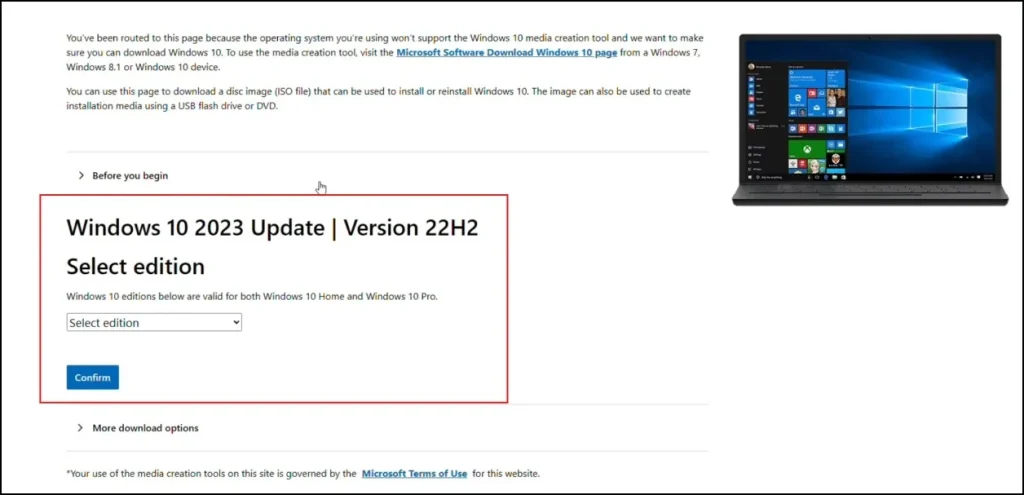
Select the Windows 10 (Multi Edition ISO) option that is available to you and select Confirm.
The page will then choose the input.

8. Select Your Language
After that, Microsoft will ask to choose the language of the product.
Select the product language for Windows 10 and select Confirm.

Ensure you choose the correct language, because the ISO will include a Windows in that chosen language
9. Choose 64-Bit or 32-Bit
Based upon the language selected, Microsoft will show you the download options available.
You should see links for:
• 64-bit Download
• 32-bit Download
Pick the right one for your system, and the actual download of the ISO will start directly from Microsoft servers.

For most newer PCs, 64-bit is both the way to go. 32-bit version is mainly relevant to older hardware that specifically requires it.
Where Is the Windows 10 ISO Downloaded From?
The biggest advantage of this method is that you do not get the ISO from any third-party unknown website.
The download is generated through Microsoft’s official Windows software download system.
That means you don’t need to search the internet for unofficial ISO mirrors or modified Windows images.
Is This the Same ISO as the Media Creation Tool?
And yes this is a great point.
Both the direct Windows 10 ISO download and the ISO downloaded using Microsoft’s Media Creation Tool are looking to be legitimate Microsoft installation media. The main difference is how you get the installation files.
Microsoft also offers the Media Creation Tool, a tiny program that can download Windows and create installation media or save an ISO.
This method bypasses that utility and takes you straight to the ISO download in your browser.
Which means if you only want the ISO file then this method becomes easier as there is no need to download and install Media Creation Tool initially.
Important: Windows 10 reached its regular end of support on October 14, 2025. Microsoft says Windows 10 version 22H2 was the final feature update. The ISO can still be useful for installation and reinstallation, but standard free security updates and technical support have ended for most editions.
Conclusion
That’s how you can download Windows 10 ISO directly from Microsoft’s servers without Media Creation Tool. All that you have to do is, change User-Agent of your browser, reload the page and get ISO.
Frequently Asked Questions
Is the Windows 10 ISO from Microsoft free?
Yes. The ISO can be downloaded free from Microsoft’s official website.
Can I download Windows 10 ISO without the Media Creation Tool?
Yes. You can use the browser User-Agent method to access the direct ISO download.
Is this the official Windows 10 ISO?
Yes. The ISO is downloaded directly from Microsoft’s servers.
Should I download the 64-bit or 32-bit ISO?
For most modern PCs, 64-bit is recommended. Use 32-bit only for compatible older systems.
Can I use the Windows 10 ISO to create a bootable USB?
Yes. You can use tools like Rufus to create a bootable Windows 10 USB drive.