
Sometimes the Run dialog is really useful, but on a shared computer it can also give users quick access to system tools and settings. You can even Disable Run Dialog Box in Windows if you cannot want anyone opening commands with Windows + R. Today I will share with you a few ways to do those things, that works on Windows 11 and Windows 10.
Method 1: Disable Run Dialog Box in Windows Using Group Policy
This should be the simplest option if you are using Windows Pro, Enterprise and Education editions.
Hold down Windows + R and enter gpedit.msc, and press Enter.

In Local Group Policy Editor go to:
Go to User Configuration → Administrative Templates → Start Menu and Taskbar
Scroll down to the Remove Run menu from Start Menu policy.

Double-click it.
Next select Enabled, click Apply and then OK.

The Windows + R shortcut will no longer open the Run dialog window after restart Windows Explorer. You will also notice that you cannot find the Run option in Start menu anymore.
If you’re new to the Local Group Policy Editor, Microsoft explains it as part of its System Configuration Tools in Windows guide.
Method 2: Disable Run Dialog Box in Windows Using Registry Editor
You won’t have Group Policy Editor if you are on a Windows Home edition. Then Registry Editor will serve you very well.
It’s always recommended to create a restore point or backup the registry before performing any changes. It’s just a backup, like well if something goes wrong,
Press Windows + R, type regedit and press Enter.
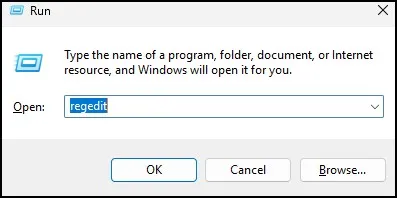
Now go to this Registry path:
HKEY_CURRENT_USER\Software\Microsoft\Windows\CurrentVersion\Policies\Explorer

If the Explorer key doesn’t exist, simply create it.
On the right side, right-click and choose:
New → DWORD (32-bit) Value
Name it:
NoRun
Double-click NoRun and change its value from:
0 to 1
Click OK.

Now restart your computer or restart Windows Explorer through Task Manager.
Once Windows starts again, the Run dialog box will be disabled.
This method is probably the one I use most because it works on every Windows edition.
How to Enable the Run Dialog Again
If you ever decide to restore it, the process is very simple.
For Group Policy:
Open the same policy and set Remove Run menu from Start Menu to Not Configured.
For Registry Editor:
Navigate back to the same registry key and either:
- Delete the NoRun value, or
- Change its value from 1 to 0
Restart Windows afterward.
The Run dialog will be available again.
Which Method Should You Choose?
If your PC has Windows Pro, use Group Policy; it’s cleaner and easier to reverse later.
If you’re using Windows Home, Registry Editor is the option you want to go with.
Both of which yield exactly the same output. To be honest, once the setting is applied I really saw no difference in real-life use.
Conclusion
This is how you can Disable Run Dialog Box in Windows using either Group Policy or Registry Editor. Both methods are rather easy and both of them take a few minutes to implement. This tweak will work wonders if you want to restrict access on a PC that is being shared. Basically, once you have it configured, you can just leave it and forget about unless you want to reuse the Run command in future.
Also Read: Enable Group Policy Editor (gpedit.msc) in Windows 10/11 Home Edition
Frequently Asked Questions
Does disabling the Run dialog affect Windows performance?
No. It only prevents users from opening the Run command. Windows performance remains unchanged.
Can I disable Run dialog box in Windows Home?
Yes. Since Group Policy isn’t available in Windows Home, use the Registry Editor method instead.
Will Windows + R stop working?
Yes. After you Disable Run Dialog Box in Windows, pressing Windows + R will no longer open the Run window.
Can I enable the Run dialog again later?
Absolutely. Simply undo the Group Policy setting or delete the NoRun registry value.
Is disabling the Run dialog enough to secure my PC?
Not completely. It’s a useful restriction, but you should also use standard user accounts, strong passwords, and other Windows security settings for better protection.