
Ever had someone urgently need an email from your inbox while you were away? Or felt overwhelmed managing someone else’s emails without the right tools?
That’s where Gmail delegate access comes in—a built-in Gmail feature most people don’t even know exists. It’s the secure, simple, and smart way to let someone manage your inbox without ever giving up your password.
Let’s dive into how this powerful Gmail tool can make your work—and life—a whole lot easier.
What is Gmail Delegate Access and Why Use It?
Gmail Delegate Access vs Password Sharing
Think of Gmail delegation like giving someone a spare key to your inbox. They can read and send emails as you—but they never know your password and can’t access other parts of your Google Account.
Unlike password sharing, which gives full control over your account, delegation keeps you in the driver’s seat.
Here’s how delegation differs from password sharing:
| Gmail Delegation | Password Sharing |
| They log in with their own credentials | They use your exact password |
| You can revoke access anytime | You’d need to change your password to cut access |
| Google tracks who does what | Actions look like they came from you |
| They can’t change account settings | They have full account control |
| They can’t access your Google Drive or other Google services | They get access to everything connected to your account |
Think of password sharing as handing someone your entire wallet, while delegation is just letting them borrow a specific credit card that you can cancel anytime.
Benefits of Gmail Delegate Access
The security benefits alone make Gmail delegation worth it, but there’s more to love about this feature.
First off, accountability is built-in. When your delegate sends an email from your account, it shows both your name AND theirs in the “From” field. The recipient sees something like “From: Your Name (sent by Delegate Name).” No more wondering who actually sent what!
Privacy stays intact too. Your delegate can’t go rifling through your Google Photos or read your Google Docs – just your email. That’s a massive upgrade from password sharing where they’d have the keys to your entire Google kingdom.
Need to cut ties? One click and they’re out. No awkward “hey can you forget my password” conversations or frantic password changes needed.
Plus, it’s totally above-board with Google’s terms of service. Password sharing technically violates those terms, which could put your account at risk.
For businesses, it’s a dream come true. Your executive assistant can manage communication while maintaining clear boundaries and professional standards. And if that assistant leaves? You don’t need to change passwords across the company.
Limitations of Gmail Delegate Access You Should Know
Before you jump into delegation, you should know it’s not perfect for every situation.
- Only works between Google accounts (Gmail or Google Workspace)
- Limited to 10 delegates per account
- No mobile support – access only via desktop browser
- Delegates can’t access Google Drive, Calendar, or Meet
- No access to change Gmail settings, filters, or vacation replies
How to Set Up Gmail Delegate Access (Step-by-Step)
Step 1: Go to Gmail Settings
Getting to the right settings in Gmail isn’t rocket science, but it’s also not super obvious. You need to start from your inbox (where else, right?).
- Click on the gear icon in the top right corner of your Gmail screen
- Select “See all settings” from the quick settings panel
- Navigate to the “Accounts and Import” tab
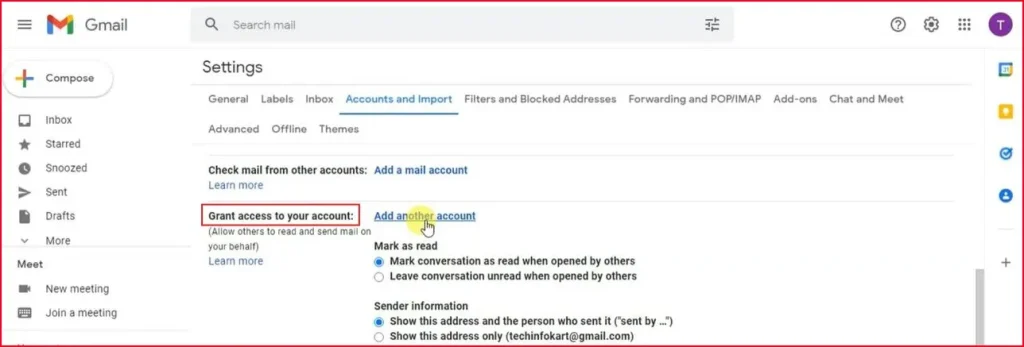
- Scroll down until you find the “Grant access to your account” section
Step 2: Add a Delegate
Now that you’ve found the golden ticket (the delegation section), it’s time to actually set someone up as your delegate.
- Click the “Add another account” link in the delegation section
- Enter the email address of the person you want to give access to
- Click “Next Step“
- Review the permissions warning (they’ll have significant access!)
- Click “Send email to grant access”
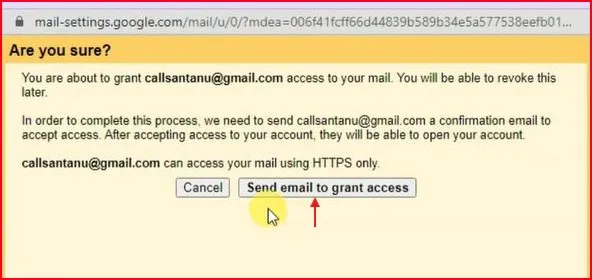
The person you’re adding needs to have a Google Account. If they don’t, they’ll need to create one before they can accept your invitation.
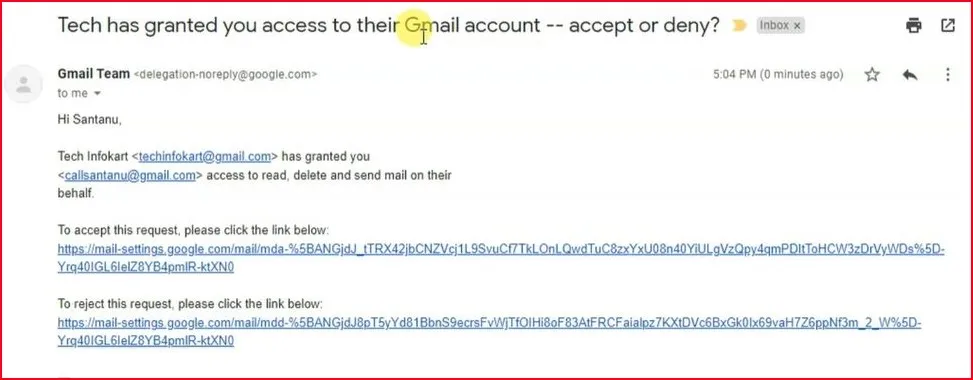
Gmail will immediately shoot off an email to your soon-to-be delegate. This email contains the invitation and a button they’ll need to click to accept. The invitation is valid for 7 days – if they don’t accept within that time, it’ll expire and you’ll need to start over.
Step 3: Wait for Verification
Patience is key here. The delegation process isn’t instant:
- After acceptance, it may take up to 24 hours for access to activate
- Once active, the delegate can switch to your account from their Gmail (on desktop)
If your delegate claims they never received the invitation, check their spam folder. Those important emails always seem to end up there!
Pro Tip: Use Ctrl+F to search “Grant access” if you can’t find the option quickly.
If you get stuck at any point, you can refer to my YouTube video tutorial for a visual walkthrough.
How to confirm successful delegation setup
After the waiting period, you’ll want to confirm everything is working properly. Here’s how:
- Look at the “Grant access to your account” section again – your delegate should be listed there with “Access granted” status
- Ask your delegate to sign into their Gmail account
- They should see your email address in the top-right corner of their Gmail (next to their profile icon)
- They can click your email to switch to viewing your inbox
If they can access your account, congratulations!
Managing Your Gmail Delegate Access
View and Remove Delegates
- Go back to Gmail settings
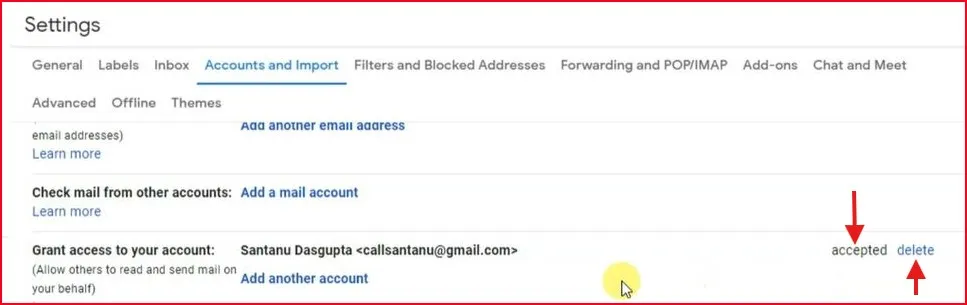
- Under Accounts and Import > Grant access to your account, you’ll see all active delegates
- To remove someone, click Delete
Note: Set calendar reminders to remove access after temporary roles end.
Delegate Best Practices & Boundaries
- Only grant access to people you deeply trust
- Communicate what they can and can’t do
- Use Gmail labels to organize personal vs shared content
What Delegates Can and Can’t Do with Gmail Delegate Access
What Delegates CAN Do:
When you delegate access to your Gmail account, you’re essentially giving someone a limited set of powers. But what exactly can they do? Your delegates can:
- Read all your emails (yes, everything in your inbox)
- Reply to messages on your behalf
- Send new emails that show they’re from you (with a “sent by delegate” notation)
- Archive emails to help organize your inbox
- Add stars or labels to messages
- Create and manage filters
- Mark emails as read or unread
Think of delegates like your email assistants – they can help manage the daily flow but don’t have full admin powers.
What Delegates CANNOT Do:
Your Gmail account still has a VIP section that only you can access. Delegates can’t:
- Change your password or account settings
- Enable or disable two-factor authentication
- Delete emails permanently (they can move to trash, but not empty it)
- Chat or use Google Meet as you
- Access your Google Drive, Calendar, or other Google services
- View or change account recovery options
- Add or remove other delegates
- Set up email forwarding
These restrictions help maintain a security boundary between you and your delegates.
And if you also want to store emails securely in your Google Drive for easy access and backup, check out my guides on how to save Gmail emails to Google Drive and automatically saving Gmail emails and attachments to Google Drive. These can be used alongside delegation to create a powerful email management system.
Final Thoughts: Share Smartly with Gmail Delegate Access
Sharing your inbox doesn’t mean giving away control. With Gmail delegate access, you stay secure while empowering others to help manage your emails.
Whether you’re a busy executive, planning a vacation, or need help organizing a shared account—this feature offers the perfect balance between access and privacy.
Try setting it up today. Just follow the steps above and remember: you can always revoke access when you’re done.
FAQs: On Gmail Delegate Access
Can I use Gmail delegate access on mobile?
No, Gmail delegate access only works on a desktop browser.
Can delegates read all my emails?
Yes. Once granted, they can see your entire inbox unless you’ve used filters or separate labels.
Can a delegate send emails on my behalf?
Yes. Sent emails will show as “sent by [delegate name]”.
Is Gmail delegate access safe?
Yes. It’s safer than password sharing and approved by Google.
Can I remove a delegate anytime?
Absolutely. Just go to Settings > Accounts and Import and click Delete next to their email.