
You just typed out an email containing your bank account details, social security number, and the address of your home. Your finger hovers over “send” as a cold realization hits you: this information is about to travel completely unprotected across the internet.
The good news? Gmail has a built-in way to make your emails private and secure. It’s called Confidential Mode, and it lets you send Password Protected Email in Gmail—without needing any extra software or apps.
What I’m about to show you can be used to exchange tax files with your accountant or private pictures with your family members. I’ll show you how to send and open a password protected email with Gmail’s confidential mode.
What is a Password Protected Email in Gmail?
A Password Protected Email in Gmail is just like a regular email—but smarter. You can set an expiration date, prevent the receiver from copying, downloading, or forwarding the email, and even require an SMS passcode before they can read it.
This is all made possible using Gmail’s Confidential Mode—no need for tech skills.
How to Send a Password Protected Email in Gmail
Here’s the full step-by-step process:
Step 1: Open Gmail and Start a New Email
Go to Gmail and click the big “Compose” button like you normally do.
Step 2: Click the Lock-and-Clock Icon
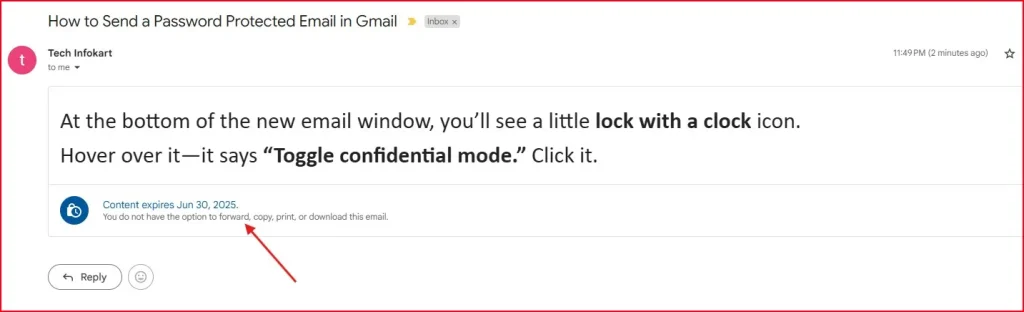
At the bottom of the new email window, you’ll see a little lock with a clock icon.
Hover over it—it says “Toggle confidential mode.” Click it.
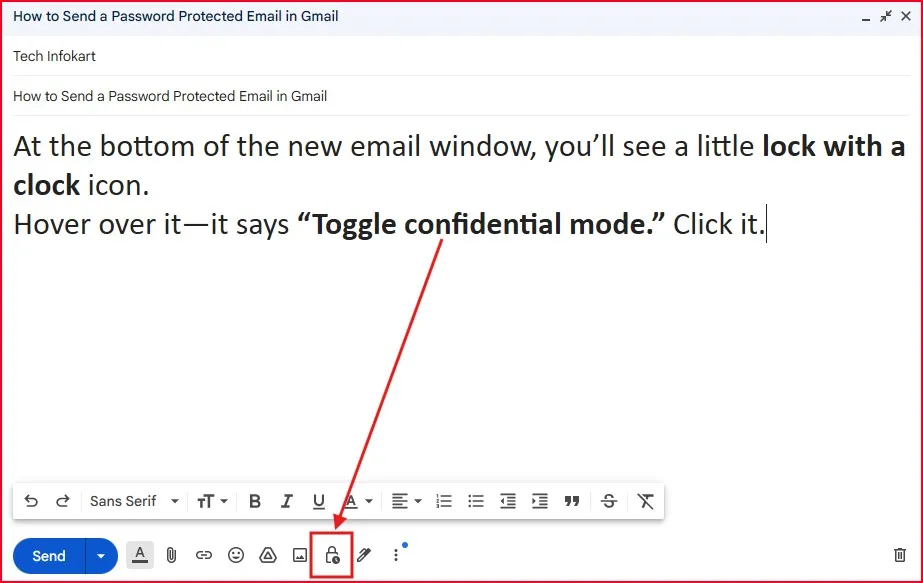
This opens Gmail’s Confidential Mode settings.
Step 3: Choose Your Settings
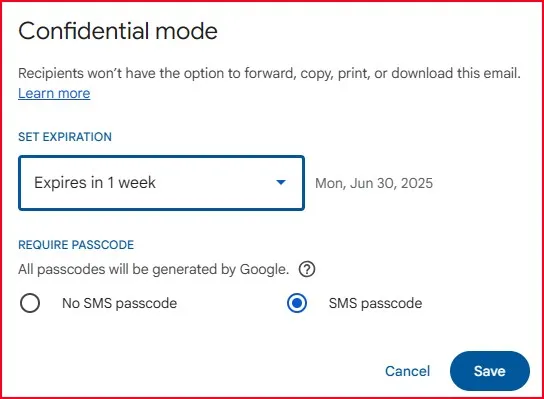
A small pop-up will appear. Now you can:
- Set Expiration: Choose how long the email will be viewable—1 day, 1 week, 1 month, etc.
- Require Passcode:
- No SMS Passcode – The email is protected, but the recipient doesn’t need a code.
- SMS Passcode – Gmail sends a one-time code to the recipient’s phone. They must enter it to open your email.
Choose SMS passcode for better protection.
Step 4: Hit Save and Send
- After choosing your settings, click “Save”.
- Now, compose your message, attach any files (they, too, will be password-protected), and press Send.
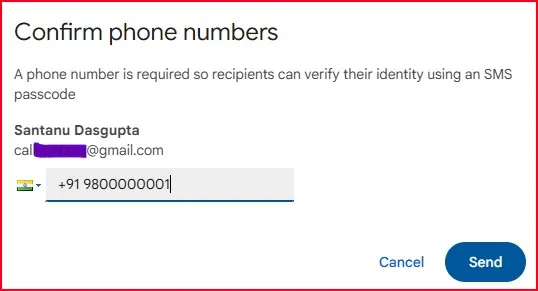
- If you selected SMS passcode, Gmail will request the phone number of the recipient. Enter it and confirm.
- Done — that’s how to send a Password Protected Email in Gmail!
How to Open a Password Protected Email in Gmail
- You’ll receive an email with a “View the email” button.
- The correspondence in this email is personal and confidential. A one-time passcode will be sent to mobile number you or the sender set previously. Just click on “Send passcode”
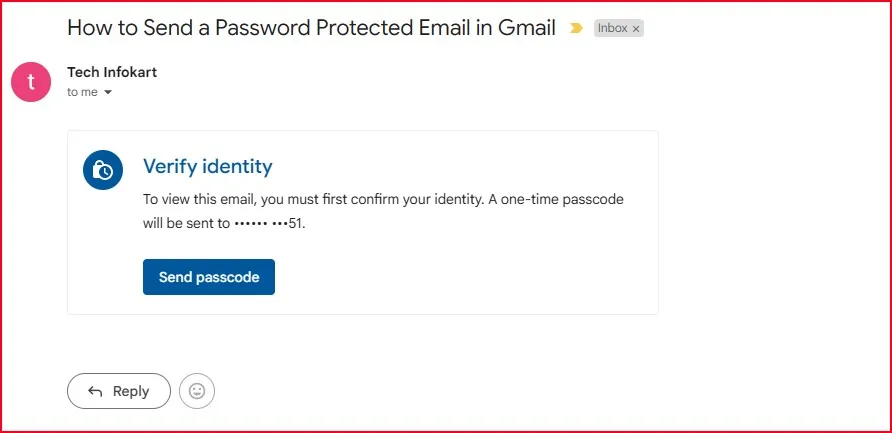
- And you will receive a code on your phone within moments. Enter that code into the screen.
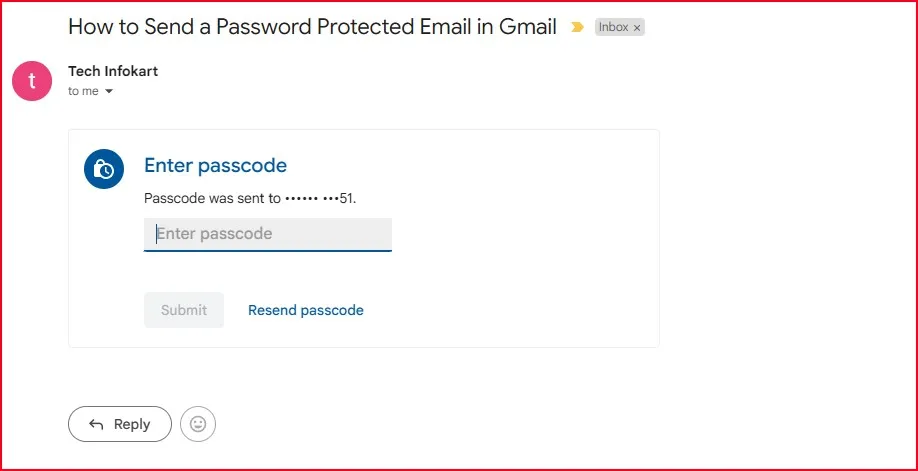
- Once it’s verified, you will be able to see the message but you won’t be able to forward, copy or print it.
Simple and secure.
Check out my detailed YouTube guide on How to Send a Password Protected Email in Gmail here: Watch on YouTube
Why Use Password Protected Email in Gmail?
Ever shoot out an email and then freak that the wrong person could see it? This is where password protection becomes important. For sensitive emails containing tax forms, financial information or personal information, unprotected messages are akin to postcards that anyone can pick up and read. While hackers or even just unwarranted co-workers or strangers can access your sensitive information without the security needed.
When to use password protected emails
Password protection isn’t necessary for every “hey, what’s up?” message, but it’s crucial when sharing:
- Financial statements or tax documents
- Personal identification info (SSN, birth certificates)
- Medical records
- Legal documents
- Business contracts with confidential terms
- Login credentials (though email isn’t ideal for this)
It can be thought of as a digital padlock for data that might do damage if it fell into the wrong hands.
Bonus Security Tip: Before sending or receiving private info, make sure your Gmail account is protected too. Turn on 2-Step Verification (also called 2FA) for your Google account.
Third- Party solutions for Password Protected Email in Gmail
Gone are the days of worrying about email security. In 2025, we’ve got some serious encryption tools that play nicely with Gmail. ProtonMail Bridge lets you use end-to-end encryption without leaving Gmail’s interface. Virtru offers one-click encryption that even your grandma could figure out. And don’t sleep on Mailvelope – it’s bringing OpenPGP encryption to your browser with zero fuss.
Final Thoughts on Password Protected Email in Gmail
Gmail’s Confidential Mode is a powerful tool hidden in plain sight. This is the simplest way to send a Password Protected Email in Gmail without being a tech savvy.
Whether you’re sending something personal or professional, or just want to add a little peace of mind to your emails — Confidential Mode is a feature that’s worth turning on.
Try it the next time you send something sensitive. It’s one of those tiny things that makes a huge difference.
If you often need others to access your inbox securely (like an assistant or teammate), check out my guide on How to Use Gmail Delegate Access to Share Your Inbox Securely. It shows how you can give someone access to your Gmail without sharing your password.
FAQ: Password Protected Email in Gmail
Do I need a special extension or plugin to send confidential emails?
No. Gmail has this feature built-in. No add-ons required.
Can I use Confidential Mode on the Gmail mobile app?
Yes! Just tap the three-dot menu while composing, then select Confidential Mode.
Can I revoke access after sending the email?
Yes. Go to your “Sent” folder, open the email, and click “Remove access.”
Can the receiver forward or download the email?
No. Gmail blocks forwarding, copying, downloading, and printing.
Does Confidential Mode stop screenshots?
Unfortunately, no. Gmail can’t prevent someone from taking a screenshot. But it limits other sharing methods.