
For example, if you’re submitting a warranty claim on your computer or sending your hard drive in for service, it’s good to know the serial number so there are no complications.
But then you wonder how to check hard drive serial number in Windows 11 without opening the case or installing some fancy software?
Don’t worry. I’ve got you covered with the easiest ways to find the serial number of your hard drive using built-in Windows tools.
What is a hard drive serial number and its importance
Ever wondered what tiny detail could save your digital life? The serial number of your hard drive is that one-off identifier that every manufacturer gives every device they ship. It’s crucial for warranty claims, tech support, and recovery if your computer gets stolen. Consider it the fingerprint of your drive — unique and irreplaceable.
Warranty claims top the list of reasons you’ll need this number. When your drive fails and you’re frantically calling customer service, they’ll ask for this first. Insurance claims for stolen equipment require it too. System administrators track inventory with these numbers, and law enforcement uses them to identify recovered stolen hardware. Smart users record these numbers before disaster strikes.
Method 1: Using Command Prompt to check Hard Drive Serial Number
Need to dig up your hard drive’s serial number? Command Prompt is your best friend here. Simple, fast, and doesn’t require installing anything extra.
Steps:
- Go to start, in the search type cmd
- Right-click on Command Prompt, and choose Run as Administrator
- In the black window that appears, type the following and press Enter: wmic diskdrive get serialnumber
- If you have more than one drive, you should see a list of serial numbers.
Tip: This command only shows the serial number, not the model or brand. So, if you have multiple drives, you might want to label or match them manually or you can use the following:
wmic diskdrive get model,name,serialnumber
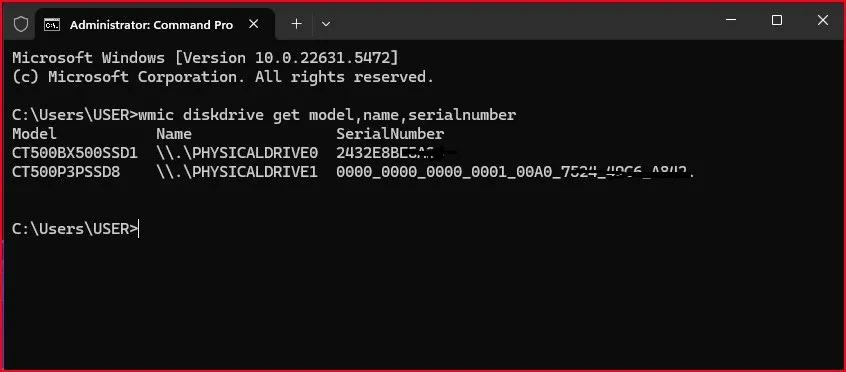
Hit the keyboard with these commands and uncover the secrets lurking on your drive. When the command completes, you should notice a tidy columnar table below. Take a look at that “SerialNumber” column – that will be your key to the city. Some companies format serial numbers a little differently, so you may see spaces or special characters. The number it shows should match what you can physically read on your drive’s label.
Method 2: Using Powershell to check Hard Drive Serial Number
If you lean toward PowerShell, here’s how you can do it:
Steps:
- Press Windows Key + X and clicktWindows Terminal (Admin)
- Simply enter the following command, then press Enter: Get-WmiObject win32_physicalmedia | Select-Object SerialNumber
That’s it! In a few seconds you will have your hard drive’s serial number.
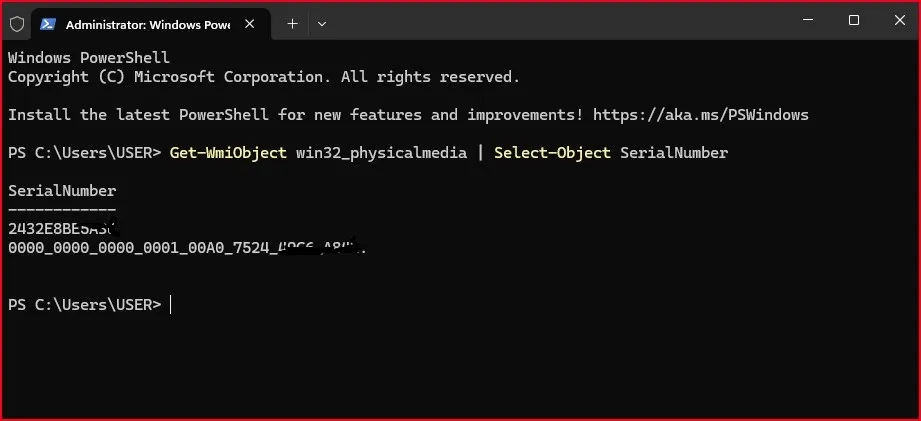
Third – Party Tools check Hard Drive Serial Number
Windows 11 has a few built-in ways to see both your hard drive’s serial number, but a third-party app will offer more detailed information and a cleaner interface. Useful applications such as CrystalDiskInfo or Speccy – both of which are absolutely free, are regularly updated, and show more than just serial numbers, they show health status, temperature and much more for all storage – even external hard disk drives and SSDs! This can be a good alternative if you would like a full report on your drive as well. Simply download, install and run the application—your drive info will be displayed immediately.
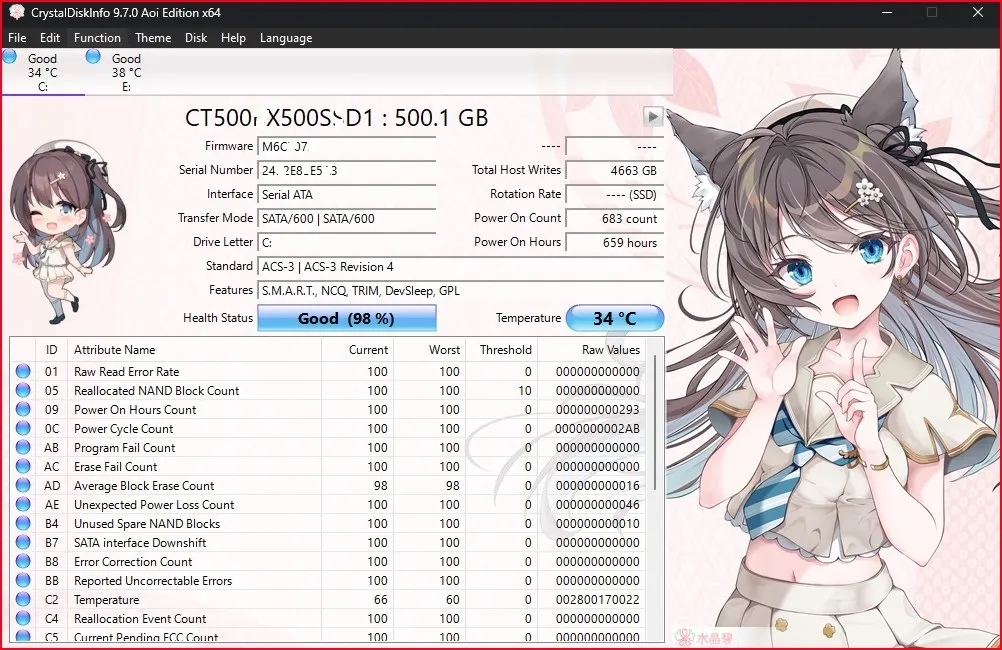
What If You Don’t See the Serial Number?
Occasionally and particularly with virtual/older drives, the serial will not show. In that case:
- Ensure that you are running the command prompt as administrator
- Make sure you’re not using a virtual machine (Virtual Machines typically hide physical hardware)
- Try scanning with a third-party scanning tool, such as CrystalDiskInfo or Speccy.
More Helpful Windows Tips
If you’re curious about more hidden details inside your Windows PC, don’t miss these helpful guides:
How to Check Windows Version and Build Number — Know exactly which version and update your Windows 11 is running.
How to Check Your Computer Processor Generation — Quickly find out what generation your CPU belongs to, and why it matters.
Final Thoughts
And that’s it! Now you know exactly how to check hard drive serial number in Windows 11 without opening your PC physically, or installing anything complicated.
Whether you’re troubleshooting, upgrading, or just being curious, this simple process will give you the info you need in under a minute.
FAQs on How to Check Hard Drive Serial Number in Windows 11
Is the serial number the same as the model number?
No, the model number refers to the product line; the serial number is unique to each individual hard drive.
Can I find the serial number from BIOS?
Some BIOS interfaces do show it, but it’s not consistent across all systems. Using Windows tools is easier and quicker.
Will checking the serial number harm my PC or data?
Not at all. You’re only reading system information—it’s 100% safe.
What if I have an external hard drive?
The same commands usually work for external drives too, as long as they’re properly connected and powered.