
If you are about to reinstall Windows 11, then I would generally encourage driver backup. Most people remember to backup photos and documents but some forget about drivers. After that when we reinstall windows, one of the WiFi stops working, there is no sound or few devices may miss in Device manager.
Since then, whenever I reinstall a system, the first thing I do is backup drivers before reinstalling Windows 11. It only takes a few minutes and honestly saves a lot of headaches later.
The good thing is you don’t need any third-party software for this anymore. Windows already has built-in tools that can backup all installed drivers pretty easily. I’ve tested this on Windows 11 and even on a Windows 10 PC recently, and both worked fine.
Why I Even Bother Backing Up Drivers
A lot of newer laptops install drivers automatically once you connect to the internet. But that doesn’t always happen properly.
Sometimes the WiFi driver itself is missing… which means you can’t even get online to download the other drivers. I’ve seen this especially on slightly older laptops or custom desktop builds. Audio drivers can disappear too. Same with Bluetooth.
And yes, you can go to the manufacturer website later and manually download everything. But honestly, that process gets annoying very quickly.
That is why I keep a quick driver backup on USB drive before reinstalling Windows itself, so that the process can proceed further without any issues.
Method 1 – Using Command Prompt (The Method I Personally Use)
This is probably the easiest method overall.
First, connect your USB drive. In my case, my USB drive showed up as F: drive. Inside it, I created a simple folder called:
Drivers
You can name it anything you want really. Now open Command Prompt as administrator.
The quickest way is:
- Click Start
- Search for CMD
- Right-click Command Prompt
- Run as administrator

Once the black window opens, type this command:
dism /online /export-driver /destination:F:\Drivers
Then press Enter.

That’s it.
Windows will start exporting all installed drivers into that folder. On my PC it took maybe around a minute or so. On another older laptop it took longer.
So yeah, the time mainly depends on your system and how many drivers are installed.
While it’s running, you’ll see drivers getting exported one by one. Don’t close the window in between.
Once finished, you’ll get a message saying the operation completed successfully.

This method uses Microsoft’s built-in DISM tool, which is officially supported by Windows. If you want to learn more about the DISM commands and how they work, you can also check the official Microsoft DISM documentation.
If you open the backup folder now, you’ll notice lots of folders with driver files inside them. That means the backup worked properly.
This is honestly the method I trust the most whenever I need to backup all drivers in Windows 11.
Method 2 – Another Method Using PowerShell
I also tried another method recently using PowerShell on a Windows 10 system just to test if it still works there. And surprisingly, it worked perfectly fine too.
The process is very similar.
Open PowerShell as administrator and type:
Export-WindowsDriver -Online -Destination F:\Drivers
Then press Enter.
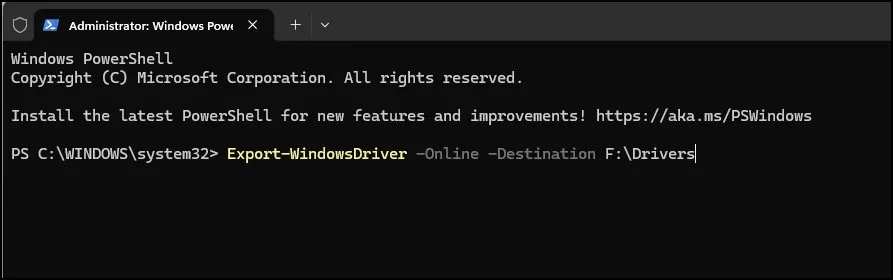
As per the previous process, Windows will start copying all drivers into your backup folder regarding the backup operation.
As per my experience, I prefer the Command Prompt method regarding these two options because I am more familiar with it. As per technical aspects, both are doing the same work regarding their functions.
So you can use whichever feels easier.
Restoring Drivers After Reinstalling Windows
This step is actually more important than making the backup. You definitely need to focus on this part.
After you basically reinstall Windows, connect the same USB drive where you saved the drivers before.
Then open Device Manager.
Usually, if drivers are missing, you’ll notice yellow warning icons beside some devices. Most commonly network adapters, audio, or chipset-related stuff.
To fix that, click on the first computer name at the top inside Device Manager.
Then go to the Action menu. Then select Add Drivers.
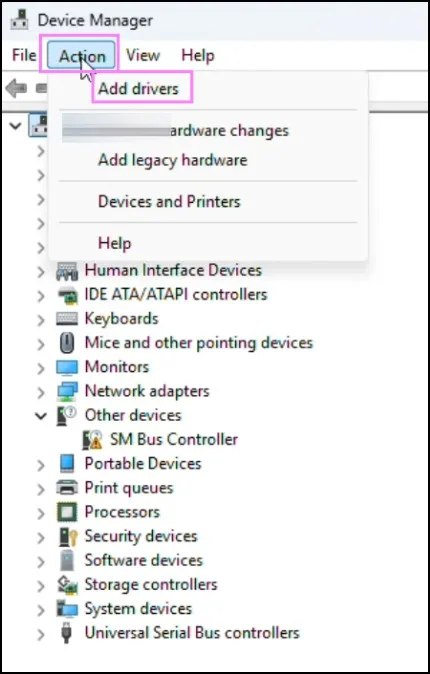
From there, choose the option to update or scan for drivers depending on what appears on your system.
You can also right-click the missing device directly and click Update driver.
After that, choose:
Browse my computer for drivers
Now click on Browse and select the Drivers folder from your USB drive.
One important thing here — make sure the option called: Include subfolders is checked. A lot of people miss that part. Then click Next.

Now Windows will automatically search through all the folders and install the correct drivers from the backup.
Sometimes it installs quickly. Other times it can take a little longer depending on the hardware and the number of drivers.
On one of my systems, Windows installed almost everything automatically within a minute or two.

And once it finishes, you’ll usually notice things start working again immediately. WiFi comes back, audio starts working, proper display resolution returns, and Device Manager looks normal again.
One Small Mistake You Should Avoid
If you are going to format that drive, of course do not save the backup on the same place where Windows is actually installed.
Final Thoughts
So yeah, that’s basically how I backup drivers before reinstalling Windows 11 without using any software. This process remains straightforward and effective for system maintenance purposes. It’s actually a simple thing, but it will definitely save you from many problems later. Especially when internet drivers suddenly disappear after reinstalling Windows.
I still do this before formatting almost every PC now, even newer systems. Better to spend two minutes creating a backup than spending hours searching random driver websites later. Hopefully this helped.
Also Read: How to Update Drivers in Windows PC Easily and Safely
Frequently Asked Questions (FAQs)
Does this work on Windows 10 too?
Yes, both methods work on Windows 10 as well.
Can I save the backup on a USB drive?
Yes, and honestly that’s probably the best option.
Do I need internet to restore the drivers?
No. That’s the advantage of creating the backup beforehand.
What if Windows doesn’t detect the drivers?
Make sure “Include subfolders” is checked while restoring drivers.
Is CMD better than PowerShell for this?
Not really. Both work fine. I personally use CMD more often.