
If you been on the web and been annoyed by all of the pop up or banners, I feel your pain. I’ve been there too. The good news is — you can block ads in Microsoft Edge without extensions, and it works surprisingly well. Nothing extra to install nothing slowing your browser down. In fact, Microsoft Edge already has a few built-in features that can help you remove ads from Microsoft Edge and make your browsing much cleaner.
In this guide, I’ll walk you through some simple, practical methods I personally use. Nothing complicated, just real steps that actually work.
Method 1: Turn on Tracking Prevention (This One Helps a Lot)
This is probably the easiest, most effective thing that you can do. Tracking Prevention is a built-in feature for Microsoft Edge. It blocks so many trackers, which usually are the ones who deliver ads to you.
Here’s how you can enable it:
First launch Microsoft Edge on your device.
Click on the 3 dots (top-right corner) and navigate to Settings.

Next, find Privacy, search, and services on the left panel.

You’ll see something called Tracking Prevention. Make sure it’s turned ON.

You’ll also notice three options:
- Basic
- Balanced
- Strict
Honestly, just go with Strict if you really want to block ads in Microsoft Edge without extensions. It blocks most trackers and reduces ads significantly.
One small thing though—sometimes certain websites may not load properly in Strict mode. If that happens, you can temporarily switch back to Balanced.
That’s pretty much it for this step.
Microsoft Edge already has a built-in feature called Tracking Prevention. If you want to understand how it works in detail, you can check the official Microsoft guide.
Method 2: Block Pop-Ups (Simple but Effective)
Pop-up ads are probably the most annoying ones. Thankfully, Edge lets you block them easily.
Go back to Settings, find Privacy, search, and services on the left panel, then find Site permission, after that click on All Permissions.

Then scroll down a bit and click on Pop-ups and redirects.

Turn ON the option that says Blocked (recommended).

That’s it.
This is not entirely ad-free; it certainly should prevent random pop-ups opening new windows or tabs. If you want to disable ads in Edge without installing anything, that’s a quick win.
Method 3: Use Secure DNS (This One Is Underrated)
This one is somewhat underrated, but it helps a lot. With secure DNS, ads are prohibited on the network level and so many ads won’t even load to begin with.
Here’s how you can set it up:
Go to Edge Settings again, and open Privacy, search, and services.
Scroll down until you find Security.
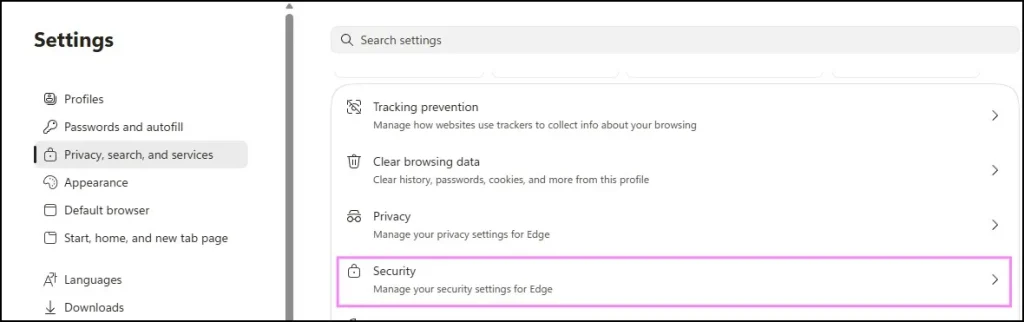
Look for Use secure DNS to specify how to lookup the network address for websites and turn it ON.

Now choose Choose a service provider, and select something like:
- CleanBrowsing
- Cloudflare (1.1.1.1)
- Or any custom DNS that blocks ads
If you want better ad blocking, you can use a custom DNS like AdGuard DNS (you’ll need to select “Custom” and enter it manually).
Once done, restart your browser.
Note that many of these ads are just no longer seen. Mind you, it is not perfect but honestly the difference is significant.
Microsoft Edge actually has quite a few hidden features like this. If you’re interested, you can check out some of the top Edge features most users don’t know about.
Method 4: Block Ads Using Hosts File (Advanced but Powerful)
Now this one is a bit advanced, but if you really want to block ads in Microsoft Edge without extensions, this method is super effective.
Basically, you block ad servers directly from your system.
Here’s the idea:
You edit a file called hosts file in Windows, and add entries that stop ad-related domains from loading.
The file is located here:
C:\Windows\System32\drivers\etc
Open Notepad as Administrator, then open the hosts file.
Now you can add lines like this:
127.0.0.1 ads.example.com
127.0.0.1 adserver.example.com

This tells your system to block those domains.
But in reality, for this you are better to download an already prepared hosts list (such as when someone maintains ad-blocks lists) then do the entries manually.
Close the file, restart your browser — and done.
The beauty of this approach is that it applies more broadly across the system, not just within Edge.
Method 5: Disable Personalized Ads (Less Ads Over Time)
This will not remove all ads from Microsoft Edge itself, but it will further reduce how targeted and irritating they become.
Further, navigate to Edge Settings and further access Privacy, search, and services section itself.
Then you need to scroll down to the Personalization & advertising section only.
Turn OFF options related to:
- Personalized ads
- Ad measurement
You can also go to your Microsoft account privacy controls and disable ad personalization from there.
This step won’t immediately prevent ads but it will help you see fewer of those “creepy ads” that follow your every move over time.
A Quick Reality Check
Let me be honest here—no built-in method is going to block 100% of ads like a dedicated extension would.
But if your goal is to block ads in Microsoft Edge without extensions, these methods combined do a pretty solid job.
Personally, I use:
- Strict Tracking Prevention
- Pop-up blocking
- Secure DNS
And that’s usually enough for smooth browsing.
Final Thoughts
In short, this is how we can block ads in Microsoft Edge without extensions using simple out-of-the-box options. You don’t need extra tools Nothing complicated No risk at all
By following all the methods listed above, you will definitely see a cleaner browsing experience. It may not be perfect, it is sufficient or good enough for everyday use. Test it out and see what is the best for you.
While you’re exploring these settings, you might also find it useful to learn how to open Internet Explorer Mode in Edge, especially if some older websites don’t load properly.
Frequently Asked Questions (FAQs)
Can I completely remove ads from Microsoft Edge without extensions?
Not completely, but you can reduce most ads using built-in settings like Tracking Prevention and Secure DNS.
Is Tracking Prevention enough to block ads?
It helps a lot, especially in Strict mode, but combining it with other methods gives better results.
Does Secure DNS really block ads?
Yes, it blocks many ad domains before they load, which reduces ads significantly.
Will these methods slow down my browser?
No, actually your browsing may feel faster since fewer ads are loading.
Is editing the hosts file safe?
Yes, if done correctly. Just be careful and avoid deleting existing entries.