
At times your Windows 11 PC may fail to boot into normal mode. You start the PC, and instead of getting to the desktop, it freezes at a black screen, automatic repair loop, or infinite loading screen. In this kind of situation, knowing how to open command prompt before windows starts can really help because you can use recovery commands to troubleshoot and repair the system without entering normal Windows.
I’ve personally used this many time while fixing corrupted startup files, running SFC scans, repairing boot records, and even recovering files from systems that wouldn’t load normally. The good thing is — Windows 11 already includes recovery tools that let you access Command Prompt before the operating system fully loads.
Why Would You Need Command Prompt Before Windows Starts?
There are quite a few situations where this becomes helpful.
For example:
- Windows stuck on boot
- Startup repair not working
- Corrupted system files
- Need to run bootrec commands
- Forgot password and need recovery access
- Disk checking or repair
- Malware cleanup
Once you get into Command Prompt before Windows loads, you can try different repair commands that normally won’t work during startup problems.
Method 1: Open Command Prompt Using Advanced Startup
This method should work if Windows is still loading correctly.
Go to Start menu > Settings > System and search for the Recovery option.
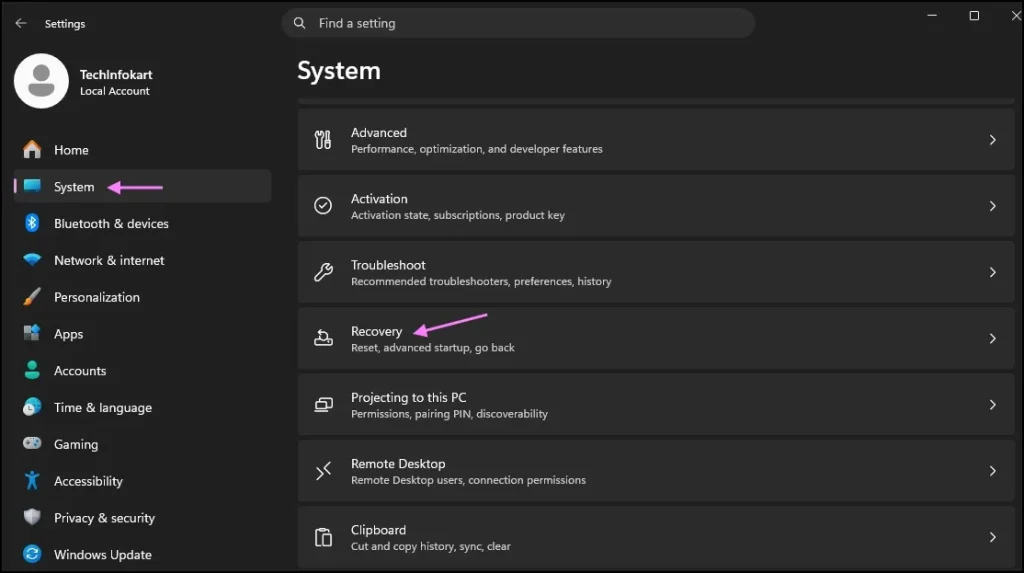
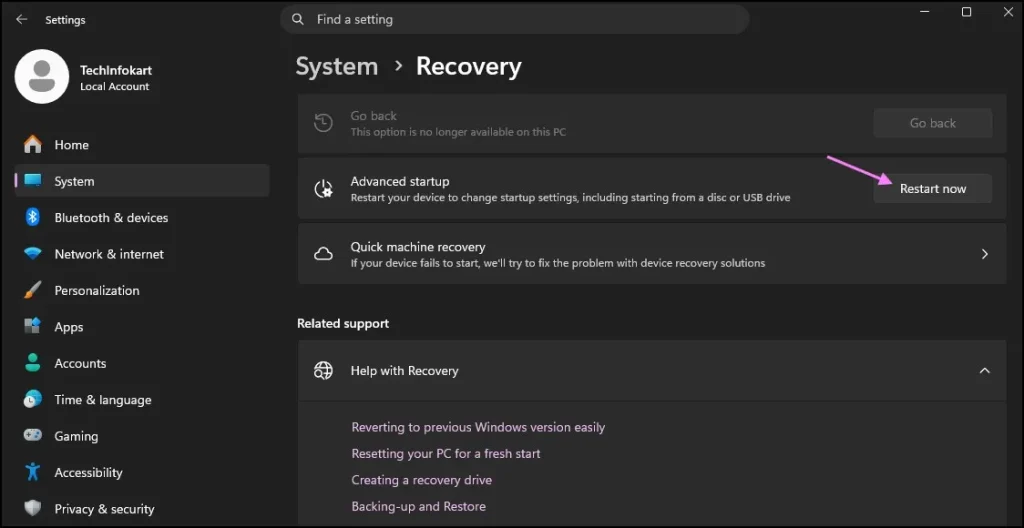
In the Recovery section, you can see Advanced startup. Click the Restart now button.
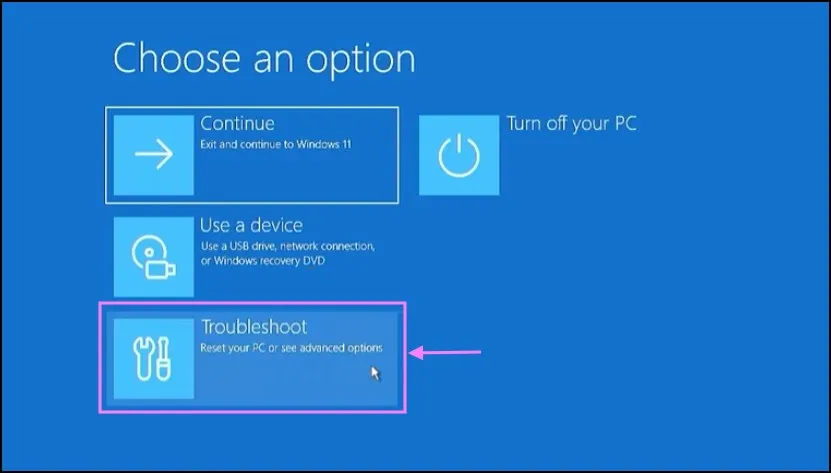
Your computer will restart into a blue recovery screen instead of normal Windows.
From here click on Troubleshoot
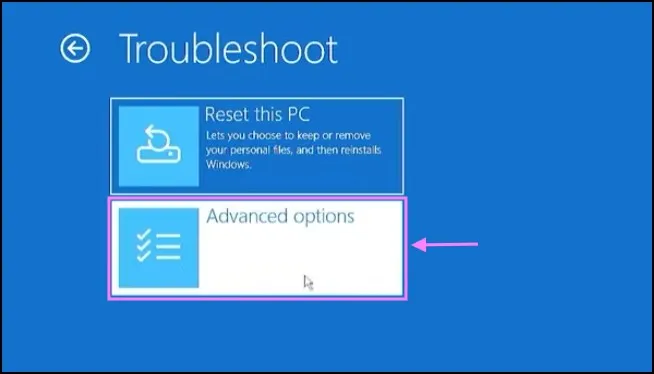
Then select Advanced options
Click on Command Prompt
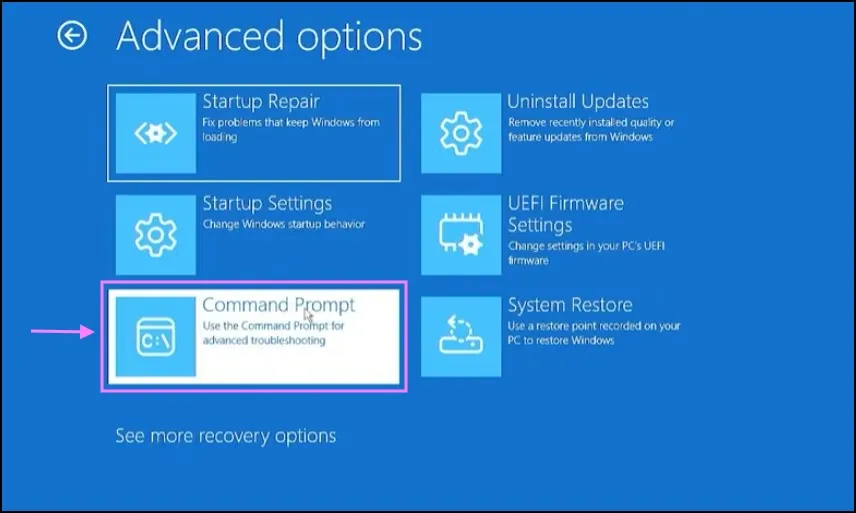
After you click Command Prompt, Windows will probably ask you to choose your user account and type the password.
Then the CMD window will pop up.
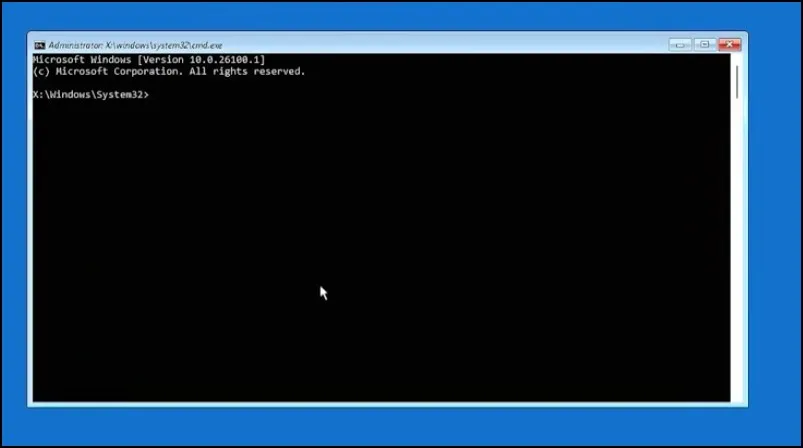
Windows automatically loads the recovery environment by itself, which is one of the simplest methods to open command prompt before windows starts.
Now you can run command’s like:
sfc /scannow
Or:
chkdsk C: /f /r
Or even boot repair commands like:
bootrec /fixmbr
bootrec /fixboot
If all you need is temporary trouble shooting access, this usually works like a charm.
Method 2: Open CMD in Recovery Mode When Windows Won’t Boot
Now let’s say your PC doesn’t even load Windows properly.
This happens more often than people think after failed updates or corrupted drivers.
In that case, you can still open cmd in recovery mode by forcing Windows into Automatic Repair.
Start the computer normally. When the Windows loading screen appears, just press and hold the power button to force the PC to shut down. Do this again a couple of times during startup.
After doing this two or three times, Windows normally opens the Automatic Repair screen automatically (Windows Recovery Environment).
Windows Recovery Environment (WinRE) is Microsoft’s built-in troubleshooting platform that helps repair startup problems and access recovery tools.
You’ll see a screen saying Preparing Automatic Repair. After a few moments, click:
Advanced options, Then go to:
Troubleshoot → Advanced options → Command Prompt
This method is extremely useful when Windows is completely broken and you cannot access Settings normally.
Many people search for command prompt from boot menu because they think there’s a direct key shortcut like BIOS access. But in Windows 11, recovery mode is usually the practical way to reach it.
Method 3: Use a Windows 11 Installation USB
If the normal recovery screen doesn’t show up, then using a Windows 11 USB installer is another easy way to get access to CMD.
Firstly, you need to make a Windows 11 installer USB using Microsoft Media Creation Tool on another computer.
After that just plug in the bootable USB to your pc and restart it. Hold the boot menu key while it is powering on. For some laptops, it might be F12; for others, Esc, F9 or Del. It depends on the brand.
Once you boot from USB, Windows Setup Screen will display.
Don’t click on “Install now.”
Instead, simply press:
Shift + F10And the Command Prompt window should open immediately on the screen.
Yes, directly from setup.
This is probably the fastest way to open command prompt before windows starts when the operating system is badly damaged.
You can also access it another way:
Click:
Next → Repair your computer → Troubleshoot → Advanced options → Command Prompt
Using installation media gives you full recovery access even when the internal Windows recovery environment is missing.
A Small Thing Many Users Don’t Know
When you open command prompt before windows starts, you’re actually entering the Windows Recovery Environment (WinRE).
This environment runs separately from your normal Windows installation.
That’s why repair commands often work better there compared to running them inside normal Windows.
It’s also why you can sometimes fix startup problems that Windows itself cannot repair automatically.
Conclusion
If your PC is not loading properly, knowing how to open command prompt before windows starts can really help. In many cases, recovery mode itself is enough to fix startup issues without reinstalling Windows 11 completely.
Frequently Asked Questions (FAQs)
How do I open command prompt before Windows starts?
You can access it through Advanced Startup or Windows Recovery Environment by going to Troubleshoot → Advanced options → Command Prompt.
Can I open CMD from the boot menu in Windows 11?
Yes. You can use recovery mode or a Windows installation USB to access command prompt from boot menu options.
What key opens Command Prompt during Windows setup?
Press Shift + F10 on the Windows Setup screen.
Why would someone open cmd in recovery mode?
Usually for troubleshooting startup issues, repairing boot files, running SFC scans, or fixing corrupted Windows installations.
Is it safe to use Command Prompt before Windows starts?
Yes, but you should be careful while using repair commands because some commands can modify system files or partitions.