
We are seeing that most Windows 11 computers only play a startup sound by themselves when the system starts up. The Windows startup sound actually shows the system loaded correctly, but it definitely gets annoying in some situations. You may turn on your laptop late at night when others are sleeping, or during office meetings where silence itself is preferred, and this can further disturb the environment. In such situations, users surely seek methods to turn off windows 11 startup sound permanently. Moreover, this requirement becomes essential for maintaining a quiet computing environment.
As per Windows system, startup sound is the short audio that plays when PC reaches login screen regarding boot process. Basically, Windows 11 has the same built-in option to easily disable startup sound. This guide will actually show you the easiest ways to definitely turn it off permanently.
Method 1: Disable Startup Sound from Sound Settings
This method is surely the simplest approach, and moreover, it will likely be the only technique required for most purposes.
Basically, you right-click on the same speaker icon at the bottom-right corner of your screen.
From the menu, you should actually click on Sound settings. This will definitely open the audio options.
You can also open it another way by pressing Windows + I to open Settings manually.
Inside the Settings window, go to:
System → Sound
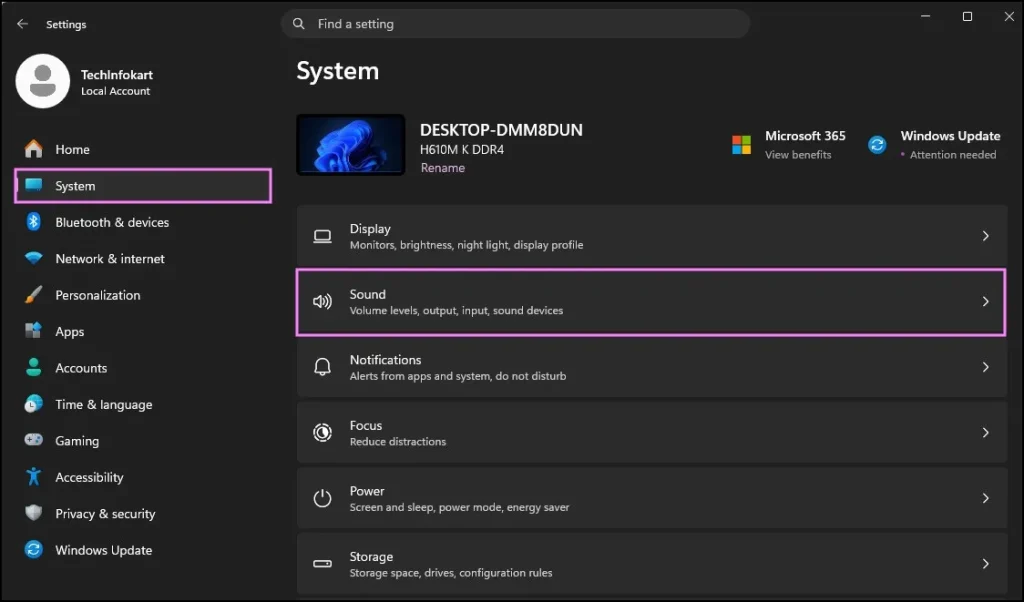
Now scroll down a bit until you see More sound settings and open it.
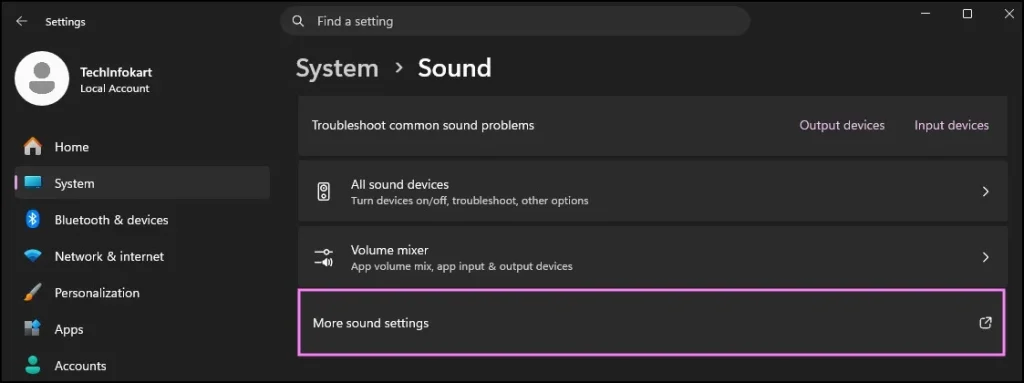
A smaller Sound window will appear. This is actually the older Control Panel sound menu that Windows still uses in the background.
If you want to explore more audio customization options, you can also check this detailed guide on managing Windows 11 system sounds.
Now you need to click only on the Sounds tab which is there at the top.
At the bottom of the window, you will surely find an option named:
Play Windows Startup sound
Just uncheck it.
Then click Apply and after that click OK.
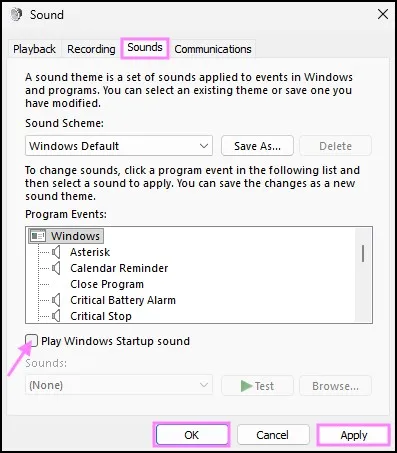
Done.
Now restart the computer once and the startup sound should be gone.
Honestly, this worked instantly on my HP laptop. No restart loops or anything complicated.
Method 2: Turn Off Startup Sound Using Group Policy
I tested this method on another Windows 11 system where the startup sound setting randomly came back after updates.
So if the normal method does not stay disabled for some reason, you can try this one.
First press Windows + R together on the keyboard.
The Run box will open.
Type:
gpedit.msc and press Enter.
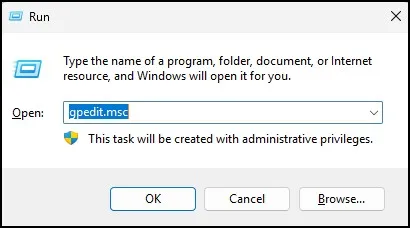
This opens Local Group Policy Editor.
Now go to the following location step by step:
Computer Configuration → Administrative Templates → System → Logon
Once you reach there, look on the right side for:
Turn off Windows Startup sound
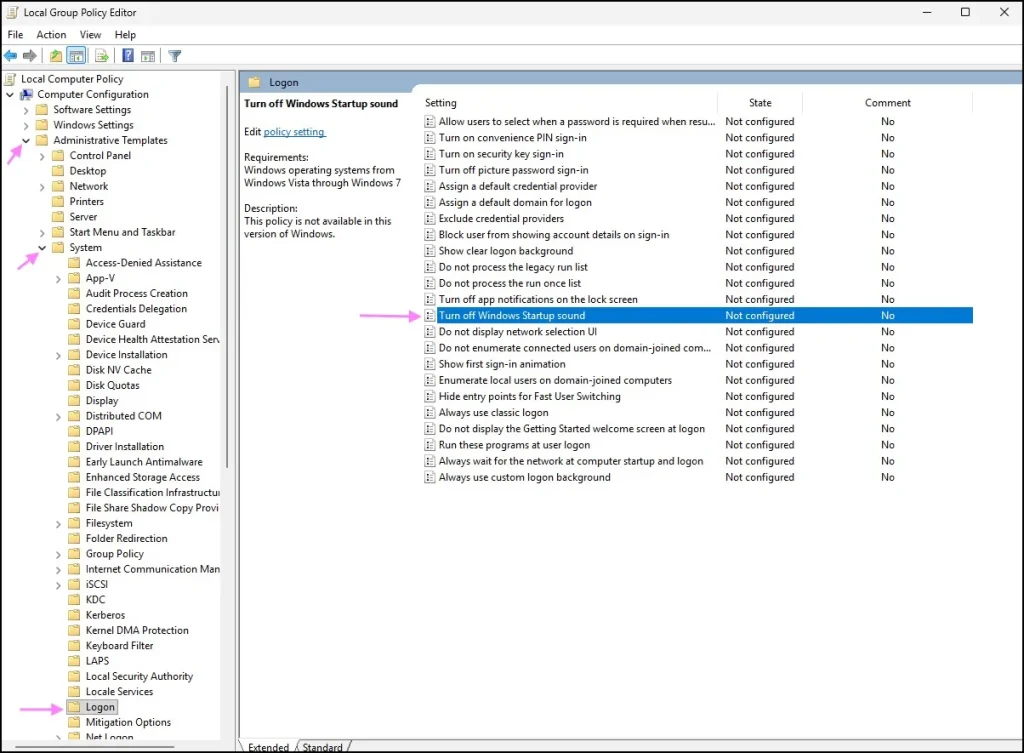
Double-click on it. Now select Enabled.
After selecting it, surely click Apply and then click OK.
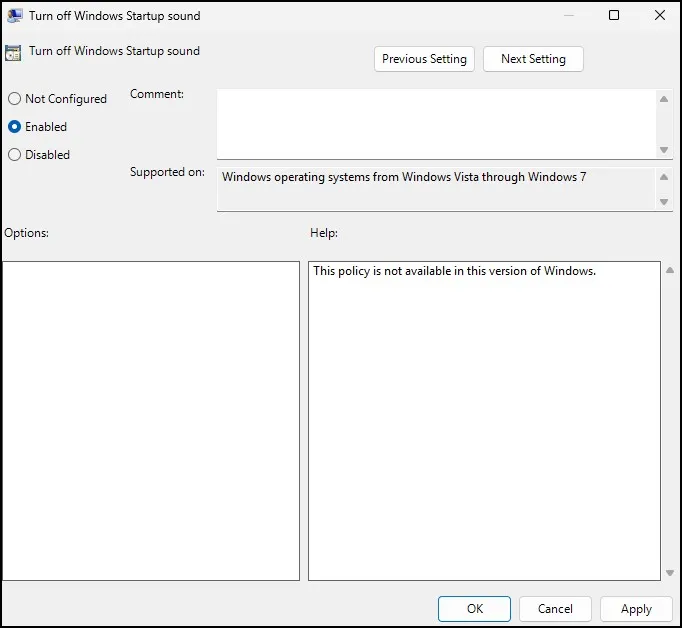
You should actually restart your computer one time. This will definitely help fix the problem.
After doing this, Windows should permanently disable startup sound even after future restarts.
One important thing though — this method usually works only on Windows 11 Pro edition because Group Policy Editor is missing in Home edition.
Method 3: Disable Startup Sound from Registry Editor
This method is more for advanced users. I normally don’t recommend touching Registry Editor unless necessary, but the option exists so I’ll still mention it.
Press Windows + R again.
This time type:
Regedit and hit Enter.
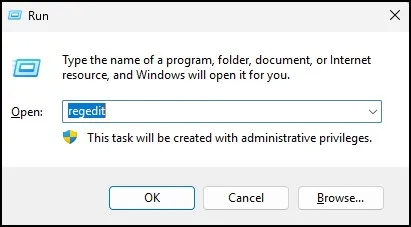
Once Registry Editor opens, go to this path:
HKEY_LOCAL_MACHINE\SOFTWARE\Microsoft\Windows\CurrentVersion\Authentication\LogonUI\BootAnimation
Now look for a value called:
DisableStartupSound
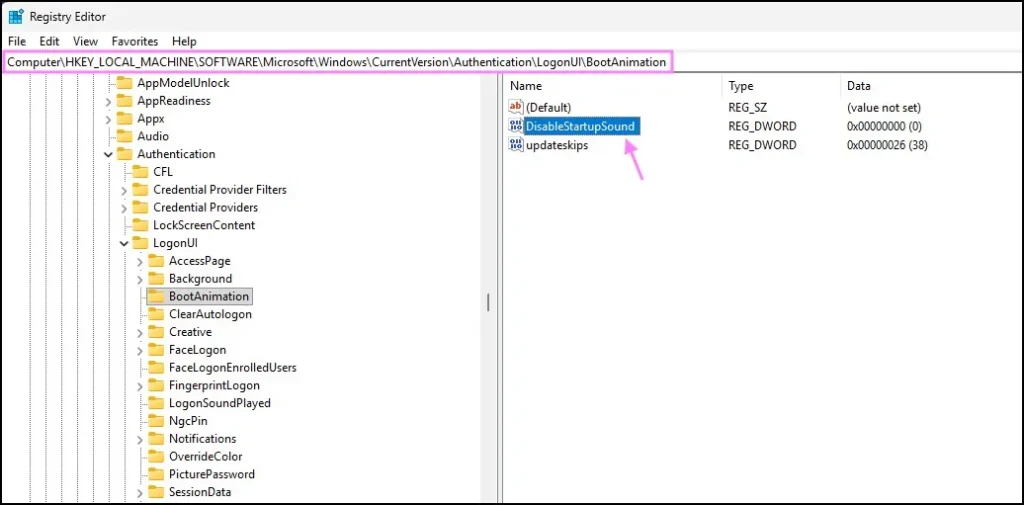
If it already exists, double-click it and change the value from 0 to 1.
Then click OK.
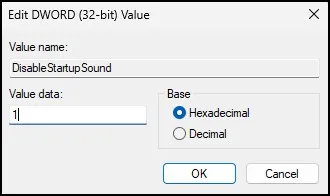
If the value is missing, you can manually create a new DWORD (32-bit) value and name it exactly:
DisableStartupSound
Then set its value to 1.
Close Registry Editor and restart the PC.
Moreover, this process will surely turn off the Windows startup sound completely.
Most people surely will not require this approach, but it can provide assistance when other methods fail.
Final Thoughts
These methods will help you turn off Windows 11 startup sound permanently for a quieter experience. The process itself requires minimal effort and can further improve your system’s startup behaviour.
The Sound Settings method is definitely the easiest one and works perfectly for most users. The other methods are mostly there as backup options in case Windows decides to act weird after updates.
Anyway, hopefully this saved you a few minutes of digging through settings menus.
Also Read: How to Turn Off Automatic Driver Updates in Windows 11
Frequently Asked Questions (FAQs)
How do I turn off Windows 11 startup sound quickly?
Open Sound Settings, go to More sound settings, open the Sounds tab, and uncheck “Play Windows Startup sound.”
Why does the startup sound still play after disabling it?
Sometimes Fast Startup or Windows updates can cause the setting to reset. Try restarting the PC fully.
Can I disable startup sound in Windows 11 Home edition?
Yes, you can use the normal Sound settings method. Group Policy Editor is not available in Home edition by default.
Does disabling startup sound improve boot speed?
No, it does not noticeably improve startup performance.
Is it safe to disable startup sound through Registry Editor?
Yes, but you should carefully follow the steps and ideally create a restore point first.