
As per my observation, my system was showing some small problems regarding its working. That is when I realized I had not checked for updates in quite some time, and this realization itself prompted me to further investigate the current status. check installed windows updates windows 11 is surely a common requirement among users. Windows installs updates quietly in the background, so it becomes difficult to track what updates were installed further. The system itself does not provide clear information about recent installations.
This guide explains simple methods to view installed updates in Windows 11 itself. Some methods are surely simple for beginners, while others require more technical knowledge. But everything will be easy to follow.
Method 1: Check Installed Updates from Settings (Easiest Way)
This is actually the first place most people definitely visit, and there are good reasons for it. It’s actually very simple and clean, so you definitely don’t need any technical knowledge to use it.
To check installed windows updates windows 11 using Settings:
Click the Start menu first, and then definitely open Settings. Also, once you reach there; go to Windows Update on the left side. You should surely look for the Update History option and click on it. Moreover, this step will provide access to the system’s previous updates.
You’ll now see a list showing only all updates that have been put on your computer system.

What I personally like here is that Windows separates updates into categories like:
- Quality updates
- Driver updates
- Definition updates
- Other updates
So it’s pretty easy to understand what’s what. If you just want a quick overview, this method works perfectly.
Method 2: View Installed Updates via Control Panel
Now this one feels a bit old-school, but it’s still very useful. I sometimes prefer this when I need more detailed info, especially uninstall options.
Press Windows + R, type control, and hit Enter.

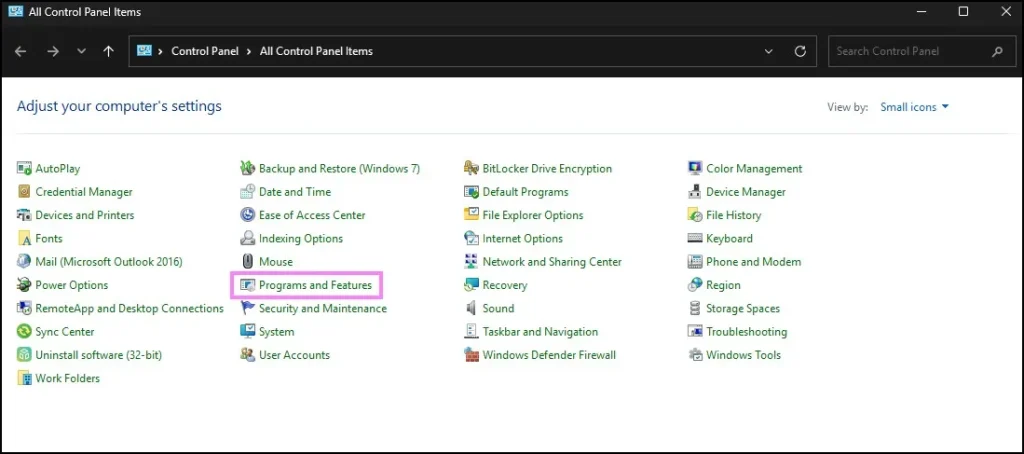
This opens the Control Panel. From there, go to Programs → Programs and Features.
And then click on View installed updates on the left side.
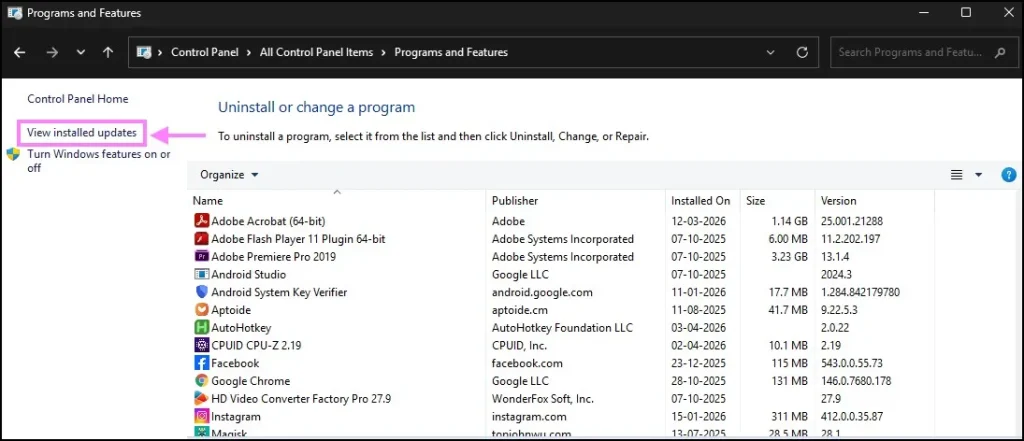
Here, you’ll get a detailed list of updates, including:
- Update name (like KB numbers)
- Installation date
- Microsoft Windows vs other components
If you’re troubleshooting something, this view is actually more helpful than Settings. You can even uninstall updates directly from here.
So yeah, not the most modern interface, but still very useful.
Method 3: Use Command Prompt (CMD) to view installed updates
We are moving further into technical areas, but the process itself is quite simple.
To check installed windows updates windows 11, we only need to use Command Prompt.
You actually need to click Start, then search for Command Prompt and open it. This will definitely give you access to the command line interface.
Then type this command:
wmic qfe list
Press Enter, and you’ll instantly get a list of installed updates.

What this shows:
- HotFix ID (KB number)
- Installed date
- Description
It actually looks messy compared to Settings, but it definitely works fine. This method is surely useful for people who want fast results without much clicking. Moreover, it provides a handy solution for quick tasks.
This command is actually being removed slowly, so it will definitely not work forever.
As per the Command Prompt method, if the Installed On date is not showing or blank, this is normal and not an error regarding your process.
We are seeing this problem happening quite often only when you check installed windows updates windows 11using the wmic command. The reason is simple: Windows doesn’t always store or display the install date properly through this older tool.
So yeah, sometimes you’ll see:
- Update name (KB number) ✅
- Description ✅
- Installed date ❌ (missing or blank)
Honestly, this is one of the limitations of using Command Prompt for this task.
A Slightly Better CMD Command (Still Not Perfect)
You can try using a more focused command like this:
wmic qfe get HotFixID,InstalledOn
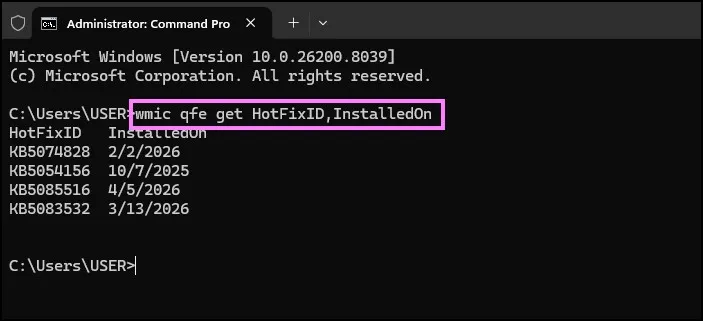
This filters out unnecessary details and only shows update ID and install date.
But just to be clear—it still may not show dates for every update. Kind of hit or miss.
Method 4: Use PowerShell to view installed updates(More Powerful Option)
If you’re okay using PowerShell, this method gives you a bit more flexibility.
To view installed updates, open PowerShell (just search for it in Start), and type:
Get-HotFix
Press Enter.
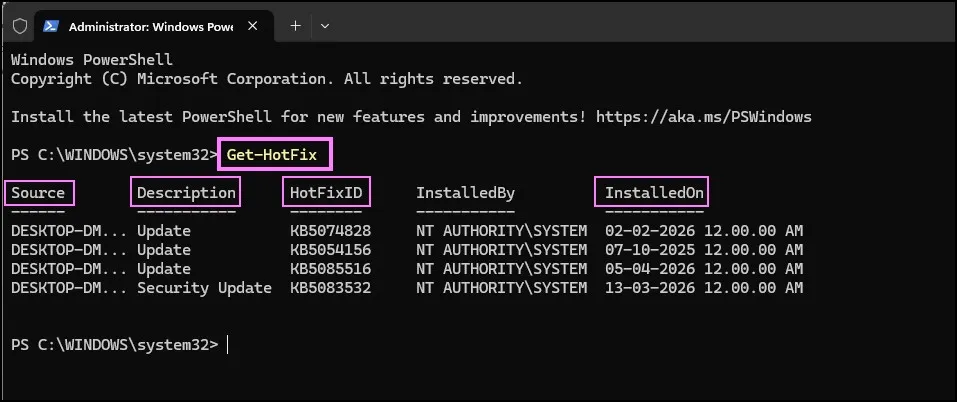
You’ll see a structured list of updates, including:
- Source
- Description
- HotFix ID
- Installed On
Honestly, this feels cleaner than Command Prompt output. Plus, if you want, you can filter or export this data later.
For example, you can even do something like:
Get-HotFix | Sort-Object InstalledOn
This sorts updates by date. Pretty useful if you’re tracking recent changes.
If you’re curious about how this command works behind the scenes, you can refer to the Get-HotFix command documentation by Microsoft for a more detailed explanation.
Method 5: Check Installed Updates Using System Information
This one is actually not getting enough attention. It definitely deserves more recognition. Basically, not many people use it, but the same thing can still help.
Press Windows + R keys together, type msinfo32, and hit Enter. This action further opens the System Information window itself.
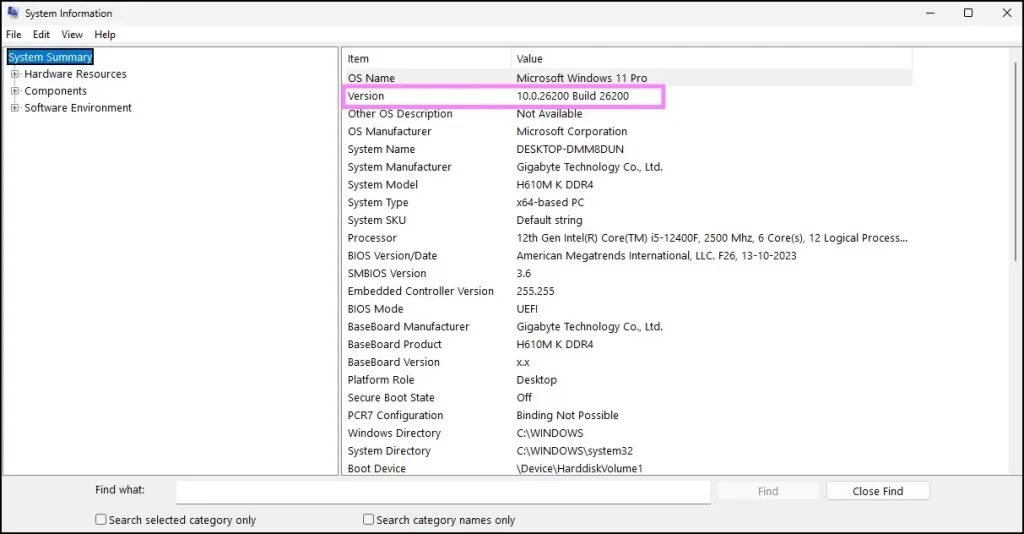
Moreover, basically, this method doesn’t show the same complete update list, but it gives system details that help you understand update status indirectly.
As per the online version information, you can check regarding whether your system is updated or not.
So yeah, not the most direct method to check installed windows updates windows 11, but still worth knowing.
Which Method Should You Use?
The answer surely depends on the specific requirements. Moreover, individual needs determine the most suitable approach.
If you are only wanting a quick look, we are seeing that going with Settings is best.
If you actually want details or uninstall options, Control Panel is definitely better.
If you want to use commands only, we are seeing that CMD or PowerShell will work for this job.
I surely switch between Settings and PowerShell based on the specific situation. Moreover, both methods serve different purposes depending on the task requirements. These two points further cover all aspects of the matter itself.
Why You Should Check Installed Updates Occasionally
Most of the time, we just assume Windows is doing its job—and it usually does. But sometimes updates fail, or install partially, or even cause issues.
I’ve personally run into situations where a recent update broke something, and checking the update history helped me figure it out quickly.
So yeah, it’s a small habit, but it can save you a lot of time.
But sometimes updates don’t install properly or get stuck without you noticing. If that happens, you can check my guide on fixing stuck Windows 11 updates—it’s simple and actually works.
Final Thoughts
That surely completes the entire discussion, moreover this covers all the essential points. These methods help check installed Windows updates Windows 11 itself, whether you use menus or commands further.
As per your comfort, you can pick any one option regarding the available choices. It is good to know other options, further when something does not work properly itself.
Frequently Asked Questions (FAQs)
How do I quickly check installed updates in Windows 11?
The fastest way is through Settings → Windows Update → Update History.
Can I uninstall updates from Windows 11?
Yes, you can uninstall updates from the Control Panel under “View installed updates”.
What does Get-HotFix do in PowerShell?
It shows a list of installed updates along with details like date and KB ID.
Why are some updates not visible in Settings?
Some updates may appear under different categories or may only show in Control Panel or PowerShell.
Is CMD method still supported in Windows 11?
It works for now, but it may be deprecated in future versions.