
You may have noticed a new Copilot icon on your taskbar if you recently updated your computer. This feature was introduced by Microsoft to help users with quick assistance and shortcuts. While some people find it useful, many users prefer a clean desktop without extra features and that may be the reason you want to disable Copilot in windows 11 completely from your system.
In this guide, you’ll learn why you might want to turn off Copilot from your PC and discover multiple simple ways to disable Microsoft Copilot safely and properly.
What Is Copilot in Windows
Copilot is a feature of Windows 11. It has a taskbar icon and opens a sidebar when you click on it.
It can assist with things such as:
- Changing system settings
- Opening apps
- Getting quick answers
- Performing basic Windows actions
However, some users don’t use it regularly and prefer to disable Copilotin Windows 11 to reduce distractions.
Common reasons users choose to disable Copilot in Windows 11
You may want to disable Copilotin Windows 11 for a few reasons. For several users the taskbar integration is messy and would instead have a clean desktop-friendly experience. Some fear that they may superfluously invoke the assistant while using their computers as normal. Still, others who do not rely on AI assistants may want to eliminate Copilot from taskbar to give some space. Privacy-conscious users tend to turn offCopilot, as they like to keep their interactions and data local rather than transmitting information to cloud servers.
Method 1: Turn off Copilot from Taskbar Settings (Easiest Method)
This is the simplest method and works for most users.
Step-by-step instructions:
- Right-click on an empty area of the taskbar
- Click Taskbar settings
- Look for the Copilot option
- Then click on Uninstall
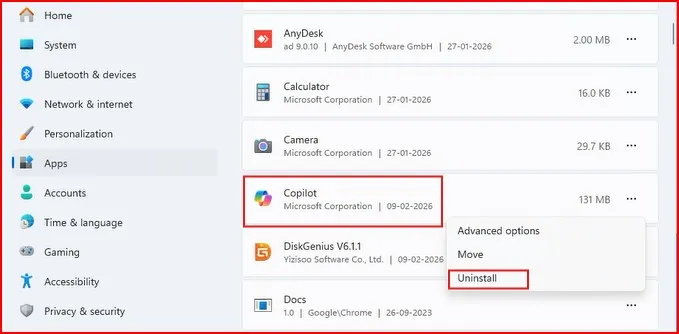
That’s it. The Copilot icon will immediately disappear from the taskbar.
This method is best if you just want to remove Copilotin Windows 11 taskbar icon without changing system settings.
Method 2: Turn offCopilot Using Group Policy Editor (Pro and Enterprise)
If you’re running Windows 11 Pro or Enterprise, you can completely turn off Copilot.
Follow these steps:
- Press Windows + R on your keyboard
- Type gpedit.msc and press Enter

- Navigate to:
- Computer Configuration > Administrative Templates > Windows Components where you’ll locate the Copilot policy settings
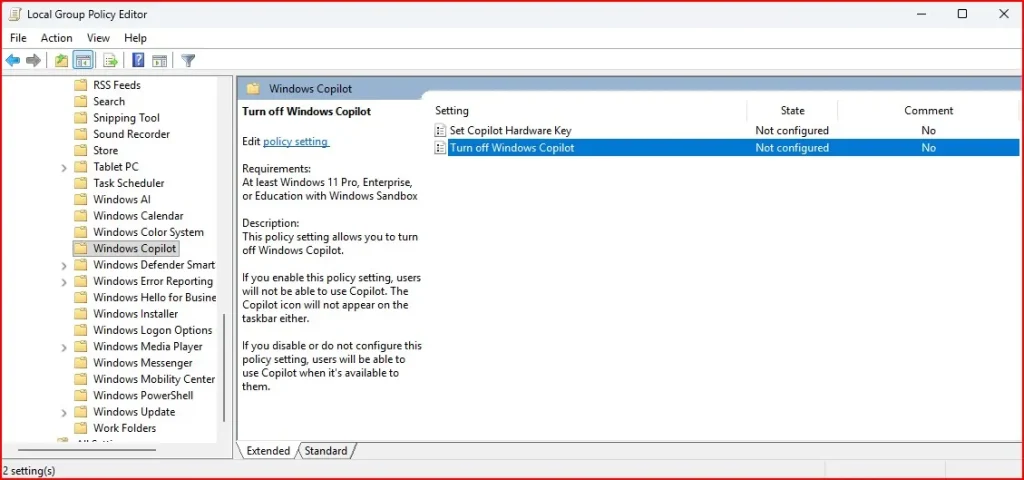
- Double-click on Turn off Windows Copilot
- Select Enabled
- Click Apply and then OK
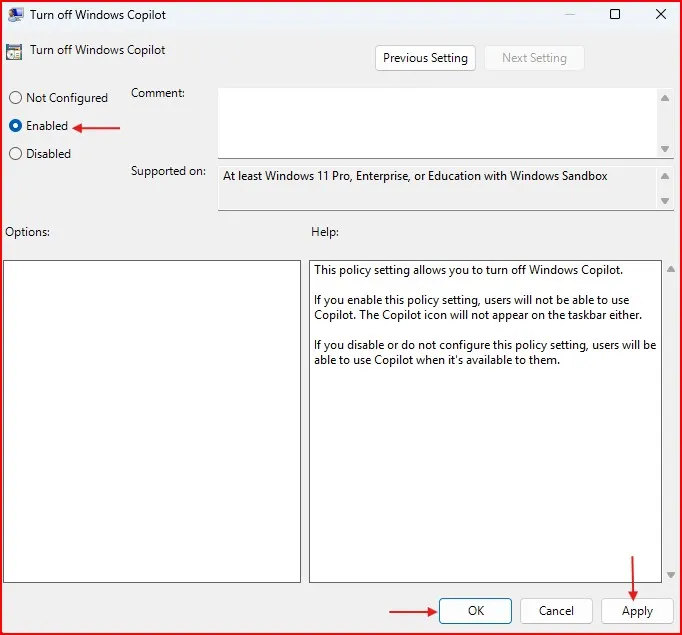
- Restart your computer
After restarting, Copilot will be fully disabled. This method ensures Copilot cannot be accessed accidentally.
Method 3: Disable Copilot Using Registry Editor (Windows 11 Home)
Windows 11 Home does not include the Group Policy Editor, but you can use Registry Editor. But before you make any changes to registry, your first priority should be create a System Restore Point so that your data remains intact.
Follow carefully:
- Press Windows + R
- Type regedit and press Enter
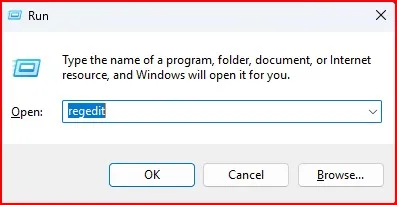
- Go to this path:
HKEY_CURRENT_USER\Software\Policies\Microsoft\Windows

- Right-click on Windows
- Click New → Key
- Name it: WindowsCopilot
- Right-click on WindowsCopilot
- Click New → DWORD (32-bit) Value

- Name it: TurnOffWindowsCopilot
- Double-click it and set value to 1
- Click OK

- Restart your computer
This will successfully disable Copilot using registry method.
Final Thoughts:
So, here you have the exact steps how to disable Copilot in Windows 11 easily and safely. Regardless of whether you choose to use Taskbar Settings, Group Policy or Registry Editor, the process is simple.
If you don’t use Copilot, turning it off can make your desktop cleaner and less distracting. And the best part: You can turn it back on whenever you want.
Frequently Asked Questions (FAQs)
Is it safe to disable Copilot in Windows 11?
Yes, it is completely safe. Disabling Copilot does not harm your system.
Can I enable Copilot again later?
Yes. Simply reverse the steps or turn the toggle back ON in taskbar settings.
Does disabling Copilot improve performance?
It may slightly reduce background activity, but the performance difference is usually small.
Why don’t I see Group Policy Editor?
Group Policy Editor is not available in Windows 11 Home. Use the Registry method instead.
Will disabling Copilot uninstall it?
No. It only disables the feature. It remains part of the system but stays inactive.