
I didn’t really care about storage space until one day my laptop just refused to cooperate. Apps were lagging, updates were failing, and I kept seeing that “storage almost full” warning. That’s when I finally decided to free up space in Windows 11… and honestly, I should’ve done it much earlier.
If your computer becomes slow or your C drive is getting full, you don’t need anything complicated. I’ve tried a bunch of things, and these are the ones that actually worked for me to clean C drive Windows 11 without messing anything up.
Let’s go through them.
1. Disk Cleanup — Start Here First
This is actually what I definitely do first every time.
Basically, you search for Disk Cleanup in the Start menu and select the same C drive option.
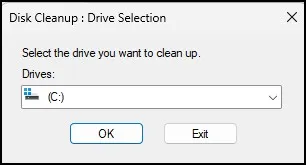
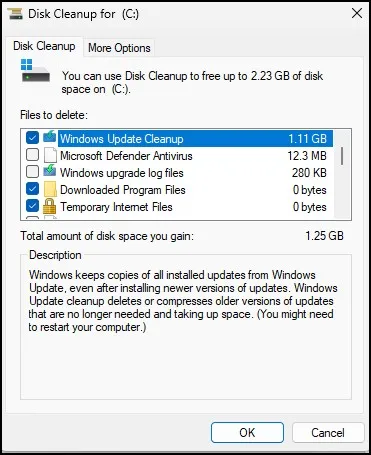
The app actually scans for a few seconds, then it definitely shows you all the junk files in a simple list.
The first time I ran it, I didn’t expect much… but it cleared almost 3GB. Especially the “Windows Update Cleanup” part — that one eats space quietly.
Just tick the boxes, click OK, and let it run.
2. Storage Sense (Set It and Forget It)
I used to manually clean everything, but I got lazy. That’s when I found Storage Sense.
Go to Settings → System → Storage→Storage Sense, and turn it on. That’s it.
You can further tell the system when to run itself — like every week or month. The system now deletes temporary files automatically and further clears the Recycle Bin itself.

It’s one of the easiest ways to free up space in Windows 11 without thinking about it again.
3. Recycle Bin — Surprisingly Heavy
I ignored this for months.
One day I opened it and… boom. Almost 6GB sitting there. Just trash.
Right-click → Empty Recycle Bin. Done in 5 seconds.

It sounds basic, but if you’re trying to clean C drive Windows 11, don’t skip this.
4. Remove Apps You Forgot Exist
We all do this.
Install something → use it once → forget about it forever.
Go to Settings → Apps → Installed apps and just scroll slowly. You’ll definitely find things you don’t need.
I removed a couple of old games and random tools… freed up nearly 10GB.
That felt good.

5. Temp Files — Hidden Junk Everywhere
Temporary files build up over time, and Windows doesn’t always clean everything properly.
Hit Windows + R, type %temp%, and press Enter. A folder will open with a lot of random files. Just select everything and delete it. Some files may not delete—don’t worry, just skip those.

Now do the same for a couple of other folders.
Again hit Windows + R, type temp, and hit Enter. Delete all files from there as well.

Another folder that you can go through is the Prefetch. Press Windows + R, enter prefetch, hit Enter. If prompted, click Continue. You will then remove all files from inside.

These are mostly cached files that Windows creates to speed things up a bit, but they can just sit there and take up space as the years go on.
It’s not a massive clean-up but it sure helps when you’re looking to free up space in Windows 11 without doing anything drastic.
6. Big Files — The Real Culprit
At one point, I realized… it wasn’t Windows.
It was me.
Downloads folder full of old videos, ISO files, random stuff I didn’t even remember downloading.
Go to Settings → Storage and check what’s taking space. Or just open your Downloads folder and sort by size.
Move large files to another drive or external storage.
This is probably the most important step if your C drive is full.
7. Turn Off Hibernation (Quick Win)
I didn’t even know this existed before.
Windows creates a file for hibernation, and it can take several GB. If you don’t use hibernate, you can remove it.
Open Command Prompt as admin and type:
powercfg -h off
Press Enter… and that space is gone instantly.
Simple and effective.

8. Remove Old Windows Update Files (Including Cache Cleanup)
This is something I didn’t even realize was taking up space until I checked properly.
Even after Windows installs updates, it keeps old update files in the background. Over time, these can easily take a few GB on your C drive.
The easiest way to clean this is using Disk Cleanup.
Just search for Disk Cleanup, open it, select your C drive, and then click on “Clean up system files.” After the scan, look for “Windows Update Cleanup” and tick it.
Click OK and let it run. It can take a few minutes, but it’s perfectly safe.
When I did it for the first time, I reclaimed a pretty significant amount of space without deleting anything important.
For a more in-depth, step-by-step description (with additional tips and screenshots), have a look at my complete guide on How to Delete Old Windows Update Files safely.
If You Want to Dive a Little Deeper
You can also manually delete the update cache if you’re still scraping for space.
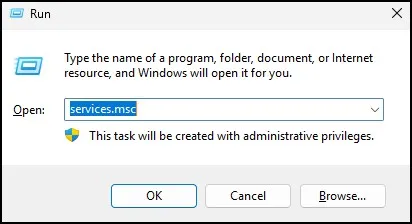
Open services.msc using Windows + R, and press Enter.
Right-click Windows Update, and click Stop.

Now, open File Explorer and navigate to:
C:\Windows\SoftwareDistribution\Download

Delete everything inside that folder.
When done, return to the Services window and Start the Windows Update service once more.
You do not have to do this all the time, yet it is useful when you are truly attempting to resolve free up space in Windows 11 and nothing else does much damage.
For more, check out the official Microsoft guide to saving disk space in Windows.
Final Thoughts
You don’t need to do everything here.
Even 3–4 of these steps can make a noticeable difference. When I first tried this, I freed up almost 20GB — without deleting anything important.
Now I just do a quick cleanup once in a while, and I don’t get those annoying warnings anymore.
If your system feels slow, just start small. That’s enough to free up space in Windows 11 and get things back to normal.
Frequently Asked Questions (FAQs)
How often should I clean my C drive in Windows 11?
Once a month is usually enough for regular users.
Is it safe to delete temporary files?
Yes, they are not needed after use. Just skip files that are in use.
What takes up the most space on C drive?
Usually apps, games, videos, and Windows update files.
Does Disk Cleanup delete important files?
No, as long as you don’t select Downloads or personal folders.
Can low disk space slow down my PC?
Yes, especially if your system drive (C:) is almost full.