
I left my PC for few hours and when I returned, it was filled with random apps that installed itself without my knowledge, which further created problems for the system. Some were harmless, but a few actually made my computer slower. That’s when I started looking for ways to stop users from installing software Windows 11 without completely locking down the entire system.
If you share your computer with family, kids, or even in an office setup, this becomes really important. The good news is—you don’t need any third-party tools. Windows 11 already gives you multiple ways to control or block app installations.
Let me walk you through what actually works, based on real use.
Why You Might Want to Block Software Installation
Before proceeding with the steps, one should surely consider their current situation carefully.
Maybe:
- Someone installs unnecessary apps or games
- You want to prevent malware or unknown software
- It’s a shared PC in office or home
- Kids keep downloading random stuff
In all these cases, learning how to block app installation Windows 11 can save you a lot of trouble later.
Method 1: Use Microsoft Store Restriction (Simple Method)
This is probably the easiest method, and honestly, it works well for basic control.
Windows has a built-in setting where you can allow apps only from the Microsoft Store.
Here’s how I did it:
- Open Settings
- Go to Apps
- Click on Advanced app settings
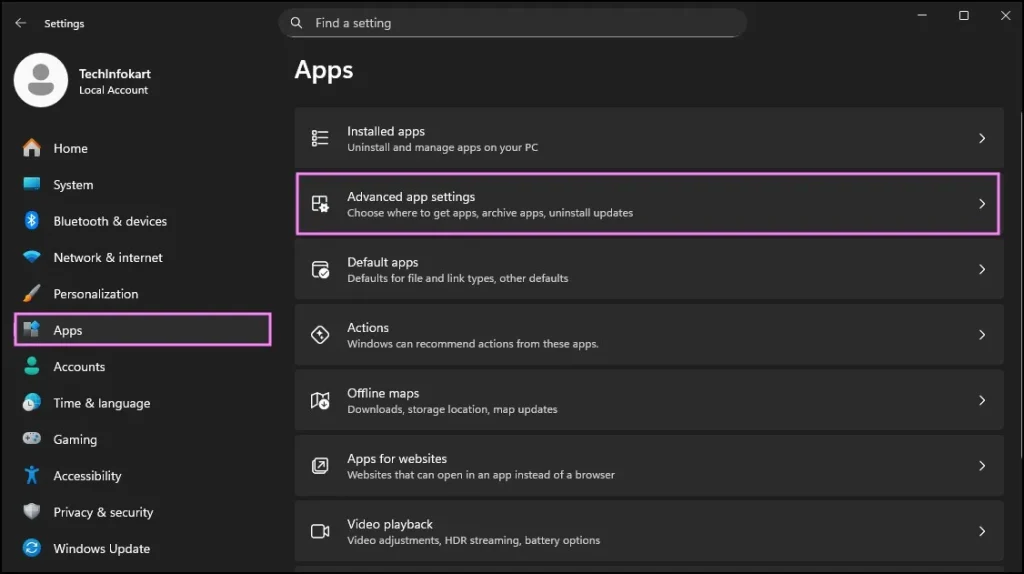
- Find the option: Choose where to get apps
- Select: The Microsoft Store only
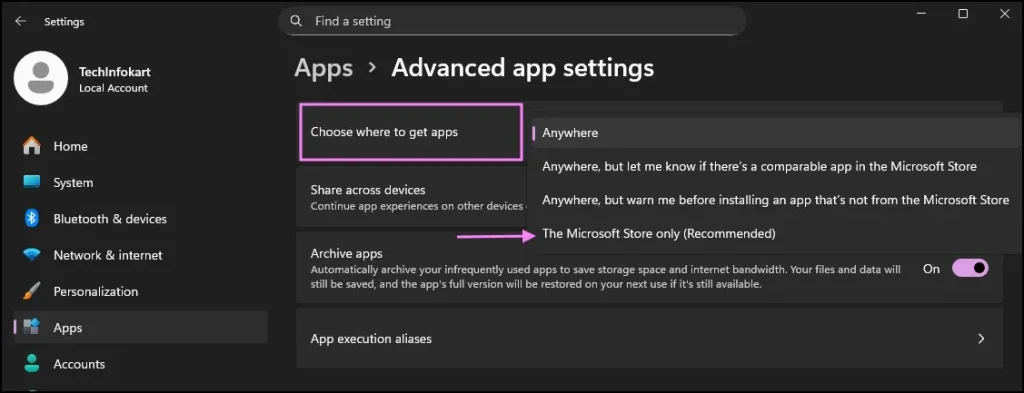
That’s it.
Basically, if someone tries to install software from outside sources like downloading.exe files, Windows will block the same.
I use this on my second PC, and it works fine for regular control itself. Further, it handles daily tasks without any problems. However, this method itself is not completely secure, and advanced users can further bypass these restrictions.
Method 2: Use Local Group Policy Editor (More Control)
If you actually want something stronger, things definitely get serious here.
Note: This method actually works only on Windows 11 Pro, Enterprise, or Education editions. It definitely won’t work on other versions. We are seeing that Windows 11 Home users will not get Group Policy Editor by default only. For that, I have already shared the simple steps to enable it. You can actually check my detailed post on how to enable Group Policy Editor (gpedit.msc) in Windows 10/11 Home Edition, and then come back here to continue with this method.
When I first used this, it seemed technical, but understanding it further shows the tool itself is very powerful.
Steps:
- Press Windows + R
- Type gpedit.msc and hit Enter
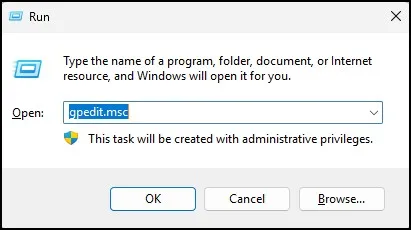
- Navigate to:
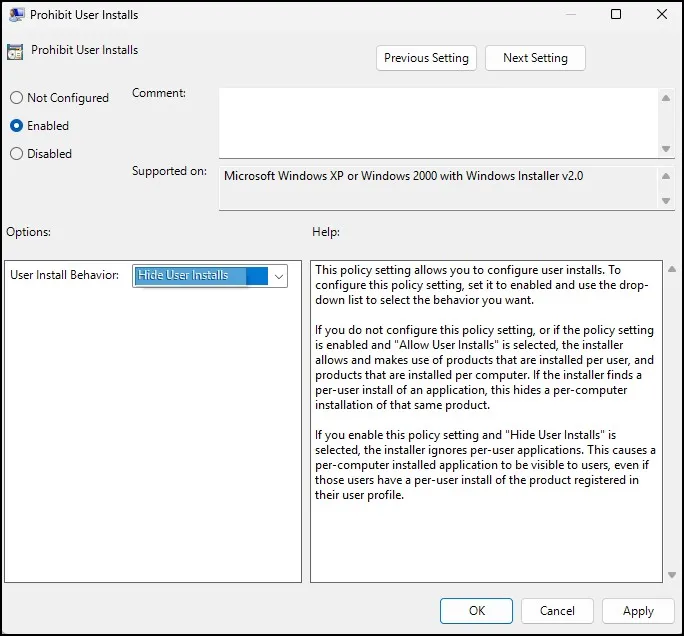
Computer Configuration → Administrative Templates → Windows Components → Windows Installer - Find “Prohibit User Installs”
- Double-click it
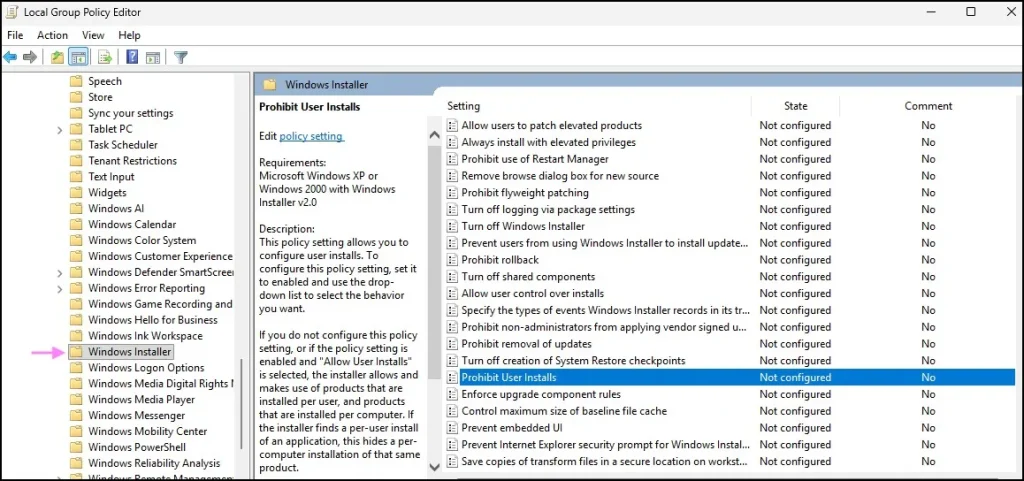
Now you’ll see options:
- Not Configured
- Enabled
- Disabled
- Select Enabled
- Click Apply → OK.
Done.
Now no one can install software using Windows Installer. This is one of the most effective ways to stop users from installing software Windows 11, especially in office environments.
Method 3: Block Through Standard User Account (Practical Everyday Method)
This is something I recommend the most for home users.
Instead of giving everyone admin access, just create a standard user account.
Why this works
When someone tries to install software, Windows asks for admin permission. If they don’t have it, they simply can’t proceed.
How to set it up:
- Open Settings
- Go to Accounts → Family & other users
- Add a new user (if needed)
- Change account type to Standard User
That’s it.
I use this setup at home, and honestly, it solves 90% of the problem without complicated settings.
Method 4: Use AppLocker (Advanced Level Control)
Now this one is powerful—but a bit advanced.
AppLocker lets you decide exactly which apps can run or install. Microsoft also provides a detailed AppLocker policy configuration guide if you want more control over allowed applications.
Again, this works on Windows 11 Pro or higher.
Basic idea:
- You create rules
- Allow only trusted apps
- Block everything else
Steps (simplified):
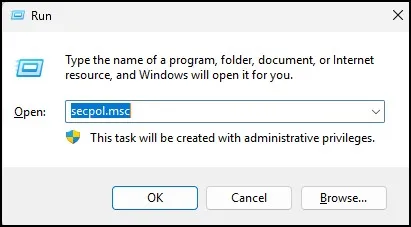
- Press Windows + R, type secpol.msc
- Go to:
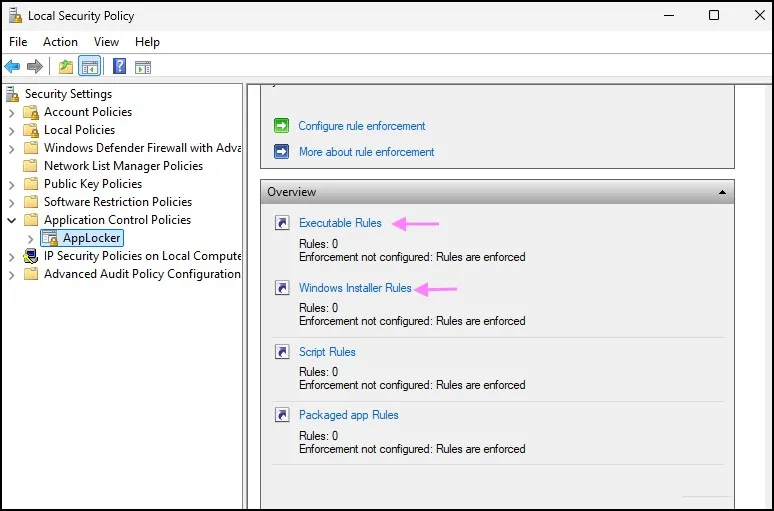
Application Control Policies → AppLocker - Create new rules under:
- Executable Rules
- Windows Installer Rules
You can allow:
- Specific apps
- Apps from certain folders
- Digitally signed apps
Everything else gets blocked.
It takes a little time to configure, but once done, it’s one of the best ways to block app installation Windows 11 completely.
Method 5: Registry Editor Trick (For Windows 11 Home Users)
If you’re using Windows 11 Home and don’t have Group Policy Editor, this method works.
I tried this on a Home edition system, and it worked pretty well.
Steps:
- Press Windows + R
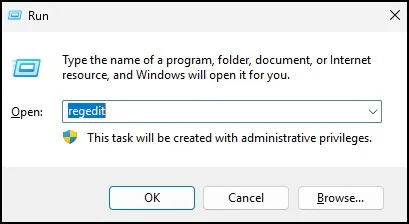
- Type regedit and press Enter
- Navigate to:
HKEY_LOCAL_MACHINE\Software\Classes\Msi.Package\DefaultIcon
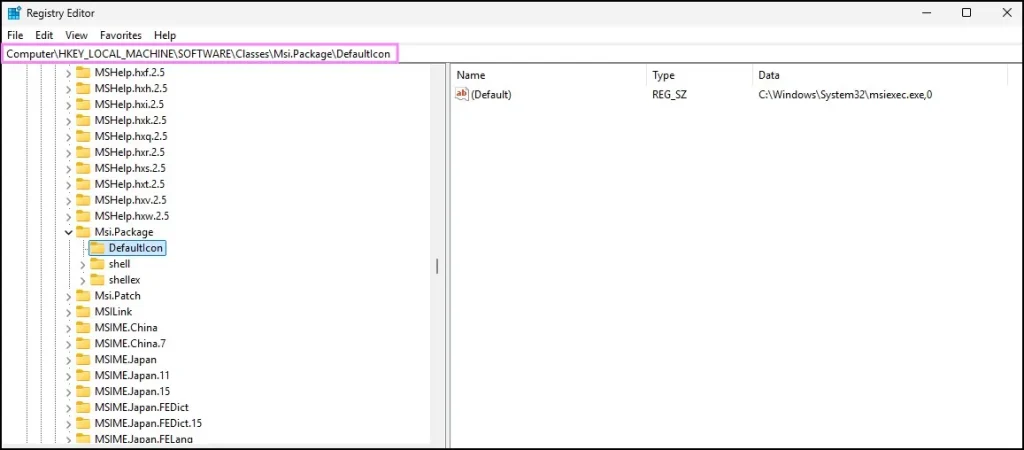
- On the right side, you’ll see a key named (Default). You don’t need to create anything new—just double-click on it.
- In the Value data field, you’ll usually find something like this: C:\Windows\System32\msiexec.exe,0
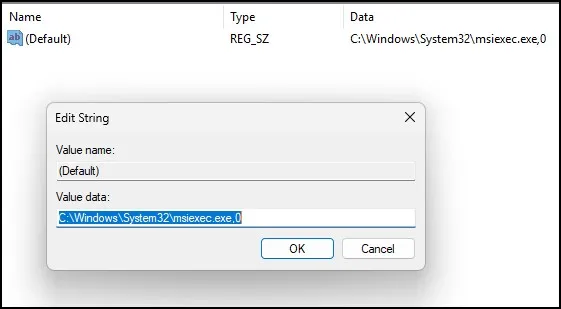
If it’s already set like this, then this method is technically already applied on your system. In real-world use, this method doesn’t make a big difference. Most modern applications use .exe installers, and those are not affected by this change at all. Even on my system, the value was already set, but I could still install many apps without any issue.
Honestly, this method is a bit tricky and not as clean as Group Policy, but it’s still useful if you don’t have other options.
A Quick Tip (From My Experience)
Don’t rely on just one method.
If you really want to stop users from installing software Windows 11, combine:
- Standard user account
- Microsoft Store restriction
This combo works surprisingly well for most people.
If it’s an office or shared environment, then go for Group Policy or AppLocker.
Conclusion
Windows 11 actually provides enough tools to control software installations. You definitely just need to use them the right way.
If you actually share your PC with others or want to stop unwanted apps, you should definitely learn how to block app installation Windows 11.
I actually use the standard user account for daily work, and it definitely keeps things simple without causing problems.
Frequently Asked Questions (FAQs)
Can I completely stop software installation in Windows 11?
Yes, using Group Policy or AppLocker, you can almost completely block installations.
Does this work on Windows 11 Home?
Some methods (like Registry and standard accounts) work, but Group Policy and AppLocker are not available.
Can users bypass these restrictions?
If they have admin rights, yes. Without admin access, it’s very difficult.
Is Microsoft Store restriction enough?
For basic use, yes. But it’s not 100% secure.
What is the easiest method?
Using a standard user account is the simplest and most effective for most people.